
Table of Contents
PowerShell is an open-source program that automates tasks and processes with commands and scripting language. In some cases, you need to update to PowerShell 7. However, it’s all free, and you can do this in three different ways. This article shows you three ways to install the latest PowerShell 7 on Windows.
There are four different options to download and install PowerShell 7 on Windows. Let’s look at all these options, and you can decide which suits you best.
Method 1: Get PowerShell 7 app in Microsoft Store
The easiest way to install PowerShell 7 on Windows 10/11 is to get the app on Microsoft Store.
- Open the Microsoft Store app
- Type PowerShell and search
- Click on Get
It will download the PowerShell 7 app on your Windows, and it is ready to use.
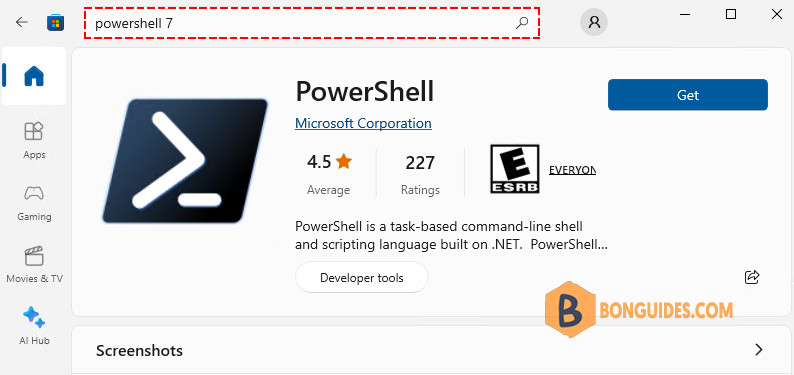
Another option is to download the PowerShell app by going to the Microsoft Store homepage and clicking on the Get in Store app.
That’s it! You successfully downloaded the PowerShell app on your PC, and you can start using it.
Method 2: Use Winget to download and install PowerShell 7
It is recommended to use Winget to download and install the latest version of PowerShell 7. Winget is a command-line tool supported on Windows 11 and Windows 10 version 1709 or later. With this tool, you can download, install or upgrade applications on Windows.
1️⃣ Open PowerShell as administrator and run the below command:
winget install Microsoft.PowerShell2️⃣ It will download and install the latest version of PowerShell 7. Wait for Windows to configure PowerShell 7 The output will appear as below.
PS C:\> winget install Microsoft.PowerShell

Found PowerShell [Microsoft.PowerShell] Version 7.3.6.0
This application is licensed to you by its owner.
Microsoft is not responsible for, nor does it grant any licenses to, third-party packages.
Downloading https://github.com/PowerShell/PowerShell/releases/PowerShell-7.3.6-win-x64.msi
  ██████████████████████████████   100 MB /  100 MB
Successfully verified installer hash
Starting package install...
Successfully installed
You have successfully installed PowerShell 7, and it’s ready to use. Type pwsh in the search box then open PowerShell 7. You can check the version by $psversiontable.
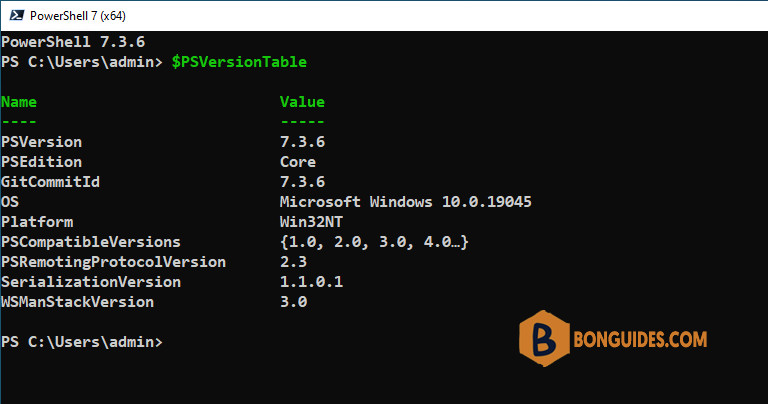
If your Windows does not support Winget command-line, use the next option.
Method 3: Download MSI package to install PowerShell 7
Another way is to download the MSI package from Microsoft.
There are two different packages:
- PowerShell-x.x.x-win-x64.msi
- PowerShell-x.x.x-win-x86.msi
In our example, we did download the PowerShell x64 package. Follow the steps below to install it with the default options.
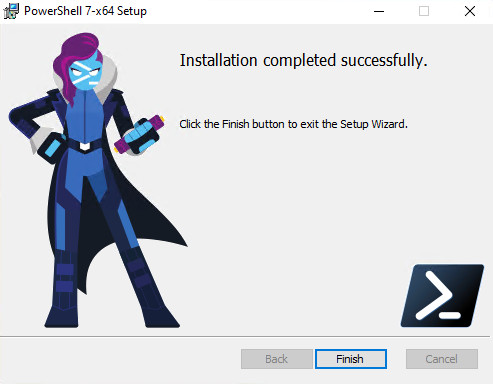
This option is the same as using the Winget command-line as shown in the previous step. The difference is that you need to download the PowerShell 7 setup and go through the setup wizard instead of the previous methods, which does it automatically for you.
Method 4: Install PowerShell 7 with Chocolatey
The last way, we can download and install PowerShell Core using the famous package manager for Windows – Chocolatey.
1️⃣ Open an elevated PowerShell or Terminal window then run the following command to install Chocolatey package manager.
Set-ExecutionPolicy Bypass -Scope Process -Forceirm https://community.chocolatey.org/install.ps1 | iex2️⃣ Once the Chocolatey has been installed. Run the below command to install PowerShell 7 (Core):
choco install powershell-core -yRun PowerShell 7 on Windows
To run PowerShell 7 on Windows, follow the below steps:
- Click on Start
- Search for pwsh
- Select Run as administrator.
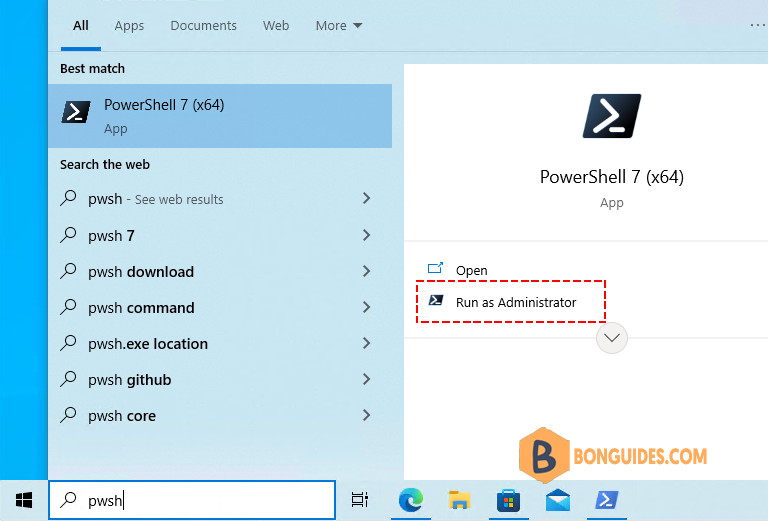
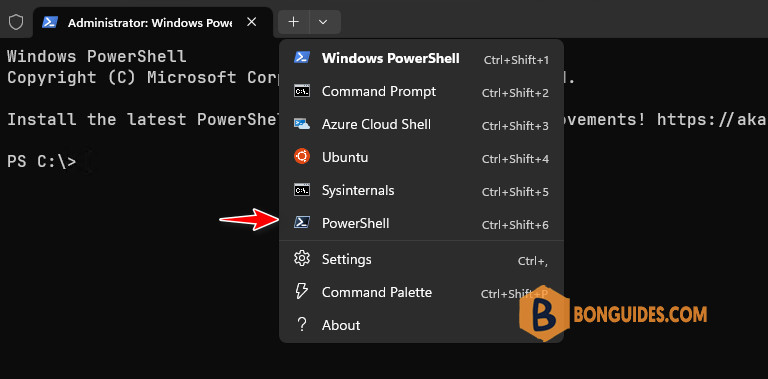
If you’re using Windows Terminal, PowerShell 7 can be opened from the new tab as below:
Conclusion
You learned how to download and install PowerShell 7 on Windows in different ways. The fastest ways are to download the PowerShell app from Microsoft Store or use the Winget command-line tool in PowerShell. Another way is to download the setup and install PowerShell 7 on Windows, but it takes a bit longer because you have to go through the setup wizard.


