How to Hide All Rights Reserved Message in CMD Command Prompt

Table of Contents

Hide All Rights Reserved Message in CMD Command

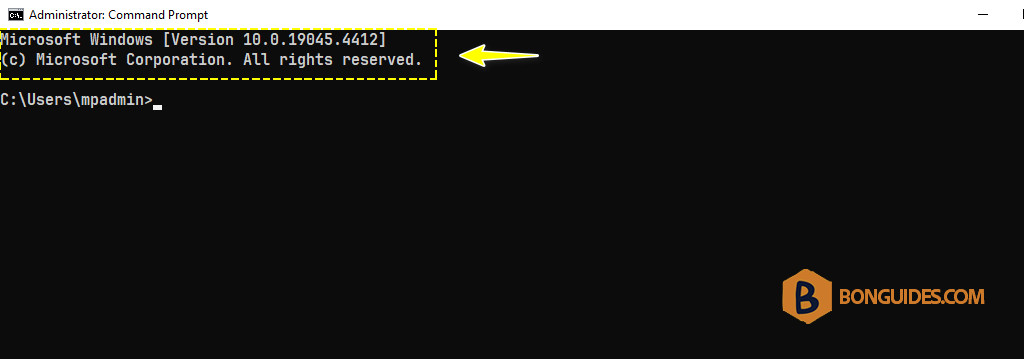
In some cases, you want to remove the banner message every time open CMD Command Prompt.
How to Hide All Rights Reserved Message in CMD Command Prompt

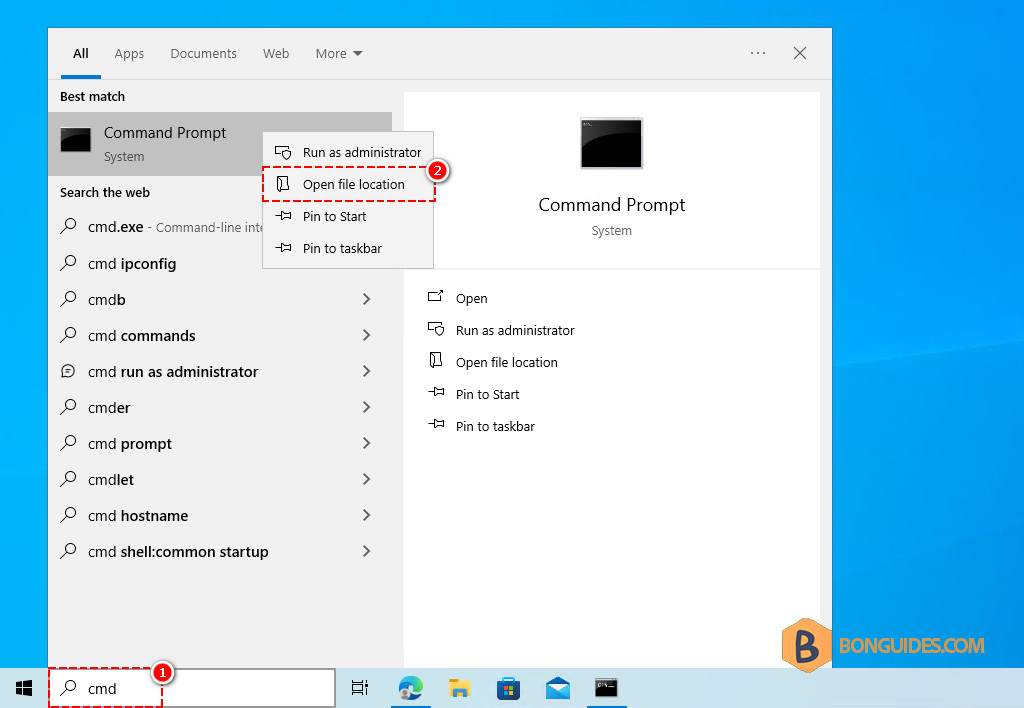
1. Search then open file location of the CMD Command Prompt.
How to Hide All Rights Reserved Message in CMD Command Prompt

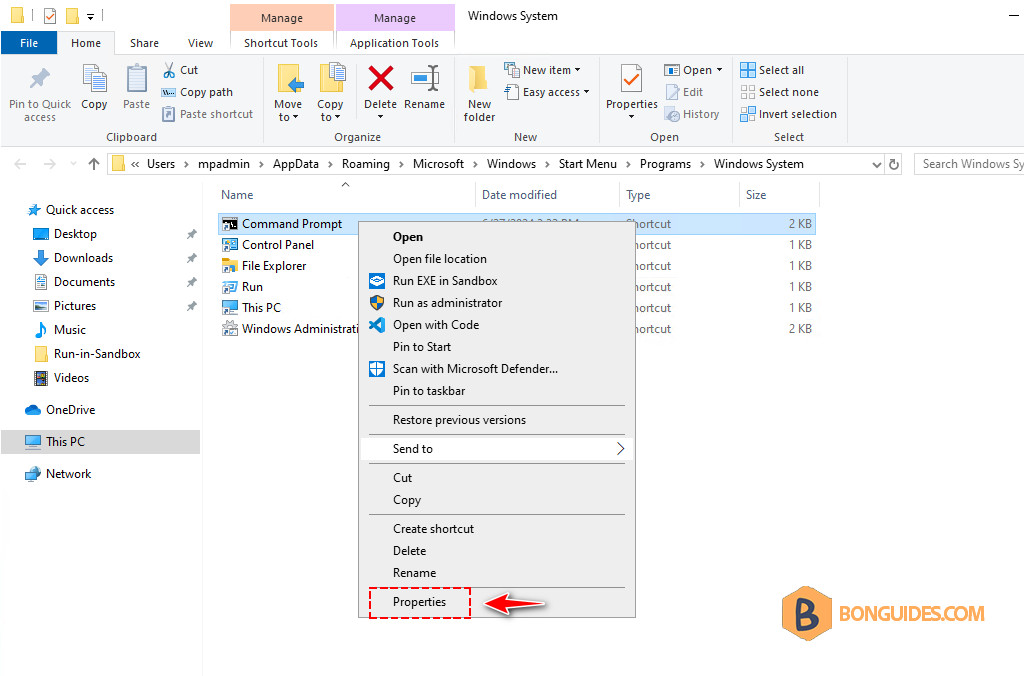
2. Right click on the shortcut and select Properties.
How to Hide All Rights Reserved Message in CMD Command Prompt

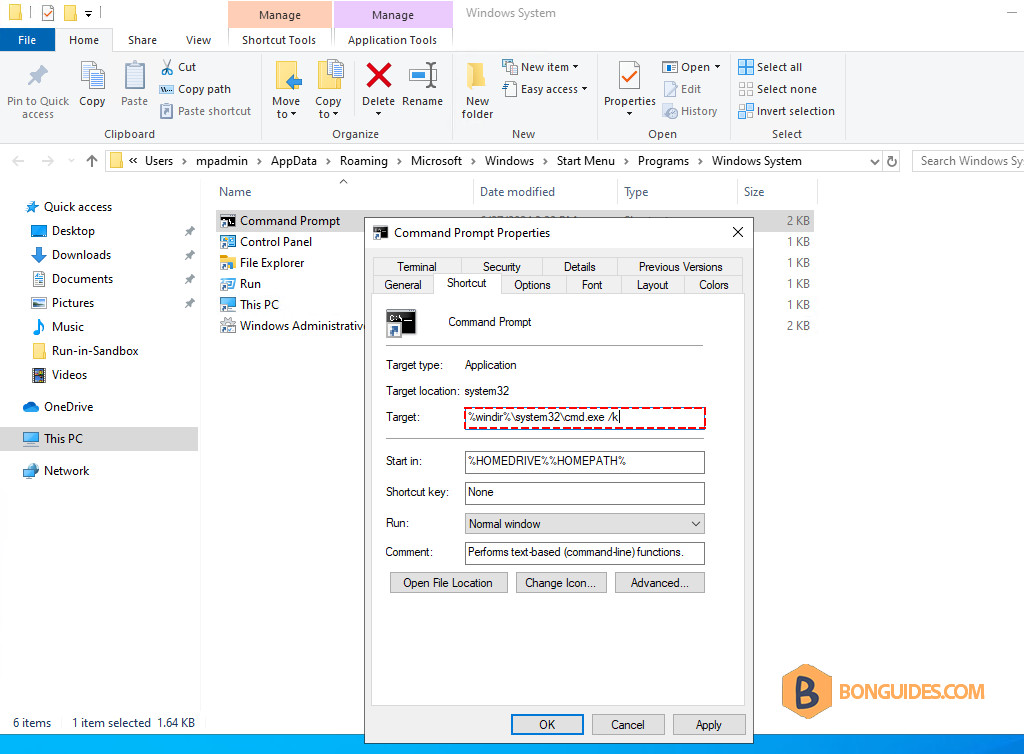
3. Add the /k switch to the target box.

%windir%\system32\cmd.exe /k
How to Hide All Rights Reserved Message in CMD Command Prompt

4. As you can see, the banner was gone.
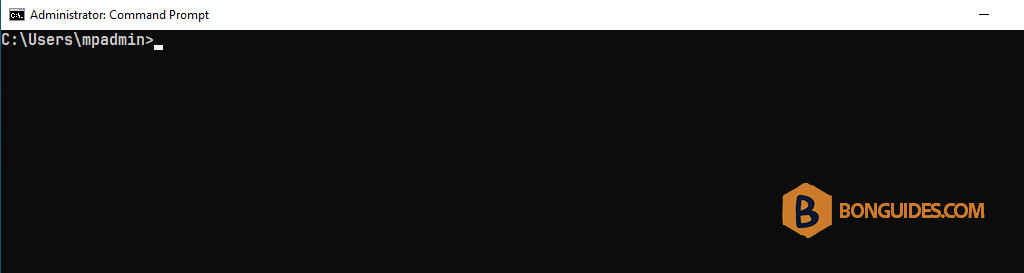
How to Hide All Rights Reserved Message in CMD Command Prompt

Windows Terminal

In Windows Terminal, it can be done using the settings page.
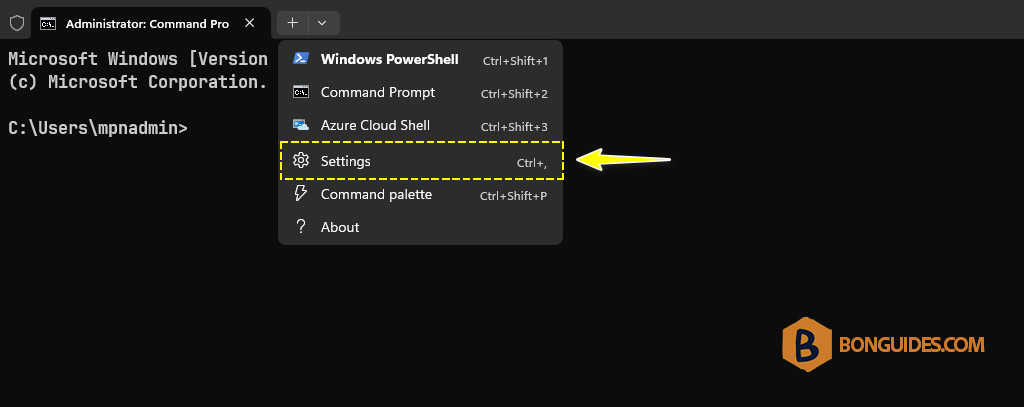
How to Hide All Rights Reserved Message in CMD Command Prompt

Go to the Command Prompt profiles menu and add /k to the command line arguments.
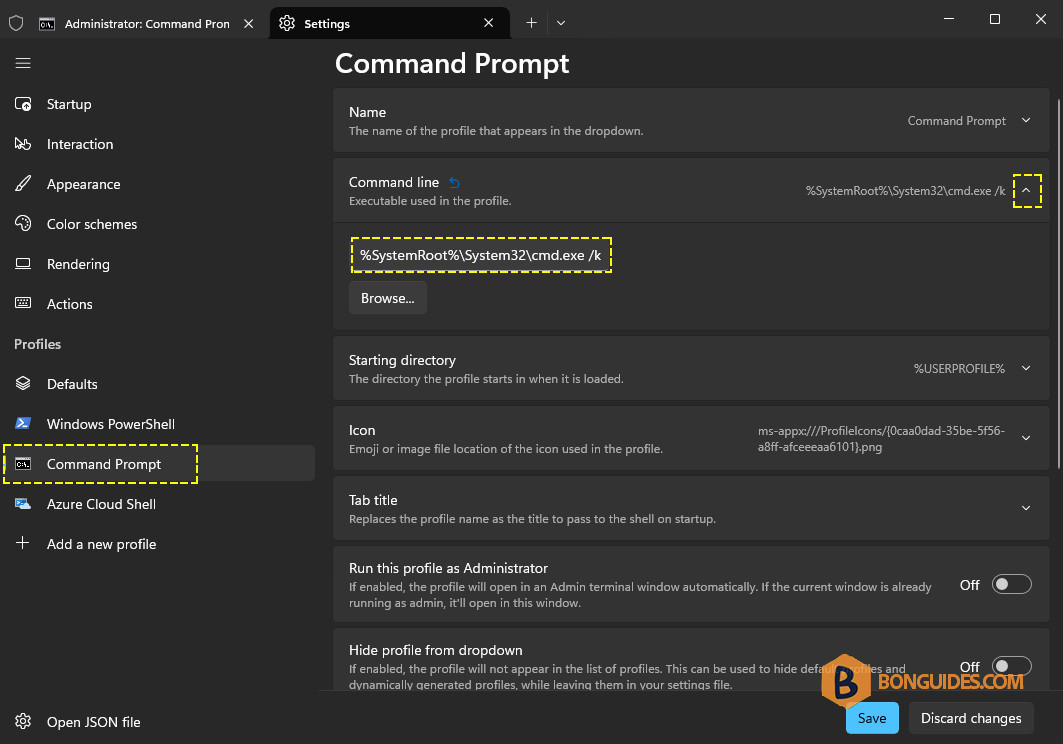
How to Hide All Rights Reserved Message in CMD Command Prompt

Close or open a new Command Prompt window to verify it word.
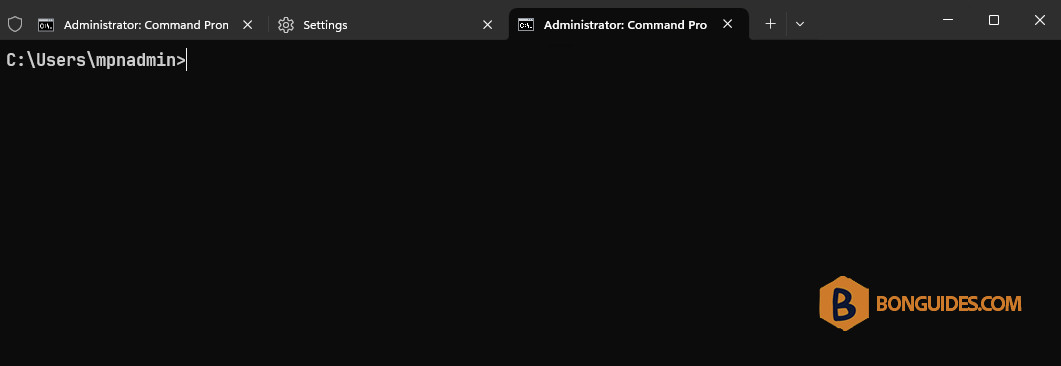
How to Hide All Rights Reserved Message in CMD Command Prompt

Leave a Comment

Required fields are marked *