
Table of Contents
WslRegisterDistribution Failed With Error 0x800701bc
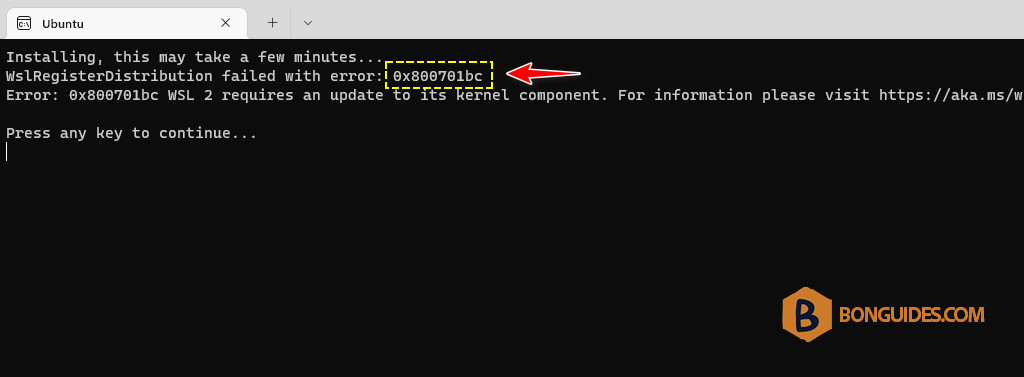
In some cases, you get the following error when opening a Linux distribution in WSL.
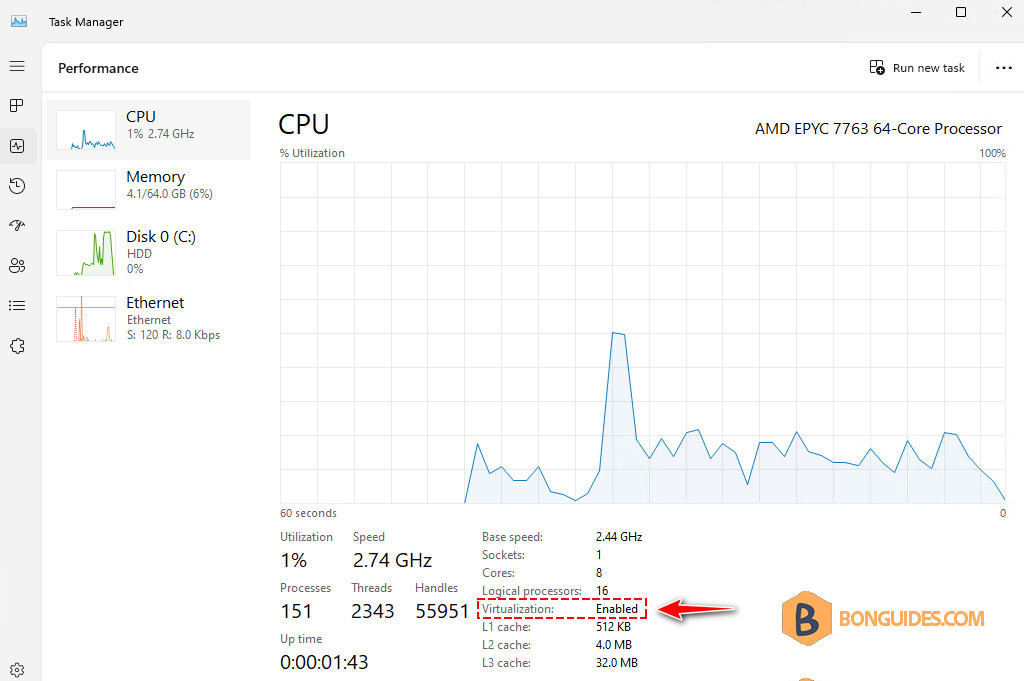
Before you begin, make sure the virtualization is enabled in your systems.
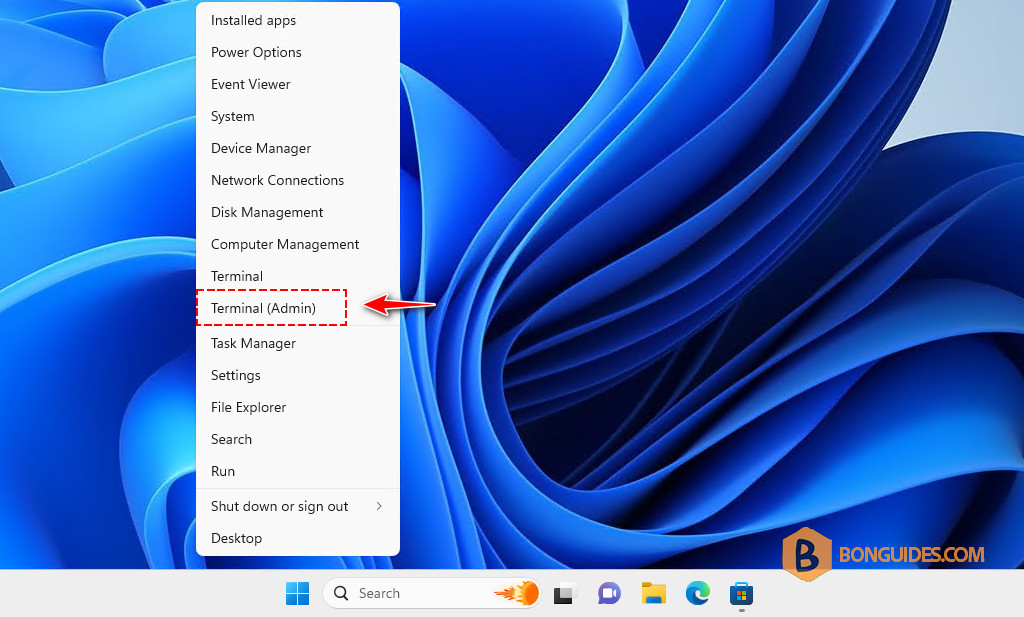
1. First, right-click on the Windows Start icon then open an elevated PowerShell window.
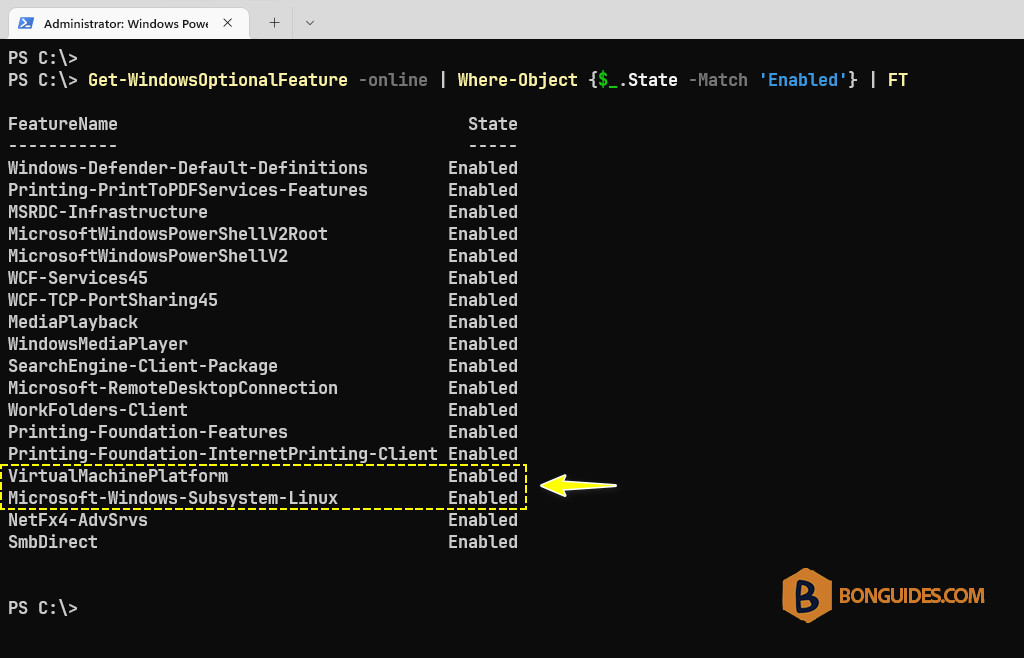
2. Run the following command to check if the Windows Subsystem for Linux and the Virtual Machine Platform are enabled on your system.
Get-WindowsOptionalFeature -online | Where-Object {$_.State -Match 'Enabled'} | FTAs you can see in the below screenshot, these features are enabled.
If not, run the following commands to enable them then restart your computer.
dism.exe /online /enable-feature /featurename:Microsoft-Windows-Subsystem-Linux /all /norestart
dism.exe /online /enable-feature /featurename:VirtualMachinePlatform /all /norestart
3. After the computer restarted, run the following command to install the kernel update for the Windows subsystem for Linux.
msiexec /i https://wslstorestorage.blob.core.windows.net/wslblob/wsl_update_x64.msi /n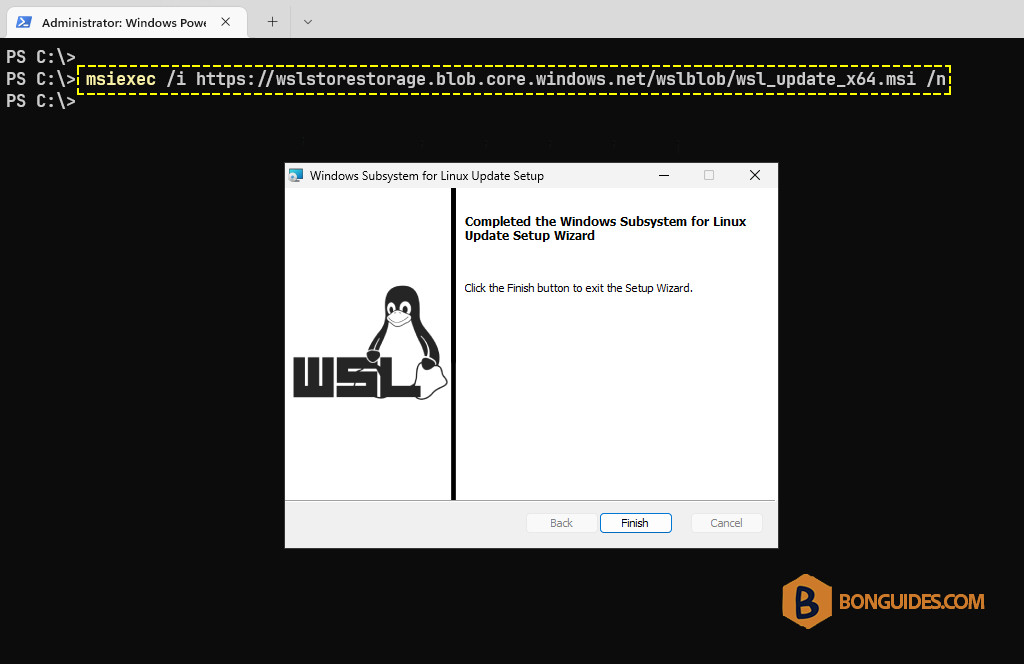
Finally, start any WSL instance to verify it works.
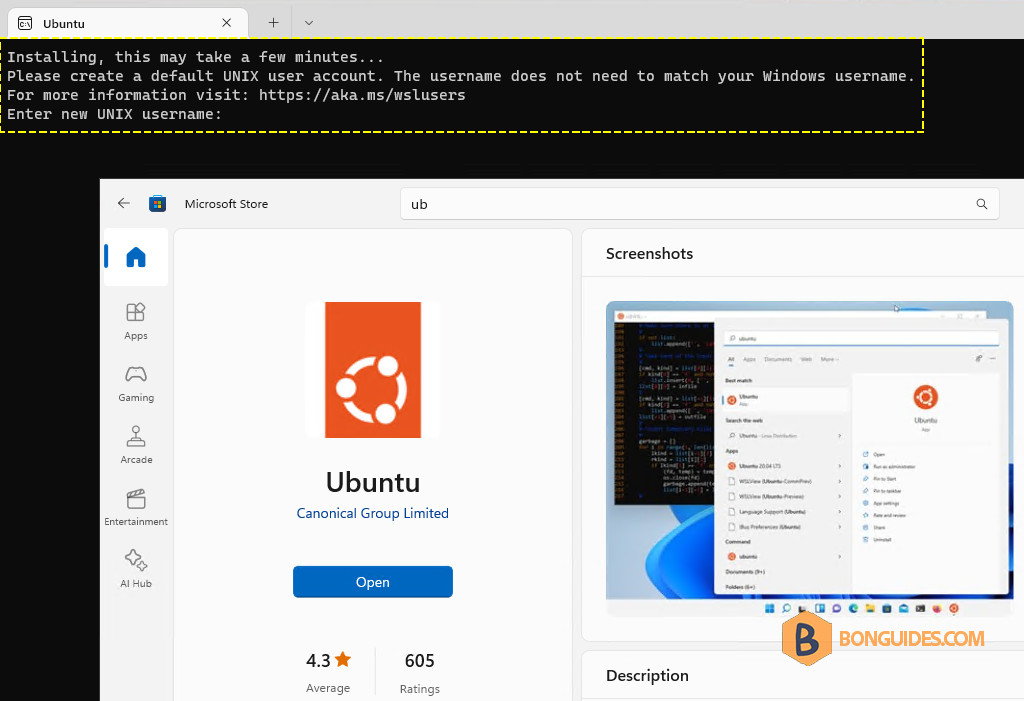
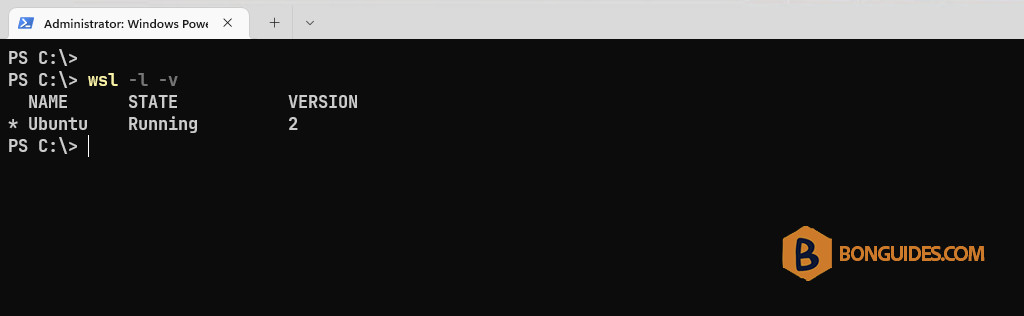
Additionally, you can run the following command to set the default version for the new WSL instance.
wsl --set-default-version 2

