
Table of Contents
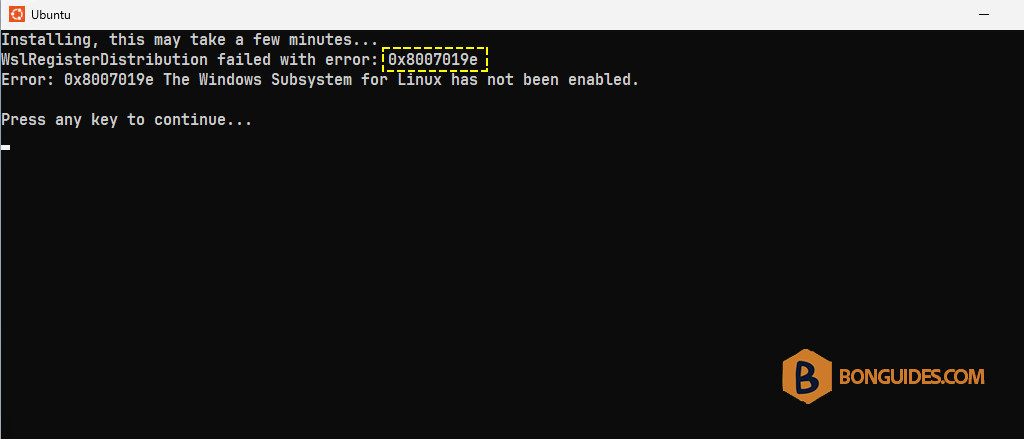
In some cases, you get the following error when opening a Linux distribution in WSL.
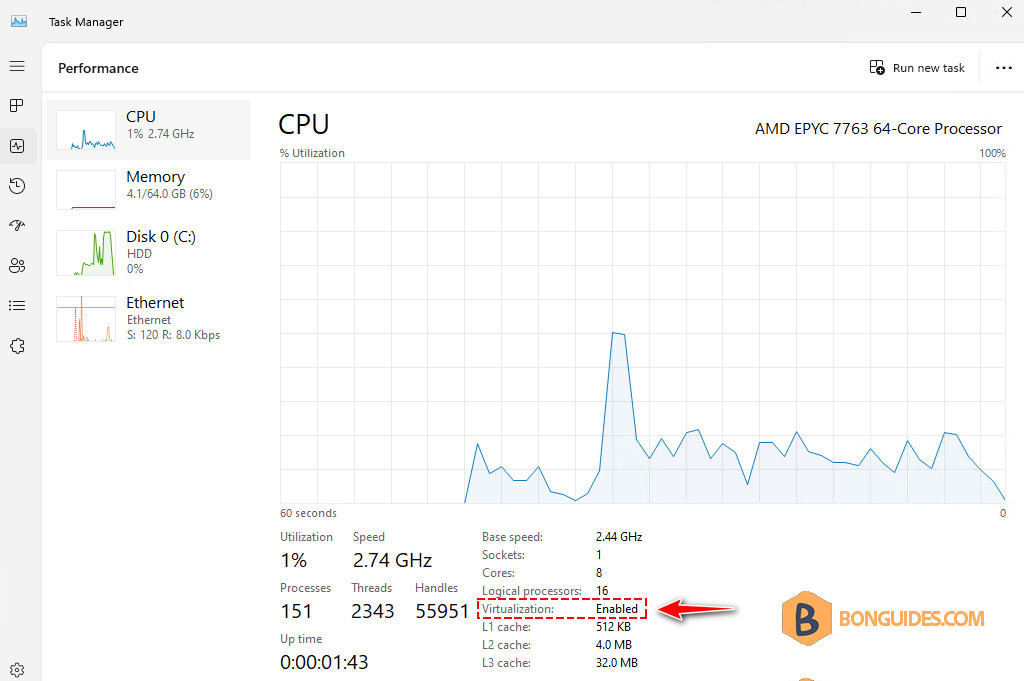
Before you begin, make sure the virtualization is enabled in your systems.
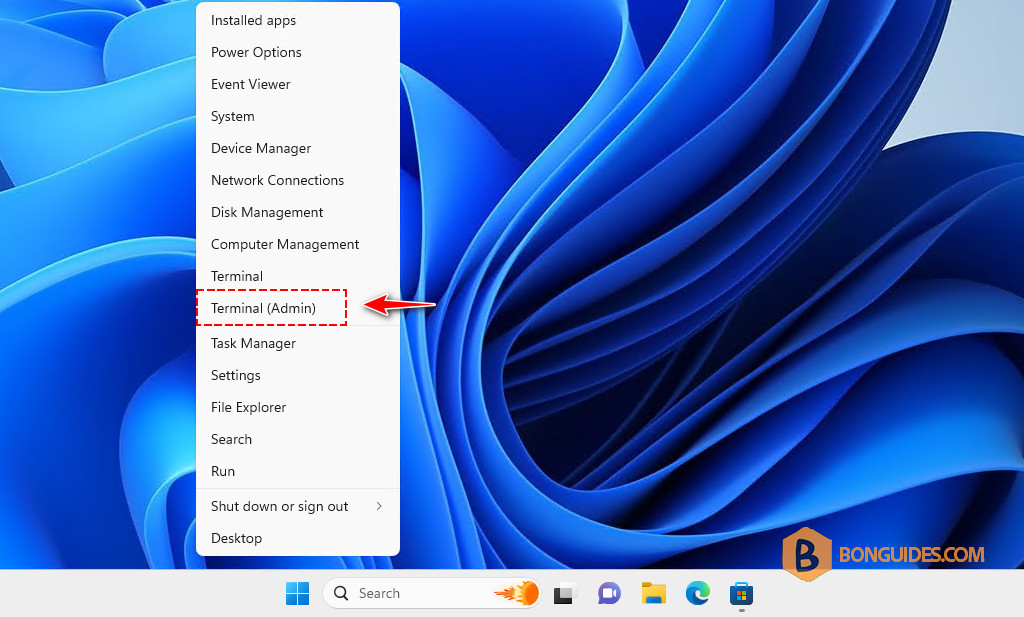
1. First, right-click on the Windows Start icon then open an elevated PowerShell window.
2. Run the following commands to enable the Windows Subsystem for Linux and Virtual Machine platform features. Once done, restart your computer.
dism.exe /online /enable-feature /featurename:Microsoft-Windows-Subsystem-Linux /all /norestart
dism.exe /online /enable-feature /featurename:VirtualMachinePlatform /all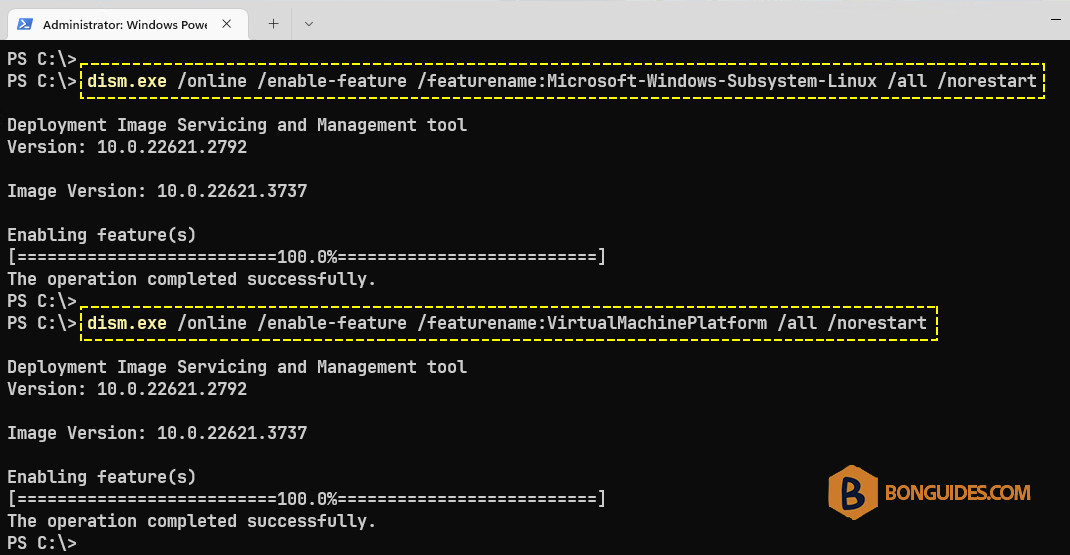
3. After the computer starts, open PowerShell as administrator then run the following command to install the Windows subsystem for Linux kernel update.
msiexec /i https://wslstorestorage.blob.core.windows.net/wslblob/wsl_update_x64.msi /n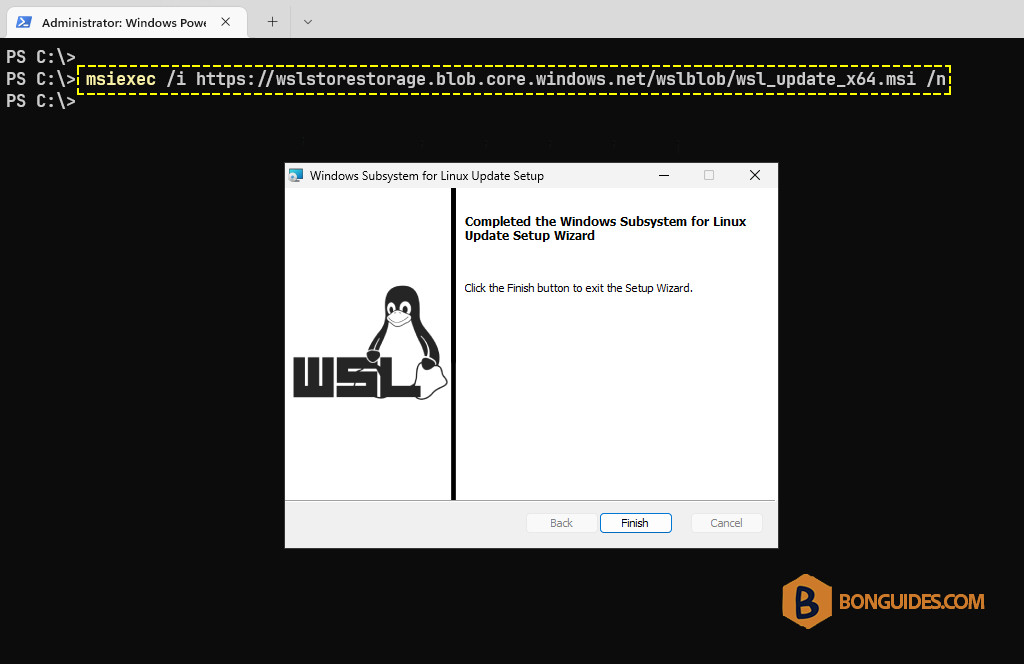
Finally, start a WSL instant to verify it works.
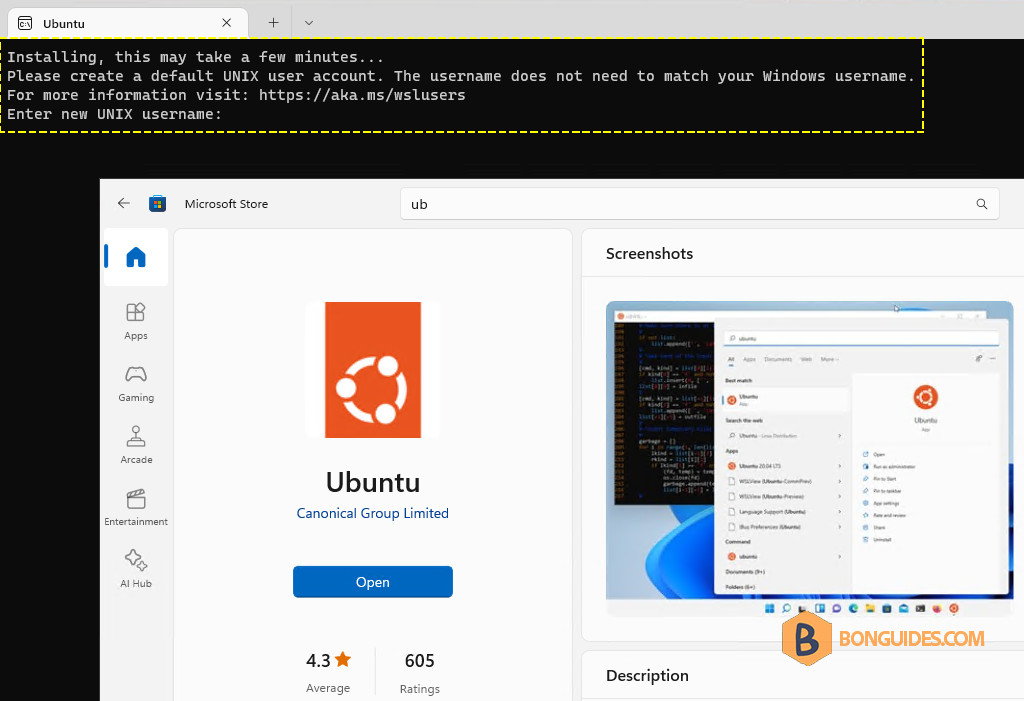

Additionally, you can run the following command to set the default version for the new WSL instance.
wsl --set-default-version 2

