Table of Contents
Before you begin
- Verify that devices are on Microsoft Edge build 93 or later.
- Enable View in File Explorer in Microsoft Edge.
- Your computer must be joined into Microsoft Active Directory or Azure Active Directory or managed by Intune MDM.
Configure View in File Explorer with Edge
Enable the ConfigureViewInFileExplorer policy for Microsoft Edge that allows URLs with the viewinfileexplorer: scheme to open WebDAV URLs in Windows File Explorer.
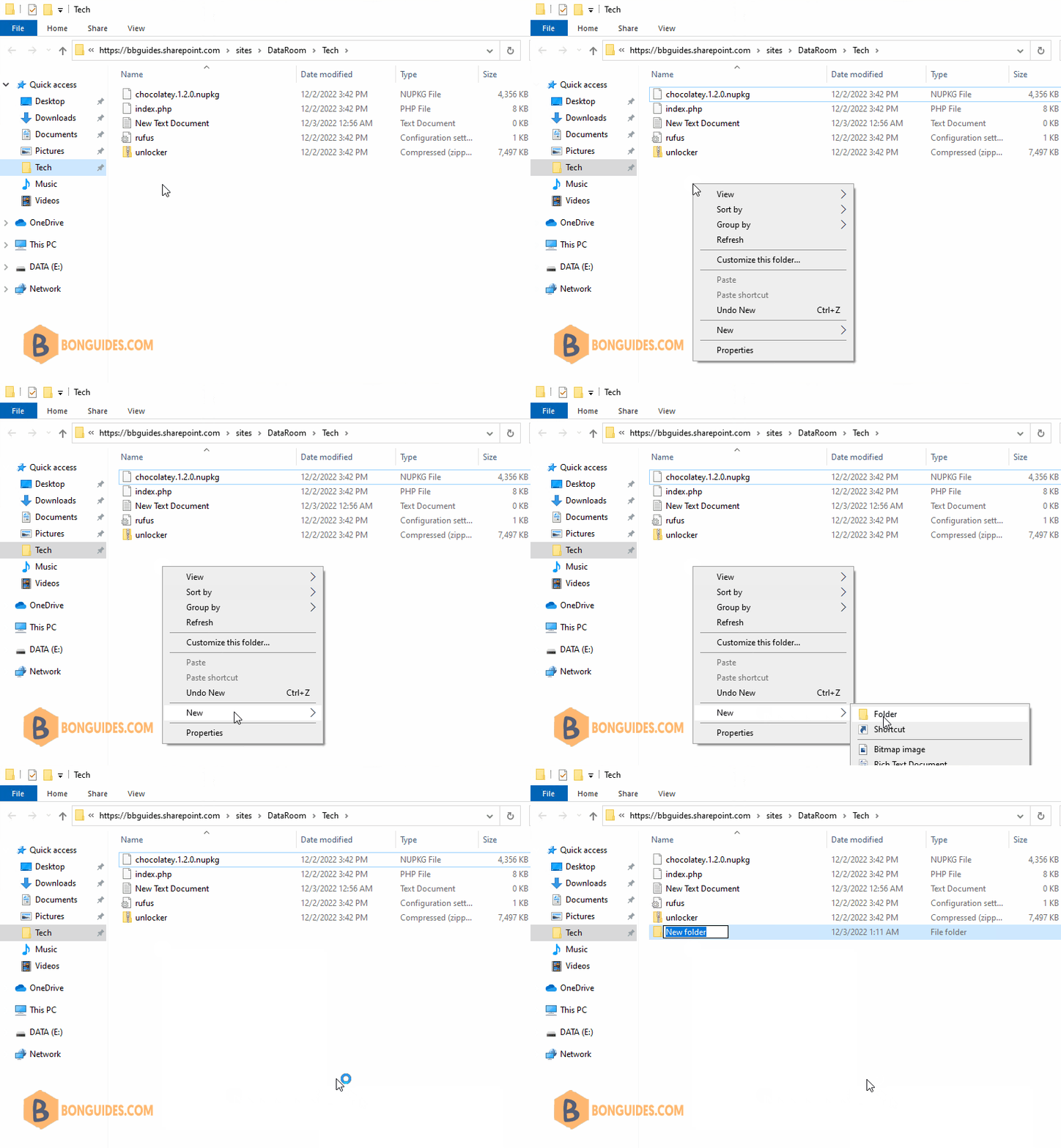
As Internet Explorer is discontinued from Windows 11. We may be missing the nifty feature file explorer view or mapped network drives of SharePoint document libraries. The good news is that in the Microsoft Edge 93 build onwards, it supports the View In file explorer feature. However, we have to do two extra steps to activate it.
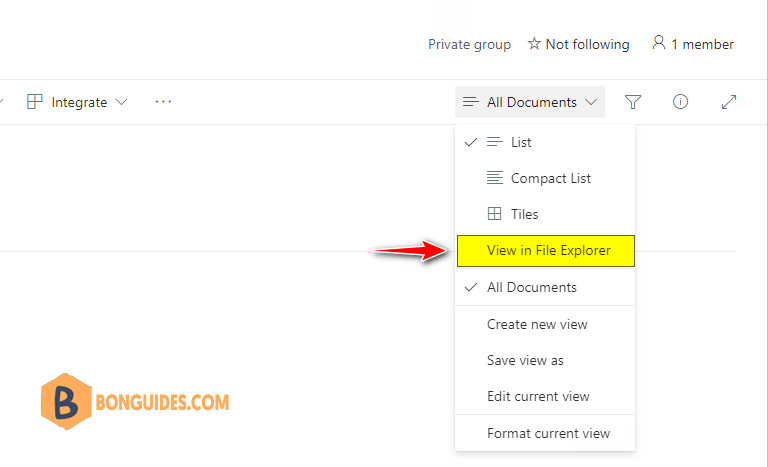
Enable the ConfigureViewInFileExplorer policy for Microsoft Edge
We will need to list the specific domains where this is allowed and list cookies needed for SharePoint authentication (rtFa and FedAuth).
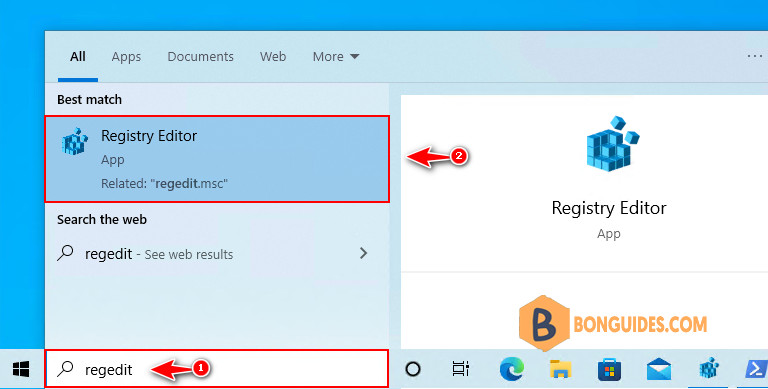
1. Type regedit into the Windows search box then click Registry Editor from the result to open it.
Note
Alternatively: Press to open the Run box. Type regedit into the box then hit .
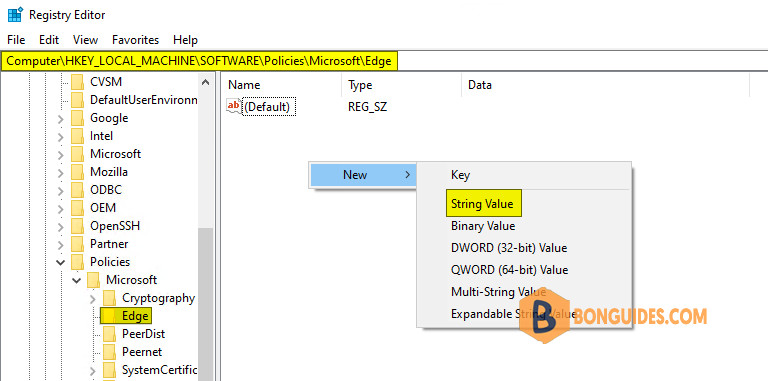
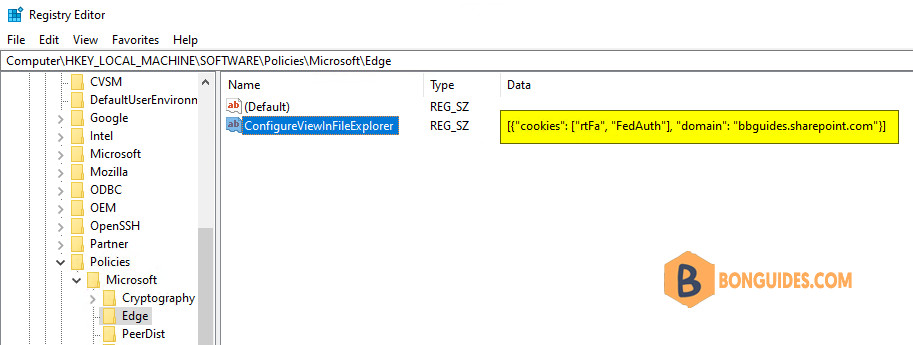
2. Navigate to HKEY_LOCAL_MACHINESOFTWAREPoliciesMicrosoftEdge. Create a new key Edge if it doesn’t exist.
3. Right-click on the blank then create a new String Value named ConfigureViewInFileExplorer.
4. Double-click the newly created String Value and paste the following string value in the text box for Value data. We need to set this to enable WebDav URLs to open in Windows File Explorer.
[{"cookies":["rtFa","FedAuth"],"domain":"bbguides.sharepoint.com"}]Note
Be sure you change the bbguides.sharepoint.com with your tenant URL.
Now, you may find the View in File Explorer option in the view menu but clicking on that does nothing.
Enable View in File Explorer Feature for the SharePoint Online Tenant
The next step is to enable the ViewInFileExplorerEnabled flag at the tenant level if it’s not enabled already in SharePoint Online using PowerShell.
1. Install and update your PowerShell Module for SharePoint Online.
Set-ExecutionPolicy -ExecutionPolicy RemoteSigned -Scope LocalMachine -Force;
Install-PackageProvider -Name NuGet -Force;
Set-PSRepository -Name "PSGallery" -InstallationPolicy Trusted;
Install-Module -Name Microsoft.Online.SharePoint.PowerShell;
Import-Module Microsoft.Online.SharePoint.PowerShell -DisableNameChecking;
Update-Module -Name Microsoft.Online.SharePoint.PowerShell;
2. Connect to SharePoint Online as Tenant Admin or SharePoint Online Administrator.
Connect-SPOService -Url https://bbguides-admin.sharepoint.com3. Set the ViewInFileExplorerEnabled flag to True.
Set-SPOTenant -ViewInFileExplorerEnabled $TrueClose and Re-open the Edge Browser, and the View in File Explorer option should start working now.