Table of Contents
In some cases, you’re experiencing issues with the Terminal not opening in Ubuntu running on VirtualBox 7. You got it because you’ve installed the VM using an unattended installation.
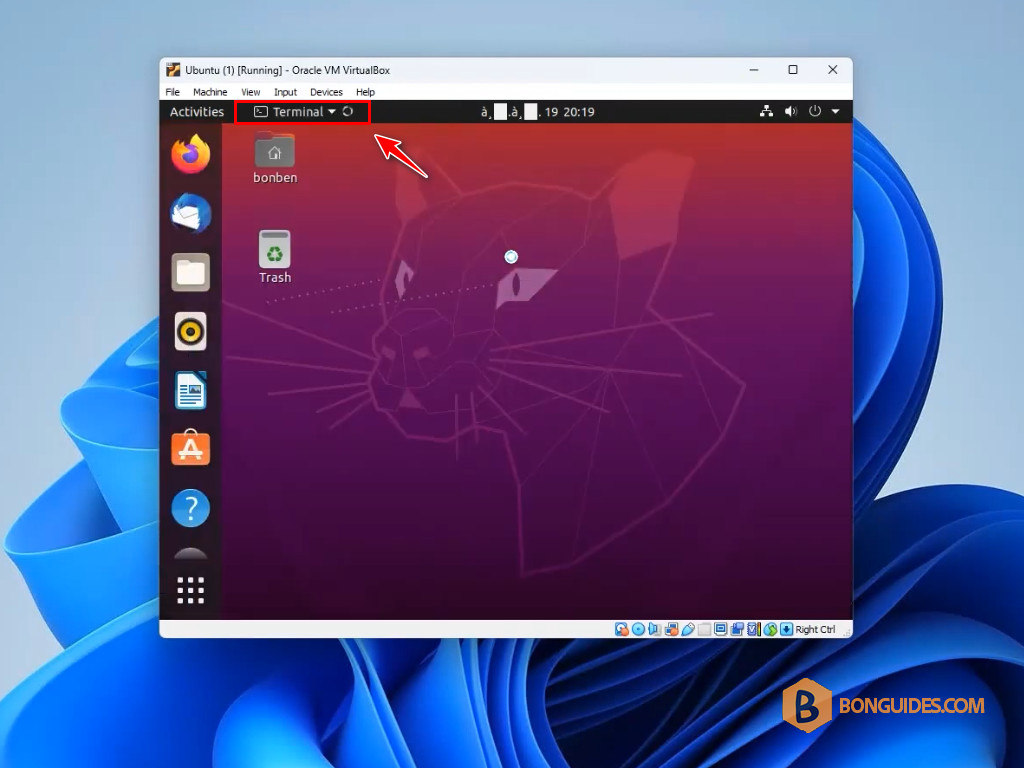
Here are several methods you can try to resolve the problem:
Method 1: Change Language Settings
The first way, you can change the language of the VM.
- Open the Settings application.
- Navigate to Language & Region.
- Change the language to something else, such as English (United Kingdom).
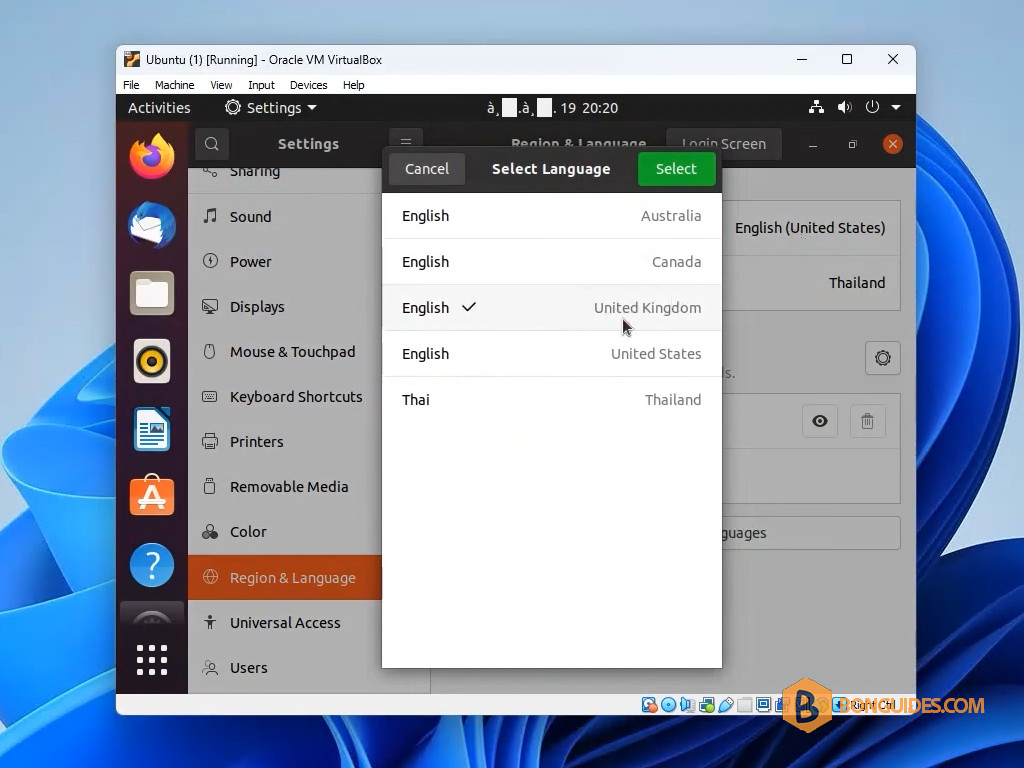
4. Restart your virtual machine. After the restart, you can switch back to your original language if desired. This method has worked for many users.
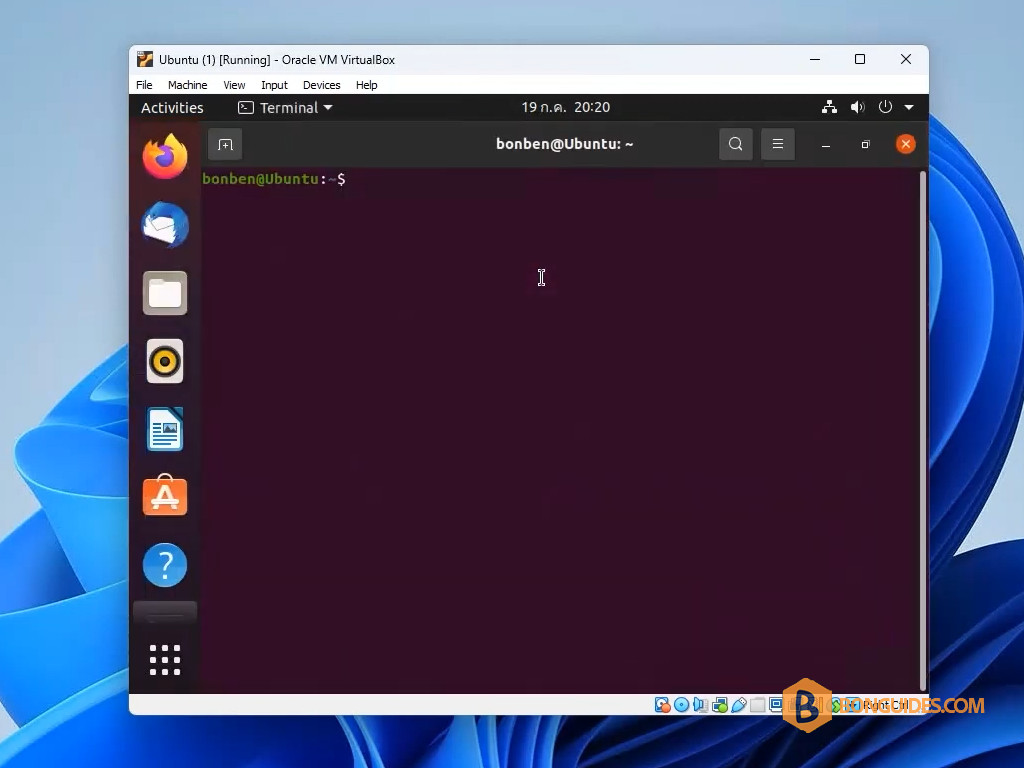
Method 2: Update Locale Settings
If changing the language doesn’t work, you can try updating the locale settings:
1. Open a TTY session by pressing + + .
2. Log in with your username and password.
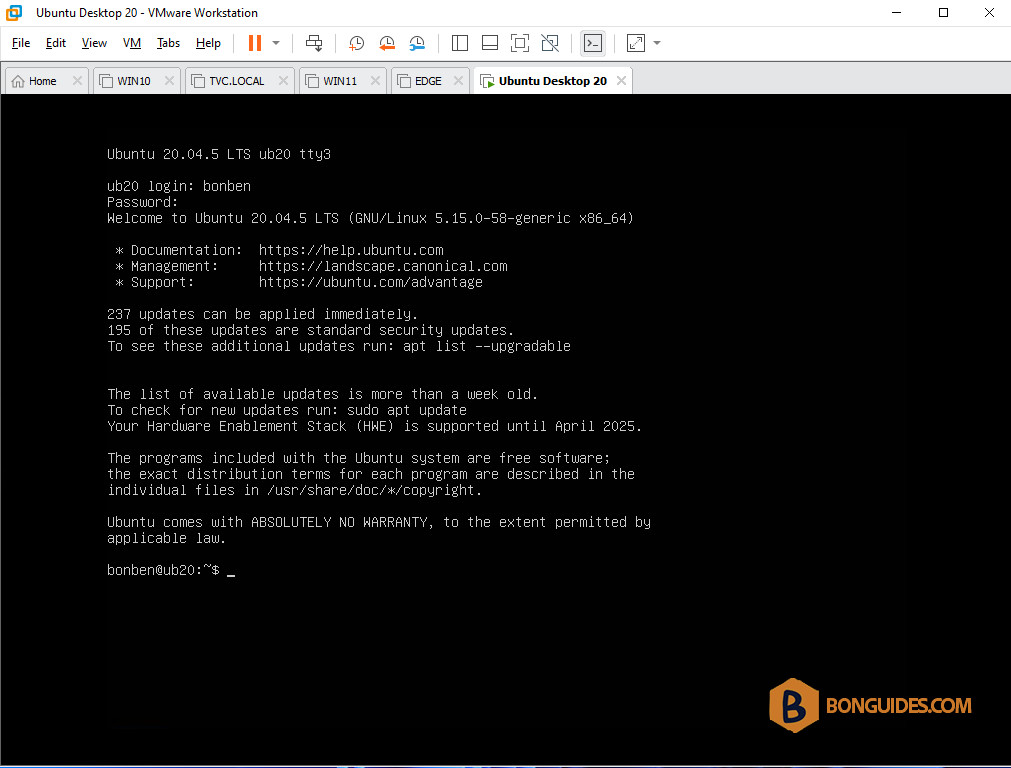
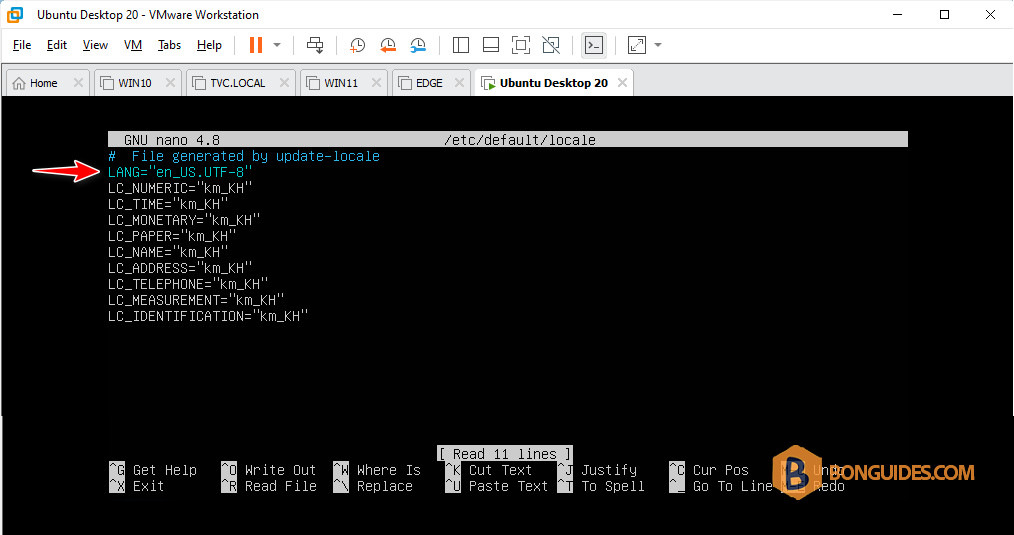
3. Run the following commands:
sudo nano /etc/default/locale4. Ensure that the file contains en_US.UTF-8 instead of just en_US. Save the changes and exit
5. Then, run:
sudo locale-gen --purge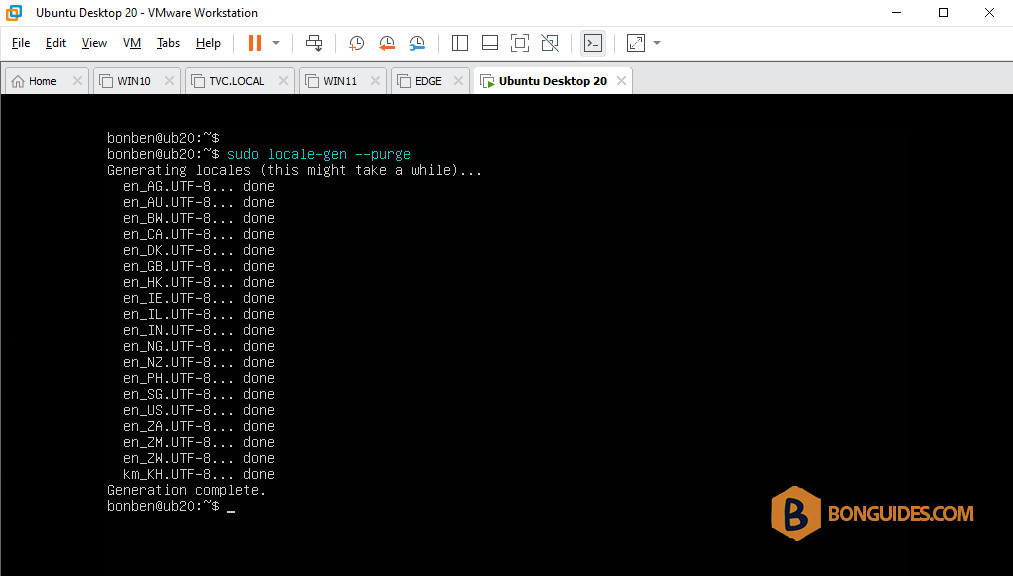
6. Finally, reboot your system:
sudo rebootMethod 3: Reinstall Ubuntu
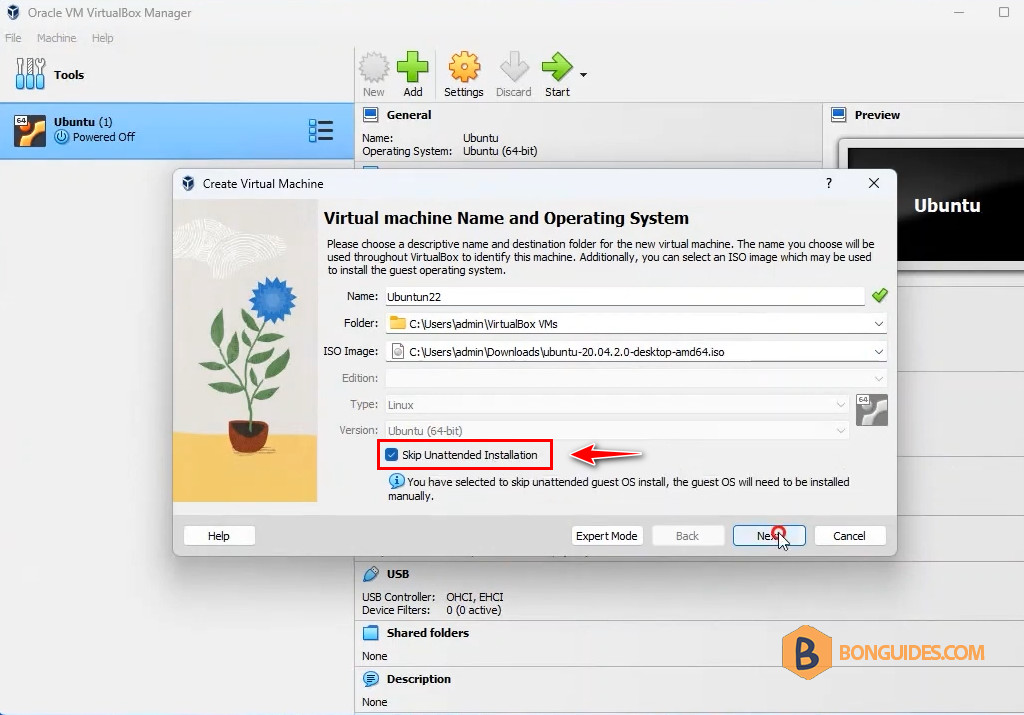
If the above methods do not resolve the issue, consider reinstalling Ubuntu. When creating the VM, make sure to check the Skip Unattended Installation option. This has helped some users avoid terminal issues after installation