
Table of Contents
Outlook Opens Links in Microsoft Edge Instead of Google Chrome
Outlook has stopped opening links in the default browser, and now they automatically open in Edge. Luckily, fixing this issue is quick and easy.
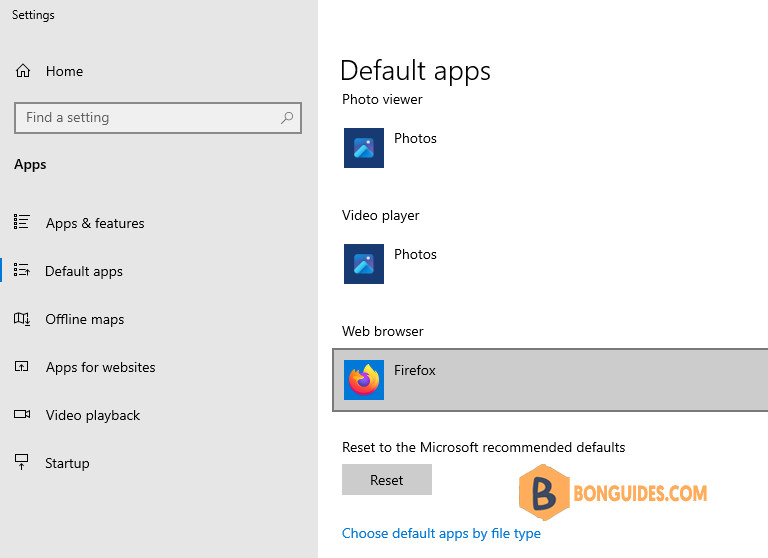
Follow these steps to make clicked links open in your default browser, which in this case is Mozilla Firefox.
1️⃣ Open Microsoft Outlook on your computer.
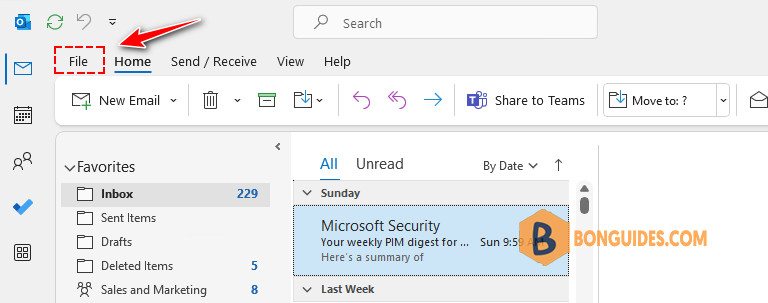
2️⃣ Click on the File menu in the left upper corner.
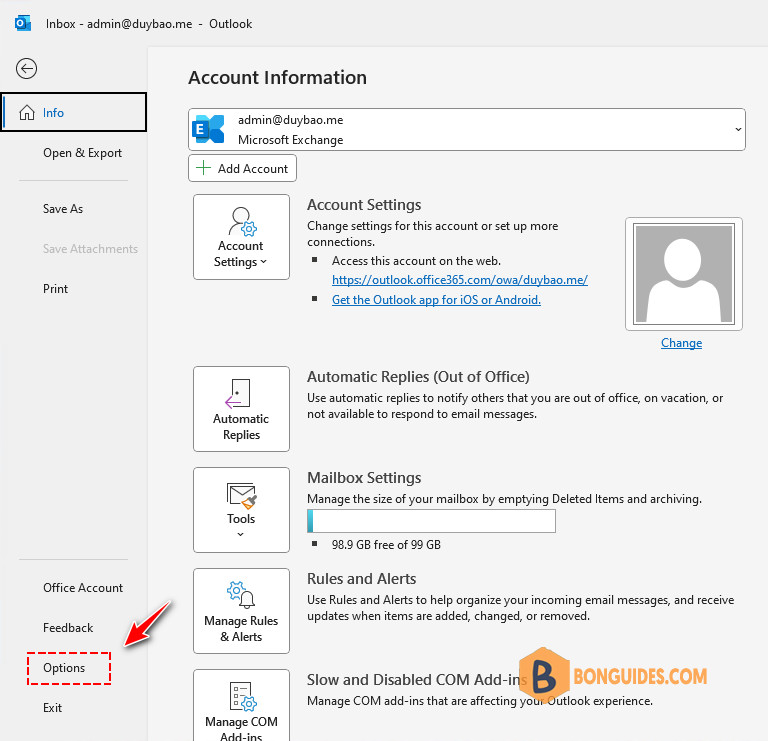
3️⃣ In the flied-out window, select Options in the lower left corner.
4️⃣ In the popup window select “Advanced” tab on the left and scroll down until you see the option “Open hyperlinks from Outlook in:”. In the Drop-down list you can select default browser.
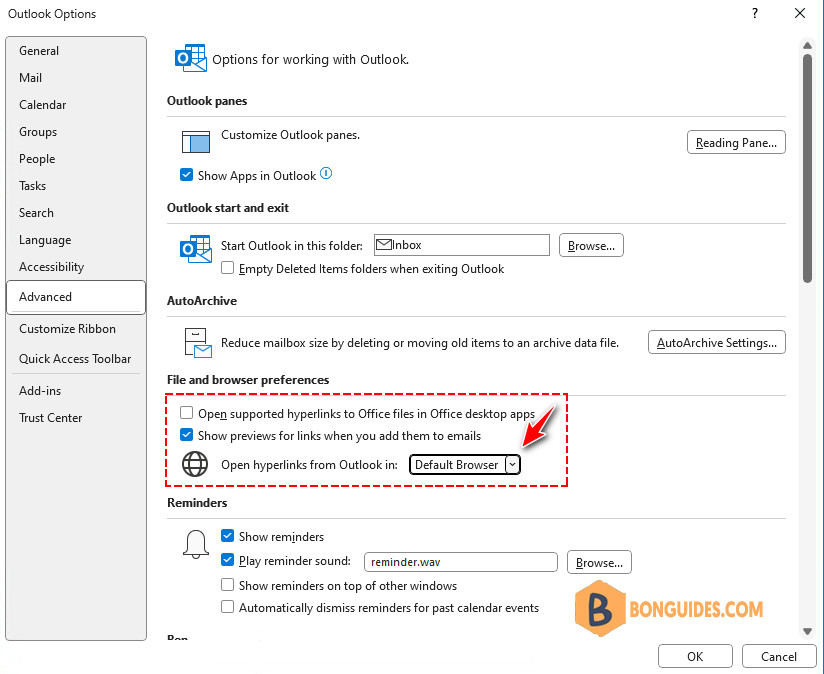
5️⃣ Don’t forget to click OK to save the changes. Close and then reopen Microsoft Outlook for the changes to take effect.
This change is part of Microsoft’s effort to boost the number of Edge users. Google currently dominates the browser market, thanks to its strong security updates, reliable password storage, and user-friendly interface. The update doesn’t just impact Outlook links; it also extends to Teams software.


