Table of Contents
Bad Permissions Try Removing Permissions for User
In some cases, you get the following error when trying to SSH to a remote Linux system using a private key file with key-based authentication.
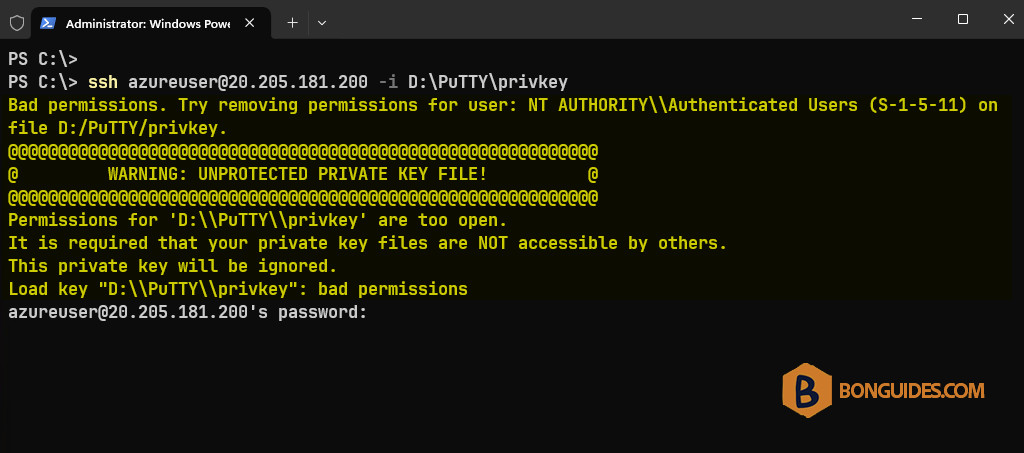
You got this because the permission to the private key is too open. So, we need to remove all users from access to the file then grant the full permission to the current log on user only.
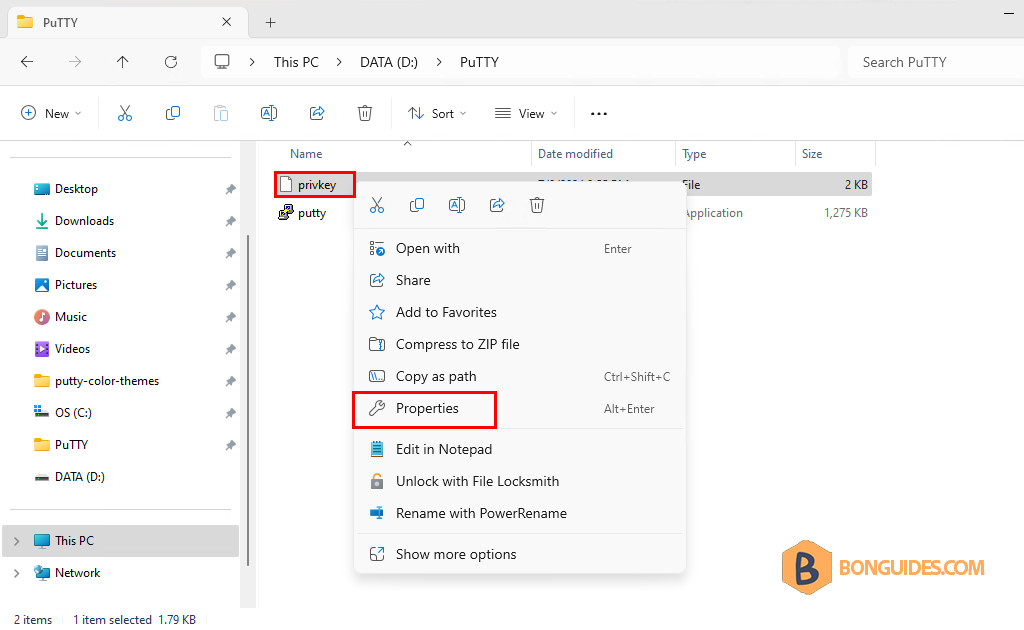
1. Right click on the private key then select Properties.
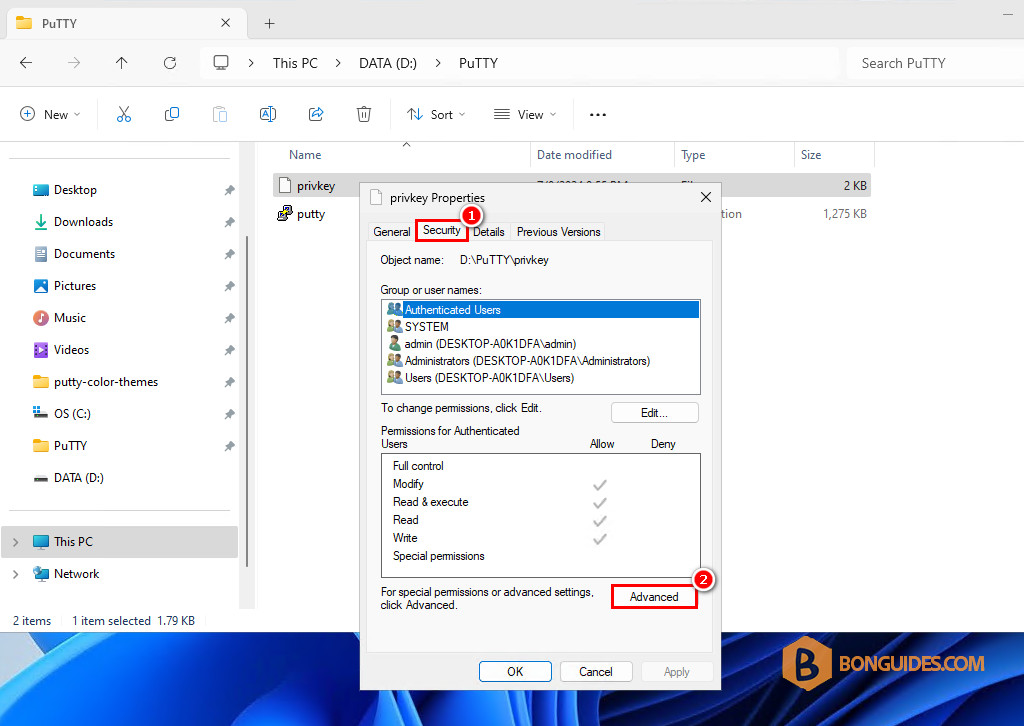
2. In the Properties window, select the Security tab → Advanced button.
3. Next, click on the Disable inheritance button.
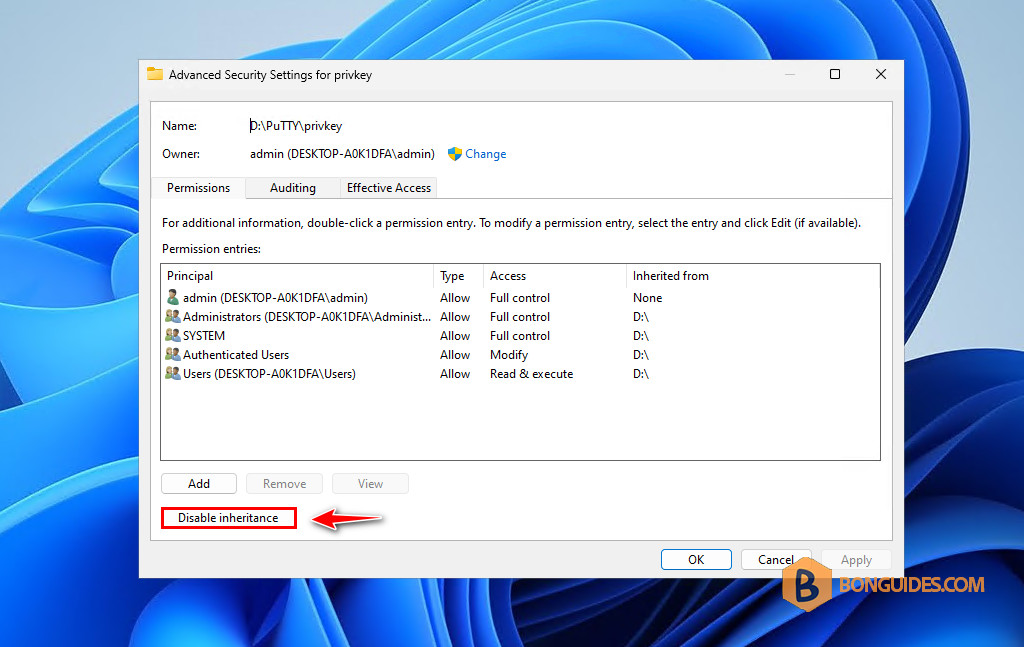
4. Remove all inherited permissions from the file.
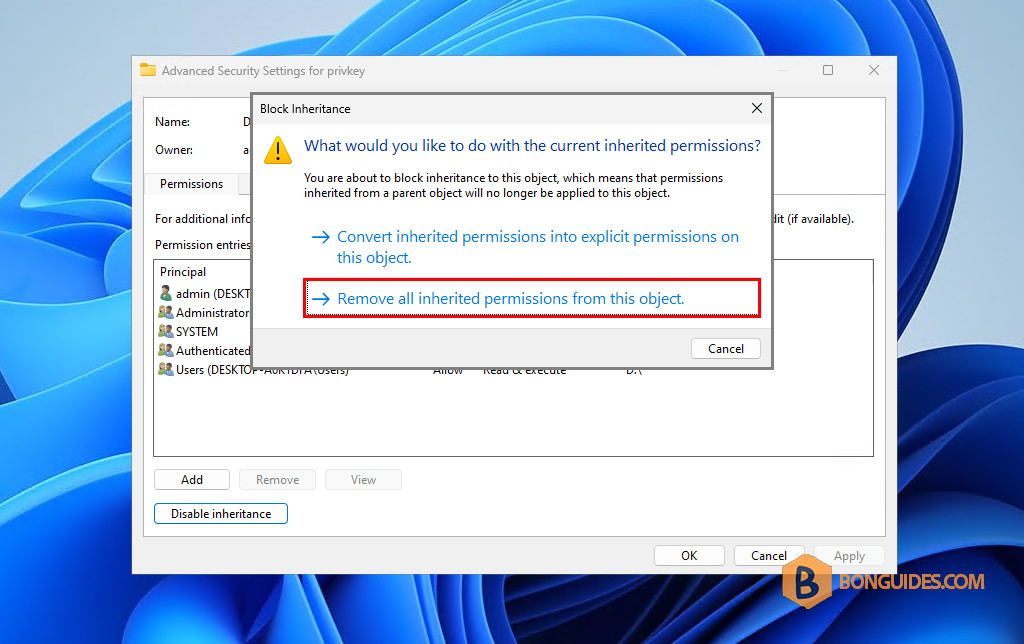
5. Click Add to add permission to the file.
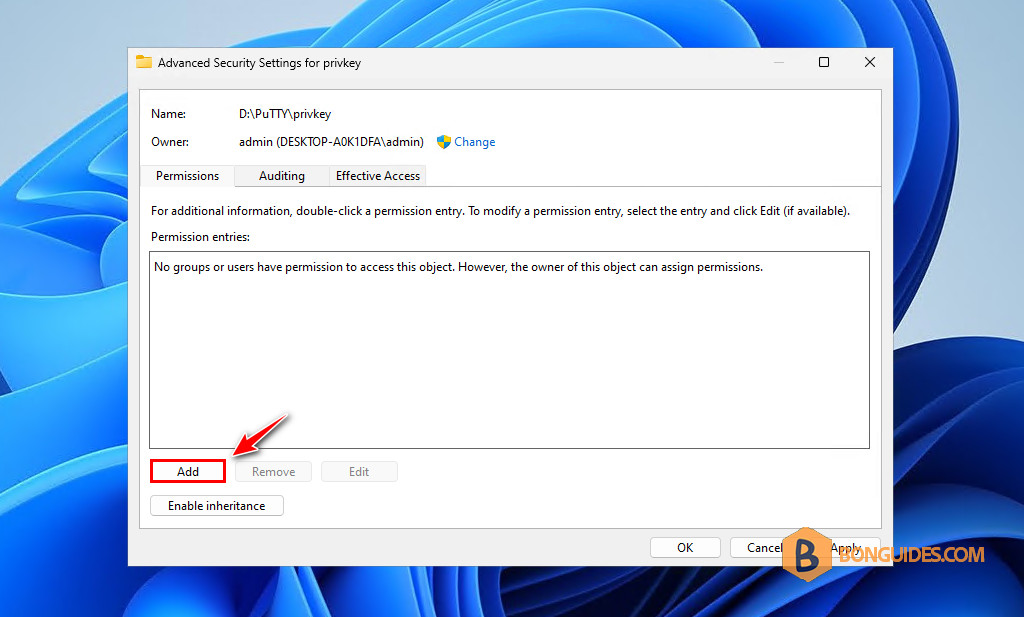
6. Click on Select a principal.
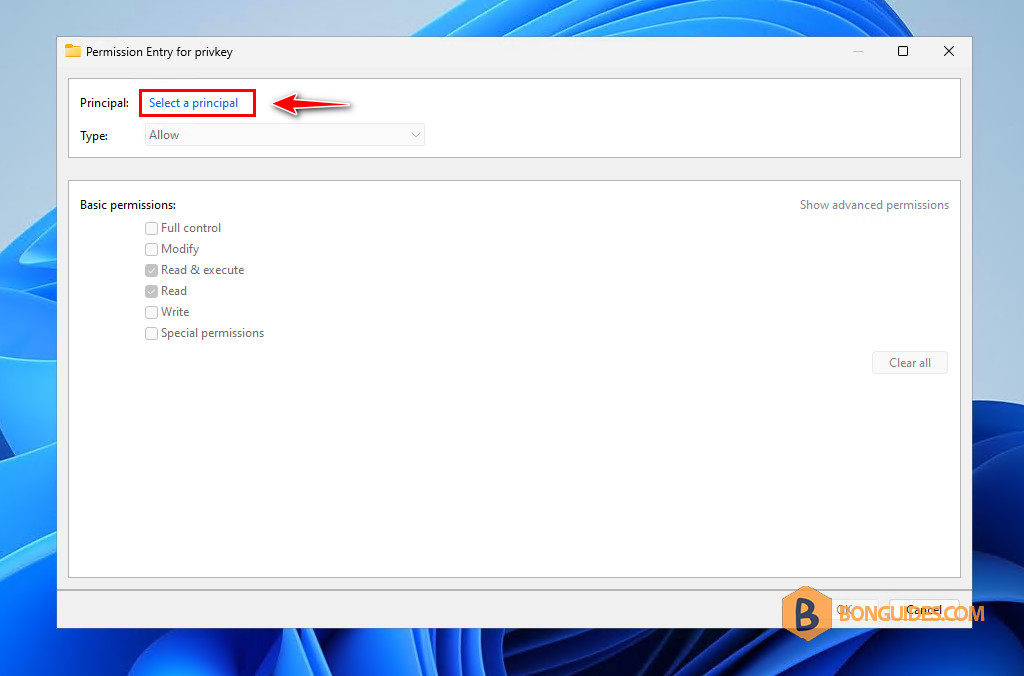
7. Type the current logon username then click on the Check Name button. Or you can find it from the Advanced…window.
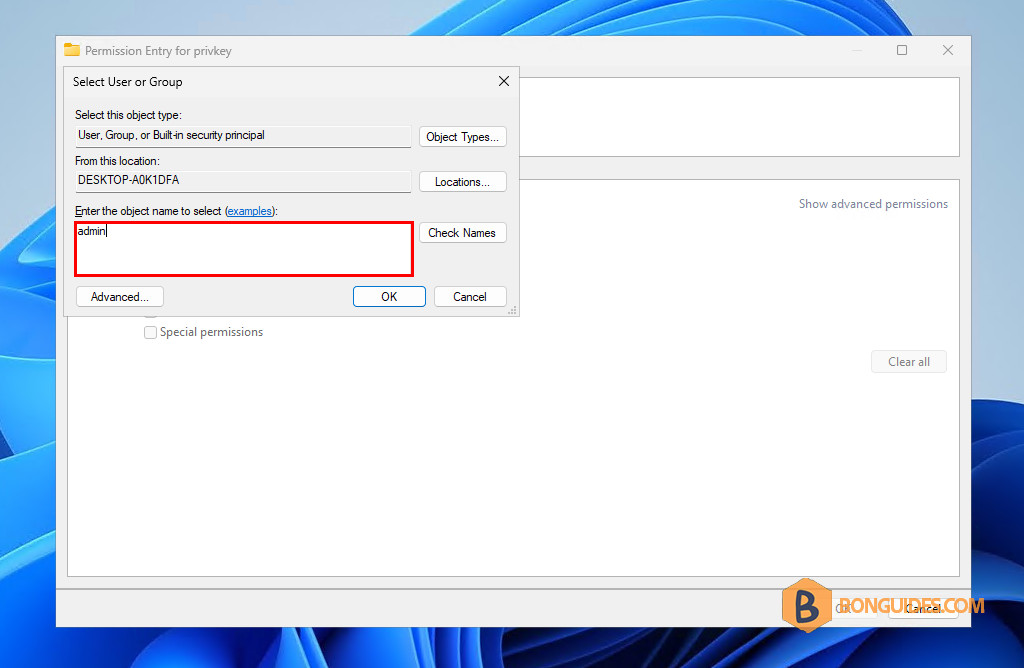
8. Select the Full control checkbox then click OK.
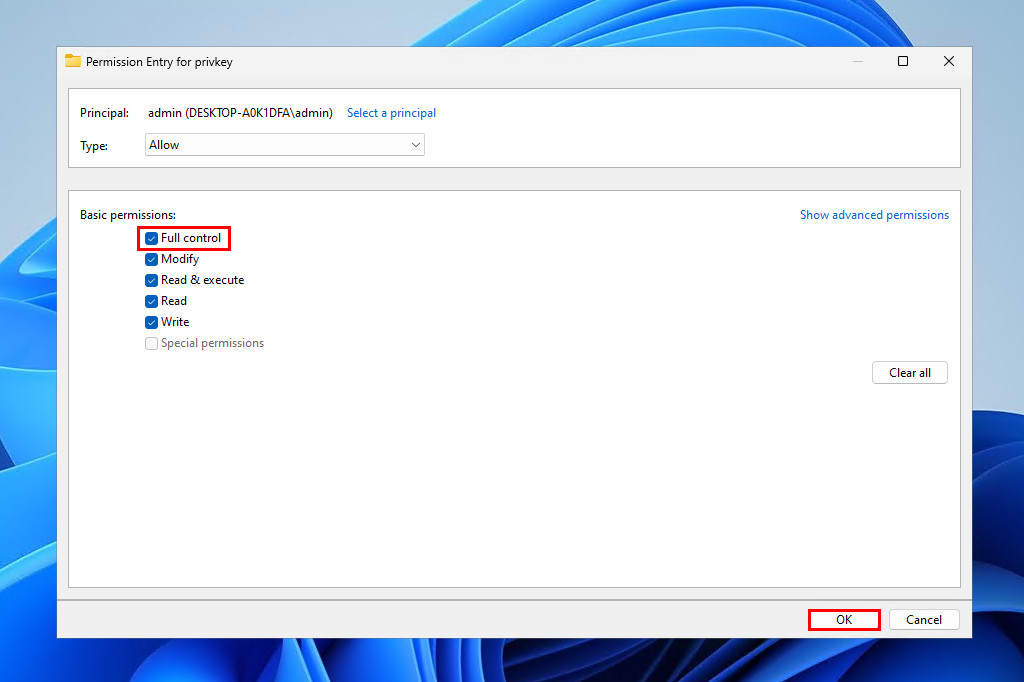
9. Click OK to save the changes.
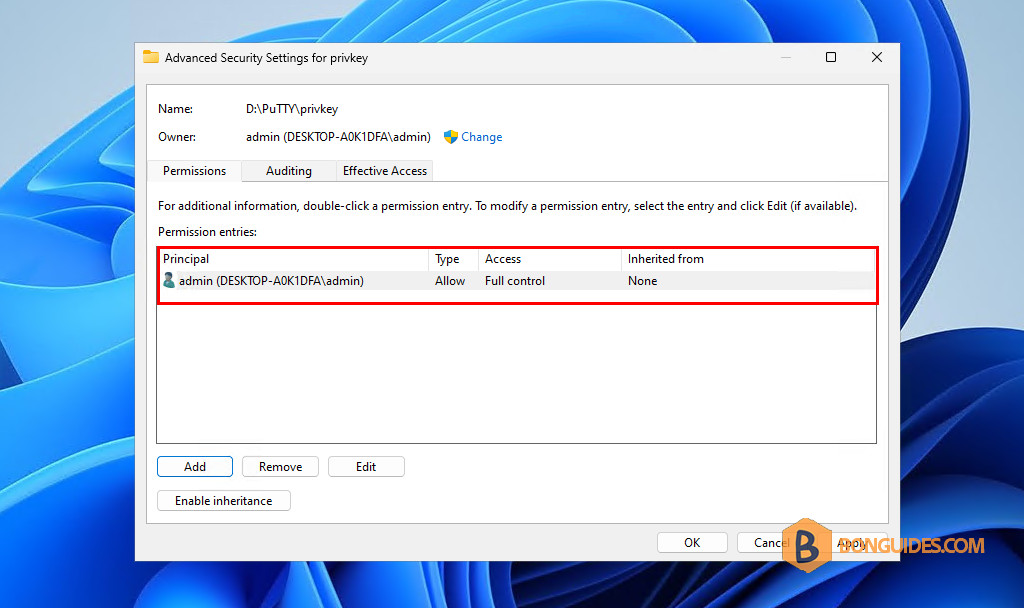
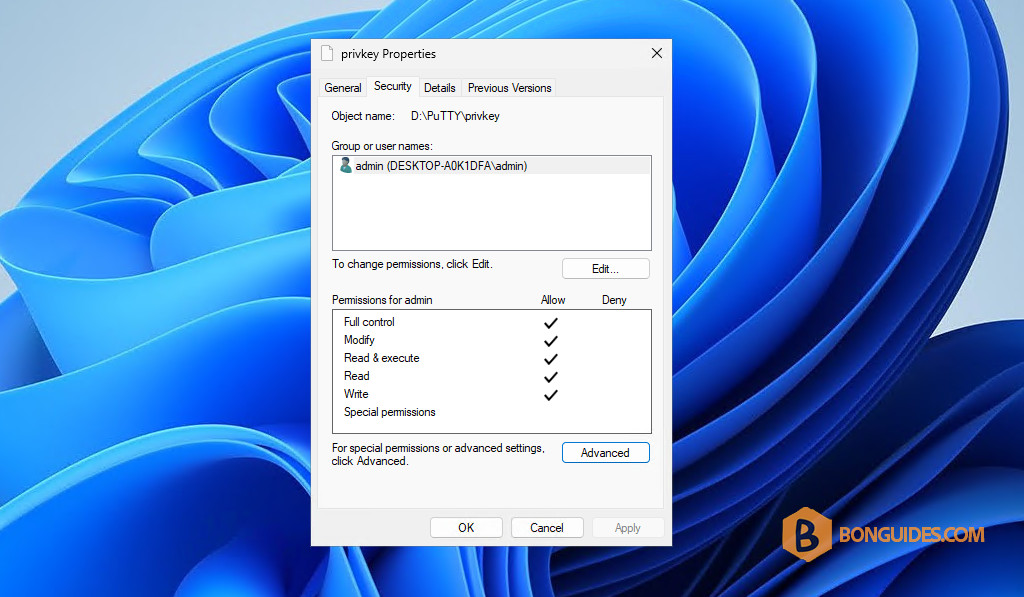
10. Click Ok to close the Properties window.
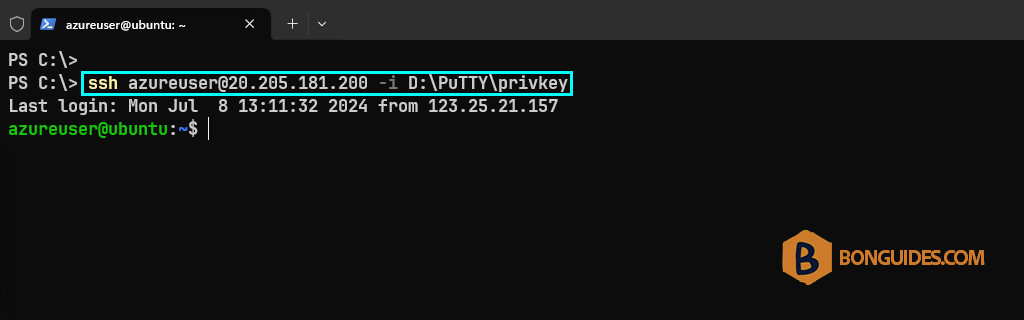
Finally, trying to SSH to the remote server to verify it works.
Change the permission using PowerShell
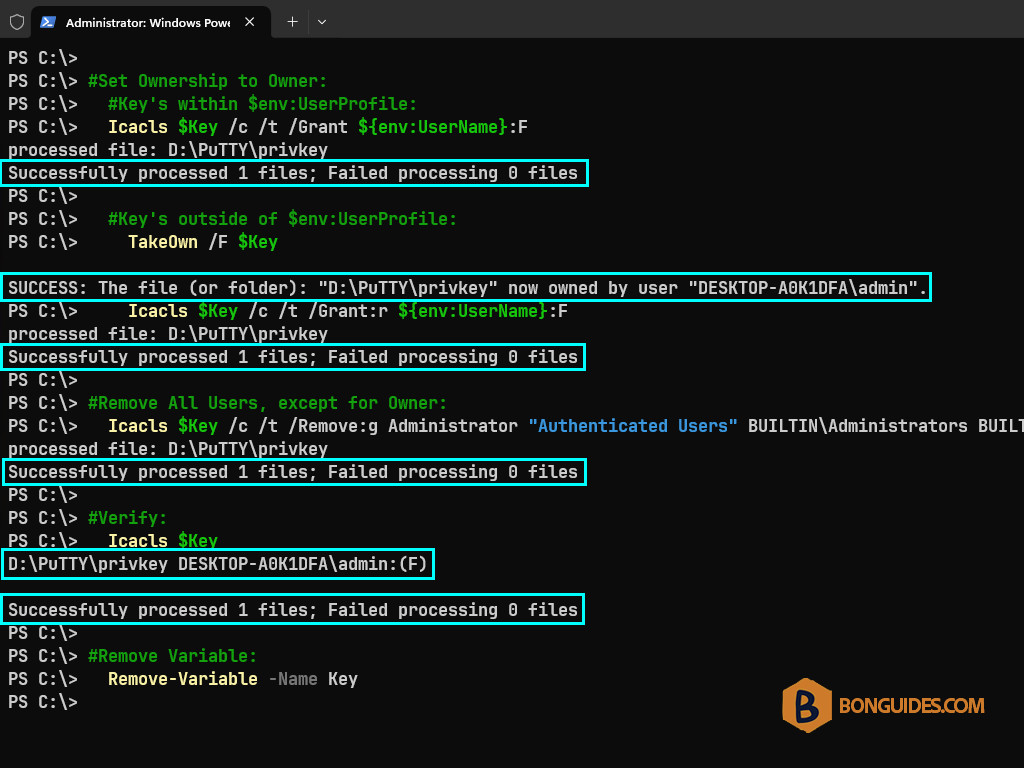
Alternatively, the permissions to the private key file can be changed using the following PowerShell code snippet. The script does:
- Set key file to a variable.
- Remove the inherited permissions.
- Set the full control to the current logon user.
Note: Don’t forget to change the path of your private key into the PowerShell script.
#Set Key File Variable:
  $path = "D:\PuTTY\privkey"
  New-Variable -Name Key -Value $path

#Remove Inheritance:
  Icacls $Key /c /t /Inheritance:d

#Set Ownership to Owner:
  #Key's within $env:UserProfile:
  Icacls $Key /c /t /Grant ${env:UserName}:F

  #Key's outside of $env:UserProfile:
    TakeOwn /F $Key
    Icacls $Key /c /t /Grant:r ${env:UserName}:F

#Remove All Users, except for Owner:
  Icacls $Key /c /t /Remove:g Administrator "Authenticated Users" BUILTIN\Administrators BUILTIN Everyone System Users

#Verify:
  Icacls $Key

#Remove Variable:
  Remove-Variable -Name Key
After running the script, try to SSH to the remote server to verify it works.