
Table of Contents
Client secrert in Entra admin center
Microsoft removed the non-expiring option back in April 2021. That means that we have to renew client secrets all the time (before they expire). Below is a screenshot when creating a client secret for an app in the Entra admin center.
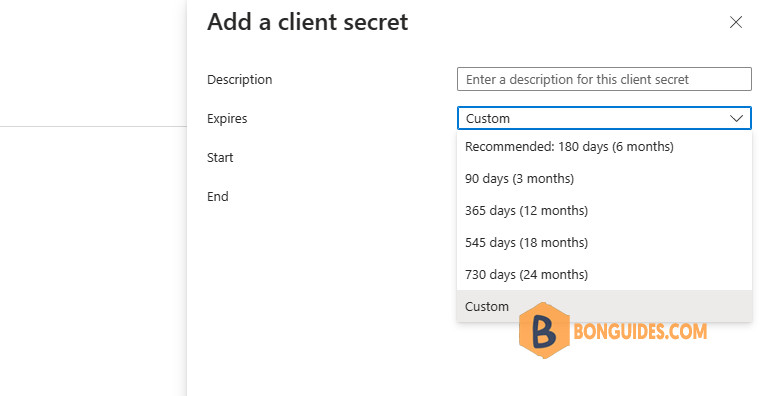
When managing several tenants, it can be a hell of a job to monitor and maintain all the client secrets. Therefore, we’ve created a PowerShell script to query all the client secrets created within a single tenant.
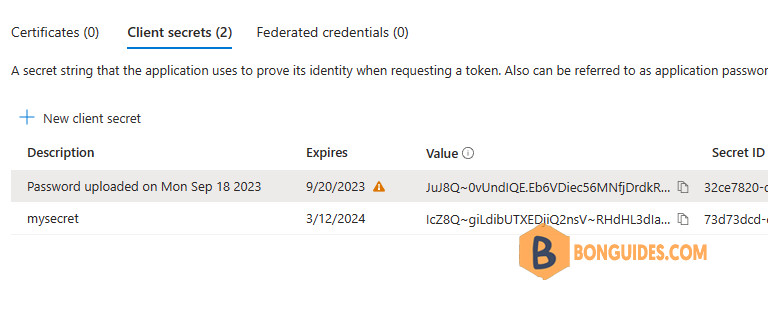
The script simply queries all the Entra ID Applications and their client secrets. If the client secret has an expiration date less than 30 or 90 days, it will report back to the console.
Graph Explorer
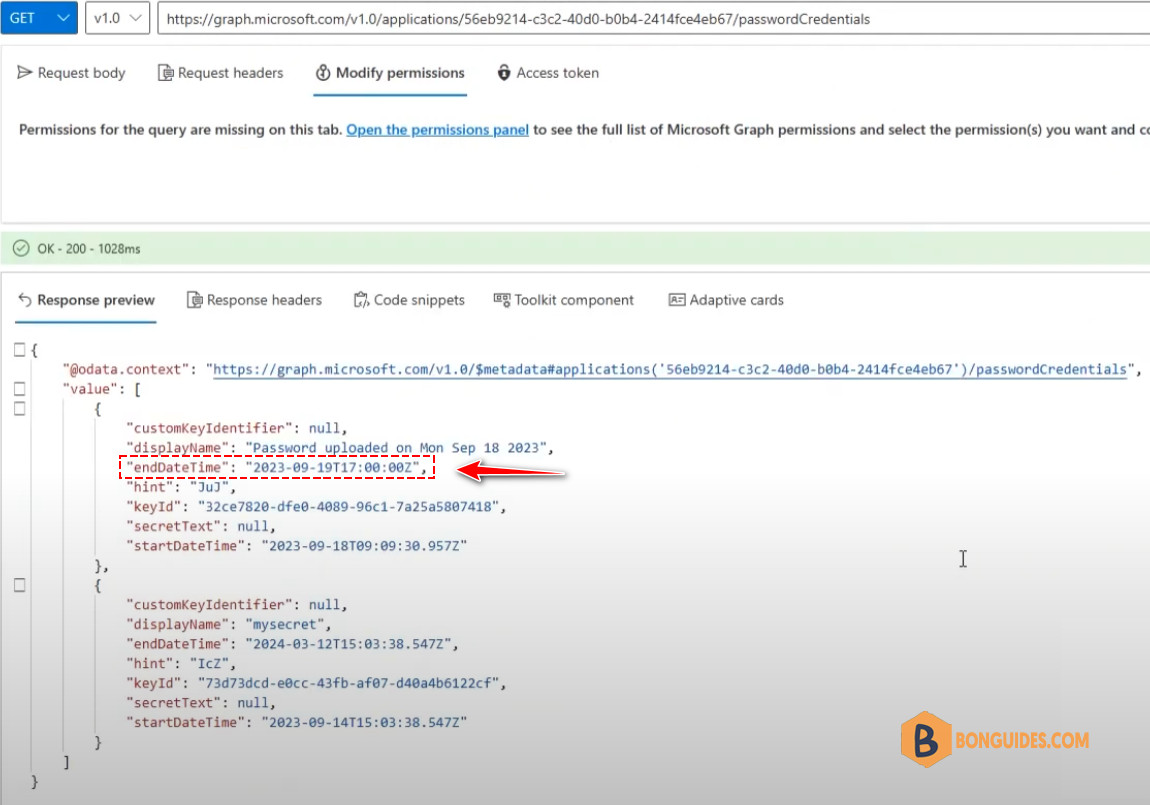
For those who don’t know about Graph Explorer should definitely have a look at it! With Graph Explorer you can query tenant data using Graph API. We were able to find the endDateTime value of a client secret. This is the data we’re looking for!
PowerShell
With the use of this PowerShell script, you can retrieve all applications in Entra ID and query all the client secrets attached to the applications. If they have an expiring client secret within 30 days, it will report back to the console which application and client secret should be rotated before it expires.
# Install required module if not already installed
Install-Module -Name Microsoft.Graph.Authentication -Force -AllowClobber

# Import required modules
Import-Module Microsoft.Graph.Authentication

# Connect to Microsoft Graph
Connect-MgGraph -Scopes "Application.Read.All"

# Retrieve all applications
$allApplications = @()
$pageSize = 100
$nextLink = $null

do {
    $applicationsPage = Invoke-MgGraphRequest -Method GET -Uri "https://graph.microsoft.com/v1.0/applications\$($nextLink -replace '\?', '&')"
    $allApplications += $applicationsPage.Value
    $nextLink = $applicationsPage.'@odata.nextLink'
} while ($nextLink)

# Query each application
foreach ($application in $allApplications) {

# Retrieve secrets
    $secretsUri = "https://graph.microsoft.com/v1.0/applications/$($application.id)/passwordCredentials"
    $secrets = Invoke-MgGraphRequest -Method GET -Uri $secretsUri

# Query secrets
    foreach ($secret in $secrets.value) {
        try {
            $expiryDateTime = [DateTime]$secret.endDateTime
            $expiryDate = $expiryDateTime.Date

            if ($expiryDate -ne $null) {
                $daysUntilExpiry = ($expiryDate - (Get-Date).Date).Days

				# Want a different time range? You can simply modify the condition below
                if ($daysUntilExpiry -le 30) {
                    Write-Host -ForegroundColor Red "Secret Expiring within a Month:"
                    Write-Host "Application Name: $($application.displayName)"
                    Write-Host "Application ID: $($application.id)"
                    Write-Host "  Key ID: $($secret.keyId)"
                    Write-Host "  Expiry Date: $($expiryDate.ToString("yyyy-MM-dd"))"
                    Write-Host "  Days Until Expiry: $daysUntilExpiry"
                }
            } else {
                throw "Invalid DateTime format"
            }
        }
        catch {
            Write-Host "Error parsing secret expiry date. Skipping secret."
        }
    }
    Write-Host
}

# Disconnect from Microsoft Graph
Disconnect-MgGraph
If you want a different time range, you can simply modify $daysUntilExpiry -le 30 in the code where 30 is the amount of days.


