Table of Contents
Export PuTTY Settings or Sessions to Another Computer
PuTTY is hands-down the best SSH client for Windows. It’s light-weight with a single putty.exe file and nothing else to install. In some cases, you may want to export PuTTY settings or sessions to another computer.
PuTTY stores all sessions in Windows Registry, not in a file, so if you want to export these and import on some other computer or account then follow these steps (source):
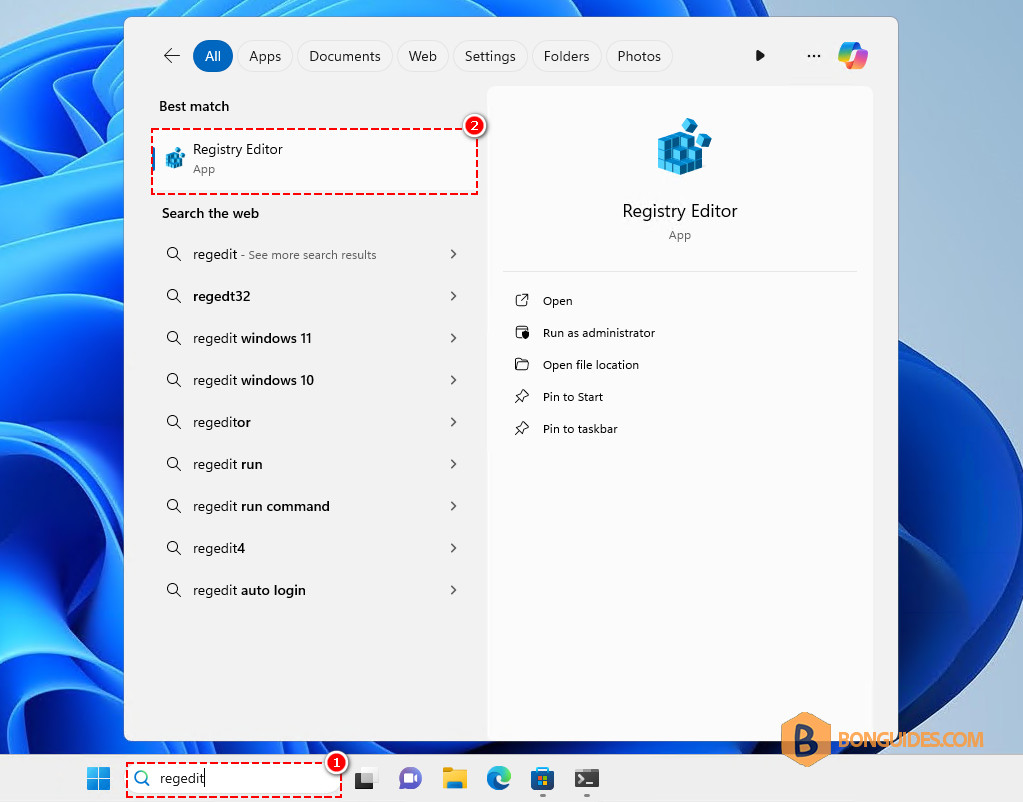
1. Search for regedit then open Registry Editor.
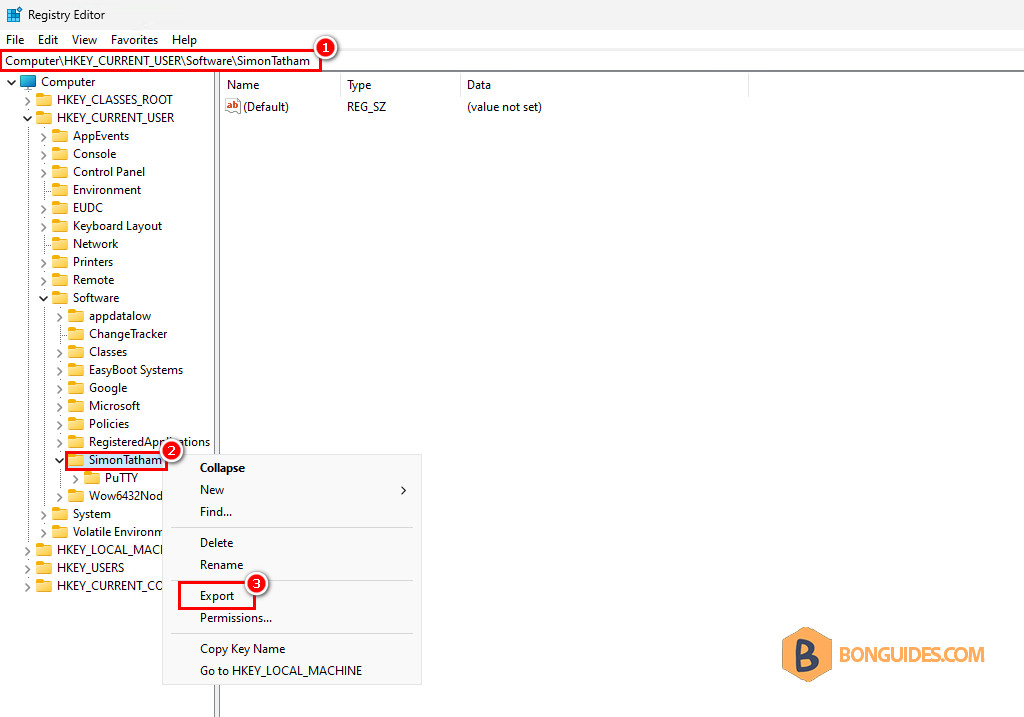
2. Navigate to the following key from the left navigation bar or you can copy and paste the below string into the address bar then hit Enter.
HKEY_CURRENT_USER\Software\SimonTatham3. Right click on the key SimonTatham then select Export.
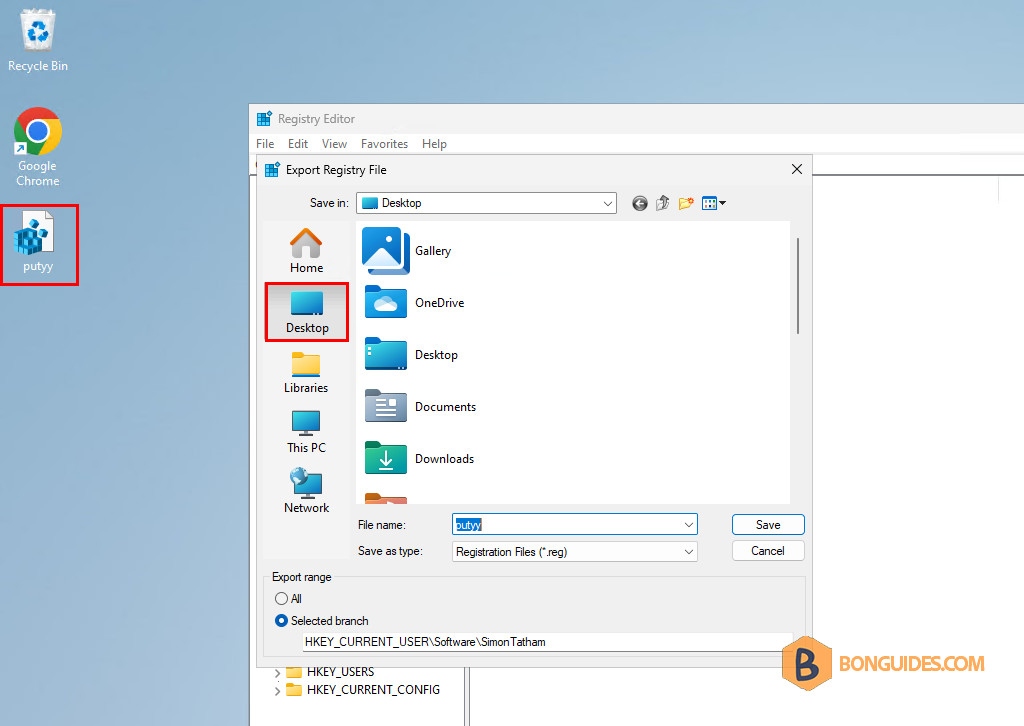
4. Enter a desire name for the exported file. For example, we will export it to Desktop.
5. Copy the exported file to another computer to import the PuTTY settings and sessions.
6. On the new computers, right click on the file then select Merge to import to Registry.

7. Click OK to continue.

Finally, reopen PuTTY to make sure all sessions are migrated.
Export PuTTY sessions using command line
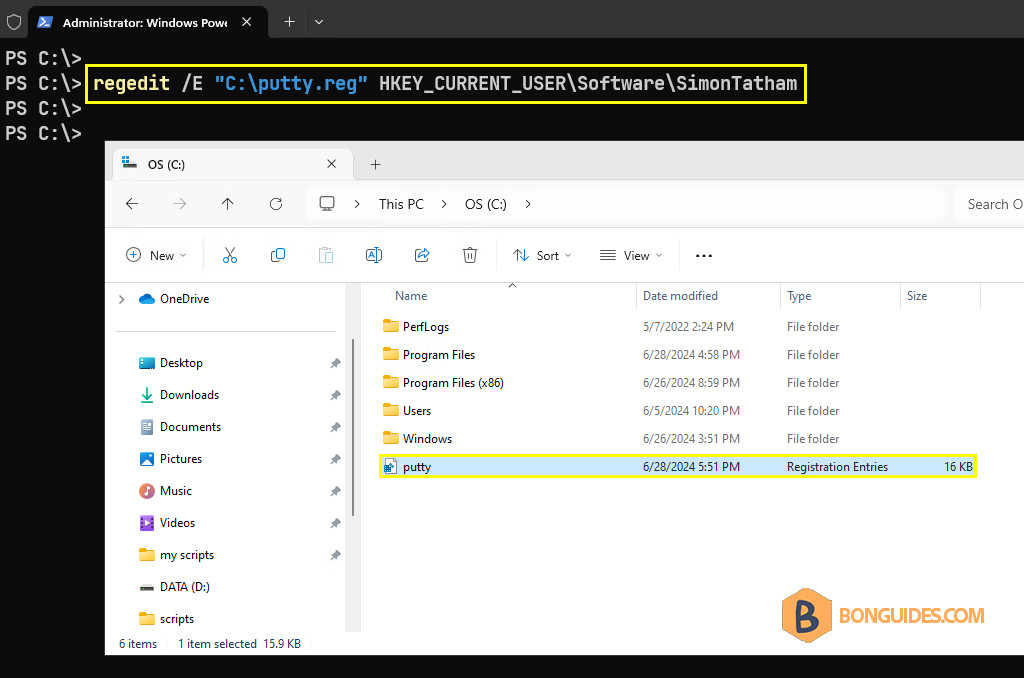
Alternatively, we can export the Registry key using command line such as Command Prompt or PowerShell.
1. Right click on the Windows Start icon then open an elevated PowerShell window.
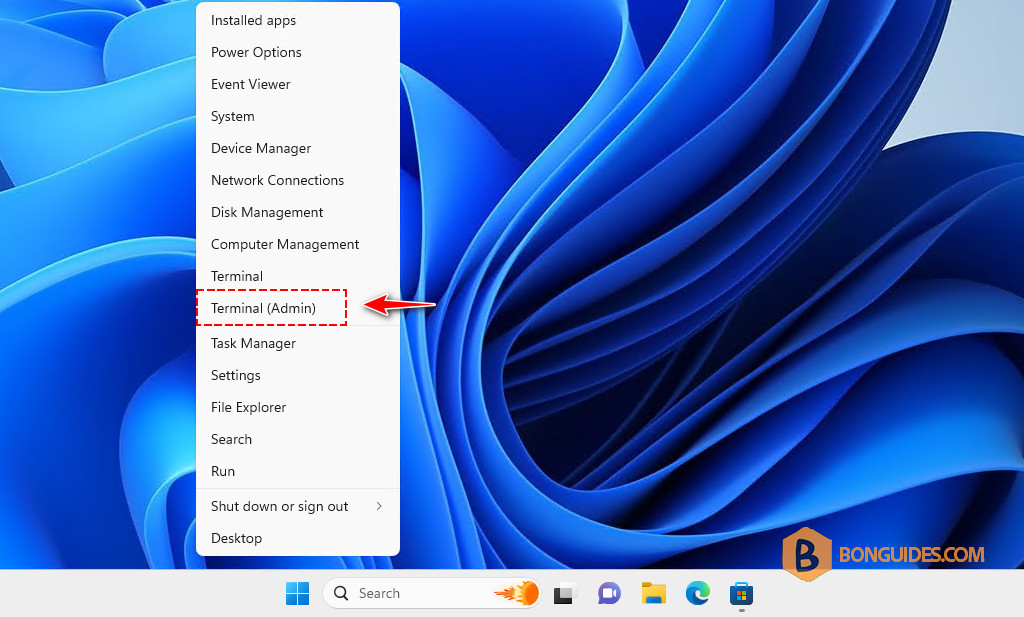
2. Run the following command to export PuTTY sessions and configurations to the file C:putty.reg.
regedit /E "C:\putty.reg" HKEY_CURRENT_USER\Software\SimonTathamCopy the exported file, double click in order to import sessions or settings on a new computer.