Table of Contents
Convert RSA Private Key to OpenSSH Private Key
In some cases, you want to convert RSA private key to OpenSSH private key. RSA private key stores in PEM format (older) key begin with: —–BEGIN RSA PRIVATE KEY—–
You can check if you’ve an RSA private key in PowerShell with Get-Content cmdlet.
Get-Content 'D:\SSH\rsa-privkey.pem'-----BEGIN RSA PRIVATE KEY-----
MIIG5AIBAAKCAYEAxY90VJY9n9UD+6TM9foeRvraia/1JI9mTnH4ZjO/a+0FYSY7
TKl2Mb0WZ7KKOLe1O6Mcv91m+koVIh32bhK+RDvHqDUKBtX7Nl23hj95ez48YWTQ
...
-----END RSA PRIVATE KEY-----1. Open PowerShell as administrator then create a folder named .ssh in the home directory of the current logon user.
New-Item ~/.ssh -Type Directory2. Copy the RSA private key to that folder then rename it. The OpenSSH private key is a general file without a file extension.
Note
Don’t for get to change the admin by your username of the current logon user.
Copy-Item 'D:\SSH\rsa-privkey.pem' 'C:\Users\admin\.ssh\openssh-privkey'3. Now, run the below command to convert RSA private key to OpenSSH private key.
ssh-keygen -p -f 'C:\Users\admin\.ssh\openssh-privkey'If you want to protect your private key by a pass phrase, type it when prompted. In our case, we just press Enter to continue without adding the pass phrase.
Enter new passphrase (empty for no passphrase):
Enter same passphrase again:
Your identification has been saved with the new passphrase.
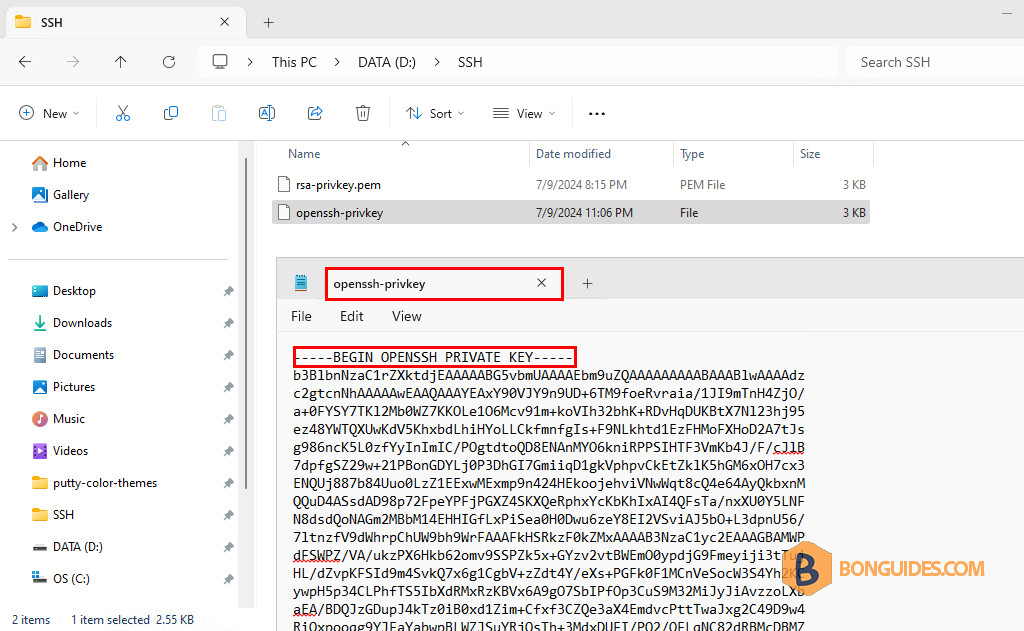
4. The RSA private key is converted to OpenSSH private key. You can check it using the Get-Content cmdlet.
Get-Content C:\Users\admin\.ssh\rsa-privkey.pem-----BEGIN OPENSSH PRIVATE KEY-----
b3BlbnNzaC1rZXktdjEAAAAABG5vbmUAAAAEbm9uZQAAAAAAAAABAAABlwAAAAdzc2gtcn
NhAAAAAwEAAQAAAYEAxY90VJY9n9UD+6TM9foeRvraia/1JI9mTnH4ZjO/a+0FYSY7TKl2
...
-----END OPENSSH PRIVATE KEY-----Using an OpenSSH client, we can use both of private key types to SSH to the remote Linux system with key-based authentication.
ssh [email protected] -i ~\.ssh\openssh-privkeyssh [email protected] -i ~\.ssh\rsa-privkey.pem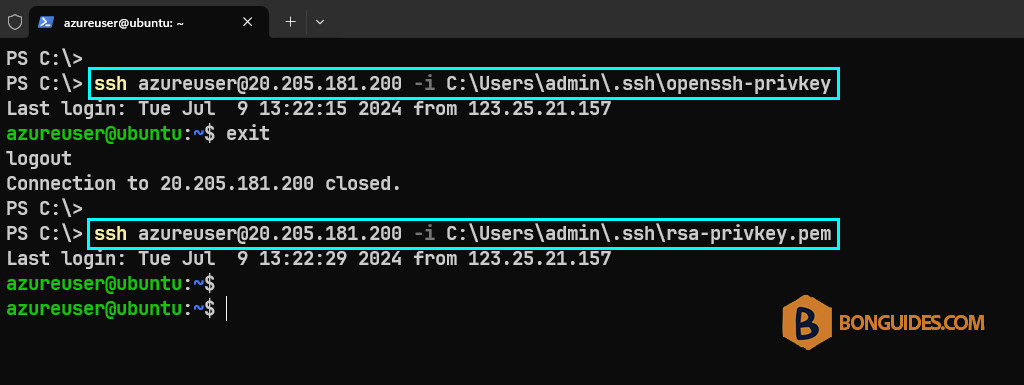
Using the PuTTY Key Generator
Alternatively, we can use the PuTTY Key Generator to convert RSA private key to OpenSSH private key. Download the PuTTYGen from the official site then open it.
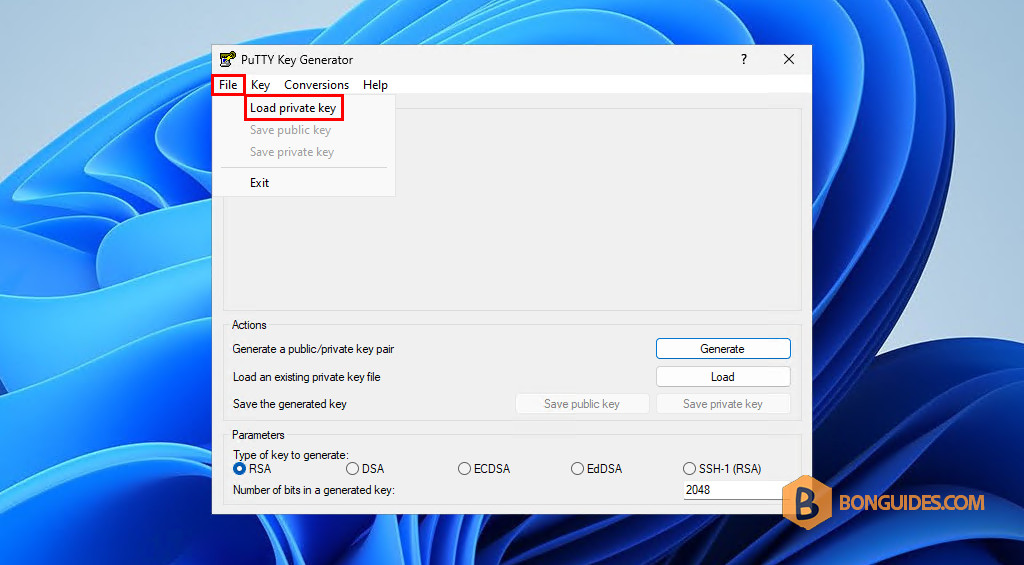
1. In the PuTTYGen, navigate to File → Load private key.
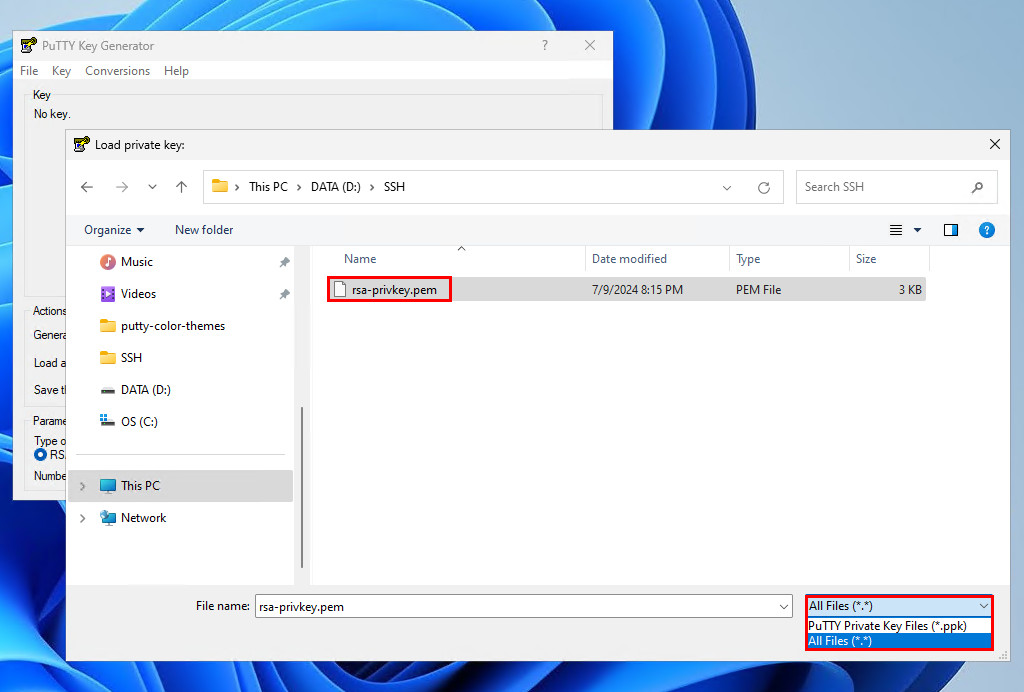
2. Load the RSA private key. If you cannot see the key (.pem) in the folder, change the file type to All Files.
3. Click OK to continue.
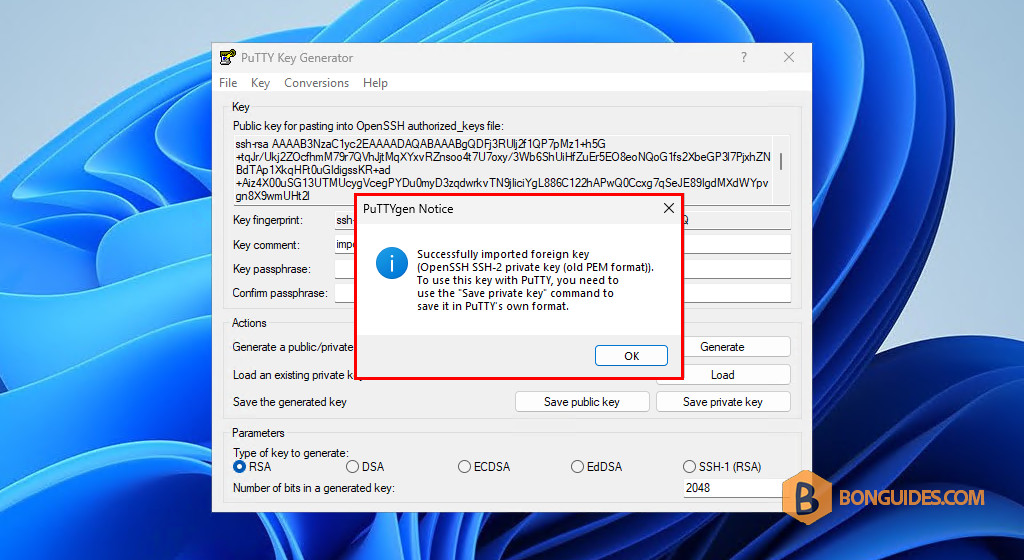
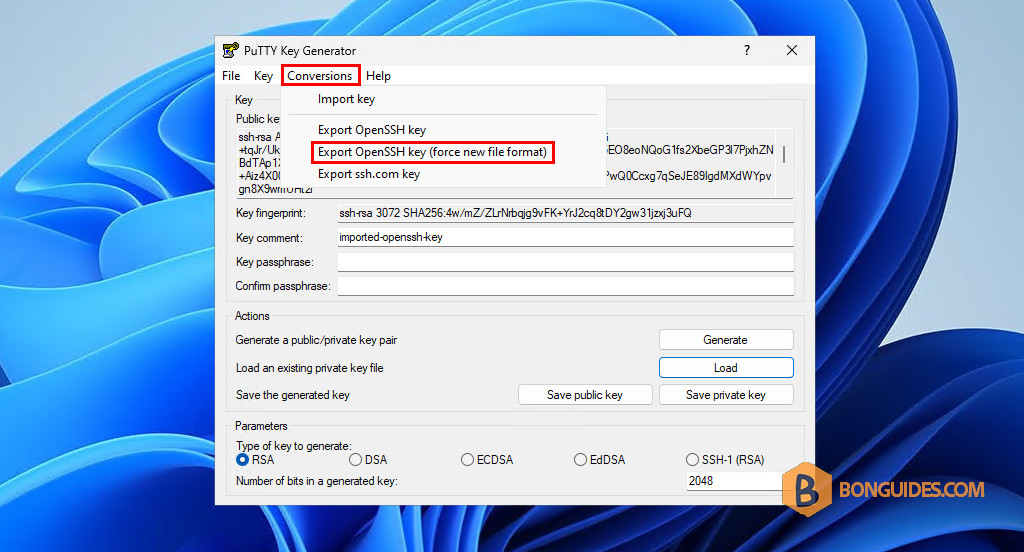
4. Now, navigate to Conversions → Export OpenSSH key (force new file format)
5. Enter a desire name without any file extension.
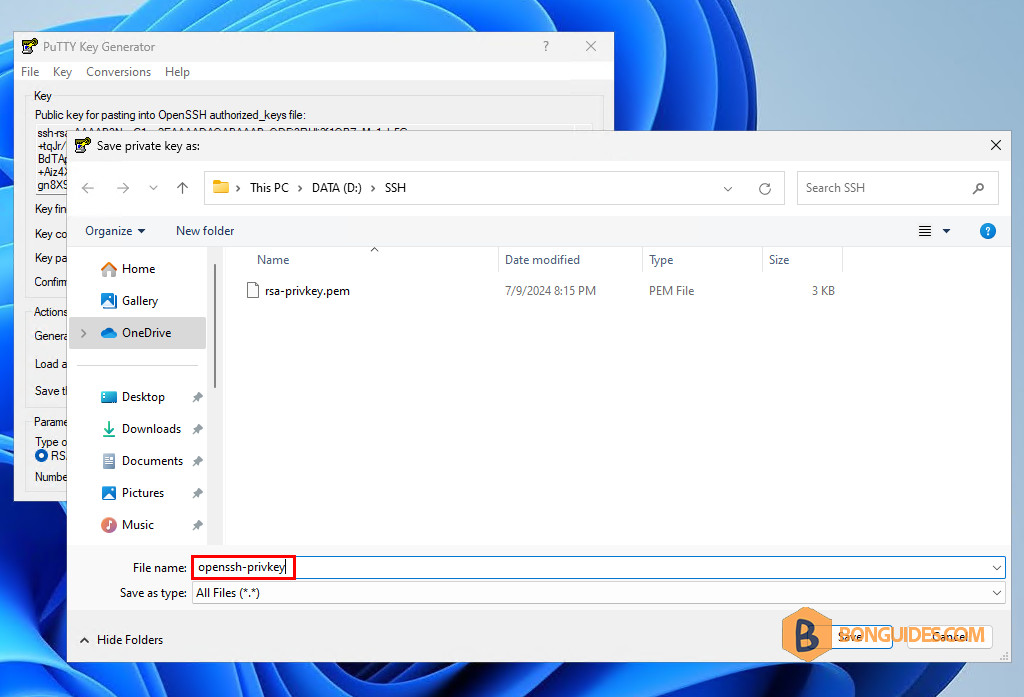
Finally, open the converted file using any text editor to verify it works. The file should begin with —–BEGIN OPENSSH PRIVATE KEY—–