Table of Contents
Microsoft Store in Windows Sandbox
By default, Microsoft Store is not included in Windows Sandbox. In case you want to test an app from Store, you must have enabled it first.
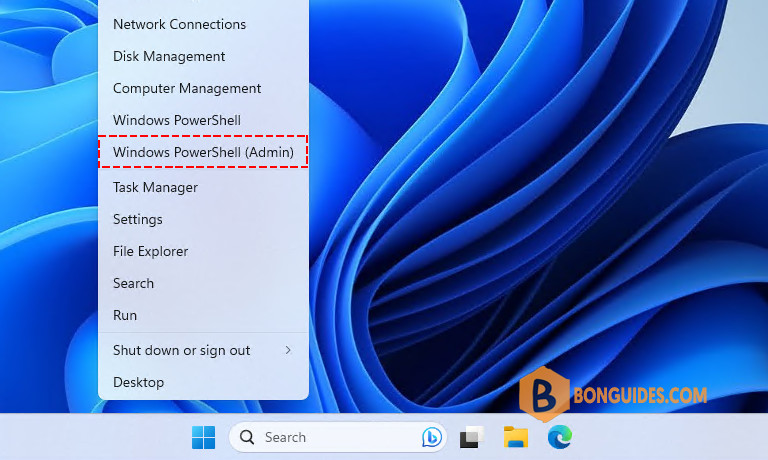
1️⃣ Right-click on the Windows Start icon then select Windows PowerShell Admin.
2️⃣ We’ve created a PowerShell script to do all manual steps automatically.
Note
Our PowerShell script is safe, but you should verify the security and contents of any script from the internet you are not familiar with.
Copy and paste the below command into the PowerShell window then hit Enter.
irm bonguides.com/wsb/msstore | iexPS C:\Users\WDAGUtilityAccount> irm bonguides.com/wsb/msstore | iex
Downloading dependency packages...
Installing dependency packages...
Adding Microsoft Store...
Adding Store Purchase App...
Adding XboxIdentityProvider...
Installed packages:
Name Version Status
---- ------- ------
Microsoft.VCLibs.140.00 14.0.30704.0 Ok
Microsoft.VCLibs.140.00 14.0.26706.0 Ok
Microsoft.DesktopAppInstaller 1.0.1810.1000 Ok
Microsoft.WindowsStore 11809.1001.7.0 Ok
Microsoft.NET.Native.Framework.1.6 1.6.24903.0 Ok
Microsoft.NET.Native.Framework.1.6 1.6.24903.0 Ok
Microsoft.NET.Native.Runtime.1.6 1.6.24903.0 Ok
Microsoft.NET.Native.Runtime.1.6 1.6.24903.0 Ok
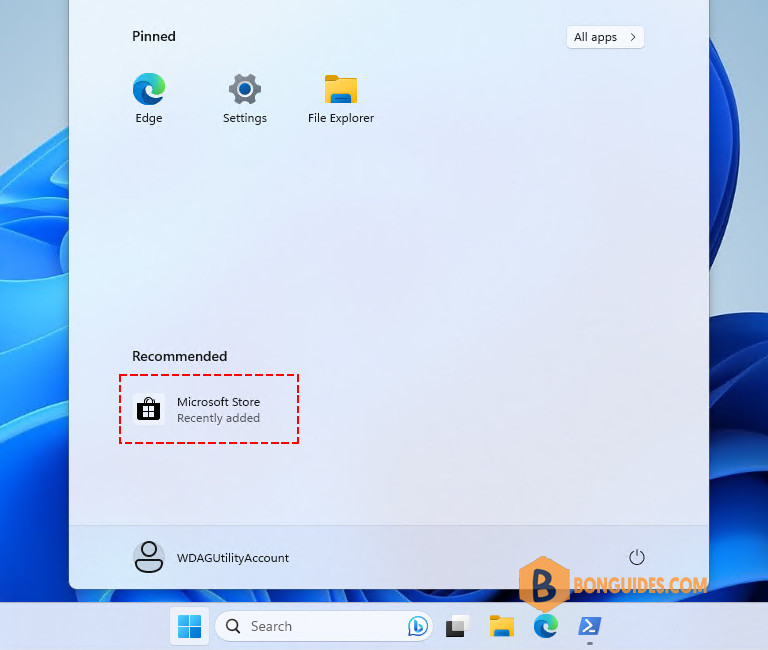
Done.3️⃣ Once done, the Microsoft Store shoul be installed, and you can install any store app as you need.
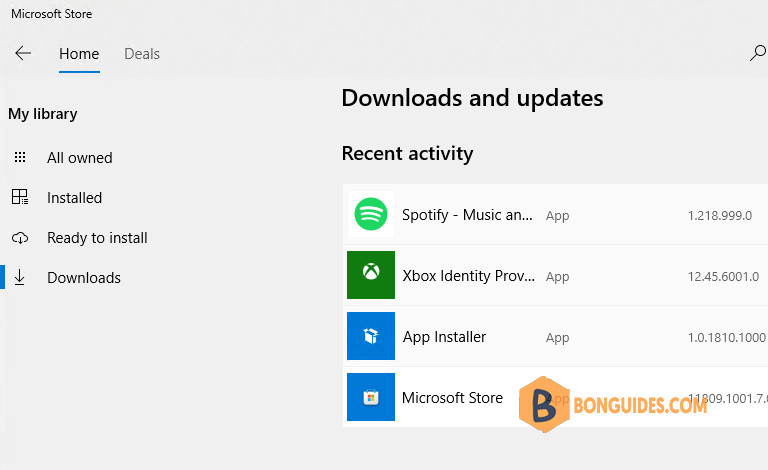
For example, we’ve download and installed Spotify on Windows Sandbox.