
Table of Contents
On Windows, the operating system does not come with a built-in OpenSSL executable, unlike Ubuntu or other Linux distributions. This means that in order to generate .key, .pem, and .crt files, you will need to install OpenSSL manually.
In this post, we will show you several ways to download and install OpenSSL on Windows 11.
Method 1: Install OpenSSL using Windows Package Manager
This easiest way is using Windows Package Manager. Windows Package Manager is a comprehensive package manager solution that consists of a command line tool and set of services for installing applications on Windows 10 and Windows 11.
Note
The winget command line tool is only supported on Windows 10 1709 (build 16299) or later and Windows 11 at this time.
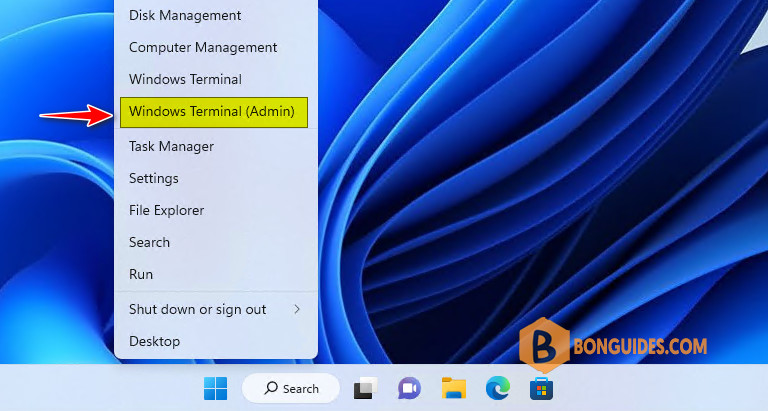
1. Right-click on the Windows Start icon then select Windows Terminal (Admin).
2. Run the following command to search the OpenSSL package:
winget search openssl3. Copy the app’s id for the next step. In this case, the id of this app is FireDaemon.OpenSSL.
Name                 Id                 Version Match        Source
-------------------------------------------------------------------
FireDaemon OpenSSL 3 FireDaemon.OpenSSL 3.1.4   Tag: openssl winget
4. Now, run the following command to install OpenSSL on Windows 11:
winget install --id=FireDaemon.OpenSSL -e# Output
Found FireDaemon OpenSSL 3 [FireDaemon.OpenSSL] Version 3.1.4
This application is licensed to you by its owner.
Microsoft is not responsible for, nor does it grant any licenses to, third-party packages.
Downloading https://download.firedaemon.com/FireDaemon-OpenSSL/FireDaemon-OpenSSL-x64-3.1.4.exe
██████████████████████████████ 11.3 MB / 11.3 MB
Successfully verified installer hash
Starting package install...
Successfully installed5. By default, after installed you must navigate to the installation location to run openssl. To run it from anywhere, run the below PowerShell command to add a new path to the environment variable.
$Env:PATH += ";C:\Program Files\FireDaemon OpenSSL 3\bin"6. Finally, open PowerShell, type opensll then hit to verify it works.
PS C:\> openssl
help:

Standard commands
asn1parse         ca                ciphers           cmp
cms               crl               crl2pkcs7         dgst
dhparam           dsa               dsaparam          ec
ecparam           enc               engine            errstr
fipsinstall       gendsa            genpkey           genrsa
help              info              kdf               list
mac               nseq              ocsp              passwd
pkcs12            pkcs7             pkcs8             pkey
pkeyparam         pkeyutl           prime             rand
rehash            req               rsa               rsautl
s_client          s_server          s_time            sess_id
smime             speed             spkac             srp
storeutl          ts                verify            version
x509
Alternatively, some Windows package managers can be used to install OpenSSL.
- Install OpenSSL using Chocolatey package manager:
# Install Chocolatey
irm bonguides.com/choco | iex

# Install OpenSSL
choco install OpenSSL.Light- Install OpenSSL using Scoop package manager:
# Install Scoop package manager
Set-ExecutionPolicy -ExecutionPolicy RemoteSigned -Scope CurrentUser
irm get.scoop.sh | iex

# Install OpenSSL
scoop install openssl
Method 2: Install OpenSSL from Shining Light Productions
1. Download OpenSSL installer from https://slproweb.com/products/Win32OpenSSL.html depending on your Windows architecture.

2. Install OpenSSL following the installation wizard. Once done, you can find the program at C:\Program Files\OpenSSL-Win64\bin.

Note: If you want to launch OpenSSL from anywhere after opening PowerShell. Don’t forget to add the OpenSSL installation path to the Path environment variables.
Method 3: Download OpenSSL from Git For Windows
1. Download Git for Windows from https://git-scm.com/download/win. You don’t need download the installer, just download the portable version to get OpenSSL tool.

2. Open the downloaded file to extract it to a folder, then you would get OpenSSL tool in /usr/bin folder.

Open PowerShell or CMD then navigate to the extracted folder and run openssl to verify it works. You can also add the path to the environment variables to run it from anywhere.
Running OpenSSL in Windows 10, 11
To run the OpenSSL tool, let’s open Windows command prompt (CMD) or Windows PowerShell then navigate to the tool’s location.
cd "C:\Users\mpnadmin\Downloads\PortableGit\usr\bin"Each time when run openssl, you need to navigate to its folder manually.
C:\Users\mpnadmin\Downloads\PortableGit\usr\bin>openssl.exe
OpenSSL> help
Standard commands
asn1parse         ca                ciphers           cms
crl               crl2pkcs7         dgst              dhparam
dsa               dsaparam          ec                ecparam
enc               engine            errstr            gendsa
genpkey           genrsa            help              list
To run OpenSSL from anywhere, you need to add the bin folder into Windows environment.
C:\Users\mpnadmin>openssl
help:

Standard commands
asn1parse         ca                ciphers           cmp
cms               crl               crl2pkcs7         dgst
dhparam           dsa               dsaparam          ec
ecparam           enc               engine            errstr
fipsinstall       gendsa            genpkey           genrsa
You can use the PowerShell to set the environment variables path or you can do it manually as follows:
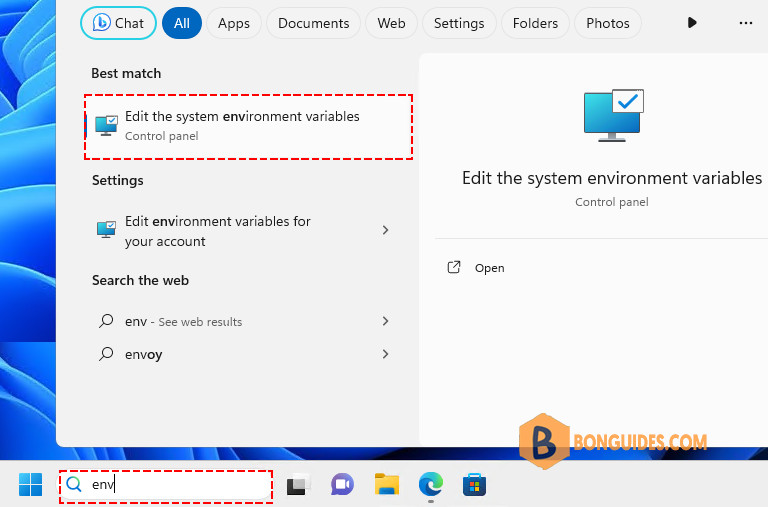
1. Type env into the Windows search box then select the result under the best match.
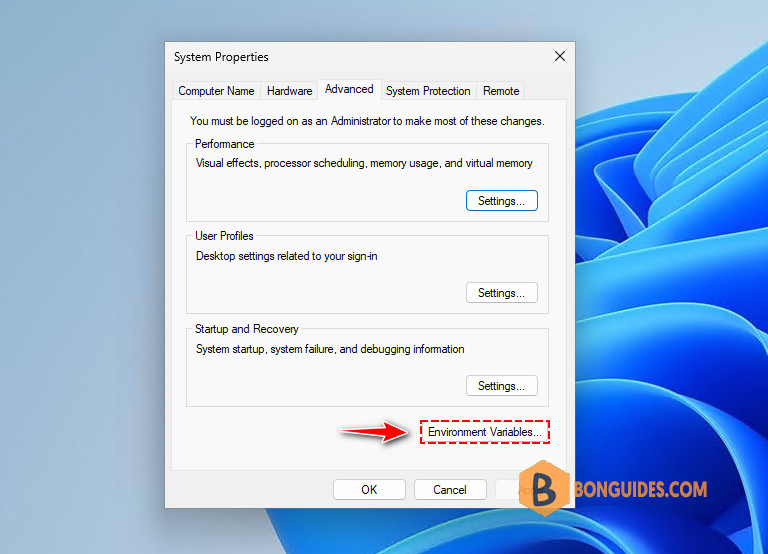
2. In the System Properties window, select the Environment Variables… button.
3. Double-click on the Path variable in either User variables or System variables to edit it.
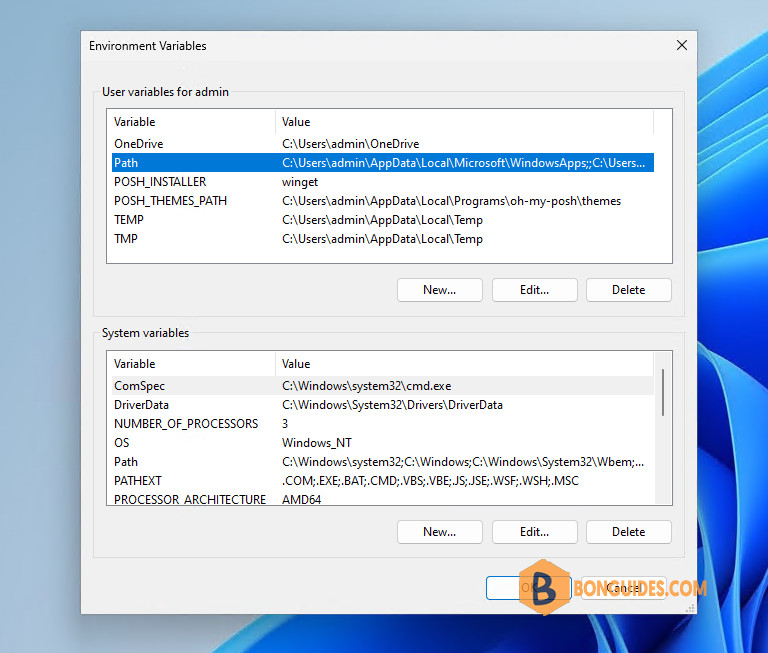
4. Click on the button to add a new Path. The path depends on the way you have to install OpenSSL. So, let's change it to fit with yours.

Finally, click OK to save the changes then open PowerShell or CMD, type openssl then hit Enter to verify it works.


Thanks for the post. worked like a charm.
Glad it helped
Thank you! Very informative!