
Table of Contents
Introduction
In some cases, you want to install the Office 365 apps automatically:
- You want to install Office 365 on multiple computers.
- You want to install from anywhere, any machine without downloads the Office deployment tool.
- You want to install the apps without login into any Microsoft 365 account.
- You need Office 365 preinstalled on a computer before giving it to users.
Install Microsoft Office using PowerShell
My PowerShell script is safe, but you should verify the security and contents of any script from the internet you are not familiar with.
1️⃣ Right click on the Windows Start icon then open Windows PowerShell Admin or Windows Terminal Admin in Windows 11.

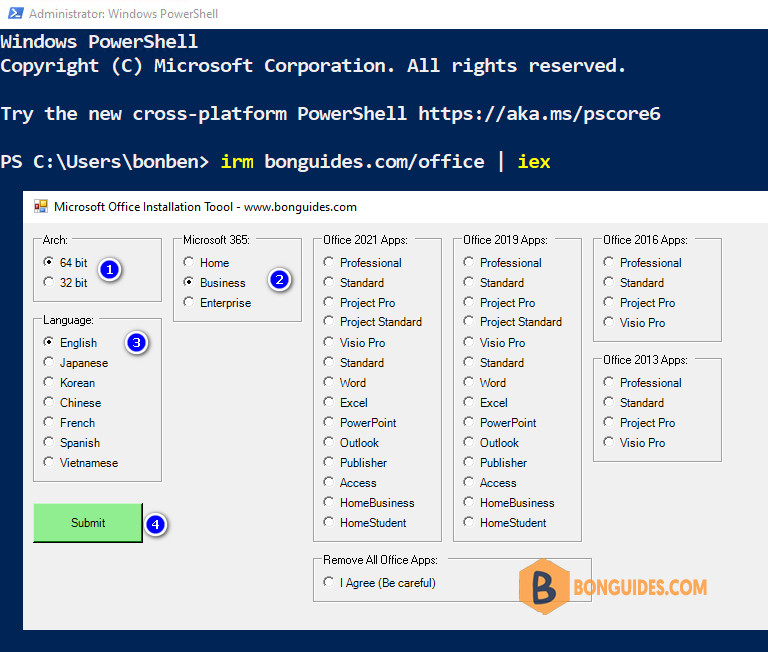
2️⃣ Copy and paste below command into the PowerShell windows then hit Enter.
irm bonguides.com/office | iex3️⃣ Select Office 365 edition, language as you need then click on the Submit button.
Using this script, you can download and install the Office 365 apps for personal or business.
- Personal: Office 365 Home, Office 365 Personal.
- Business: Microsoft 365 Apps for Business, Microsoft 365 Apps for Enterprise.
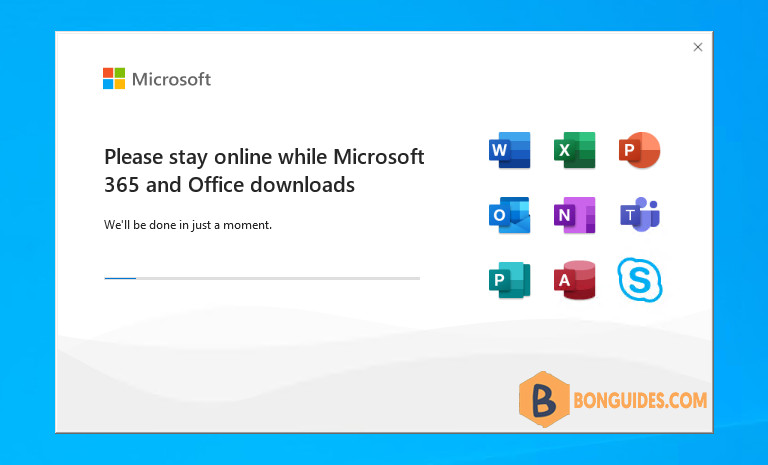
4️⃣ Once done, the installation starts automatically. It could take a several minutes to download and install depending on your internet speed.
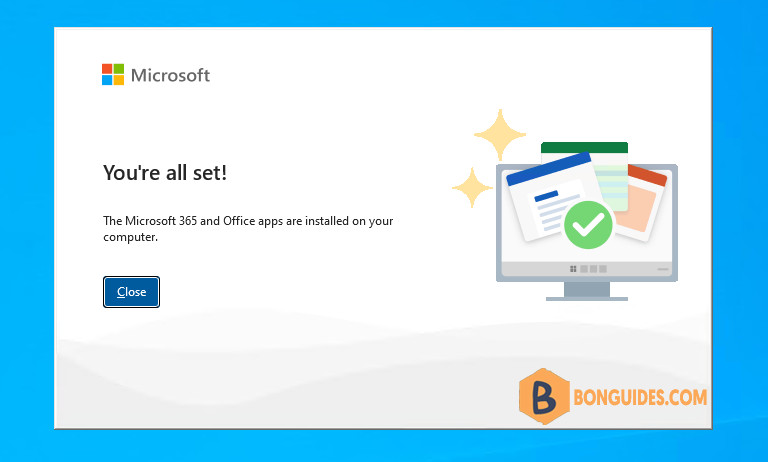
5️⃣ Finally, close the PowerShell window then open any office apps to verify it was installed.
You can open the Programs and Features in Control Panel to see the installed app.


