Table of Contents
Disable the Light Bulb in Visual Studio Code
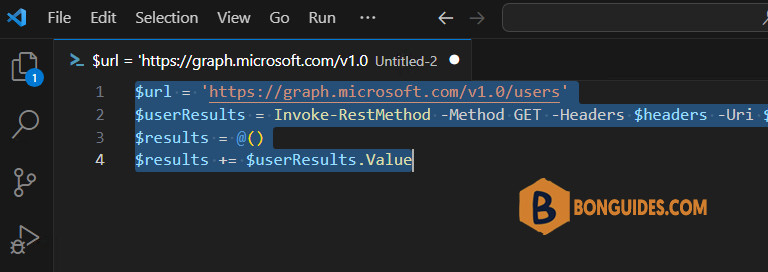
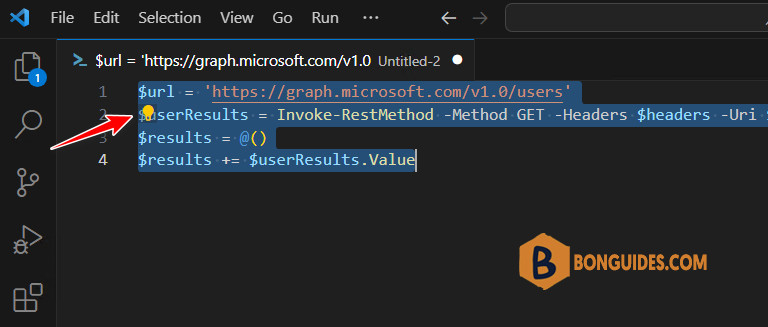
You love Visual Studio Code, but you hate the little lightbulb when you are selecting the codes. This post shows you the way to disable or turn it off.
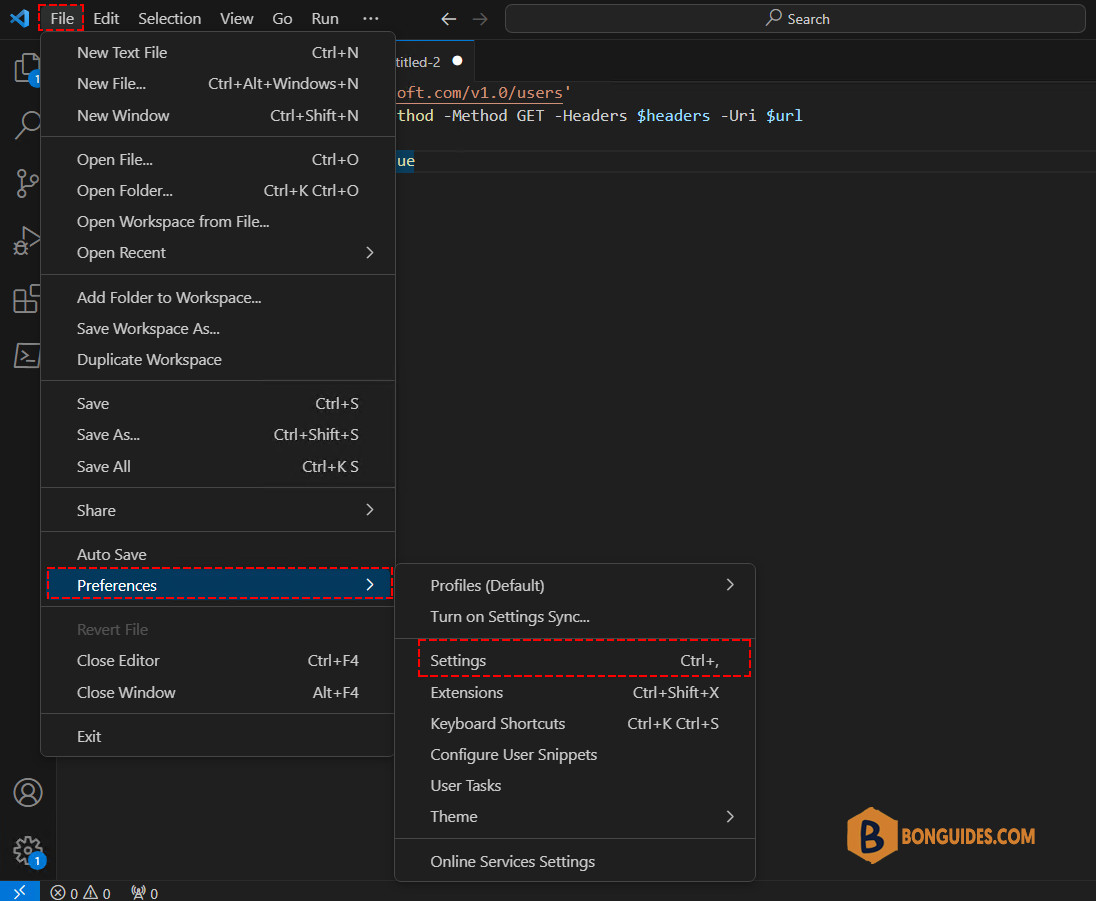
1️⃣ Navigate to the File menu >> Preferences >> Settings to open the settings page.
Note
Tip: The settings page can be opened by the Ctrl + , combination key.
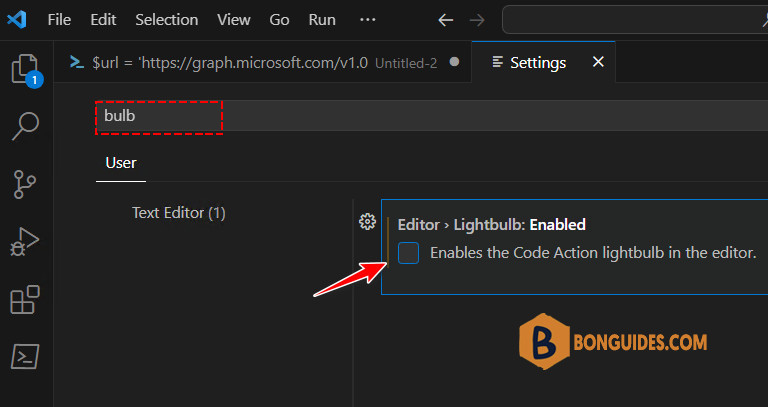
2️⃣ In the settings page, type bulb in the search box then clears the checkbox Enables the Code Action lightbulb in the editor.
The change would be saved automatically. Go back to the editor to verify it works.