
Table of Contents
Remote Server Administration Tools (RSAT) for Windows 10 can be installed through multiple ways. We can install it through PowerShell, DISM command line using online method (by connecting to internet), or we can install it in offline mode as well using Feature on Demand package.
What is RSAT?
RSAT is a set of tools which helps Administrators to remotely manage roles and features of Windows Server such as Group Policy Management editor, Active Directory users and Computers etc from your local computer running Windows 10.
You can install RSAT only on Professional or Enterprise edition of the Windows client operating system. Check here for more details on Remote Server Administration Tools.
List of RSAT Windows 10 Components
Run following PowerShell command to see list of available RSAT tools. You can see the State is NotPresent, it means the tools have not been installed.
PS C:\> Get-WindowsCapability -Name RSAT* -Online

Name                                                          State DownloadSize
----                                                          ----- ------------
Rsat.LLDP.Tools~~~~0.0.1.0                               NotPresent        23411
Rsat.BitLocker.Recovery.Tools~~~~0.0.1.0                 NotPresent        42909
Rsat.SystemInsights.Management.Tools~~~~0.0.1.0          NotPresent        56363
Rsat.StorageMigrationService.Management.Tools~~~~0.0.1.0 NotPresent       124644
Rsat.NetworkController.Tools~~~~0.0.1.0                  NotPresent       168544
Rsat.VolumeActivation.Tools~~~~0.0.1.0                   NotPresent       216883
Rsat.IPAM.Client.Tools~~~~0.0.1.0                        NotPresent       232337
Rsat.NetworkLoadBalancing.Tools~~~~0.0.1.0               NotPresent       274229
Rsat.StorageReplica.Tools~~~~0.0.1.0                     NotPresent       462423
Rsat.RemoteDesktop.Services.Tools~~~~0.0.1.0             NotPresent       976546
Rsat.Dns.Tools~~~~0.0.1.0                                NotPresent      1333944
Rsat.CertificateServices.Tools~~~~0.0.1.0                NotPresent      1570788
Rsat.DHCP.Tools~~~~0.0.1.0                               NotPresent      1655744
Rsat.WSUS.Tools~~~~0.0.1.0                               NotPresent      1681014
Rsat.GroupPolicy.Management.Tools~~~~0.0.1.0             NotPresent      4276409
Rsat.ActiveDirectory.DS-LDS.Tools~~~~0.0.1.0             NotPresent      5230259
Rsat.FileServices.Tools~~~~0.0.1.0                       NotPresent      5322476
Rsat.ServerManager.Tools~~~~0.0.1.0                      NotPresent      6626365
Rsat.RemoteAccess.Management.Tools~~~~0.0.1.0            NotPresent      7025683
Rsat.FailoverCluster.Management.Tools~~~~0.0.1.0         NotPresent      9867882
Rsat.Shielded.VM.Tools~~~~0.0.1.0                        NotPresent     18270690
Install RSAT using Windows settings
IMPORTANT: Starting with Windows 10 October 2018 Update, RSAT is included as a set of “Features on Demand” right from Windows 10/11. Do not download an RSAT package from this page. Instead, just follow the instructions below.
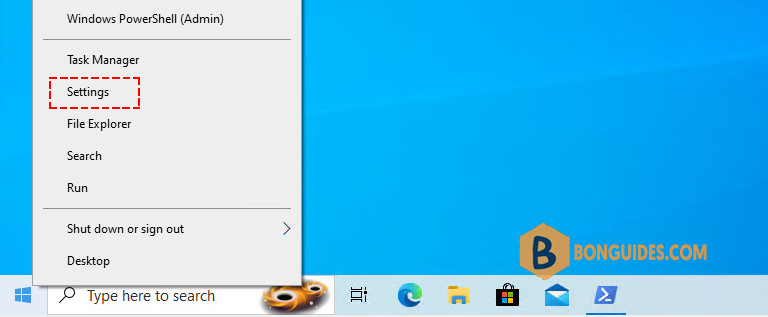
1️⃣ Right click on Windows Start icon then open Windows Seetings or you can press Windows + I at the same time to bring it up.
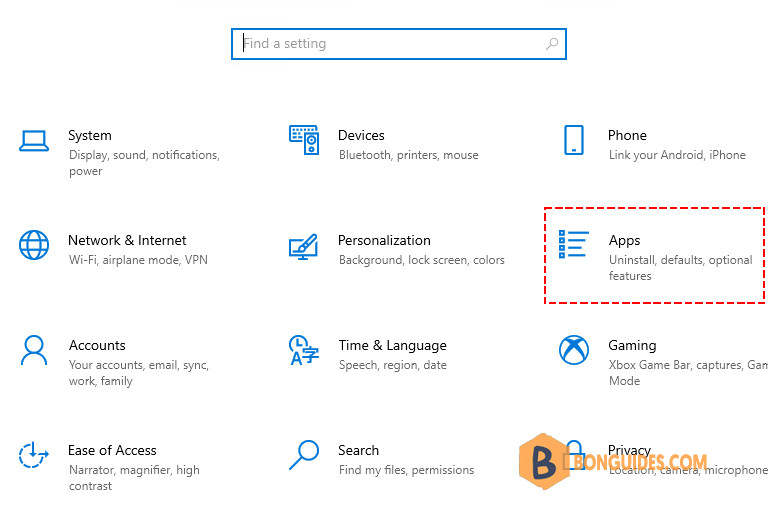
2️⃣ In the main page of the Settings page, select the App section.
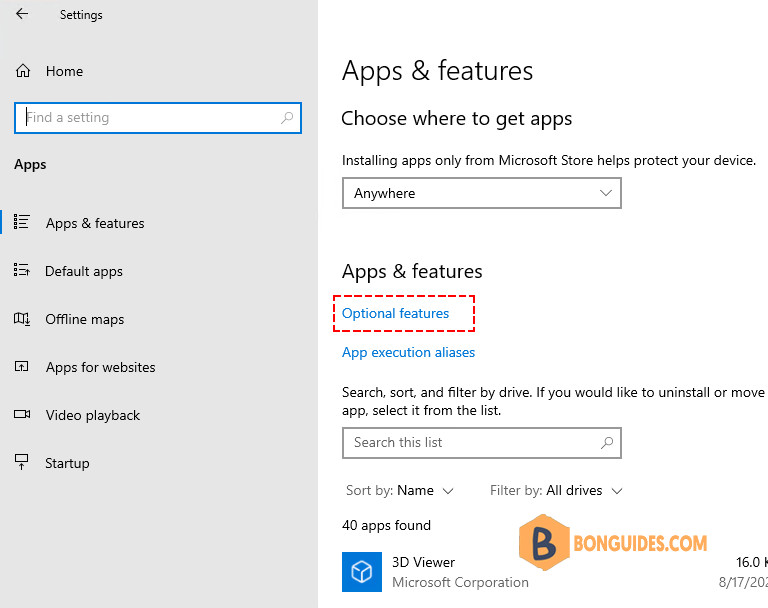
3️⃣ In the App section, select Optional features link.
4️⃣ In the Optional features page, select Add a feature option.
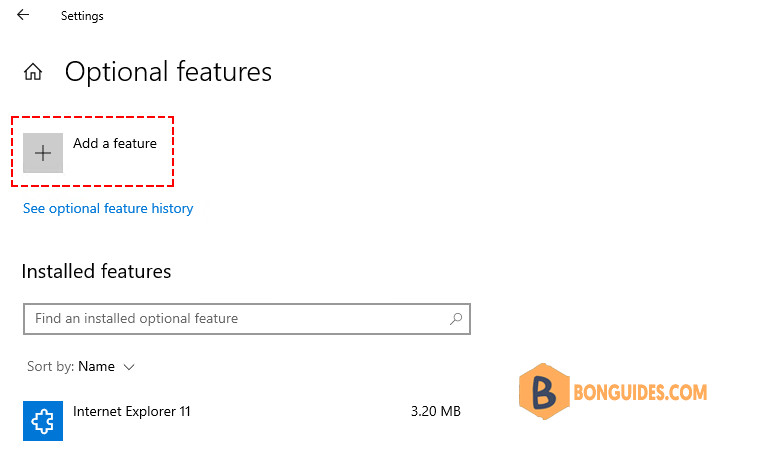
5️⃣ Select and install the specific RSAT tools as you need.
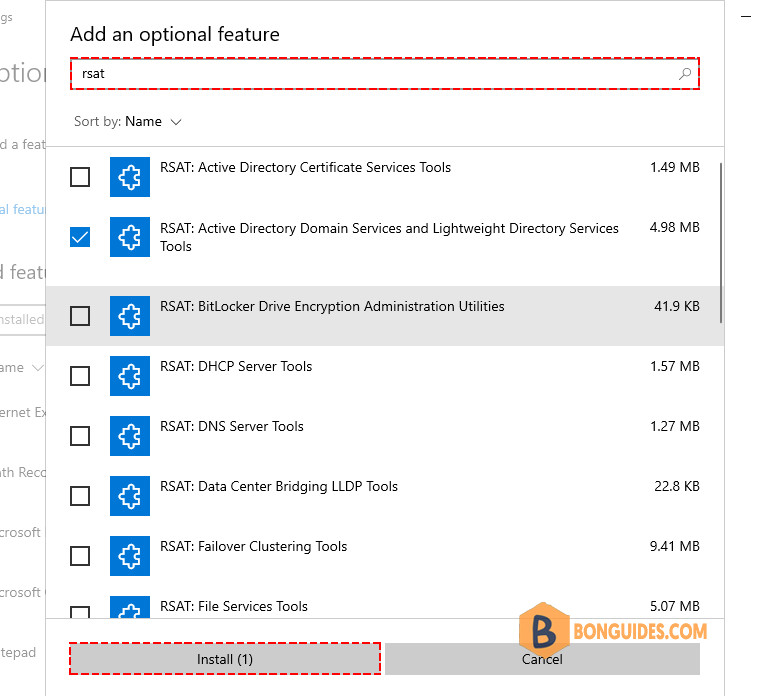
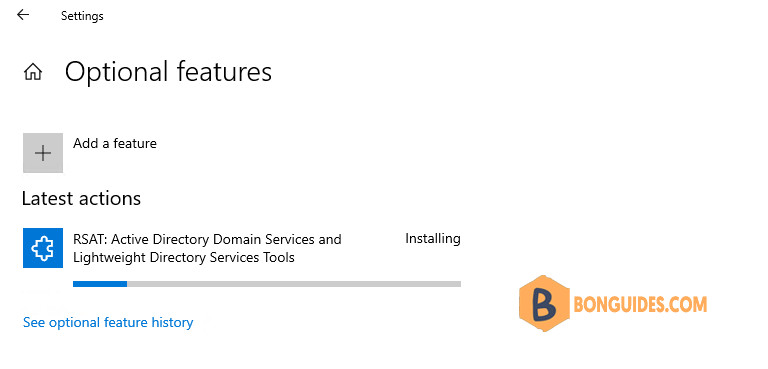
6️⃣ To see installation progress, click the Back button to view status on the Manage optional features page.
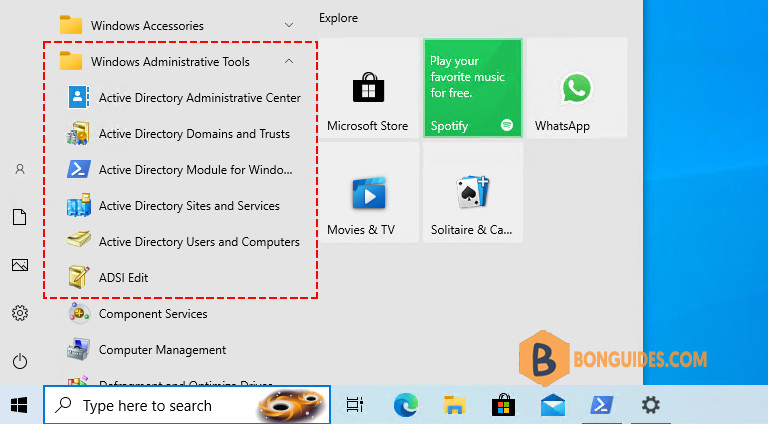
7️⃣ Once done, you can see the app from Start menu.
Or you can check the tools have been installed using the below PowerShell command:
PS C:\ Get-WindowsCapability -Name RSAT* -Online

Name                                                          State DownloadSize
----                                                          ----- ------------
Rsat.ActiveDirectory.DS-LDS.Tools~~~~0.0.1.0              Installed      5230259
Rsat.ServerManager.Tools~~~~0.0.1.0                       Installed      6626365
Install RSAT using PowerShell
Alternatively, you can install RSAT using PowerShell automatically.
1️⃣ Check what RSAT tools you installed using this command:
Note
-Online doesn’t mean that you are connected to internet, rather it means you are making change into operating system while it up and running
PS C:\> Get-WindowsCapability -Name 'RSAT*' -Online | Select Name, State

Name                                                          State
----                                                          -----
Rsat.ActiveDirectory.DS-LDS.Tools~~~~0.0.1.0             NotPresent
Rsat.AzureStack.HCI.Management.Tools~~~~0.0.1.0          NotPresent
Rsat.BitLocker.Recovery.Tools~~~~0.0.1.0                 NotPresent
Rsat.CertificateServices.Tools~~~~0.0.1.0                NotPresent
Rsat.DHCP.Tools~~~~0.0.1.0                               NotPresent
Rsat.Dns.Tools~~~~0.0.1.0                                NotPresent
Rsat.FailoverCluster.Management.Tools~~~~0.0.1.0         NotPresent
Rsat.FileServices.Tools~~~~0.0.1.0                       NotPresent
Rsat.GroupPolicy.Management.Tools~~~~0.0.1.0             NotPresent
Rsat.IPAM.Client.Tools~~~~0.0.1.0                        NotPresent
Rsat.LLDP.Tools~~~~0.0.1.0                               NotPresent
Rsat.NetworkController.Tools~~~~0.0.1.0                  NotPresent
Rsat.NetworkLoadBalancing.Tools~~~~0.0.1.0               NotPresent
Rsat.RemoteAccess.Management.Tools~~~~0.0.1.0            NotPresent
Rsat.RemoteDesktop.Services.Tools~~~~0.0.1.0             NotPresent
Rsat.ServerManager.Tools~~~~0.0.1.0                      NotPresent
Rsat.StorageMigrationService.Management.Tools~~~~0.0.1.0 NotPresent
Rsat.StorageReplica.Tools~~~~0.0.1.0                     NotPresent
Rsat.SystemInsights.Management.Tools~~~~0.0.1.0          NotPresent
Rsat.VolumeActivation.Tools~~~~0.0.1.0                   NotPresent
Rsat.WSUS.Tools~~~~0.0.1.0                               NotPresent
2️⃣ Once you have the list of the tools, you can install the specific tools as you need as follows. For example, we’re going to install the AD DS tools:
Get-WindowsCapability -Name "Rsat.ActiveDirectory*" -Online | Add-WindowsCapability -OnlinePS C:\> Get-WindowsCapability -Name "Rsat.ActiveDirectory*" -Online | Select Name, State
Name State
---- -----
Rsat.ActiveDirectory.DS-LDS.Tools~~~~0.0.1.0 InstalledTo install all components of RSAT, run the below command:
Get-WindowsCapability -Name "Rsat*" -Online | Add-WindowsCapability -OnlineIf you no longer need RSAT, you can uninstall or removal the RSAT components, you can use following command. The command will get the list of installed RSAT component, put in into a pine then remove them using PowerShell loop.
Get-WindowsCapability -Name 'RSAT*' -Online | Where-Object {$_.State -eq 'Installed'} | Foreach {
    Remove-WindowsCapability -Name $_.Name -Online
}
Install RSAT Tools using DISM
Another option to install RSAT is use Dism command (Deployment Image Servicing and Management tool).
1️⃣ To check the status of the tool, run following command:
PS C:\> dism /online /get-capabilityinfo /capabilityname:Rsat.ActiveDirectory.DS-LDS.Tools~~~~0.0.1.0

Deployment Image Servicing and Management tool
Version: 10.0.22621.1

Image Version: 10.0.22621.1992

Capability Identity : Rsat.ActiveDirectory.DS-LDS.Tools~~~~0.0.1.0
Name : Rsat.ActiveDirectory.DS-LDS.Tools
State : Not Present
Display Name : RSAT: Active Directory Domain Services and Lightweight Directory Services Tools
Description : Active Directory Domain Services (AD DS) and Active Directory Lightweight Directory
Download Size : 39.77 MB
Install Size : 34.38 MB

The operation completed successfully.
2️⃣ State is showing as Not present. To install with internet and direct access to Microsoft without WSUS/SCCM in place, run the command:
PS C:\> dism /online /add-capability /capabilityname:Rsat.ActiveDirectory.DS-LDS.Tools~~~~0.0.1.0

Deployment Image Servicing and Management tool
Version: 10.0.19041.844

Image Version: 10.0.19045.3324

[==========================100.0%==========================]
The operation completed successfully.
The 0x800f0954 error, or missing RSAT option in the optional features, is most likely caused if we configure our machine to receive updates from a different source besides Windows Update. For example, it can be the internal Windows Server Update Services (WSUS) or Microsoft System Center Configuration Manager (SCCM) software update server.
To bypass this, run the below script to temporary disable WSUS to install RSAT. Don’t worry about it, the WSUS configuration would be changed to internal update server when GPO is applied.
$regWU = "HKLM:\SOFTWARE\Policies\Microsoft\Windows\WindowsUpdate\AU"
$curWU = Get-ItemProperty -Path $regWU -Name "UseWUServer" | select -ExpandProperty UseWUServer

Set-ItemProperty -Path $regWU -Name "UseWUServer" -Value 0

Restart-Service wuauserv

Get-WindowsCapability -Name RSAT* -Online | Add-WindowsCapability –Online
Set-ItemProperty -Path $regWU -Name "UseWUServer" -Value $curWU

Restart-Service wuauserv -Force

