Table of Contents
Change the PowerShell Default Working Directory
In some cases, you want to start PowerShell in your favorite working directory such as D:scripts for daily at work. So, you don’t need to navigate to it every time you open PowerShell.
By default, when you start a new PowerShell session, you will get directly to your user directory stored in the environment variables. By default, it is located in C:\Users\<username>.
%HOMEDRIVE%%HOMEPATH%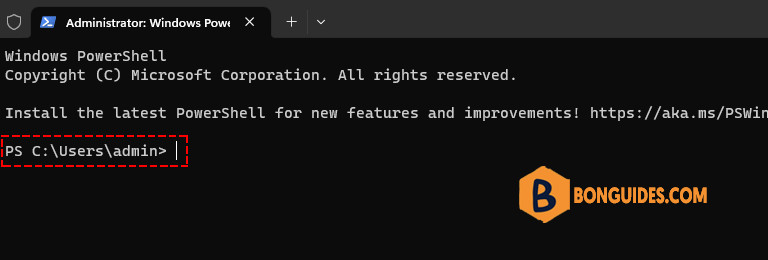
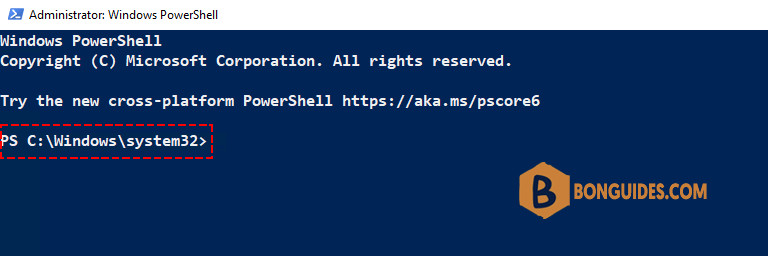
If you open an elevated PowerShell window, it started in C:\Windows\System32.
There are several ways to change this:
- Set a shortcut and change the Start in path in the properties.
- Create a PowerShell profile.
Method 1: Using PowerShell
Another method which I prefer is to create a PowerShell profile in order to customize my environment which is applied to each PowerShell session I will start.
1️⃣ Run PowerShell as administrator and execute the following command.
Set-ExecutionPolicy -ExecutionPolicy RemoteSigned -ForceThis will permit PowerShell to run local scripts and scripts downloaded from the Internet that have been signed. Read more about this command in the documentation.
2️⃣ PowerShell profiles will not automatically created for the users, you have to create it yourself as follows.
New-Item -Path $profile -Type File -ForcePS C:\Windows\system32> New-Item -Path $profile -Type File -Force
Directory: C:\Users\admin\Documents\WindowsPowerShell
Mode LastWriteTime Length Name
---- ------------- ------ ----
-a---- 8/21/2023 8:48 AM 0 Microsoft.PowerShell_profile.ps1From now on there is a new PowerShell script in the following path. The file Microsoft.PowerShell_profile.ps1 would be loaded every time you open PowerShell.
PS C:\Windows\system32> $profile

C:\Users\admin\Documents\WindowsPowerShell\Microsoft.PowerShell_profile.ps1
3️⃣ To set and change the default working directory, open the above script and add the following line with your desired path.
notepad $profileFor example, we’ll change the default working directory to D:scripts.
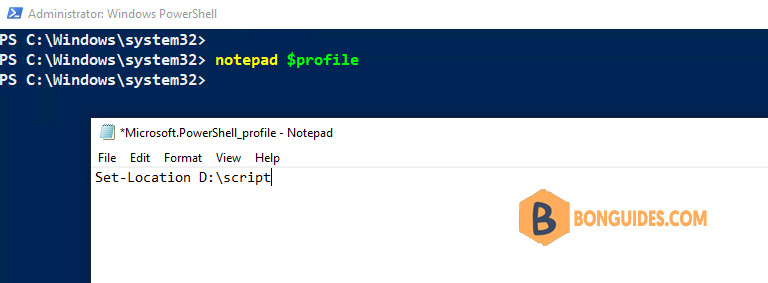
4️⃣ Close then reopen a new PowerShell window, the working directory should be changed as expected.
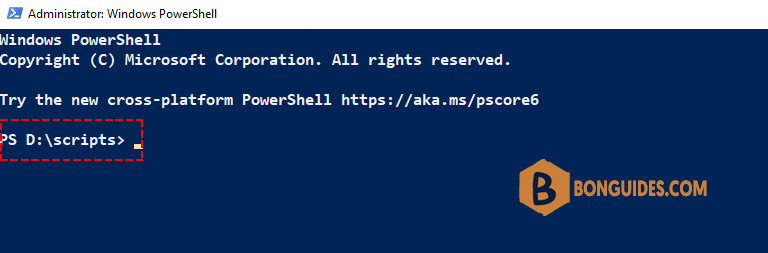
Additionally, you can determine the path’s where the profiles must be located for the current user and all users with the following command.
PS C:\Windows\system32> $PROFILE | fl -force

AllUsersAllHosts       : C:\Windows\System32\WindowsPowerShell\v1.0\profile.ps1
AllUsersCurrentHost    : C:\Windows\System32\WindowsPowerShell\v1.0\Microsoft.PowerShell_profile.ps1
CurrentUserAllHosts    : C:\Users\admin\Documents\WindowsPowerShell\profile.ps1
CurrentUserCurrentHost : C:\Users\admin\Documents\WindowsPowerShell\Microsoft.PowerShell_profile.ps1
Length                 : 75
To check if a profile exists you can use:
PS C:\Windows\system32> Test-Path $PROFILE.CurrentUserCurrentHost
True
PS C:\Windows\system32> Test-Path $PROFILE.AllUsersAllHosts
False
Bonus: If you’re a PowerShell nerd like us, you may like the below script to do all above tasks:
Set-ExecutionPolicy -ExecutionPolicy RemoteSigned -Force
New-Item -Path $profile -Type File -Force
Add-Content $profile 'Set-Location C:\'
Method 2: Change the Start folder
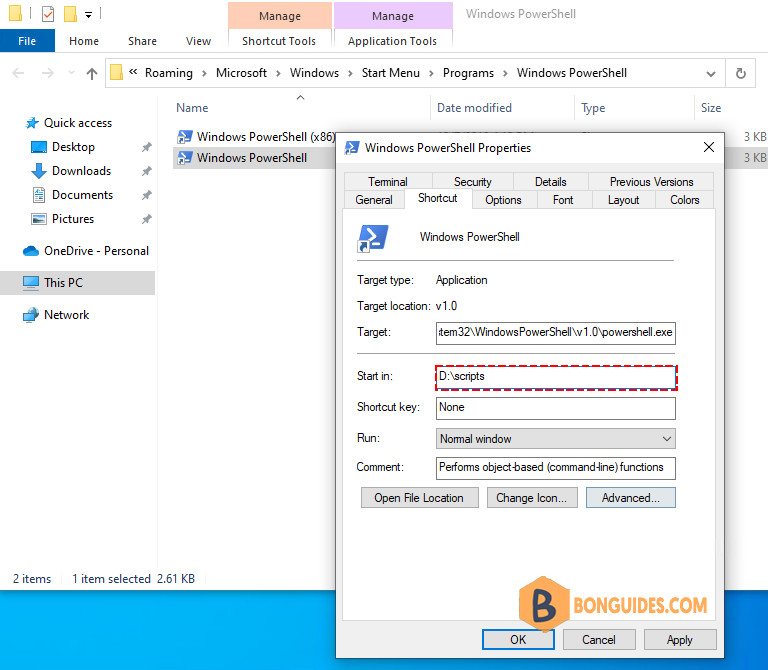
The second way, you can change the Start in property of the PowerShell shortcut to change the default working directory as follows:
1️⃣ Search PowerShell then right click on it and select Open file location.
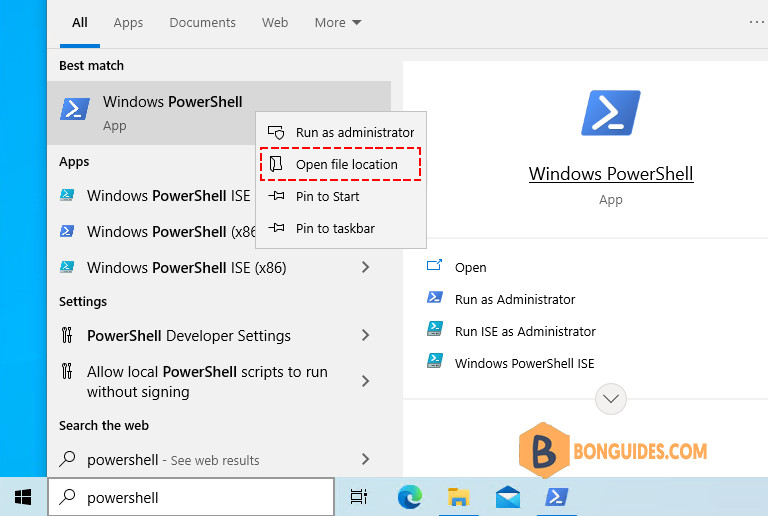
2️⃣ Right click on each shortcut then change the Start in property.
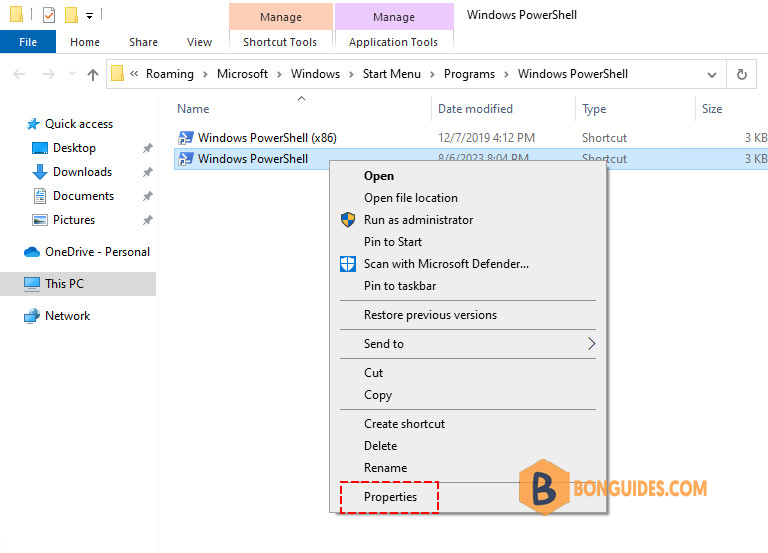
3️⃣ To set and change the default working directory, change with your desired path.