
Table of Contents
In this post, I will show you several ways to get the license expiration dates of all Microsoft 365 subscriptions in your Office 36 tenant.
Method 1: Getting from Microsoft 365 admin center
The simplest way is gotten it from Microsoft 365 admin center | Billing | Your products.
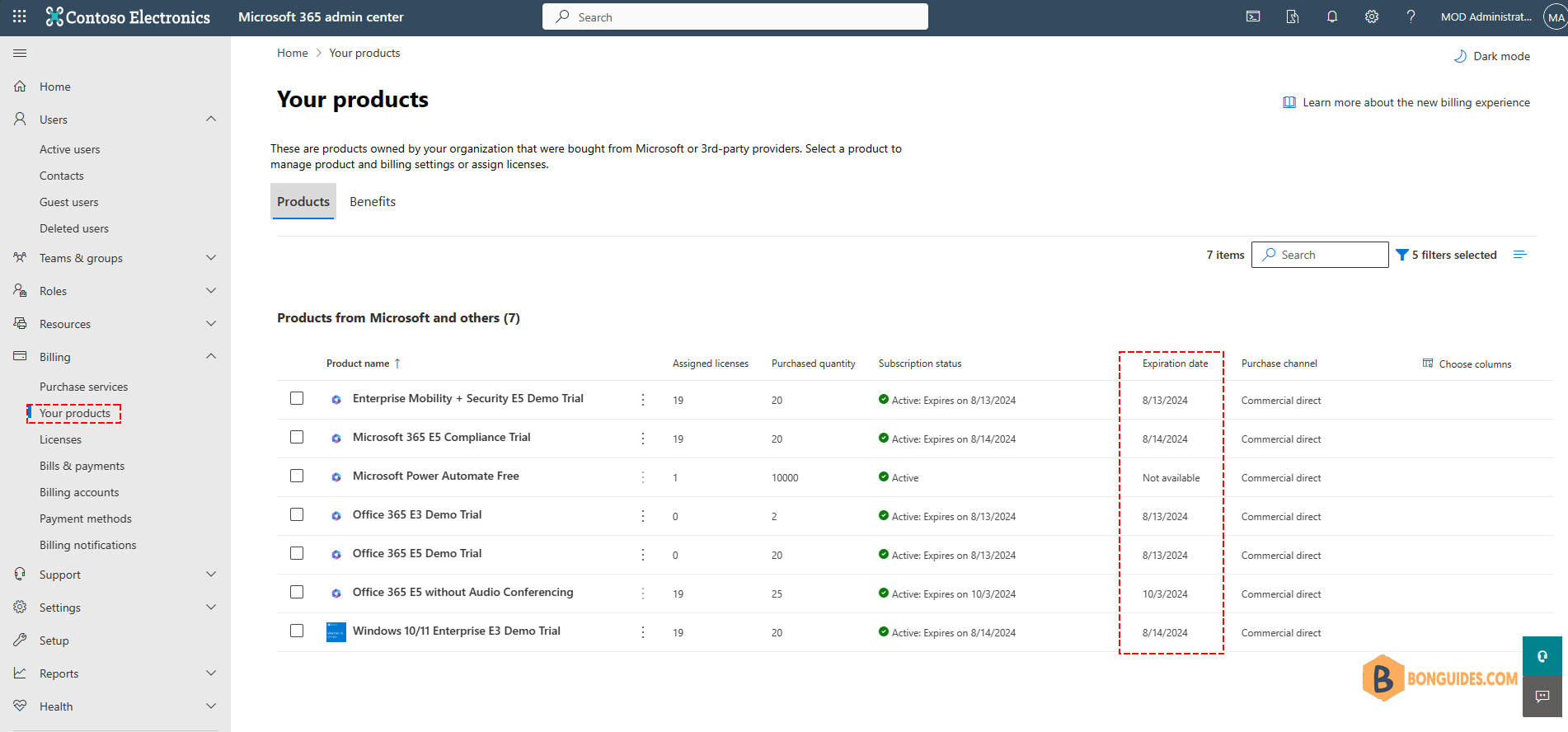
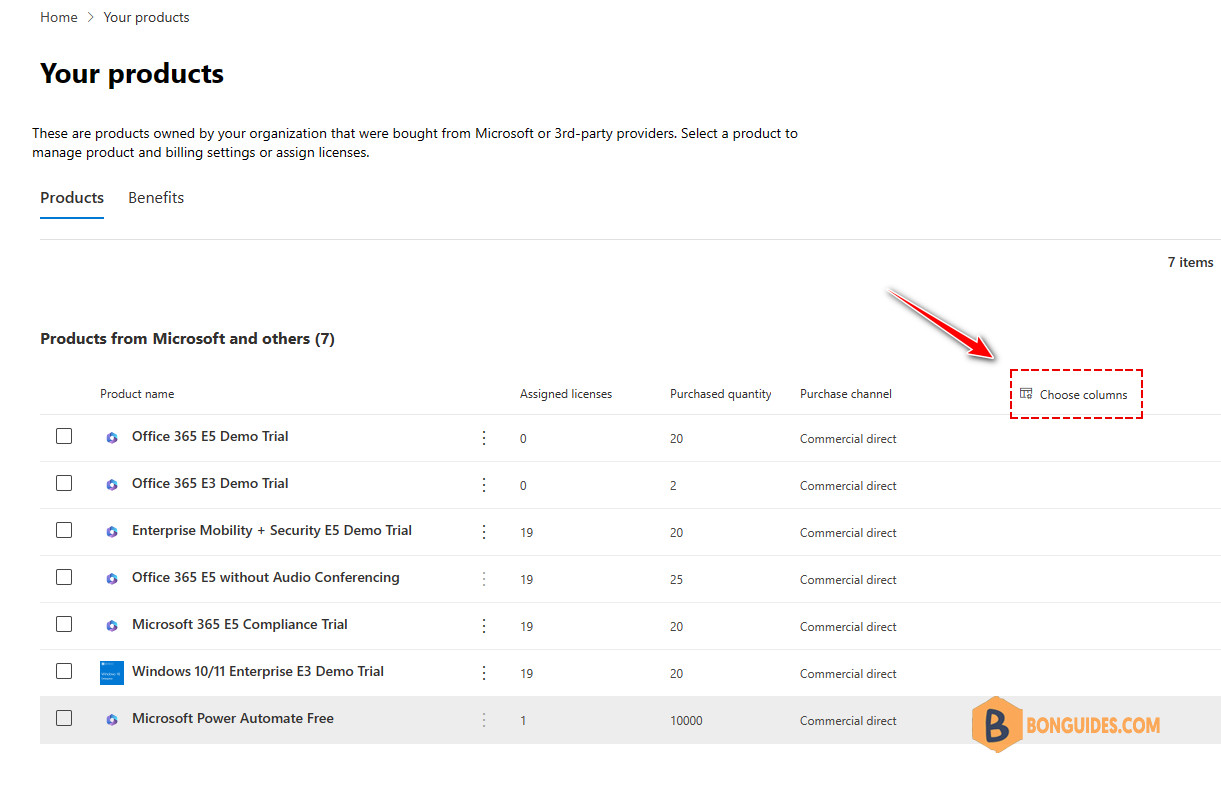
Login at https://admin.microsoft.com/ using an administrative account. If you didn’t see the Subscriptions status, you can enable it from Choose column option.
Method 2: Getting from Graph Explorer
The second way is to get it from Microsoft Graph Explorer. You can access the Graph Explorer at https://aka.ms/ge.
Note
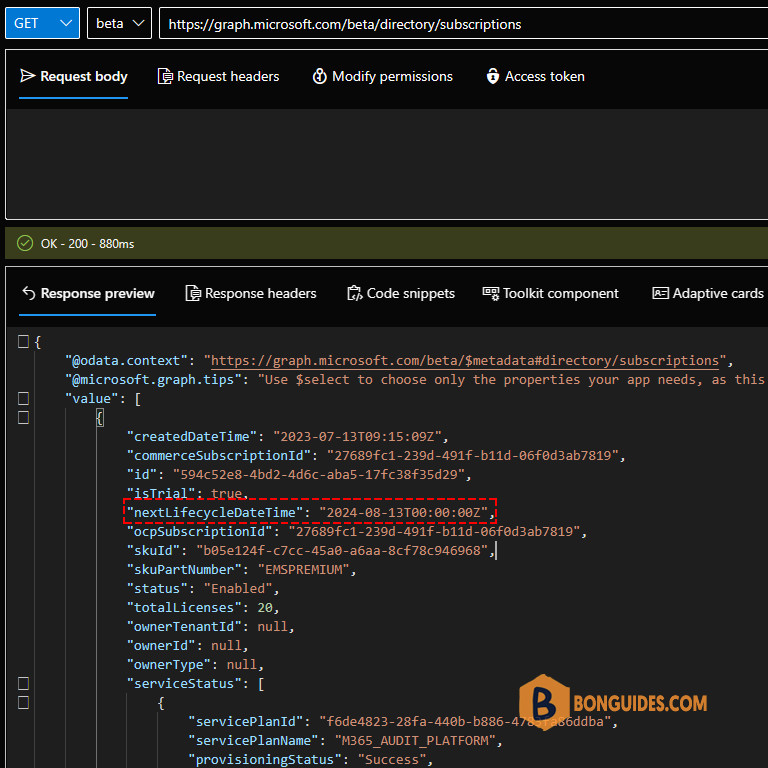
Below is the Graph API endpoint URL that we can use to retrieve your tenant’s subscription information, including the nextLifecycleDateTime property (the expiration date).
GET https://graph.microsoft.com/beta/directory/subscriptionsFor instance, you can see the below screenshot with the response after calling the endpoint resource.
Method 3: Getting using Microsoft Graph PowerShell SDK
To get the list of subscriptions in Microsoft 365, you can use the Microsoft Graph PowerShell. To ease your work, we have created a PowerShell script to do it automatically.
Script Highlights:
- Install the required Microsoft Graph PowerShell SDK modules upon your confirmation.
- Output options direct to the console, export to a CSV file, or open in the graphical grid view.
- Report with license license friendly name instead of a part number or SKU.
Click on the below button to get the code snippet. Then create your own PowerShell script.
# Install the required Microsoft Graph PowerShell SDK modules
Set-ExecutionPolicy Bypass -Scope Process -Force | Out-Null
iex "& { $(irm https://bonguides.com/graph/modulesinstall) } -InstallLicMgmt"

# Create the report with the renewal information
iex "& { $(irm https://bonguides.com/graph/license-report) } "

# Output options to s CSV file or graphical grid view
# iex "& { $(irm https://bonguides.com/graph/modulesinstall) } -OutCSV"
# iex "& { $(irm https://bonguides.com/graph/modulesinstall) } -OutGridView"
# Output
LicenseName SkuPartNumber SkuId ActiveUnits ConsumedUnits RenewalDate
----------- ------------- ----- ----------- ------------- -----------
Enterprise Mobility + Security E5 EMSPREMIUM b05e124f-c7cc-45a0-a6aa-8cf78c946968 20 19 8/13/2024 12:00:00 AM
Office 365 E5 ENTERPRISEPREMIUM c7df2760-2c81-4ef7-b578-5b5392b571df 20 0 8/13/2024 12:00:00 AM
Office 365 E3 ENTERPRISEPACK 6fd2c87f-b296-42f0-b197-1e91e994b900 2 0 8/13/2024 12:00:00 AM
Microsoft Power Automate Free FLOW_FREE f30db892-07e9-47e9-837c-80727f46fd3d 10000 1
Windows 10/11 Enterprise E3 Win10_VDA_E3 6a0f6da5-0b87-4190-a6ae-9bb5a2b9546a 20 19 8/14/2024 12:00:00 AM
Office 365 E5 Without Audio Conferencing ENTERPRISEPREMIUM_NOPSTNCONF 26d45bd9-adf1-46cd-a9e1-51e9a5524128 25 19 10/3/2024 12:00:00 AM
Microsoft 365 E5 Compliance INFORMATION_PROTECTION_COMPLIANCE 184efa21-98c3-4e5d-95ab-d07053a96e67 20 19 8/14/2024 12:00:00 AMMethod 4: Getting using Microsoft Graph API
Alternatively, we can use the Microsoft Graph Rest API to export the subscription information. When using this method:
- We don’t need to install any modules of the Microsoft Graph PowerShell SDK (~ 80 modules).
- We can do it from any machine with Microsoft PowerShell/ PowerShell Core installed (Linux and macOS). Because it uses the native PowerShell cmdlet Invoke-RestMethod to make a request.
- Instead of using an account for authentication and authorization, we use the app-only access (access without a user).
Important:
Before you begin, make sure you've created an app registration in Microsoft entra admin center and collect some required information such as clientId, tenantId and the clientSecret.
Once the app has been created, replace your app’s information (clientId, tenantId and the clientSecret) into the below code. Steps in this code:
- Get access token ($token) with app registration client secret.
- Create the request header ($headers) for API call.
- Create requests to the Microsoft Graph resource ($uri) with pagination to get all data.
- Build the report ($result) from API call response.
- Output options to console, graphical grid view or export to CSV file.
# Get access token with app registration client secret.
$clientId = "xxxxxxxxxxxxxxxxxxxxxxxxxx"
$tenantId = "xxxxxxxxxxxxxxxxxxxxxxxxxx"
$clientSecret = "xxxxxxxxxxxxxxxxxxxxxxxxxx"
$uri = "https://login.microsoftonline.com/$tenantId/oauth2/v2.0/token"

$body = @{
    Grant_Type    = "client_credentials"
    Scope         = "https://graph.microsoft.com/.default"
    client_Id     = $clientId
    Client_Secret = $clientSecret
}

$tokenRequest = Invoke-RestMethod -Uri $uri -Method POST -Body $body
$token = $tokenRequest.access_token

# Create the request header for API call.
$headers = @{
    "Authorization" = "Bearer $token"
    "Content-Type"  = "application/json"
}

# Get the basic information about tenant subscriptions
$subscribedUri = 'https://graph.microsoft.com/beta/subscribedSkus'
$skus = (Invoke-RestMethod -Method GET -Headers $headers -Uri $subscribedUri).Value

# Get the renewal data
$uri = 'https://graph.microsoft.com/beta/directory/subscriptions'
$renewalData = (Invoke-RestMethod -Method GET -Headers $headers -Uri $uri).Value

# Update the report with the renewal information
$report = @()
foreach ($sku in $skus) {
    $expireDate = $renewalData | Where-Object {$_.skuId -match $($sku.SkuId)}

    if ($expireDate.nextLifecycleDateTime) {
        $DaysToRenewal = ($expireDate.nextLifecycleDateTime - $((Get-Date).Date)).Days
    }

    $object = [PSCustomObject][Ordered]@{
        SkuPartNumber = $Sku.SkuPartNumber
        SkuId         = $Sku.SkuId
        ActiveUnits   = $Sku.PrepaidUnits.Enabled
        WarningUnits  = $Sku.PrepaidUnits.Warning
        ConsumedUnits = $Sku.ConsumedUnits
        RenewalDate   = $expireDate.nextLifecycleDateTime
        DaysToRenewal = $DaysToRenewal
    }
    $report += $object
}
$report | Format-Table SkuPartNumber, ActiveUnits, ConsumedUnits, "RenewalDate", "DaysToRenewal"
# Output
SkuPartNumber ActiveUnits ConsumedUnits RenewalDate DaysToRenewal
------------- ----------- ------------- ----------- -------------
EMSPREMIUM 20 19 8/13/2024 12:00:00 AM 299
ENTERPRISEPREMIUM 20 0 8/13/2024 12:00:00 AM 299
ENTERPRISEPACK 2 0 8/13/2024 12:00:00 AM 299
FLOW_FREE 10000 1 299
Win10_VDA_E3 20 19 8/14/2024 12:00:00 AM 300
ENTERPRISEPREMIUM_NOPSTNCONF 25 19 10/3/2024 12:00:00 AM 350
INFORMATION_PROTECTION_COMPLIANCE 20 19 8/14/2024 12:00:00 AM 300Manage Microsoft 365 Using Microsoft Graph
You can also take a look at the following Microsoft Graph posts that help to manage Microsoft 365 efficiently.
- Create a new user
- Create bulk users in Microsoft 365
- Get a list of all users in Microsoft 365
- Update user properties
- Add a user to a group
- Add bulk users to a group
- Remove users from a group
- Remove multiple users from a group
- Assign managers for Microsoft 365 users
- Assign licenses to users
- Removing licenses from user accounts
- Delete a user from Microsoft 365
- How to use Get-MgUser cmdlet


