
Table of Contents
Check Azure VM Power State Using PowerShell
When an Azure VM is shutdown using the operating system it enters a Stopped state. In this state, the server is not running but the compute resource is still being held by Azure so you continue to get charged for that compute.
Virtual Machines should be deallocated by either stopping them in the Portal or using a PowerShell Stop-AzVM cmdlet. This article looks at how to check Azure VM power state using PowerShell.
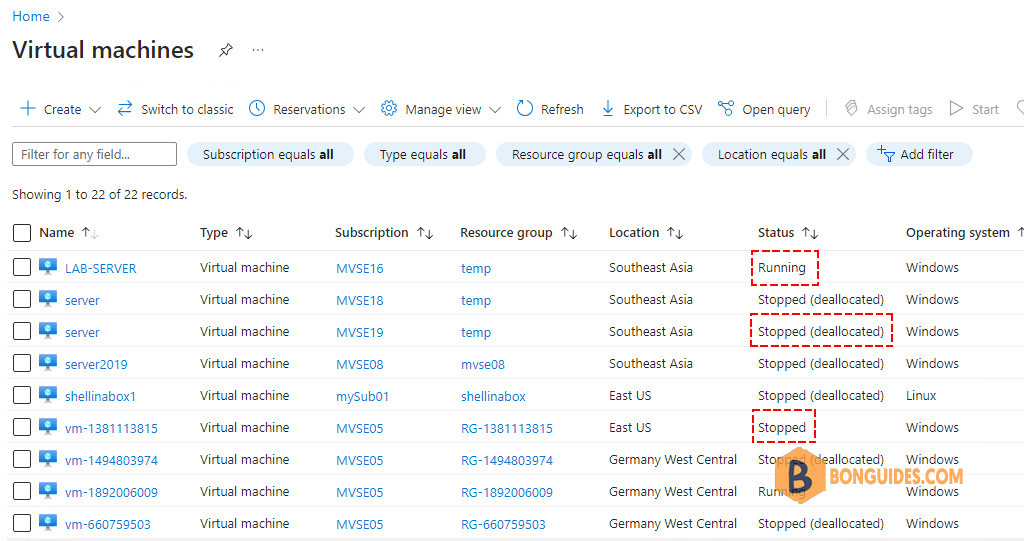
There are the below Power State for the Azure VM:
- Starting − The virtual machine is being started.
- Running − The virtual machine is currently running
- Stopping − The virtual machine is being stopped
- Stopped − The virtual machine is currently stopped and but still incur compute charges.
- Deallocating − The virtual machine is being deallocated.
- Deallocated − The virtual machine is deallocated and released all the resources and does not incur the charges.
To check if the VMs are running, deallocated, or stopped using PowerShell, we need to use the – Status parameter. If you write only the Get-AzVM command to get the VM details, it won’t show up the Azure VM power status default.
For the specific VM power state, you need to provide a particular VM name:
Get-AzVM -VMName 'vm-1381113815' -Status | FLResourceGroupName Name Location PowerState
----------------- ---- -------- ----------
RG-1381113815 vm-1381113815 eastus VM stoppedTo check the power state of all your Azure VMs, you can use the following code snippet. It will get the properties of all VMs in a subscription then use the foreach loop to get the power state of each VM.
$array = @()
foreach ($vm in Get-AzVM) {
        $object = New-Object -TypeName PSObject -Property $([ordered]@{
            VMName          = $vm.Name
            PowerState      = (Get-AzVM -VMName $($vm.Name) -Status).PowerState
            ResourceGroup   = $vm.ResourceGroupName
            Location        = $vm.Location
        })
        $array += $object
    }

$array | Format-Table
The results might look like this:
VMName        PowerState     ResourceGroup Location
------        ----------     ------------- --------
vm-1381113815 VM stopped     RG-1381113815 eastus
vm-7342448    VM running     RG-7342448    eastus
vm-1494803974 VM deallocated RG-1494803974 germanywestcentral
vm-1892006009 VM running     RG-1892006009 germanywestcentral
vm-660759503  VM deallocated RG-660759503  germanywestcentral
Use the Statuses property in Get-AzVM cmdlet
Alternatively, we can use the Statuses property in Get-AzVM cmdlet to get the power states.
Get-AzVM -Name 'vm-1381113815' -ResourceGroupName 'RG-1381113815' -StatusWhen using this method, we can get more information about the virtual machine such as HyperVGeneration, Disks, Extensions and VMAgent.
ResourceGroupName          : RG-1381113815
Name                       : vm-1381113815
HyperVGeneration           : V2
Disks[0]                   :
  Name                     : vm-1381113815_OsDisk_1_21997f46f7a54a72a00082cd6ccff543
  Statuses[0]              :
    Code                   : ProvisioningState/succeeded
    Level                  : Info
    DisplayStatus          : Provisioning succeeded
    Time                   : 5/18/2024 2:39:18 PM
Extensions[0]              :
  Name                     : BGInfo
VMAgent                    :
  VmAgentVersion           : Unknown
  Statuses[0]              :
    Code                   : ProvisioningState/Unavailable
    Level                  : Warning
    DisplayStatus          : Not Ready
    Message                : VM Agent is unresponsive.
    Time                   : 5/18/2024 4:05:29 PM
Statuses[0]                :
  Code                     : ProvisioningState/succeeded
  Level                    : Info
  DisplayStatus            : Provisioning succeeded
  Time                     : 5/18/2024 2:48:03 PM
Statuses[1]                :
  Code                     : PowerState/stopped
  Level                    : Info
  DisplayStatus            : VM stopped
Below is a sample PowerShell script that gets the power state of all VMs using the Statuses property:
$array = @()
foreach ($vm in Get-AzVM) {
    $vmName         = $vm.Name
    $resourceGroup  = $vm.ResourceGroupName
    $vmNicName      = $vm.NetworkProfile.NetworkInterfaces.Id.Split("/")[8]
    $ipAddress      = Get-AzPublicIpAddress | Where-Object {$_.IpConfiguration.Id -like "*$vmNicName*"}
    $powerState     = Get-AzVM -Name $vmName -ResourceGroupName $resourceGroup -Status | Select @{n="Status"; e={$_.Statuses[1].DisplayStatus}}

    $object = New-Object -TypeName PSObject -Property $([ordered]@{
        VMName          = $vm.Name
        PowerState      = $powerState.Status
        IpAddress       = $ipAddress.IpAddress
        ResourceGroup   = $resourceGroup
        Location        = $vm.Location
    })
    $array += $object
}

$array | Format-Table
# The sample output
VMName PowerState IpAddress ResourceGroup Location
------ ---------- --------- ------------- --------
vm-1381113815 VM stopped 13.90.206.15 RG-1381113815 eastus
vm-7342448 VM running 13.90.206.132 RG-7342448 eastus
vm-1494803974 VM deallocated 4.185.144.22 RG-1494803974 germanywestcentral
vm-1892006009 VM running 4.185.41.217 RG-1892006009 germanywestcentral
vm-660759503 VM deallocated 4.185.42.113 RG-660759503 germanywestcentral

