Table of Contents
If you use a local account in Window 11, you should create a password reset disk using a USB flash drive as soon as possible. Then, if you forget your password, you can reset it. If you wait until you’ve forgotten your password, it’ll be too late.
Note
A password reset disk can be used if you forget your password for a Local Account. If your account is a Microsoft Account, use the Microsoft online password reset tool.
Create a password reset disk
1. Log in to Windows using the local account to create a password reset disk for. Then insert a USB drive or SD card into the computer.
2. Press on your keyboard to bring up the search bar then type Password Reset in the search box and click Create a password reset disk.
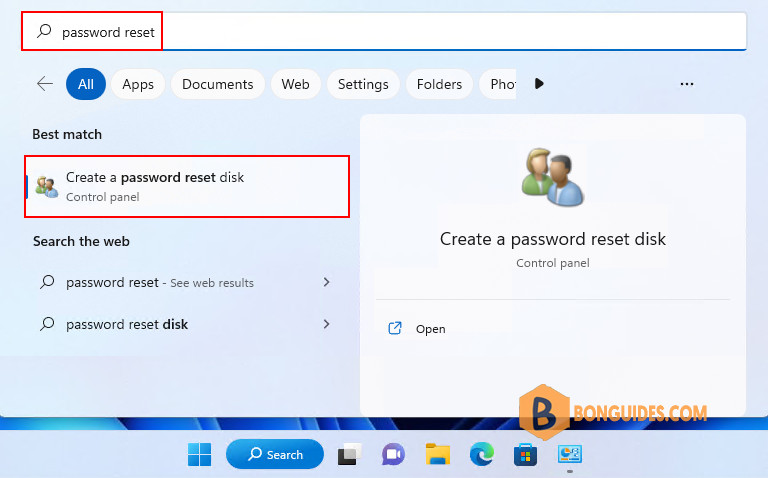
Alternatively, you can access it from Control Panel.
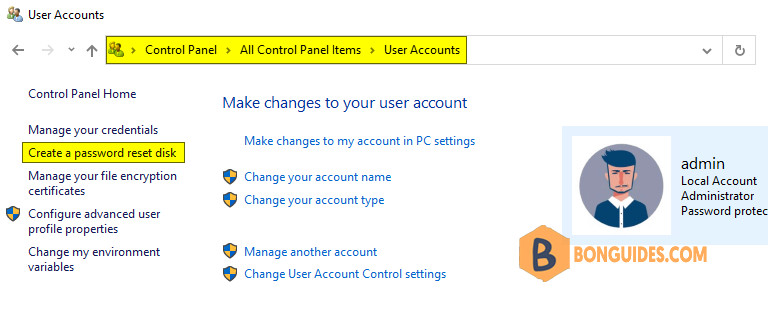
Tip: If the Create a password reset disk does not show, please follows this post to show it.
3. Select the location to create the password key disk at, and then click Next.
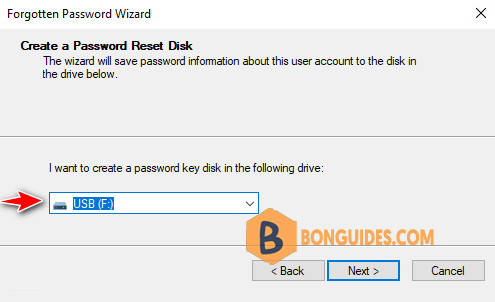
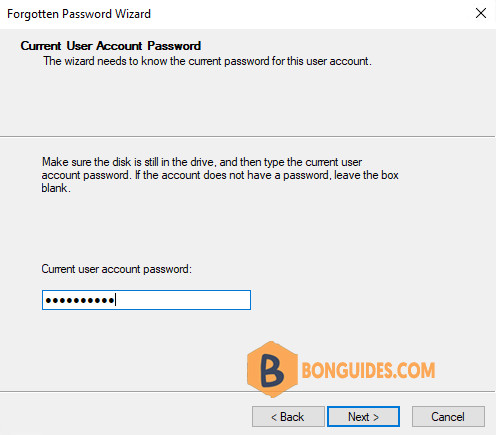
4. Type your local account password. This is your current password to log into your account on your PC.
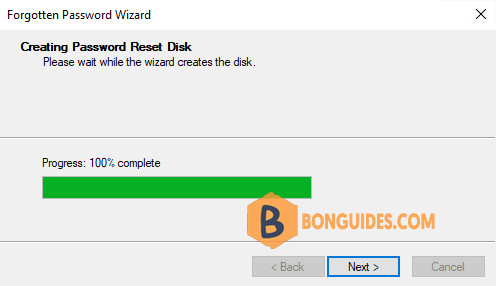
5. Click Next once the progress bar reaches 100% then click Finish.
Don’t lose this USB drive or SD card, because anyone who has it can get into your account easily. Put it in a safe place, maybe thing about labeling it, and remember where you stashed it!
Note
You don’t have to create a new disk when you change your password—even if you change it several times.
Use the password reset disk to reset password
1. Before you start, make sure you have your SD card or USB drive inserted into your PC.
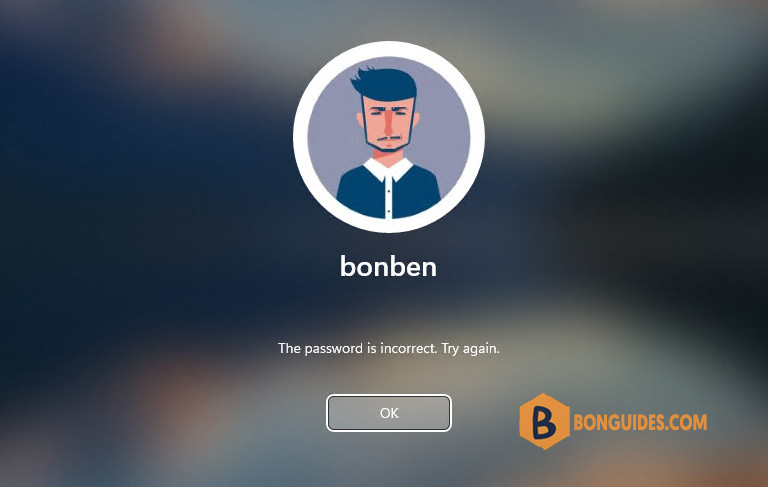
2. Type any password then login, it will show the password is in correct. Let’s click OK.
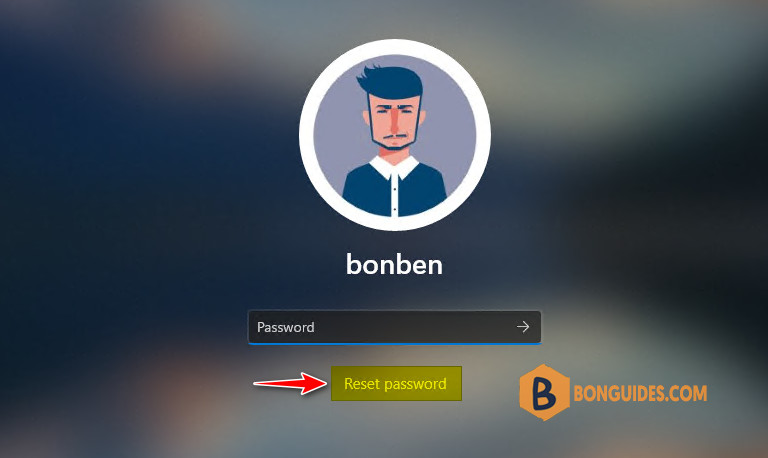
3. Select Reset password.
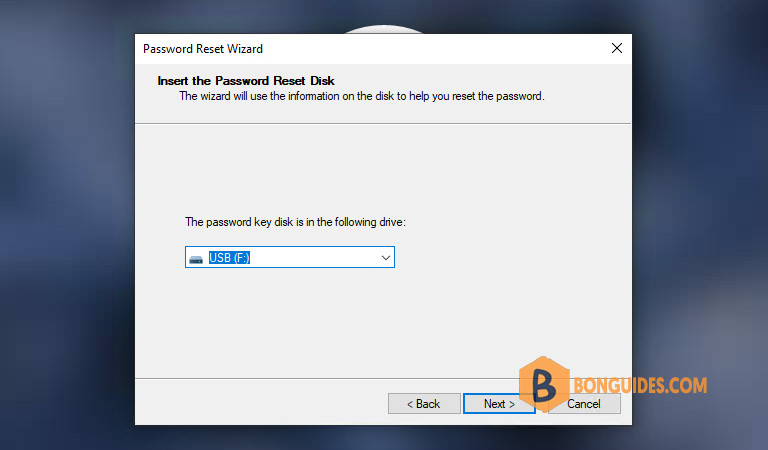
4. A new window appears, let’s click Next then select your password key disk.
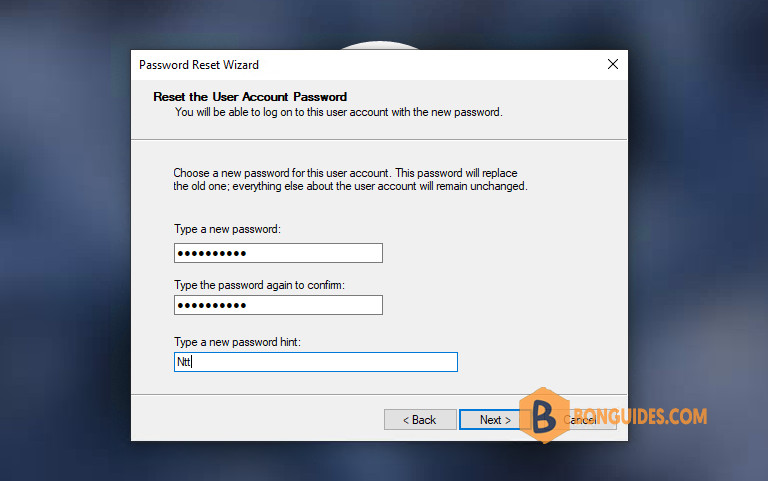
5. Create new password and type in a password hint.
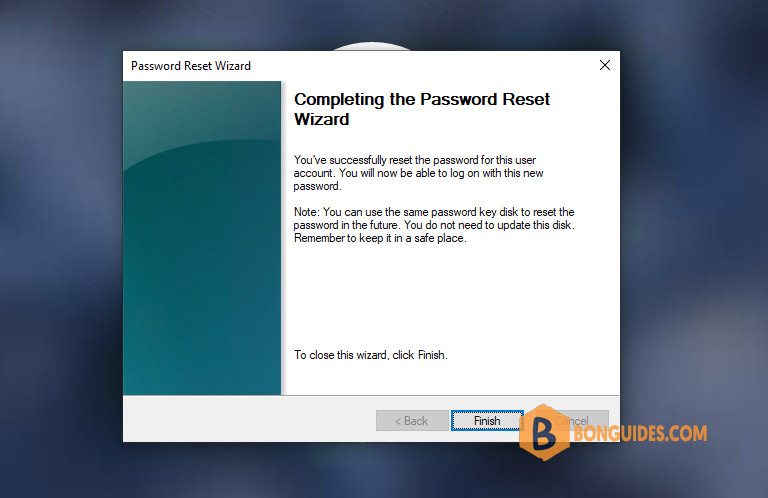
6. The password to your account has now been reset. You can log into your account with the new password you just created.
Bonus
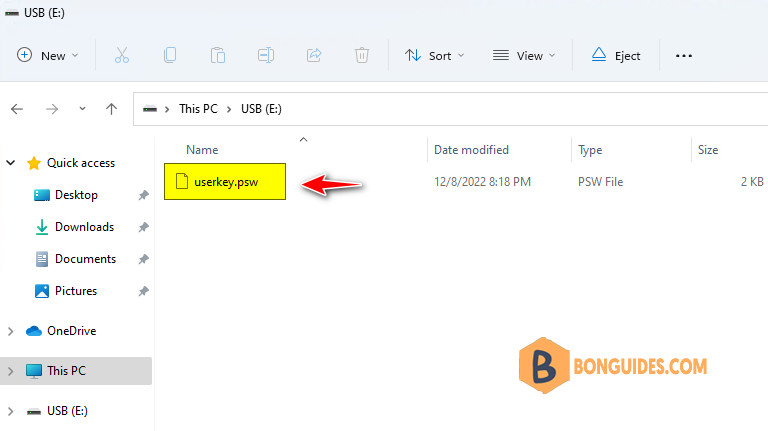
You just need to save the file userkey.psw in a safe place instead of the USB key. Once the file was saved, you can format and use the USB key normally.
When you need to reset the password, you can use any USB key, format it as FAT32 then copy the file userkey.psw into it then do the reset process as above.