Table of Contents
Change the font size in PuTTY
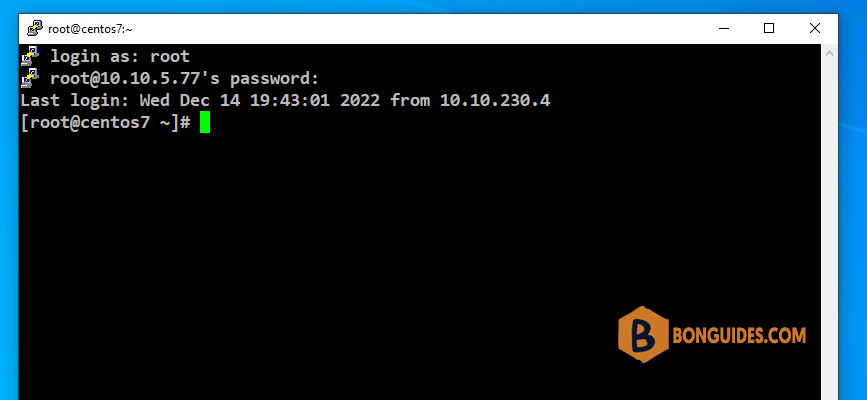
You spend a lot of time to working inside a remote SSH tunnel on a daily basis. And nothing is worse than trying to decipher the default colors against a black background in PuTTY. The default appearance of the PuTTY ap is 10-point Courier New font with white text on a black background.
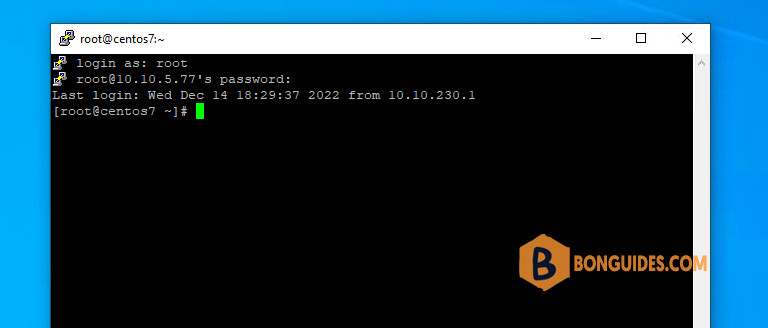
Customizing the font size in PuTTY
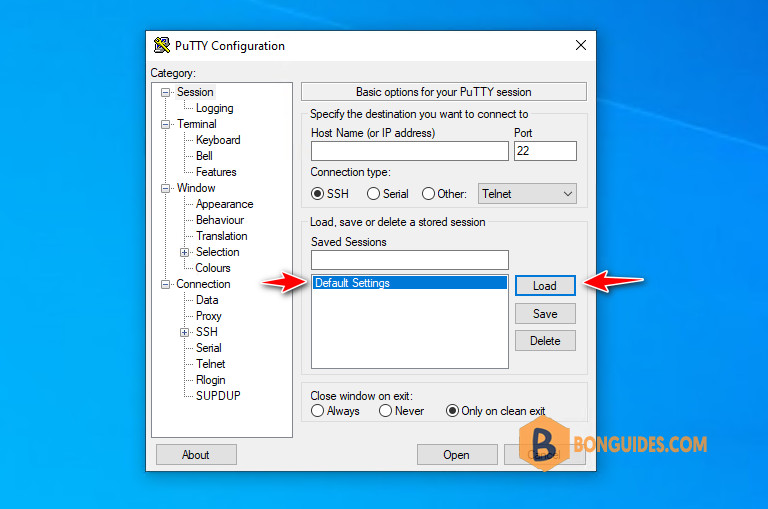
1. Open PuTTY and select Default Settings (which is usually highlighted anyway). Then click on Load.
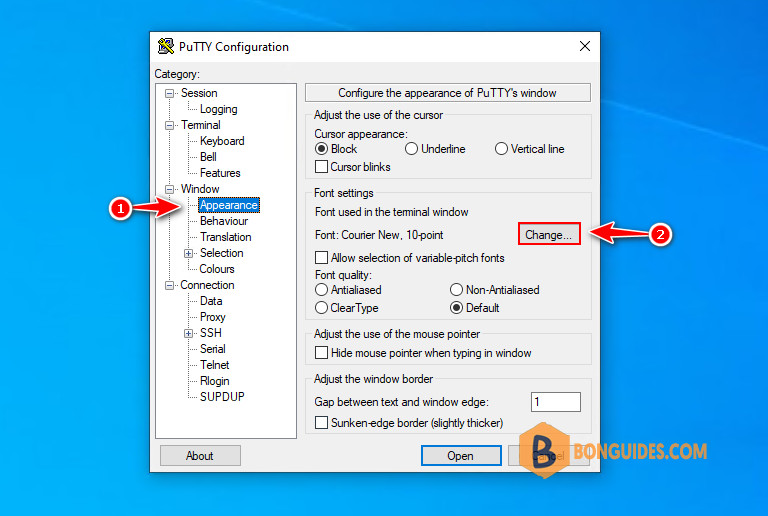
2. Select Appearance under Window section on the left pane then click on Change button on the right side.
3. A new menu appears that allows you to change the font family, font style and the font size as you wish.
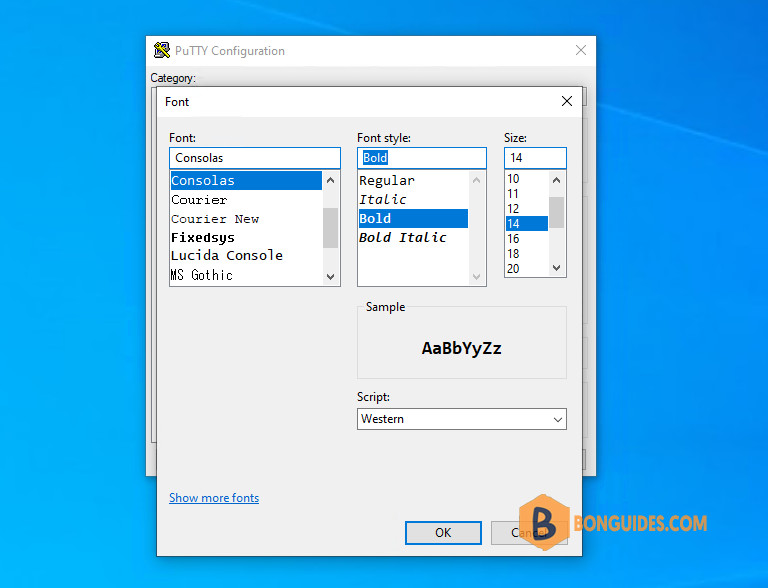
4. After changing the font size and clicking on OK, you are returned to the PuTTY general configuration menu.
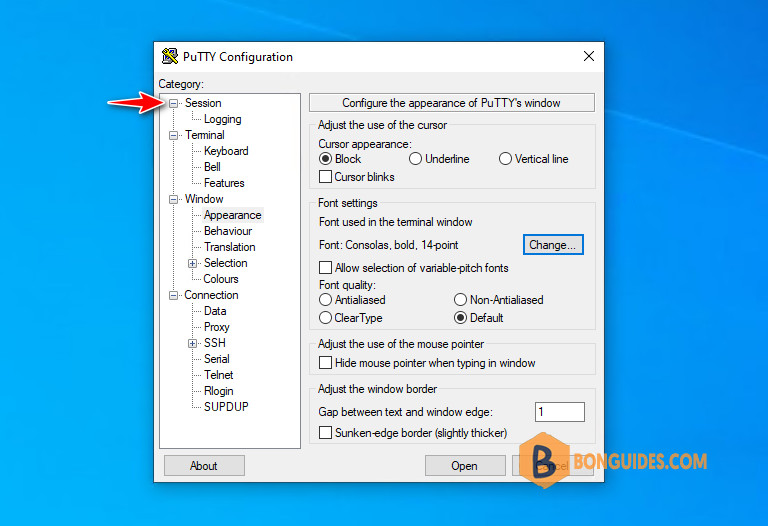
5. Select Session again, then select Default Settings, then click on Save.
Note
This step is very important, if you don’t select the session and click Save. The changes won’t save and the next time when you open a remote connection, everything will be reverted by default.
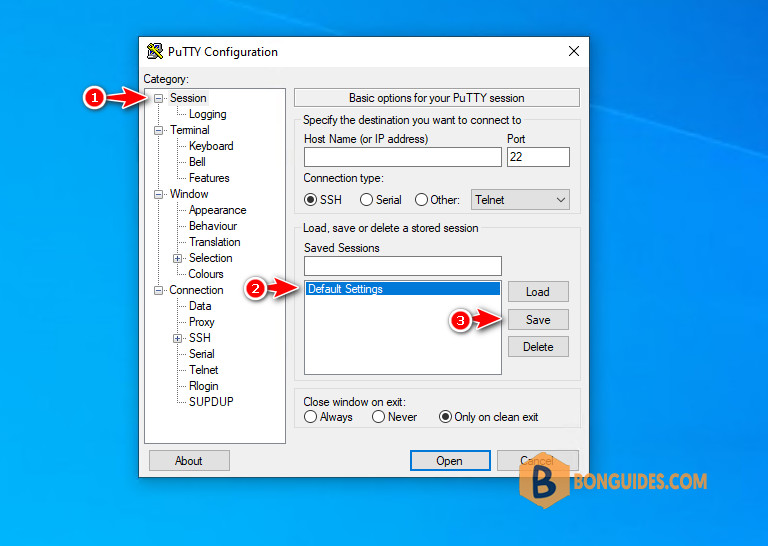
Finally, in future PuTTY sessions, it loads this Saved Session named Default Settings again to have all the settings return to your preferred values.