Table of Contents
PuTTY Window Resize
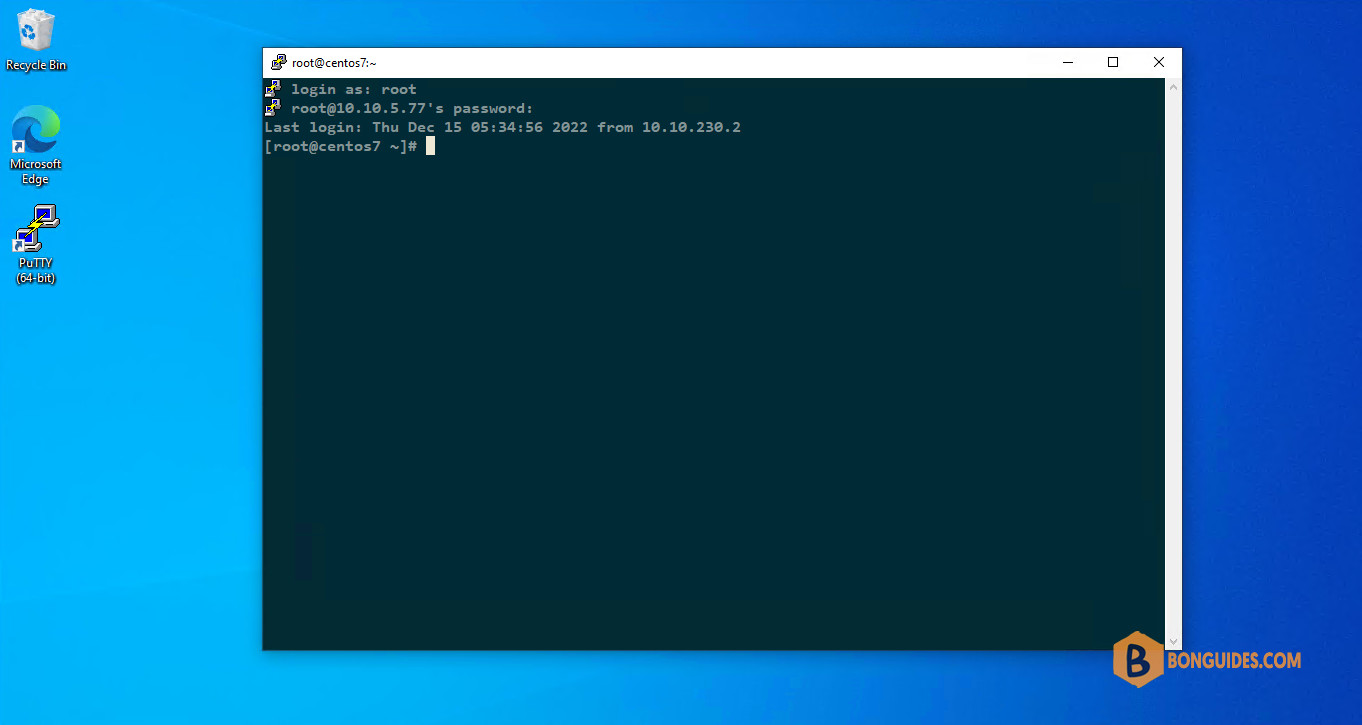
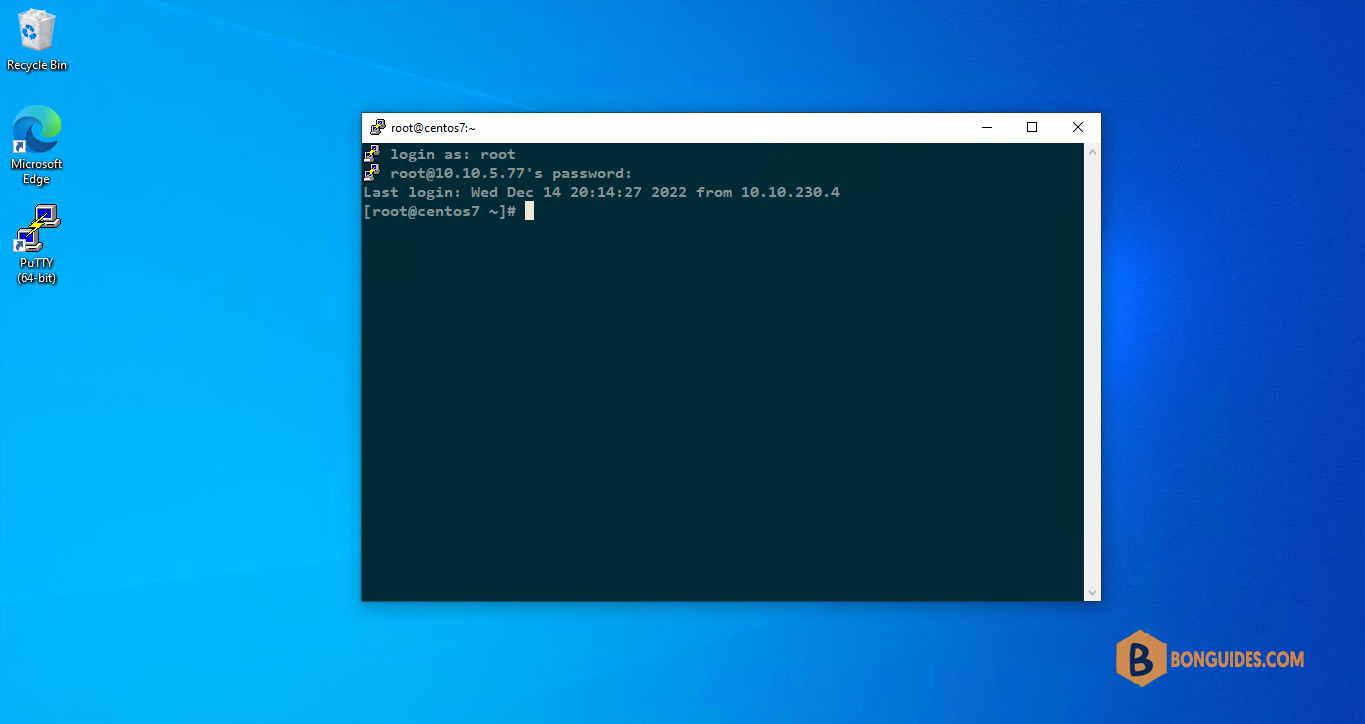
For network engineers, you may use PuTTY every day at work. But it always opens in quite a small window. You wondered if there were any parameters or settings, you could change that could make it open in a window of different size by default.
Configure the window size in PuTTY
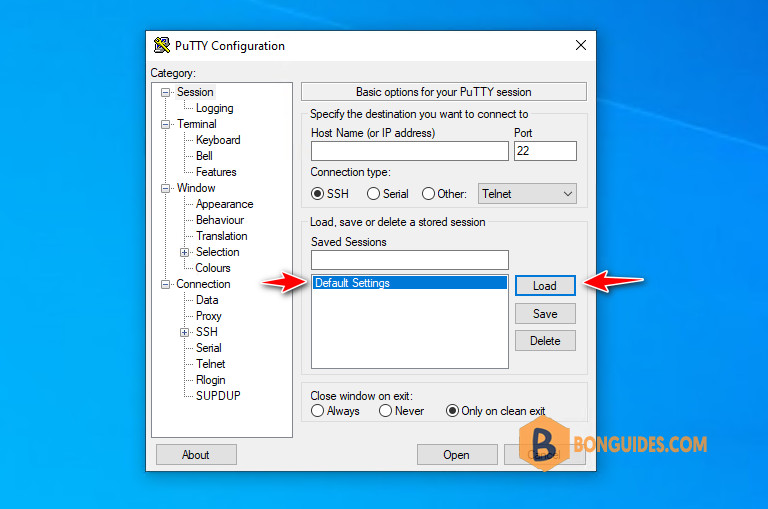
1. Open PuTTY and select Default Settings (which is usually highlighted anyway). Then click on Load.
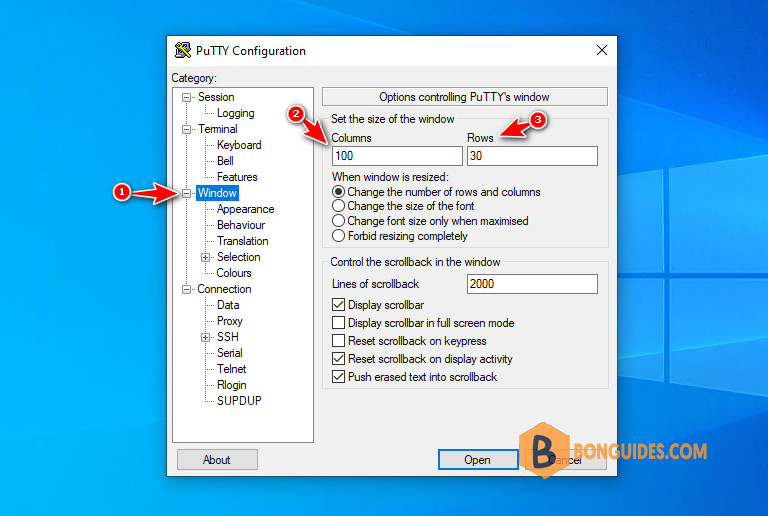
2. Select Window in the tree on the left then change the number of rows and columns.
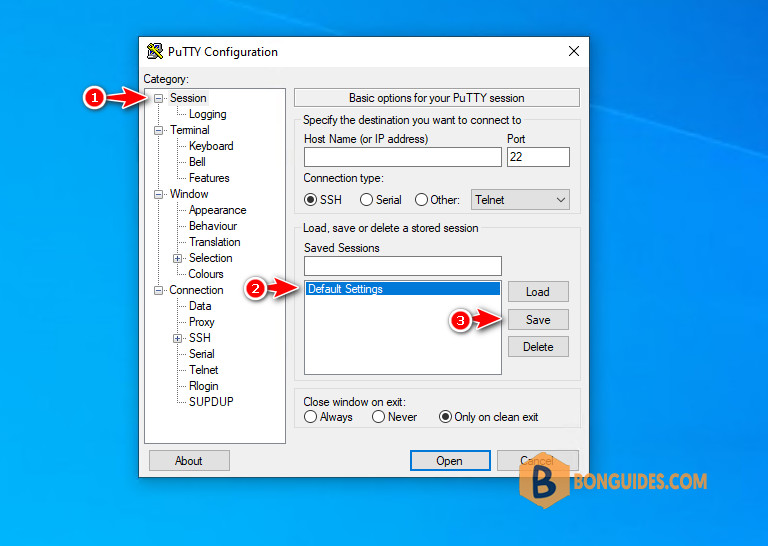
3. After changing the window size, select Session again, then select Default Settings, then click on Save.
Note
This step is very important, if you don’t select the session and click Save. The changes won’t save and the next time when you open a remote connection, everything will be reverted by default.
Finally, in future PuTTY sessions, it loads this Saved Session named Default Settings again to have all the settings return to your preferred values.