
Table of Contents
All web browsers come with a built-in Download Manager which helps users in downloading files from Internet. Brave Browser also comes with a basic Download Manager feature which allows users to download files from websites. It comes with all essential features such as Pause/Resume downloads, etc.
Many people want to always show Downloads button on Brave Browser toolbar as it allows to quickly access the downloaded files. This article will help you in pinning or always showing Downloads button or icon in main toolbar of Brave Browser web browser.
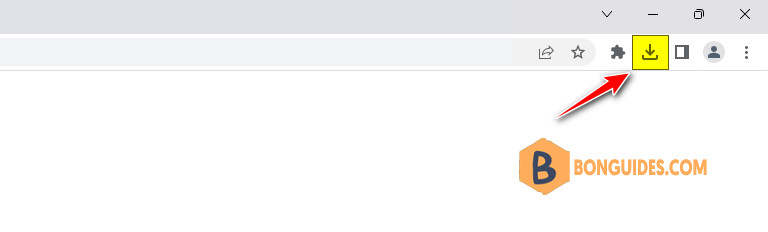
Note
Tip: You can quickly launch Downloads Manager in Brave Browser by pressing keys together.
Enable Downloads Icon in Brave Browser Toolbar
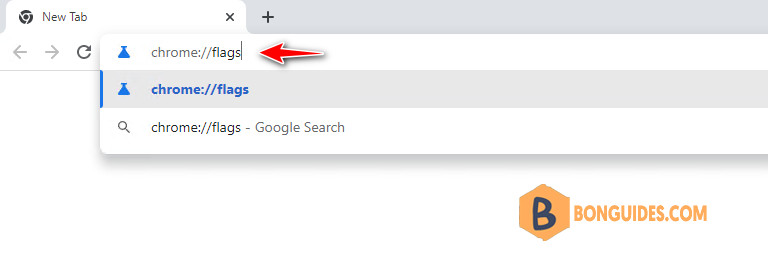
1. Open Brave Browser web browser and type brave://flags/ in address bar and press Enter. It’ll open the experimental features page.
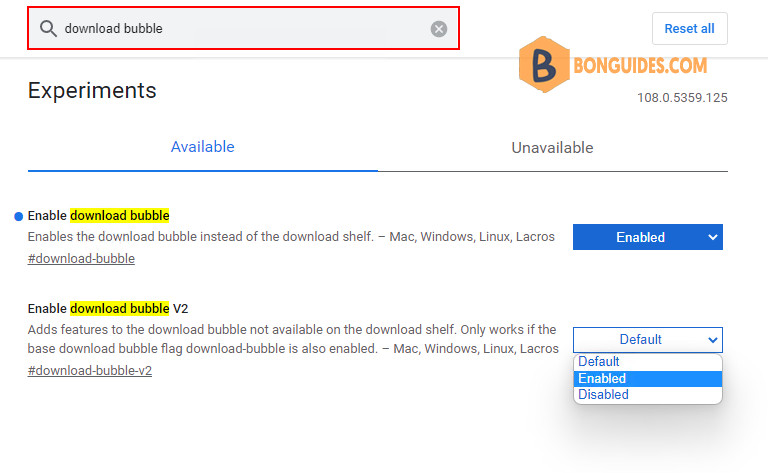
2. Now type download bubble in the search flags box.
3. To always showing the download icon in Chrome, select Enabled from the drop-down box of Enable download bubble and Enable download bubble v2 experiments.
4. Brave Browser will ask you to restart the browser. Click on Relaunch button to restart Brave Browser.
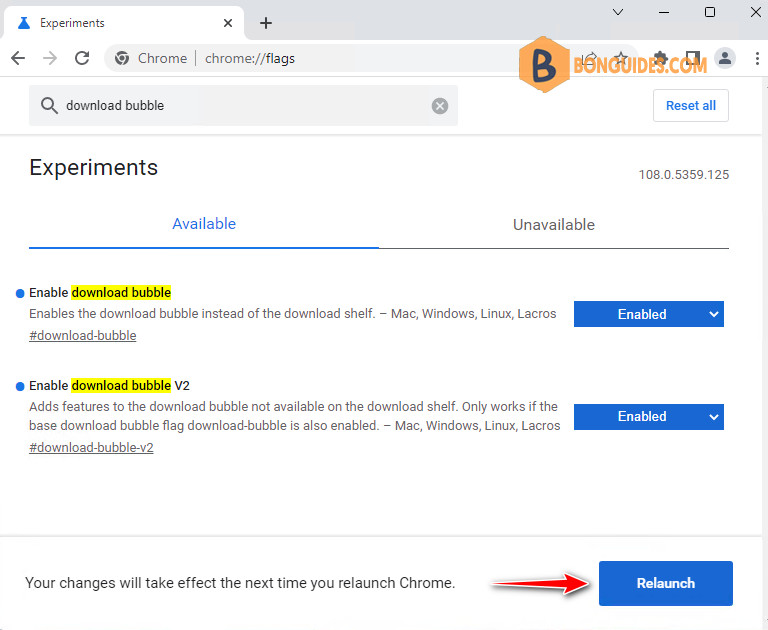
That’s it. It’ll immediately add missing Downloads button to Brave Browser toolbar permanently.
Note
Tip: In some cases, even the experiments are enabled, but the download icon still hiding. Because the download icon is hided automatically when the download list is empty. To show it, let’s download any file.


