Table of Contents
Failed to Attach Disk ext4.vhdx to WSL2
In some cases, you get the following error when trying to run a Linux instance in WSL 2 in Windows host machine.
Failed to Attach Disk ext4.vhdx to WSL2: The System Cannot Find the File Specified.
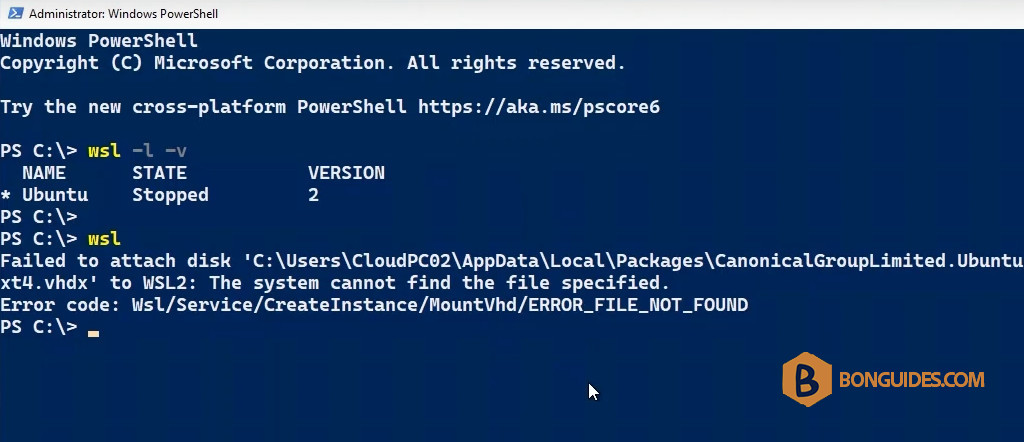
You got this because you’ve installed both versions of the Linux instance from the command line and Microsoft Store. You can check the installed instances using wsl -l -v comand.
wsl -l -v
As you can see, we’ve both versions of the Ubuntu instance from the Microsoft Store and command line.
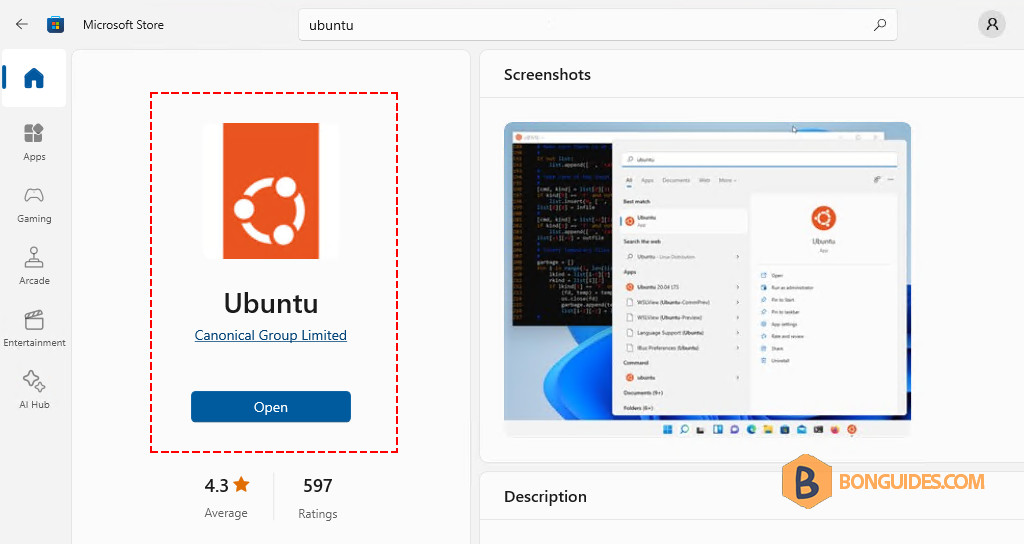
To fix it, let’s open an elevated PowerShell session and then remove the instance that was installed by the command line. For example, we’ll remove the Ubuntu instance.
wsl --unregister ubuntu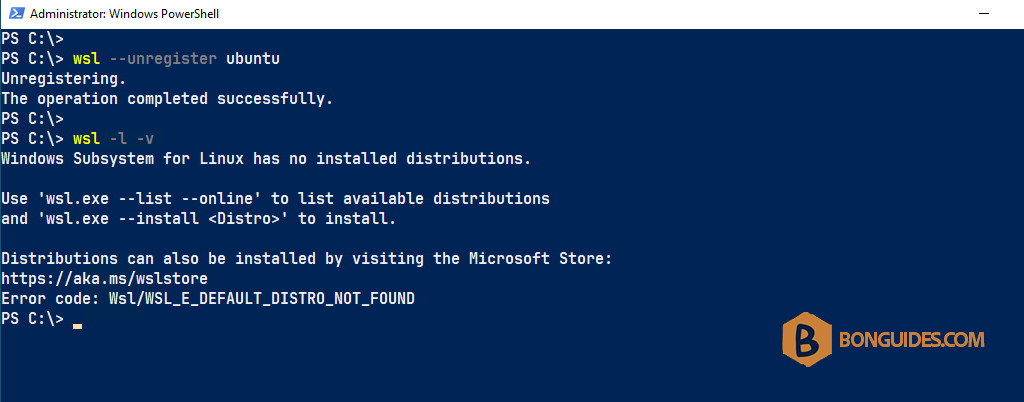
Next, open the Ubuntu instance from the Microsoft Srote then complete the instalation.
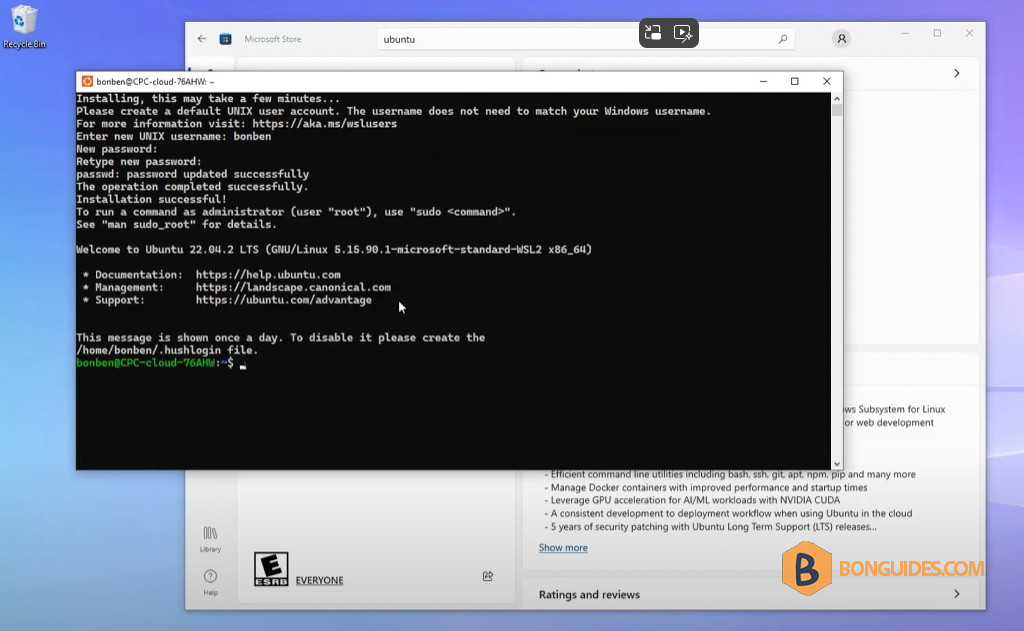
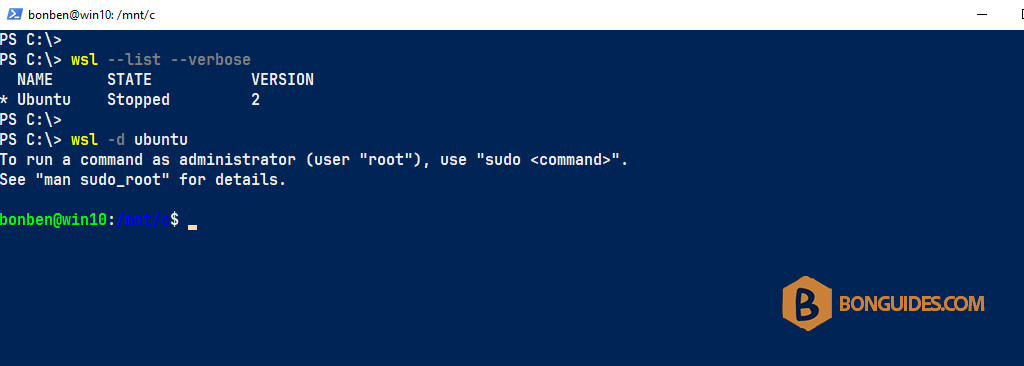
Once done, from now, we can run the Ubuntu instance from command prompt without any issue.