
Table of Contents
Like other programming languages, Windows PowerShell is a dynamic scripting language. Script code can be executed based on conditions that exist or occur.
For example, a script might prompt for user input and run a block of code based on the data supplied by the user. A process or application may stop running, triggering an action within a script. Conditional Logic allows us to write scripts in a complex environment, it adds the intelligence required to create decision-making scripts.
Comparison Operators
Comparison operators let you specify conditions for comparing values and finding values that match specified patterns. To use a comparison operator, specify the values that you want to compare together with an operator that separates these values.
Windows PowerShell includes the following Comparison Operators:
- –eq: Equal to
- –lt: Less than
- –gt: Greater than
- –ge: Greater than or Eqaul to
- –le: Less than or equal to
- –ne: Not equal to
- –like: Match using the wildcard character (*)
- –NotLike: Does not match using wildcard character (*)
- –Match: Matches a string using regular expressions
- –NotMatch: Does not match a string. Uses regular expressions
- –Contains: Tells whether a collection of reference values includes a single test value.
- –NotContains: Tells whether a collection of reference values not includes a single test value.
When comparing text strings, by default PowerShell is not case-sensitive. This means JOHN and john would compare equal to -eq.
However, you can force PowerShell to compare values based on case-sensitivity. By appending an i to the operator, you can tell Windows PowerShell to be case-insensitive and by appending c forces Windows PowerShell to be case-sensitive.
For example:
John -eq JOHN   #The result is “True”
John -ieq JOHN  #The result is “True”
John -ceq JOHN  #The result is “False“
Windows PowerShell also supports the use of following logical operators:
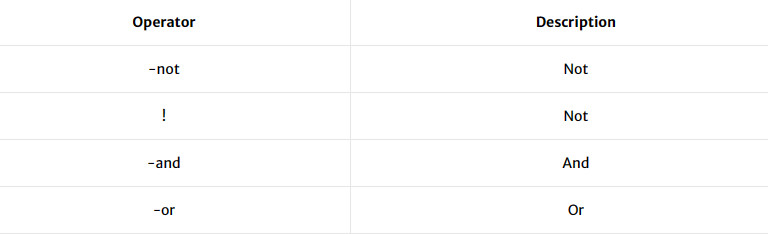
The result of each operator is either True or False. The results can be used in the PowerShell scripts for decision-making process.
Conditional Logic
When writing PowerShell scripts, we need a way to apply comparison results with conditional logic (the decision-making process). PowerShell supports two logic statements:
- if : You can use the if statement to run code blocks if a specified conditional test evaluates to true.
- switch : The switch statement is equivalent to a series of If statements, but it is simpler. The Switch statement lists each condition and an optional action. If a condition obtains, the action is performed.
If Statement
- You can use the If statement to run code blocks if a specified conditional test evaluates to true.
- You can also specify one or more additional conditional tests to run if all the prior tests evaluate to false.
- Finally, you can specify an additional code block that is run if no other prior conditional test evaluates to true.
The following example shows the syntax of If statement:
if (<condition1>) {<statement list 1>}
elseif (<condition2>) {<statement list 2>}
else {<statement list 3>}- When you run an If statement, Windows PowerShell evaluates the <condition1> conditional expression as true or false. If <condition1> is true, <statement list 1> runs, and Windows PowerShell exits the If statement.
- If <condition1> is false, Windows PowerShell evaluates the condition specified by the <condition2> conditional statement. If <condition2> is true, <statement list 2> runs, and Windows PowerShell exits the If statement.
- If both <condition1> and <condition2> evaluate to false, the <statement list 3>code block runs, and Windows PowerShell exits the If statement.
You can use multiple Elseif statements to chain a series of conditional tests so that each test is run only if all the previous tests are false. If you need to create an If statement that contains many Elseif statements, consider using a Switch statement instead.
Example:
The following script asks the user to enter the name of windows process and then compares the user input to the list of running processes on computer. If user input matches to any of running process, the process is displayed. If there is no matching process found, a message will be displayed that the process is not running on system.
$name = Read-Host "Please enter the name of Windows Process"
$ps = Get-Process -ErrorAction SilentlyContinue | Where-Object {$_.Name -match "$name"}
If (-Not $ps) {
    Write-Host "The process $name is not running on this computer"
}
Else {$ps}
You can copy and paste the above code into notepad, vs code or PowerShell ISE and save the file with .ps1 extension.
#Output

PS D:\> .\myscript.ps1
Please enter the name of Windows Process: firefox
The process firefox is not running on this computer
PS D:\>
PS D:\> .\myscript.ps1
Please enter the name of Windows Process: notepad

Handles  NPM(K)    PM(K)      WS(K)     CPU(s)     Id  SI ProcessName
-------  ------    -----      -----     ------     --  -- -----------
    761      35    83956      82880       7.13  11576   1 Notepad
Switch Statement
To check multiple conditions, you can use a switch statement. The Switch statement is equivalent to a series of If statements, but it is simpler. The Switch statement lists each condition and an optional action. If a condition obtains, the action is performed.
A basic switch statement has the following format:
Switch (<test-value>) {
    <condition> {<action>}
    <condition> {<action>}
}
For example, the following script takes the Computer Name as user input and then queries the WMI store on computer and reports the role of computer by using DomainRole property of object.
$cn = Read-Host "Please enter the Computer Name"
$obj = Get-WmiObject -Class win32_ComputerSystem -ComputerName $cn
Write-Host "Computer: $cn is a"
Switch ($obj.domainRole) {
    0 {"Standalone Workstation"}
    1 {"Member Workstation"}
    2 {"Standalone Server"}
    3 {"Member Server"}
    4 {"Backup Domain Controller"}
    5 {"Primary Domain Controller"}
    default {Write-Host "The role can not be determined"}
}
#Output
PS E:\> .\myscript.ps1
Please enter the Computer Name: dc01
Computer: dc01 is a
Primary Domain Controller
PS E:\>
PS E:\> .\myscript.ps1
Please enter the Computer Name: hr-pc001
Computer: hr-pc001 is a
Member WorkstationConditional logic is the foundation for dynamic PowerShell scripting. I have briefly introduced you that how you can control the flow of a script based on conditional responses.
| # | Learning PowerShell (Articles in series) | Cmdlets |
|---|---|---|
| #1 | Getting Started with Windows PowerShell | |
| #2 | Working with Windows PowerShell | |
| #3 | Writing and Running PowerShell Scripts | |
| #4 | Windows PowerShell Remoting | |
| #5 | Windows PowerShell Profiles | |
| #6 | PowerShell Drives and Providers | |
| #7 | Windows PowerShell ISE | |
| #8 | Manage Services using PowerShell | |
| #9 | Manage Processes using PowerShell | Get-Member, -Property, -ExpandProperty |
| #10 | Variables in Windows PowerShell | |
| #11 | Arrays in Windows PowerShell | |
| #12 | Hash Tables in Windows PowerShell | |
| #13 | PowerShell Loops | foreach, for |
| #14 | Conditional Logic in PowerShell | |
| #15 | PowerShell Functions | |
| #16 | One-liners and the Pipeline | |
| #17 | Everything about PSCustomObject | |
| #18 | Selecting Parts of Objects | |
| #19 | Sorting Objects | |
| #20 | Getting WMI objects with Get-CimInstance | |
| #21 | Parentheses, Braces and Square Brackets | () {} [] |
| #22 | The Philosophy Verb-Noun | Get-Command, Verb-Noun |
| #23 | PowerShell Parameters | $ |
| #24 | PowerShell and WMI | Get-CimInstance |


