
Table of Contents
Install VMware Tools VMware Workstation
In some cases, you got these error when install VMware Tools in Windows 7 virtual machine:
- Setup failed to install the VSock Virtual Machine Communication Interface Sockets driver automatically. This driver will have to be installed manually.
- Setup failed to install the Memory Control driver automatically. This driver will have to be installed manually.


Install the security update for Windows 7
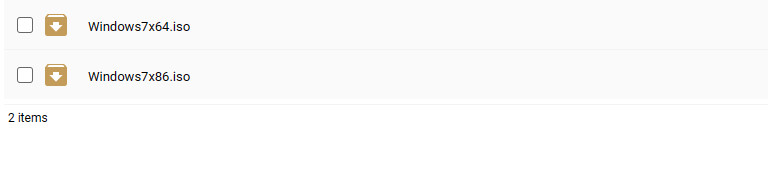
1️⃣ Download the security updates for Windows 7 from below link. You can download the iso files depending on the virtual machine running Windows 32 or 64-bit.
2️⃣ Because the VMware Tools has not been installed, so you cannot transfer files between the virtual machine and the host machine. And the shared folder cannot be enabled. So, we’ve created the files with .iso extension, then you can mount it into the VM easily.
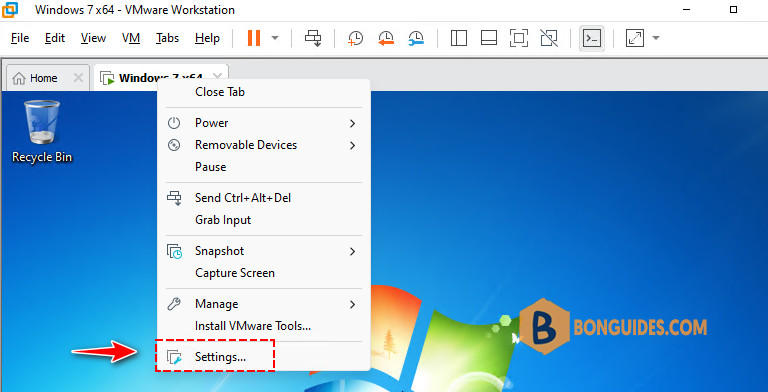
3️⃣ Right clicking on the VM tab then edit its settings.
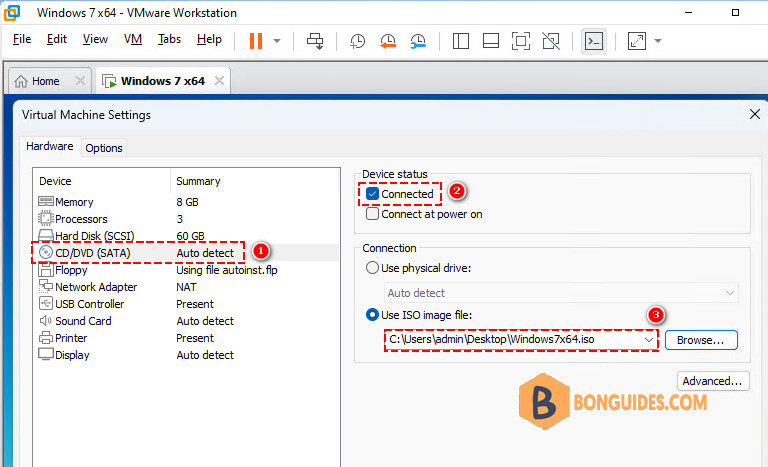
4️⃣ Select the optical drive the select the downloaded iso file from the first step.
5️⃣ The image file should be mounted automatically. From here, you can see the needed security updates that you need to install before install the VMware Tools.
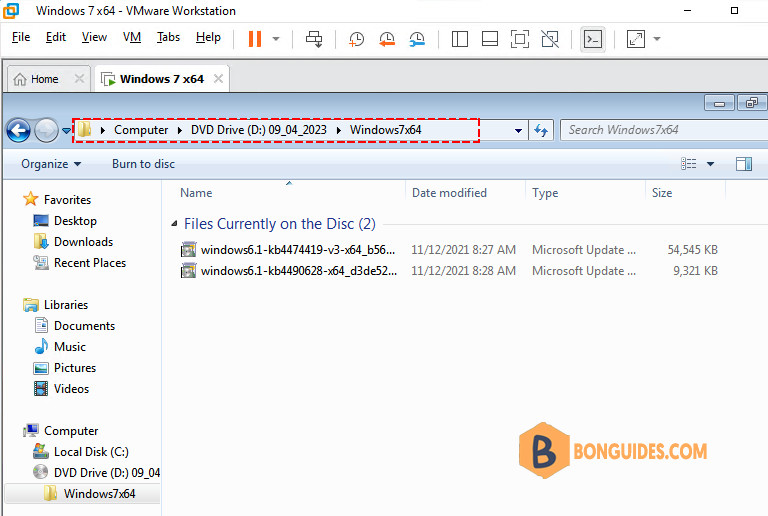
6️⃣ Install KB4490628 then install KB4474419.

7️⃣ Restart the virtual machine to take the changes go into effect.

8️⃣ Once done, try to install the VMware Tools again to verify it works.


