Table of Contents
The free Quick Assist remote access program is easy to understand and doesn’t require a download because it’s built-in to Windows 11 and 10.
Advantages
- Built-in to Windows 11/10, so you don’t need to install additional software.
- Easy signup with your Microsoft account.
- Perfect for on-demand, quick access.
Disadvantages
- Requires at least Windows 10. No built-in chat functions.
- Can’t share files.
- Requires the host’s permission for each connection.
How to remote assist using Quick Support
Client Side (Supporter)
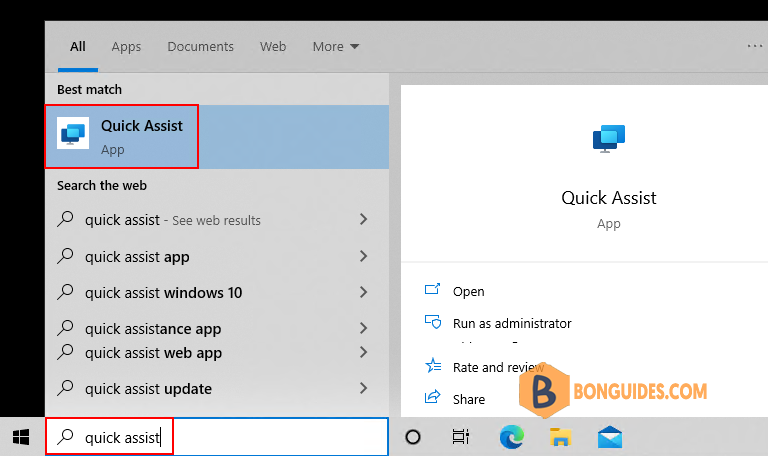
1. Search then open Quick Assist on your Windows Computer.
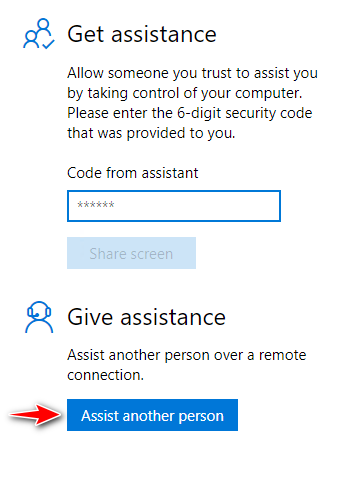
2. Choose and then log in to your Microsoft account. Give the security code to the host and then choose Take full control or View screen to get remote access to their computer.
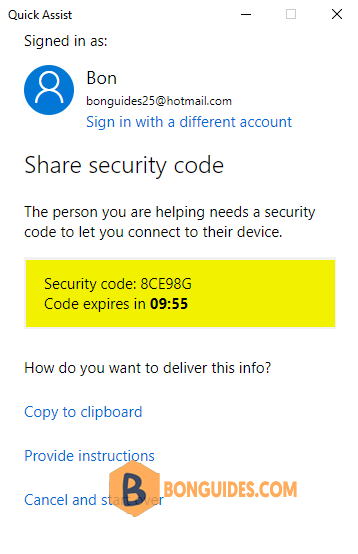
3. Copy the 6-digit security code. Then you can paste that code in an email and send it to the other user. You can also send the code via a text message or any other method you want.
Note
You only have 10 minutes to copy the code, send it to the other user, and have them paste the code into the Quick Assist app. So, make sure the other user is at their computer and ready to receive your instructions.
Host Side
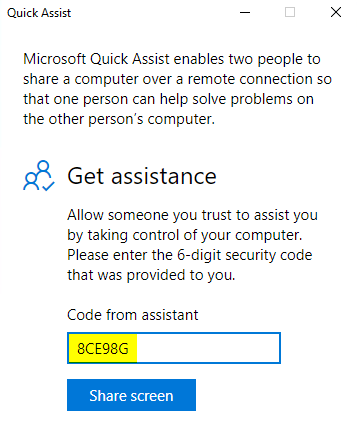
The host will have to open Quick Assist and enter the code in the text box under Get assistance. You can tell him to open the app the same way that you did.
Type into the text box the 6-digit code then select Share screen. Once the host has done their part, you need to confirm that you can have access to their computer before the connection can be established.
Note
Once the host clicks Share Screen, the countdown timer will stop.
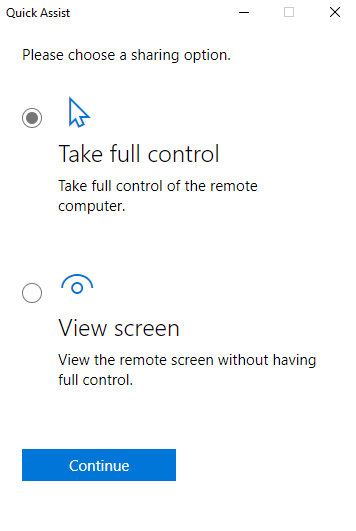
Client select Take full control or View screen. If you choose Take full control, you will be able to control the other user’s mouse and keyboard from your computer. If you choose View screen, you will only be able to see their screen, without controlling anything.
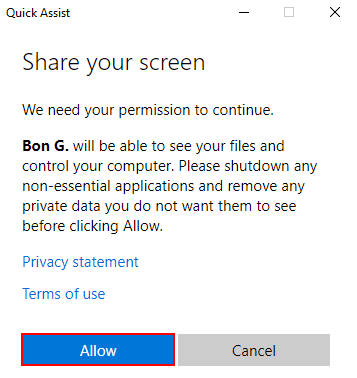
Then the host will have to click Allow to give you access.
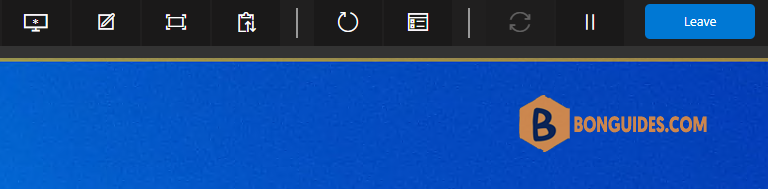
Finally, you will see the host’s screen in a new window on your computer. You can re-size the window with the other user’s screen by clicking and dragging the edge of the window. Also, you have a list of options and tools at the top of your screen. These let you select a different monitor on the other user’s computer, annotate to draw something on their screen, send a text message, and more.
If the host wants to end the session, they can click the in the message at the top of their window.