
Table of Contents
Uninstall, Reinstall, and Cleanup Microsoft Teams App (Classic)
Uninstalling, reinstalling, and cleaning up the Microsoft Teams app classic can help resolve issues related to the application and ensure that you have a fresh installation.
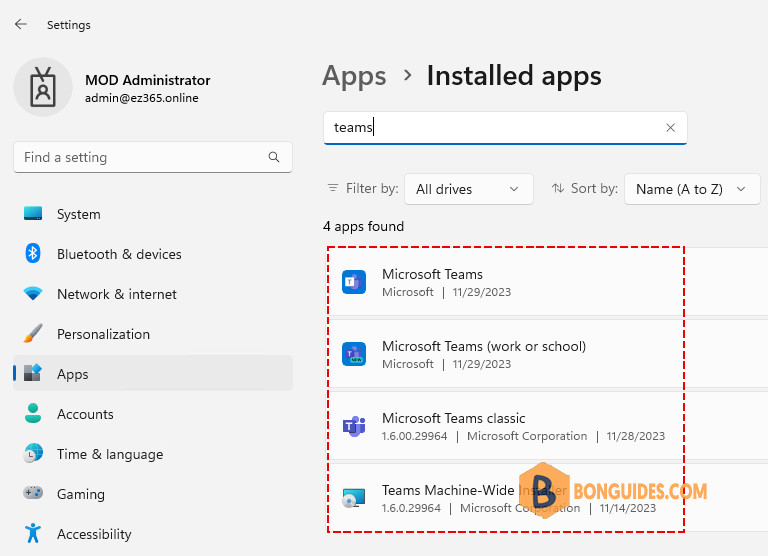
You have the option to perform this task either manually from Windows Settings or Control Panel. However, in this post, we will utilize a PowerShell script to automate the process.
Here is a summary of the steps from the PowerShell script to uninstall Microsoft Teams:
- Prompt for Cache Clearing: Asks if the user wants to delete the Teams cache.
- Stop Teams Process: Stops any running Teams processes.
- Clear Cache: Removes various Teams-related cache directories.
- Uninstall Teams: If selected, it uninstalls all Microsoft Teams applications, including the machine-wide installer, Classic, and new versions of Teams using Windows Package Manager.
# Clearing Teams Cache and Uninstall Teams
    $clearCache = Read-Host "Do you want to delete the Teams Cache (Y/N)?"
    $clearCache = $clearCache.ToUpper()

    $uninstall= Read-Host "Do you want to uninstall Teams completely (Y/N)?"
    $uninstall= $uninstall.ToUpper()

# Clear Microsoft Teams cache
    if ($clearCache -eq "Y"){
        Write-Host "Stopping Teams Process" -ForegroundColor Yellow

        try{
            Get-Process | where {$_.ProcessName -like '*teams*'} | Stop-Process -Force -ErrorAction SilentlyContinue
            Start-Sleep -Seconds 3
            Write-Host "Teams Process Sucessfully Stopped" -ForegroundColor Green
        }
        catch{
            Write-Output $_
        }

        Write-Host "Clearing Teams Disk Cache" -ForegroundColor Yellow

        try{
            Get-ChildItem -Path $env:APPDATA\"Microsoft\teams\application cache\cache" -Recurse -ErrorAction SilentlyContinue| Remove-Item -Confirm:$false -Recurse
            Get-ChildItem -Path $env:APPDATA\"Microsoft\teams\blob_storage" -Recurse -ErrorAction SilentlyContinue| Remove-Item -Confirm:$false -Recurse
            Get-ChildItem -Path $env:APPDATA\"Microsoft\teams\databases" -Recurse -ErrorAction SilentlyContinue| Remove-Item -Confirm:$false -Recurse
            Get-ChildItem -Path $env:APPDATA\"Microsoft\teams\cache" -Recurse -ErrorAction SilentlyContinue| Remove-Item -Confirm:$false -Recurse
            Get-ChildItem -Path $env:APPDATA\"Microsoft\teams\gpucache" -Recurse -ErrorAction SilentlyContinue| Remove-Item -Confirm:$false -Recurse
            Get-ChildItem -Path $env:APPDATA\"Microsoft\teams\Indexeddb" -Recurse -ErrorAction SilentlyContinue| Remove-Item -Confirm:$false -Recurse
            Get-ChildItem -Path $env:APPDATA\"Microsoft\teams\Local Storage" -Recurse -ErrorAction SilentlyContinue| Remove-Item -Confirm:$false -Recurse
            Get-ChildItem -Path $env:APPDATA\"Microsoft\teams\tmp" -Recurse -ErrorAction SilentlyContinue| Remove-Item -Confirm:$false -Recurse
            Write-Host "Teams Disk Cache Cleaned" -ForegroundColor Green
        }
        catch{
            Write-Output $_
        }
    }

# Uninstall all Microsoft Teams apps
    if ($uninstall -eq "Y"){

        # Removing Teams Machine-wide
        Write-Host "Removing Teams Machine-wide Installer" -ForegroundColor Yellow
        $MachineWide = Get-WmiObject -Class Win32_Product | Where-Object{$_.Name -eq "Teams Machine-Wide Installer"}
        $MachineWide.Uninstall()

        # Remove Teams App (Classic)
        function unInstallTeams($path) {
            $clientInstaller = "$($path)\Update.exe"
            try {
                $process = Start-Process -FilePath "$clientInstaller" -ArgumentList "--uninstall /s" -PassThru -Wait -ErrorAction STOP
                if ($process.ExitCode -ne 0) {
                    Write-Error "UnInstallation failed with exit code  $($process.ExitCode)."
                }
            }
            catch {
                Write-Error $_.Exception.Message
            }
        }

        #Locate installation folder
        $localAppData = "$($env:LOCALAPPDATA)\Microsoft\Teams"
        $programData = "$($env:ProgramData)\$($env:USERNAME)\Microsoft\Teams"

        If (Test-Path "$($localAppData)\Current\Teams.exe") {
            unInstallTeams($localAppData)
        } elseif (Test-Path "$($programData)\Current\Teams.exe") {
            unInstallTeams($programData)
        } else {
            Write-Warning  "Teams installation not found"
        }

        # Update Windows Package Manager then remove Teams free and Teams app (New)
        $winget = Get-AppxProvisionedPackage -Online | Where-Object {$_.DisplayName -eq 'Microsoft.DesktopAppInstaller'}
        If ([Version]$winGet.Version -lt "2022.506.16.0") {
            Write-Host "Updating Windows Package Manager..." -ForegroundColor Yellow
            Invoke-RestMethod bonguides.com/winget | Invoke-Expression
        }

        $path = "C:\Program Files\WindowsApps"
        $winget = Get-ChildItem $path -Recurse -File -ErrorAction SilentlyContinue | Where-Object { $_.Name -like "WinGet.exe" } | Select-Object -ExpandProperty fullname -ErrorAction SilentlyContinue

        If ($winget.count -gt 1){ $winget = $winget[-1] }

        Write-Host "Removing Teams apps..." -ForegroundColor Yellow
        & $winget uninstall Microsoft.Teams --exact --silent --force --accept-source-agreements
        & $winget uninstall MicrosoftTeams_8wekyb3d8bbwe --exact --silent --force --accept-source-agreements
    }
How to run the script
Method 1: You can copy the code, create a PowerShell script, and then run it manually on your computer.
Method 2: Execute the script directly:
1. Right-click on the Windows Start icon then open PowerShell (Terminal) as administrator.
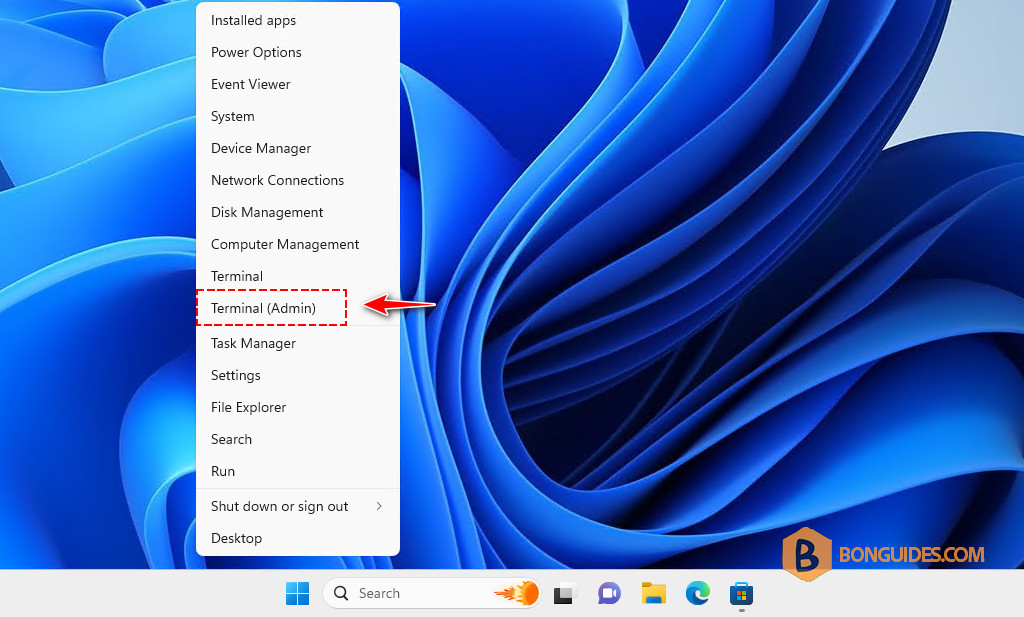
2. Run the following command to execute the script directly without having to create it manually.
Note
The PowerShell script is safe, but you should verify the security and contents of any script from the internet you are not familiar with.
irm bonguides.com/teams/uninstall | iex#Output
Do you want to delete the Teams Cache (Y/N)?: y
Do you want to uninstall Teams completely (Y/N)?: y
Stopping Teams Process
Teams Process Sucessfully Stopped
Clearing Teams Disk Cache
Teams Disk Cache Cleaned
Removing Teams Machine-wide Installer
WARNING: Teams installation not found
Removing Teams apps...
Found Microsoft Teams [Microsoft.Teams]
Starting package uninstall...
██████████████████████████████ 100%
Successfully uninstalled
Found Microsoft Teams (personal) [Microsoft.Teams.Free]
Starting package uninstall...
██████████████████████████████ 100%
Successfully uninstalled

