
Table of Contents
Set the Default Location in Azure PowerShell
This post explains how to set the default location for Azure PowerShell cmdlets, eliminating the need to specify it with each command.
PS C:\> New-AzResourceGroup -Name 'testRG1'

cmdlet New-AzResourceGroup at command pipeline position 1
Supply values for the following parameters:
(Type !? for Help.)
Location:
The key to this is utilizing the PowerShell preference variable $PSDefaultParameterValues, which enables you to set a default value for cmdlets and parameters.
For instance, let’s create a Resource Groups in the East US region using New-AzResourceGroup, but without specifying the -Location parameter:
$PSDefaultParameterValues.Add("New-AzResourceGroup:Location","eastus")
New-AzResourceGroup -Name "testRG1"
The resource group is created in the East US region, as defined in our default.
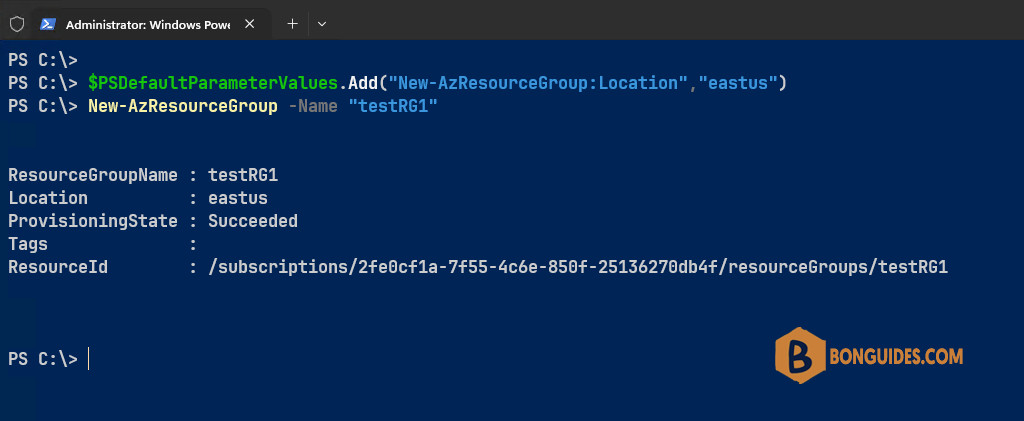
This is beneficial, but it would require adding a $PSDefaultParameterValues.Add line for each cmdlet in the Azure PowerShell module that utilizes the Location parameter, such as New-AzVM, New-AzResourceGroup, and so on.
Fortunately, $PSDefaultParameterValues can accept wildcard entries, and due to the uniformity in PowerShell cmdlet and parameter naming, we can establish a default location for all cmdlets that include -Az in their name.
$PSDefaultParameterValues.Add("*-Az*:Location","eastus")And then test with a variety of cmdlets:
$PSDefaultParameterValues.Add("*-Az*:Location","eastus")
New-AzVM -Name 'MyVm' -Credential (Get-Credential) -ResourceGroupName "testRG1"
New-AzAppServicePlan -ResourceGroupName "testRG1" -Tier Free -Name "test-asp-01"
PS C:\> Get-AzResource -ResourceGroupName 'testRG1' | ft
Name ResourceGroupName ResourceType Location
---- ----------------- ------------ --------
MyVm testRG1 Microsoft.Network/virtualNetworks eastus
MyVm testRG1 Microsoft.Network/networkSecurityGroups eastus
MyVm testRG1 Microsoft.Network/networkInterfaces eastus
MyVm testRG1 Microsoft.Compute/virtualMachines eastus
MyVm_disk1_0b3e20900e5548ce9a39bd4cb45c225f TESTRG1 Microsoft.Compute/disks eastus
test-asp-01 testRG1 Microsoft.Web/serverFarms eastusIt’s important to note that having this default setting does not affect Azure module cmdlets that do not need the location parameter; they will continue to function as expected.
Start-AzVM -Name 'MyVM' -ResourceGroupName "testRG1"When a non-default Region is necessary, the location can be explicitly specified to override the default setting. For instance:
PS C:\> New-AzResourceGroup -Name "testRG2" -Location 'westus'

ResourceGroupName : testRG2
Location          : westus
ProvisioningState : Succeeded
Tags              :
ResourceId        : /subscriptions/2fe0cf1a-7f55-4c6e-850f-25136270db4f/resourceGroups/testRG2
If you typically work within the same region, you might consider setting this value in your PowerShell profile to ensure it’s the default for all sessions. Alternatively, you could create a brief function to invoke whenever you need to establish a new default, such as for a different client or project.
# Create a PowerShell function
function Set-AzDefaultLocation {
      param([string]$location)
      $PSDefaultParameterValues.Add("*-Az*:Location",$location)
}
Set-AzDefaultLocation -location 'eastus'PS C:\> $PSDefaultParameterValues
Name Value
---- -----
*-Az*:Location eastus

