Table of Contents
Reset Internet Options in Control Panel in Windows 11
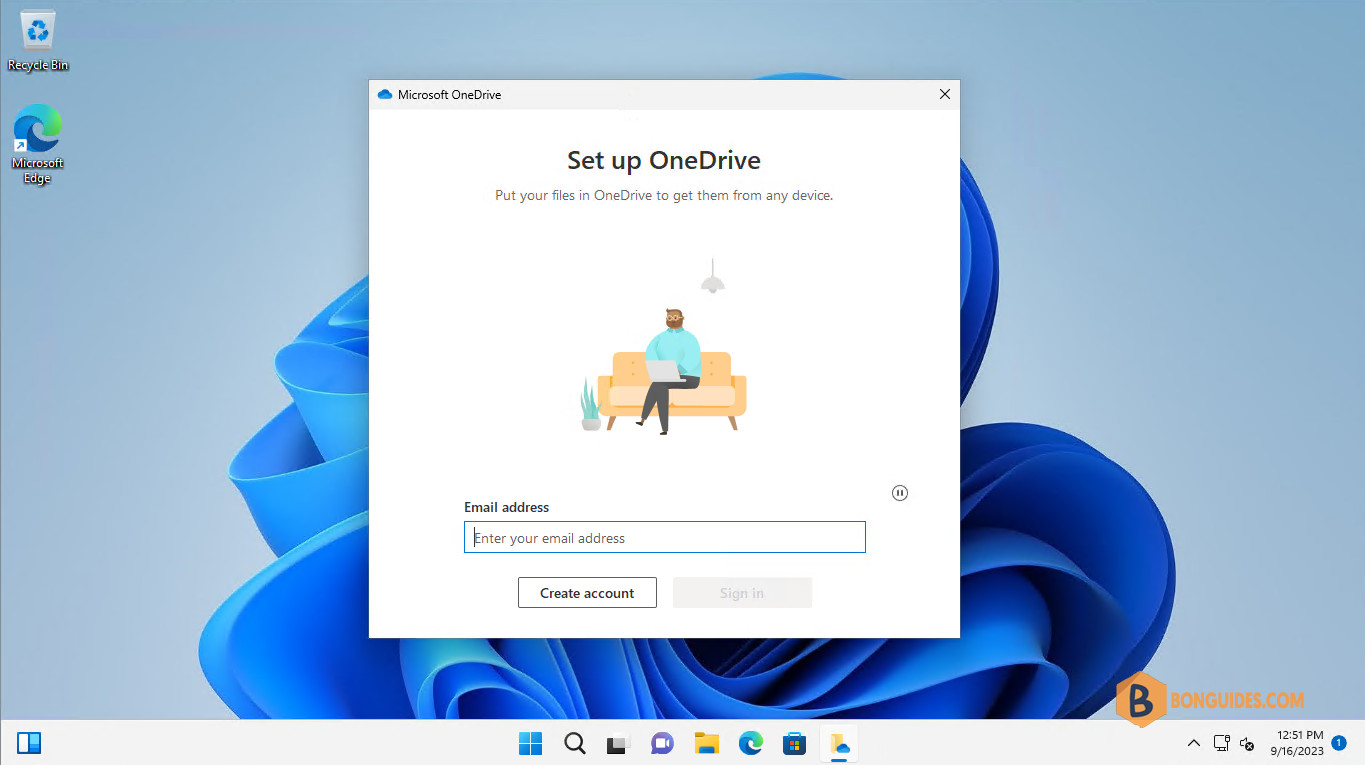
In some cases, you want to reset Internet Explorer settings in Windows 11. For example, we want to reset it to fix the logon script error with OneDrive. But you cannot find that option in the Internet Options in Control Panel (inetcpl.cpl).
Note
Click on images (screenshots) to show them at full size in popup.
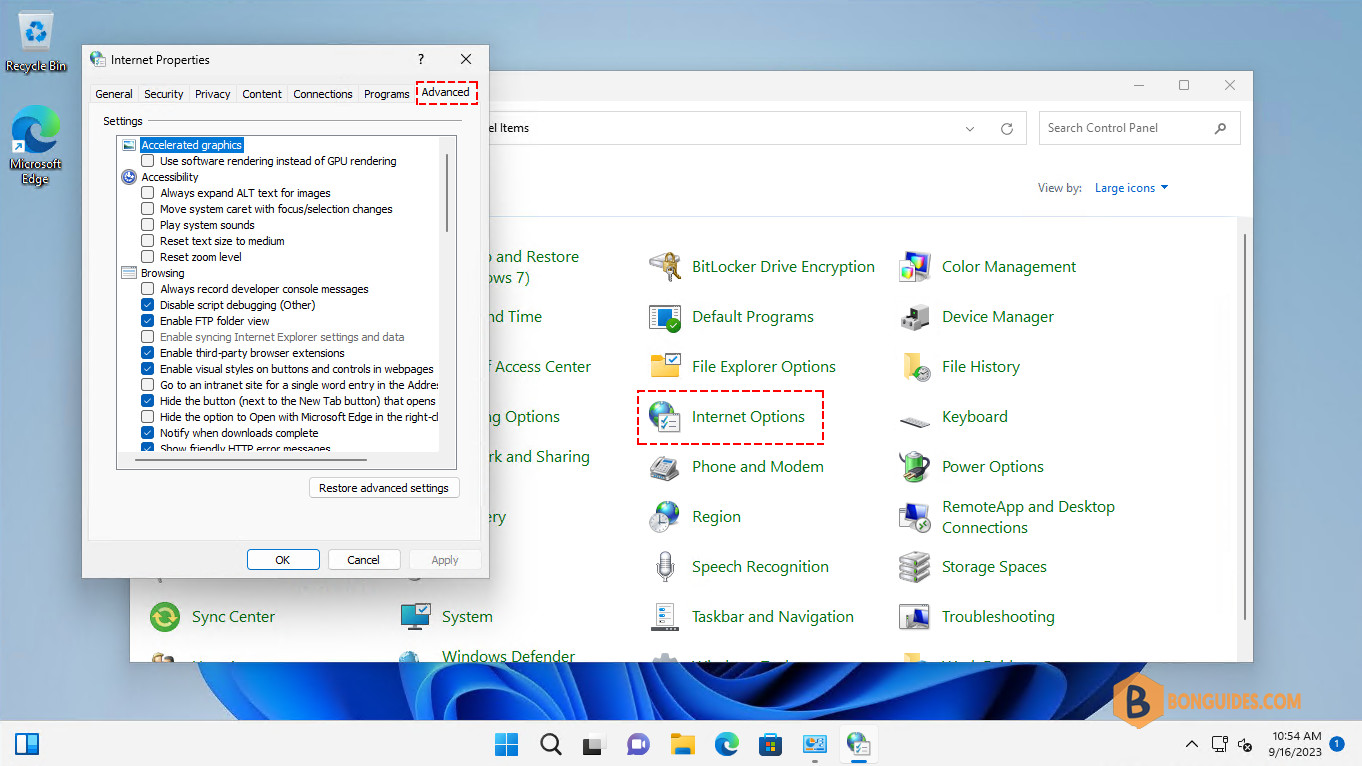
In Windows 10, the option is available for resetting as below screenshot.
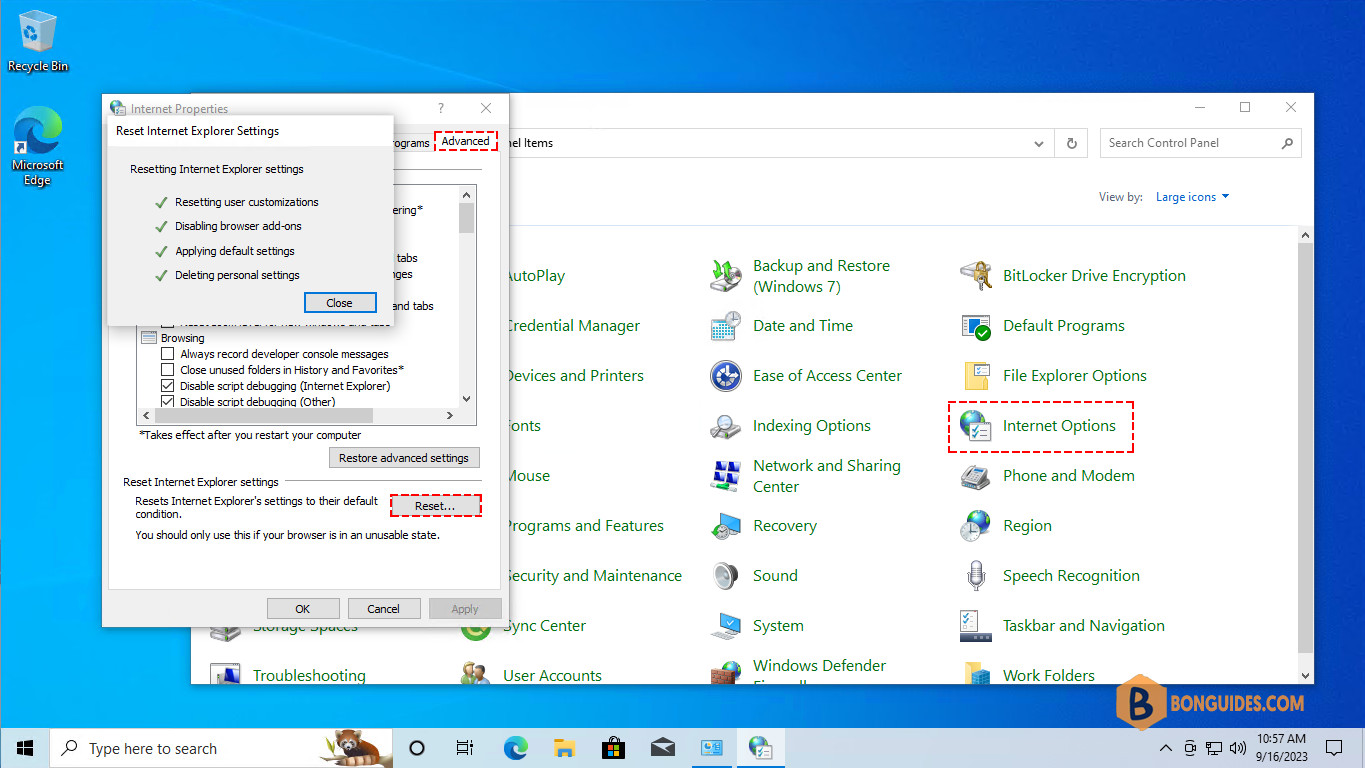
Microsoft has been removed that option from GUI in the recent releases of Windows 11. But you can access the option using command line.
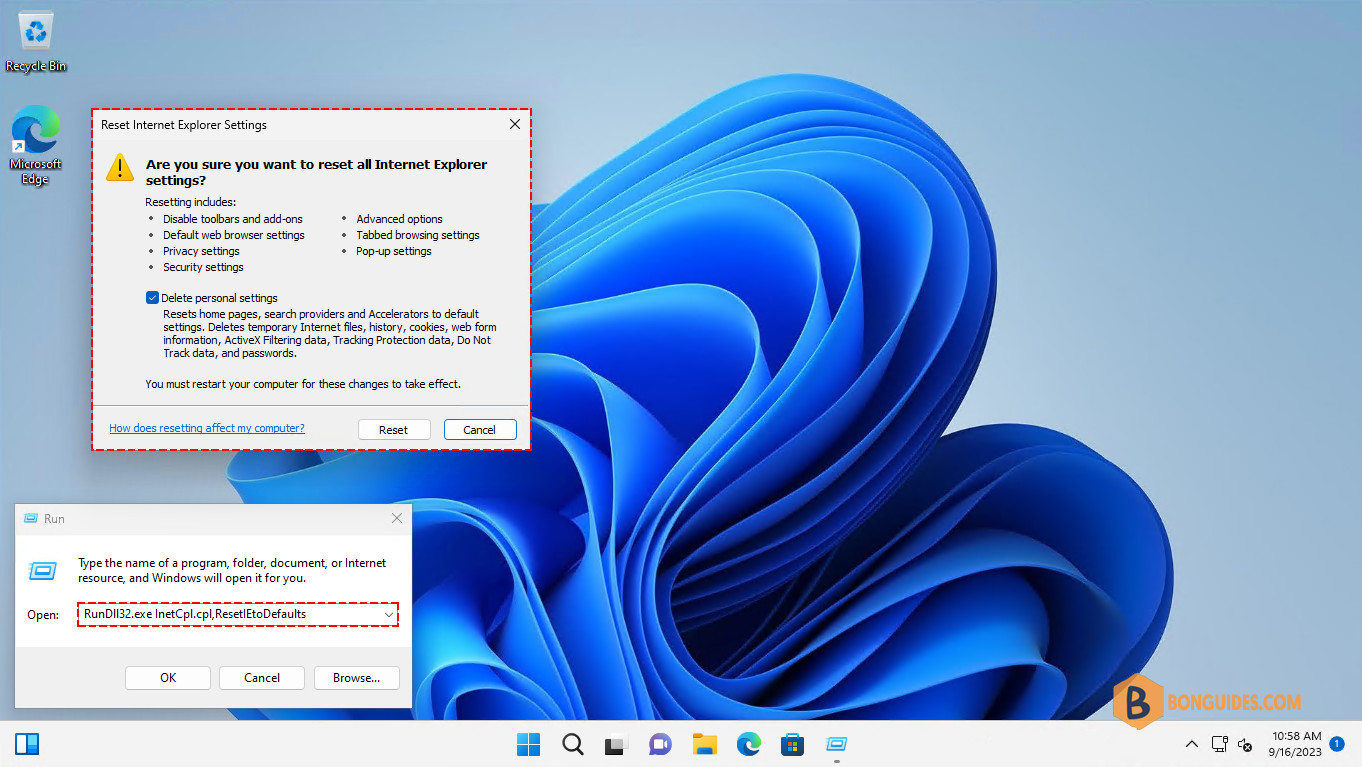
The below command can be run by the Run box (Windows + R) or run in any command prompt (CMD, PowerShell, Terminal).
RunDll32.exe InetCpl.cpl,ResetIEtoDefaultsAs you can see, now you can reset Internet Explorer settings as usual.
In our case, once the Internet Explorer Settings is reset. We can now open then sign in into OneDrive.