
Table of Contents
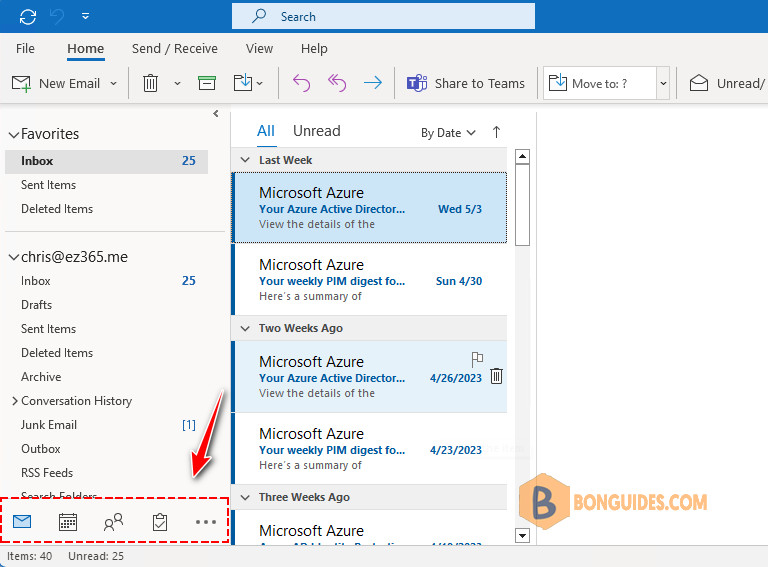
If your navigation bar is positioned on the left margin of your Outlook window, you have the new experience for this feature (available in Current Channel version 2207 or later).
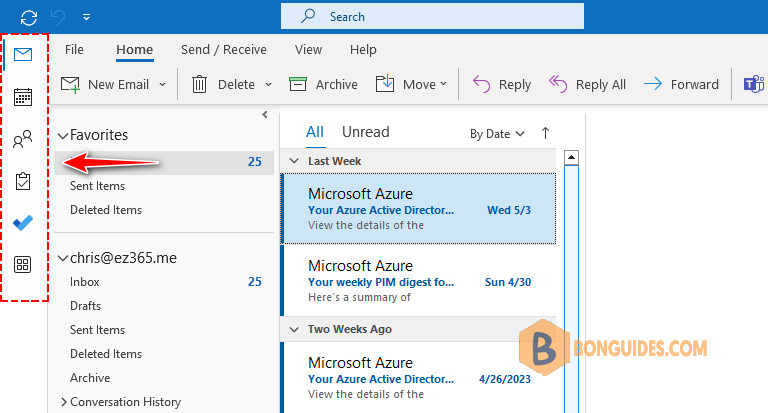
You can move the bar back below the folder pane for a time, as described below.
Using the Outlook settings
The first way, we can use the Outlook settings to move the navigation panel back to bottom.
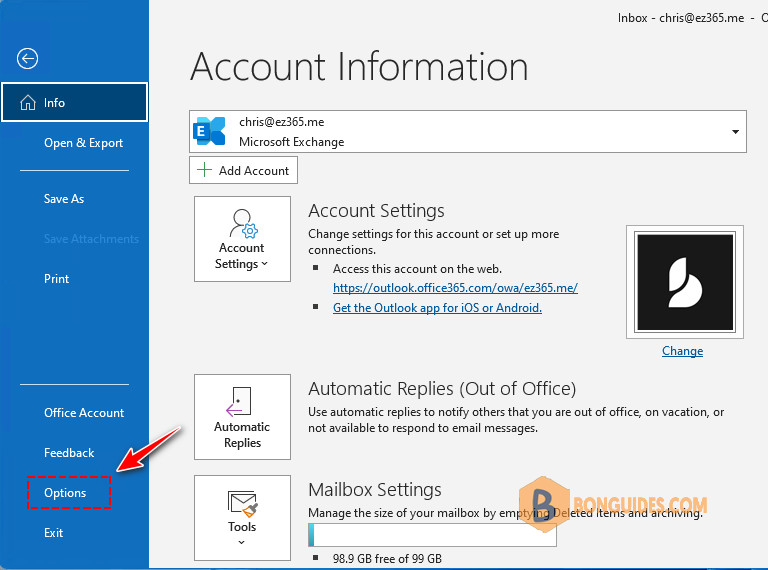
1. Select File > Options.
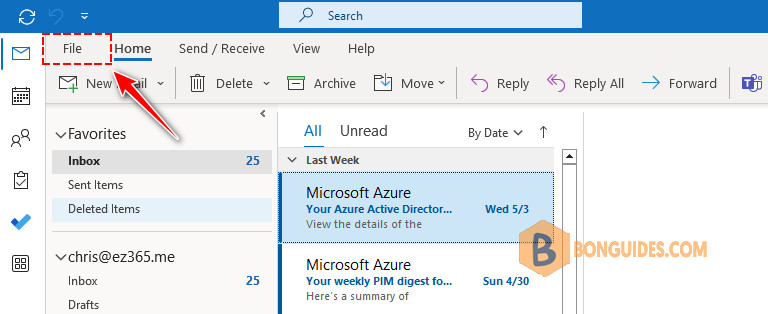
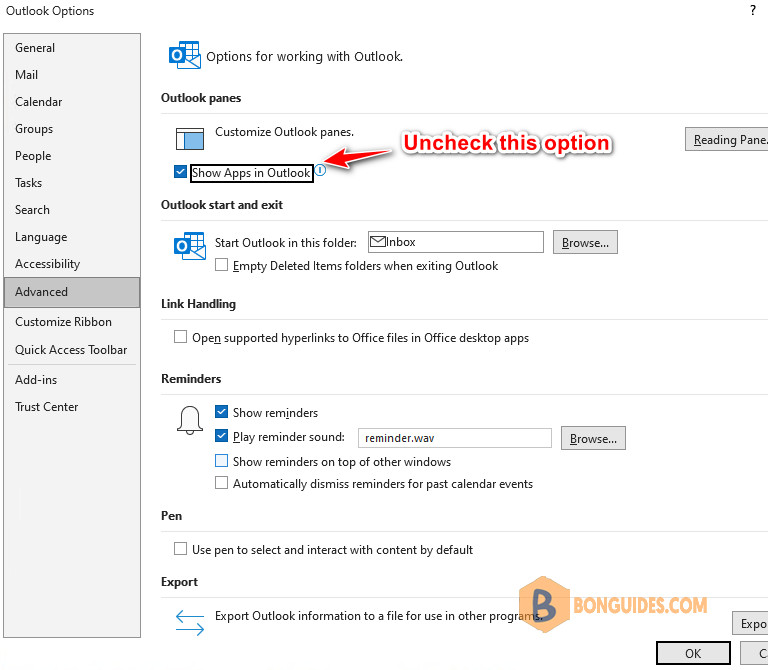
2. Select Advanced, and under Outlook panes, clear Show Apps in Outlook.
3. Close and then restart Outlook.
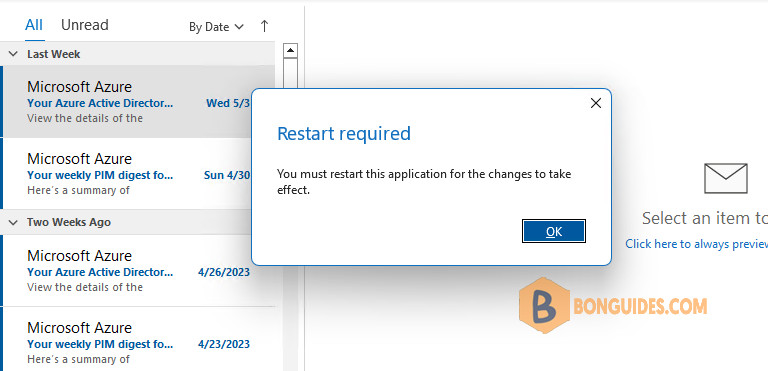
After doing so, you’ll see the navigation bar positioned below the folder pane.
Using the Registry
Alternatively, we can use the registry to move the bar to the bottom. Using this method, we can configure that option on multiple computers using Group Policy in a domain environment.
1. Right-click Start > Run > Regedit or you can open it from Search box.
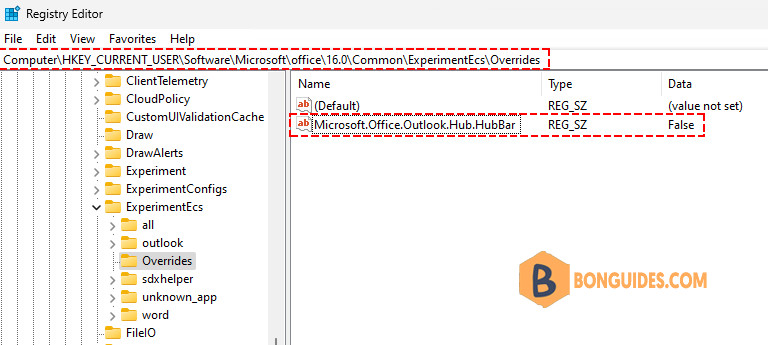
2. Navigate to the following registry key.
HKEY_CURRENT_USER\Software\Microsoft\Office\16.0\Common\ExperimentEcs\Overrides3. Create a new String named Microsoft.Office.Outlook.Hub.HubBar then set its value to False.
4. Close and restart Outlook


