Table of Contents
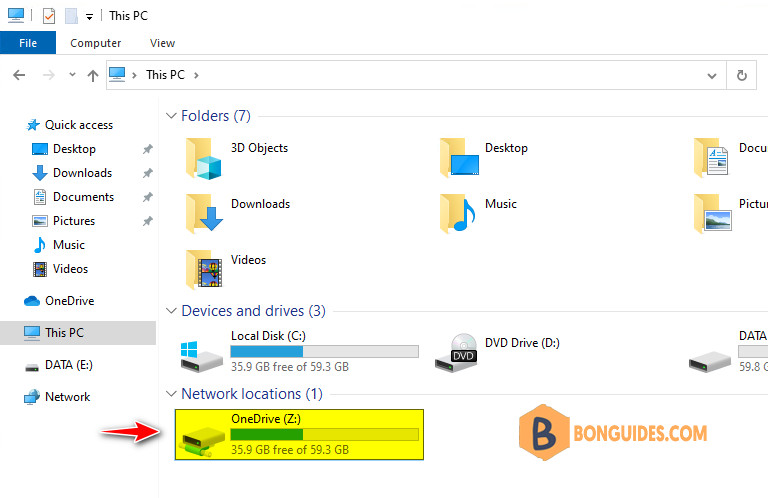
With the introduction of Windows 11, OneDrive has become a more permanent part of the OS, where the OneDrive files are shown directly in the Start Menu. But, Microsoft has pushed a recent update for Windows that makes it harder to map OneDrive to a particular drive letter on your system. Don’t worry. There are multiple ways that you can still use to map the OneDrive to a designated drive letter on your system.
Map OneDrive to a drive letter in Windows
Method 1: Map OneDrive as a local drive
1. Determining the path of the OneDrive. Hold the key while right click on the OneDrive icon to bring up the context menu then elect Copy as path.
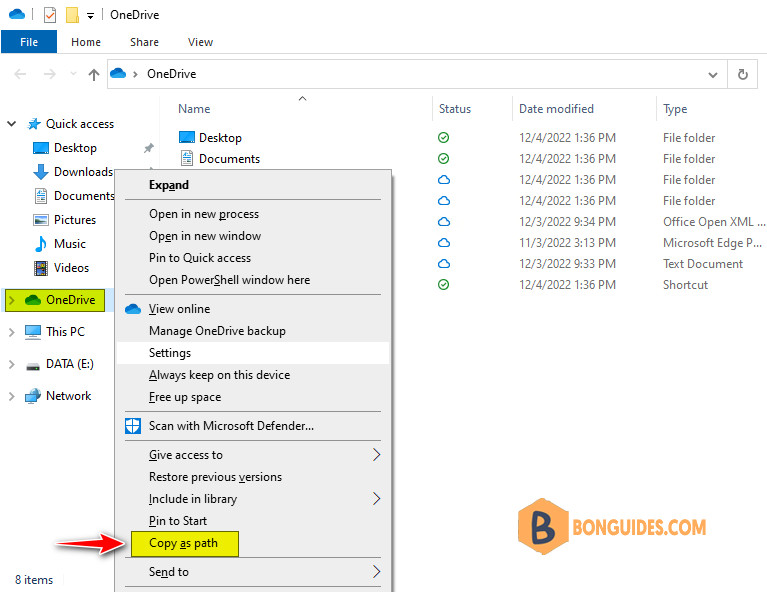
In this case, below is the location of my OneDrive folder.
"C:\Users\admin\OneDrive"2. Once you are done, let’s open a Command Prompt or PowerShell window then execute the following command:
Note
Do not open Command Prompt or PowerShell as administrator. Let’s open CMD or PowerShell as normal user.
Don’t forget replacing the drive letter with the drive letter you want to assign to the newly mapped OneDrive. Remember to put the address of the folder between the quotation marks in the command.
subst O: "C:\Users\admin\OneDrive"
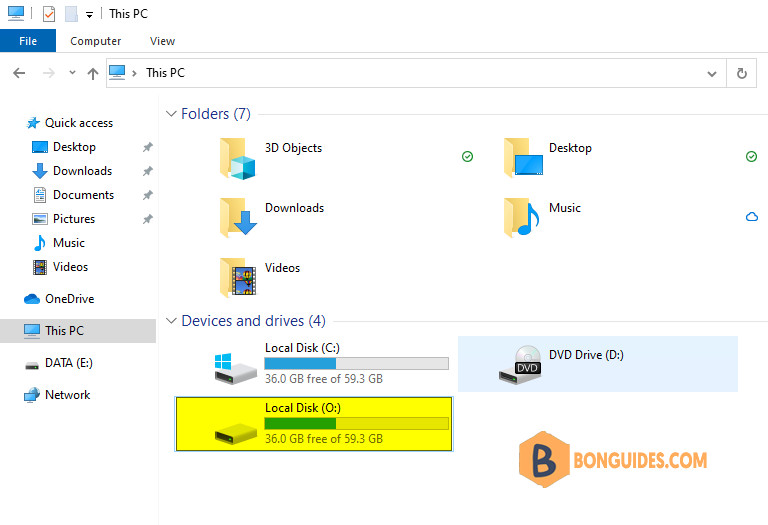
That’s it! Now, you can close the Command Prompt and check the File Explorer. You will see the OneDrive has appeared as the O: drive on your system.
Method 2: Map OneDrive as a network drive
If the above method doesn’t work, you can add OneDrive as a network drive on your system. It will work as well.
Note
This feature doesn’t work in Google Chrome, Mozilla Firefox, or on the Mac platform. You must use Microsoft Edge or Internet Explorer to login and map a network drive.
1. Open Internet Explorer then sign-in into https://onedrive.live.com.
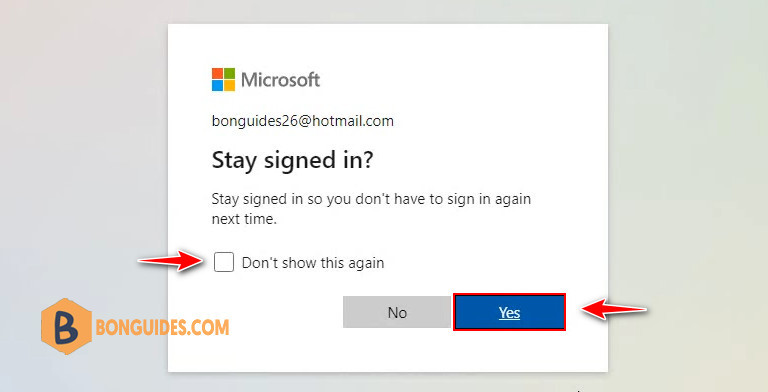
2. Sign in with your email address and password. Then don’t forget check the box that says, Don’t show this again and click Yes button in the Stay signed in window.
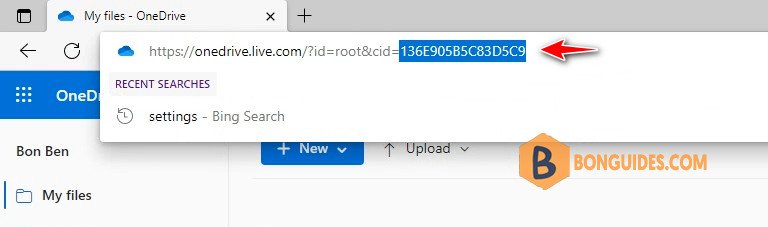
3. Once you have logged in, go to the address bar. At the end of the address, you will notice a CID number (the number after the phrase cid= at the last part of the address.) Take note the CID number.
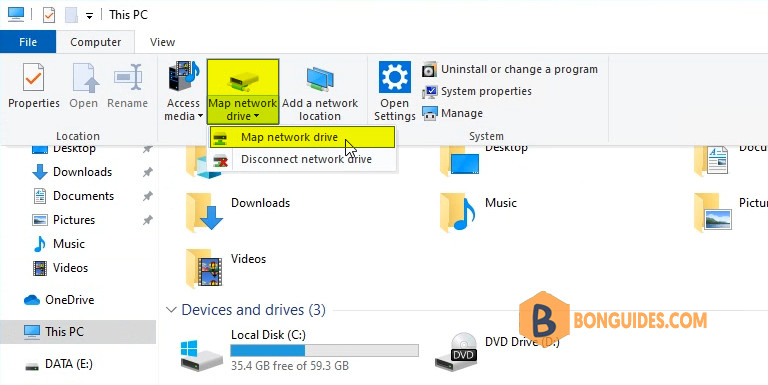
4. Open the File Explorer on your system. In the File Explorer window, click on Map network drive to map OneDrive into your Windows.
5. Then, paste this line in the Folder: box and modify this line accordingly. Replace the CIDNumber with the CID number of your OneDrive that you have noted in the address bar.
https://d.docs.live.net/136E905B5C83D5C9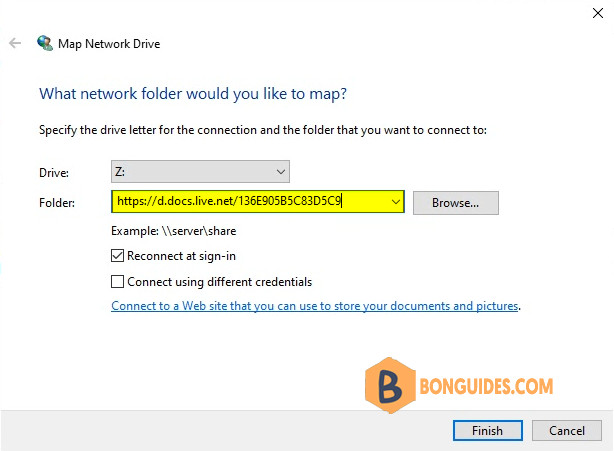
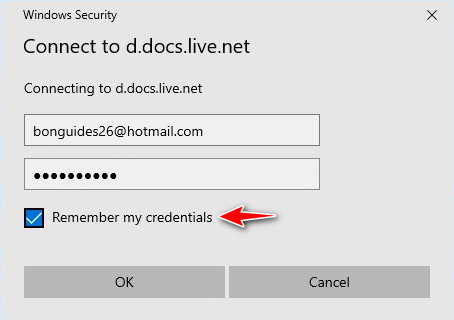
6. Next, Windows will try to connect to the OneDrive as a network drive. Now, input your OneDrive credentials once again and make sure to check the Remember my credentials box.
7. OneDrive will be opened in a new File Explorer window. You have successfully mapped OneDrive as a drive on your system.
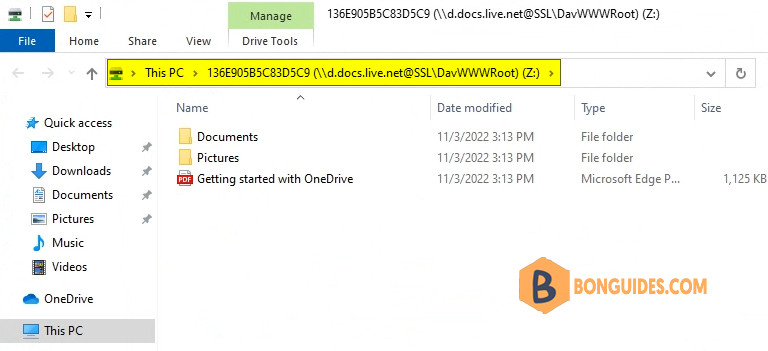
8. As you have added OneDrive as a new network drive, it may bear a long address in its name. You can easily rename it back to OneDrive (or anything you prefer).
Right-click on the new OneDrive that you have added as a network drive and click on Rename to rename it.