
Table of Contents
While working with local files you may need to open a Terminal window in your current folder location. While doing that is as easy as pressing a button and clicking an option in Windows, things are different on macOS.
You are required to first enable an option in your System Preferences panel, and then you will have the option to launch an instance of Terminal in any folder of your choice.
Launch Terminal Window in the Current Folder on Mac
You do not need a third-party app to get the job done. All you need to do is visit the Preferences panel, tweak a few settings here and there, and you will be all set.
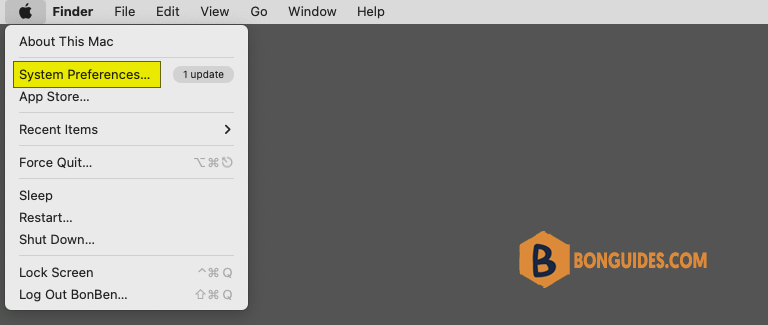
1. Click on the Apple icon in the top-left corner of your screen and select System Preferences.
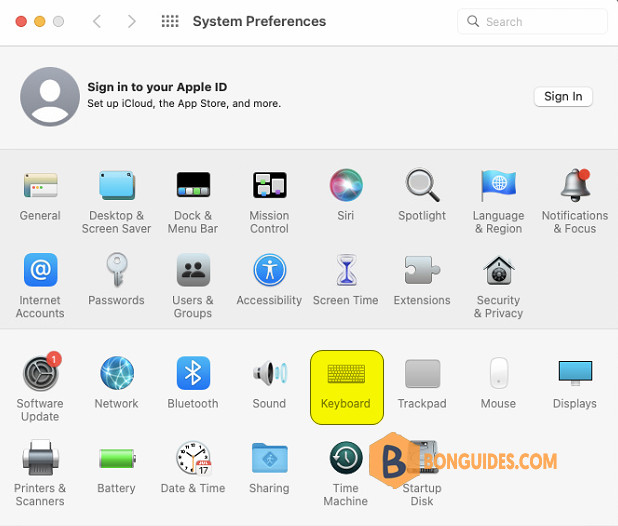
2. Click on Keyboard in the Preferences panel.
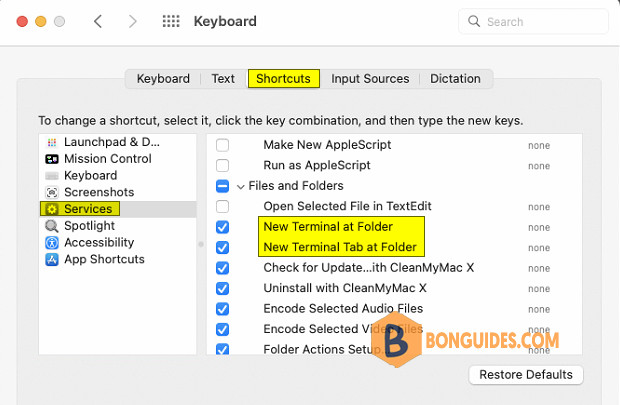
3. Once in the Keyboard panel, click on the Shortcuts tab.
4. In the Shortcuts panel, click on Services in the left-hand menu. Scroll down in the right-hand menu, and select the options that say New Terminal at Folder and New Terminal Tab at Folder. These options should be next to each other.
Note
Tip: Click on none next to New Terminal at Folder, and press a key combination on your keyboard to assign a new shortcut key to the feature. That way you will be able to launch a Terminal window using a shortcut key instead of pulling up the menu and selecting the option to launch one.
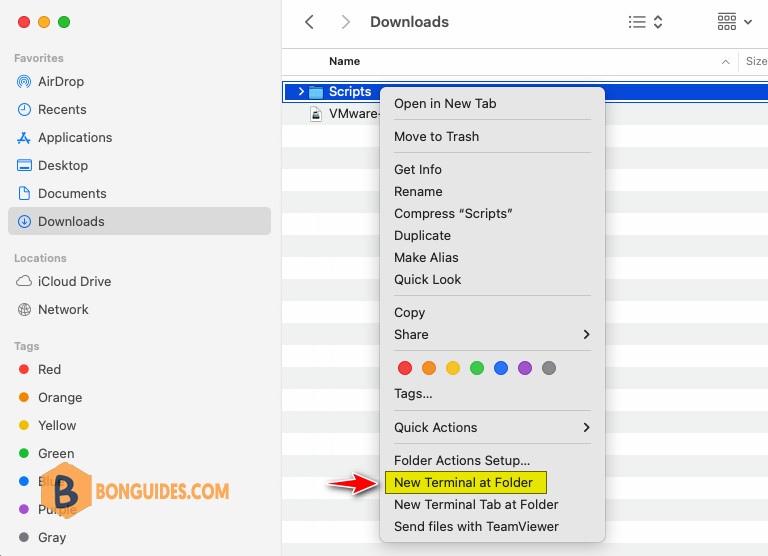
5. Open the parent directory where your folder is located. Then right-click on the folder where you wish to launch a Terminal window and select New Terminal at Folder. Or you can simply press the keyboard shortcut that you assigned before.
A new Terminal window should launch in the current folder location allowing you to play around with the local files in that folder.

Note
Launching a local instance of Terminal should now be easy for you. Should you ever wish to disable the feature, you can do so from the Preferences panel by just unchecking the boxes that you selected in the above steps.
Drag-and-drop folders into the Terminal
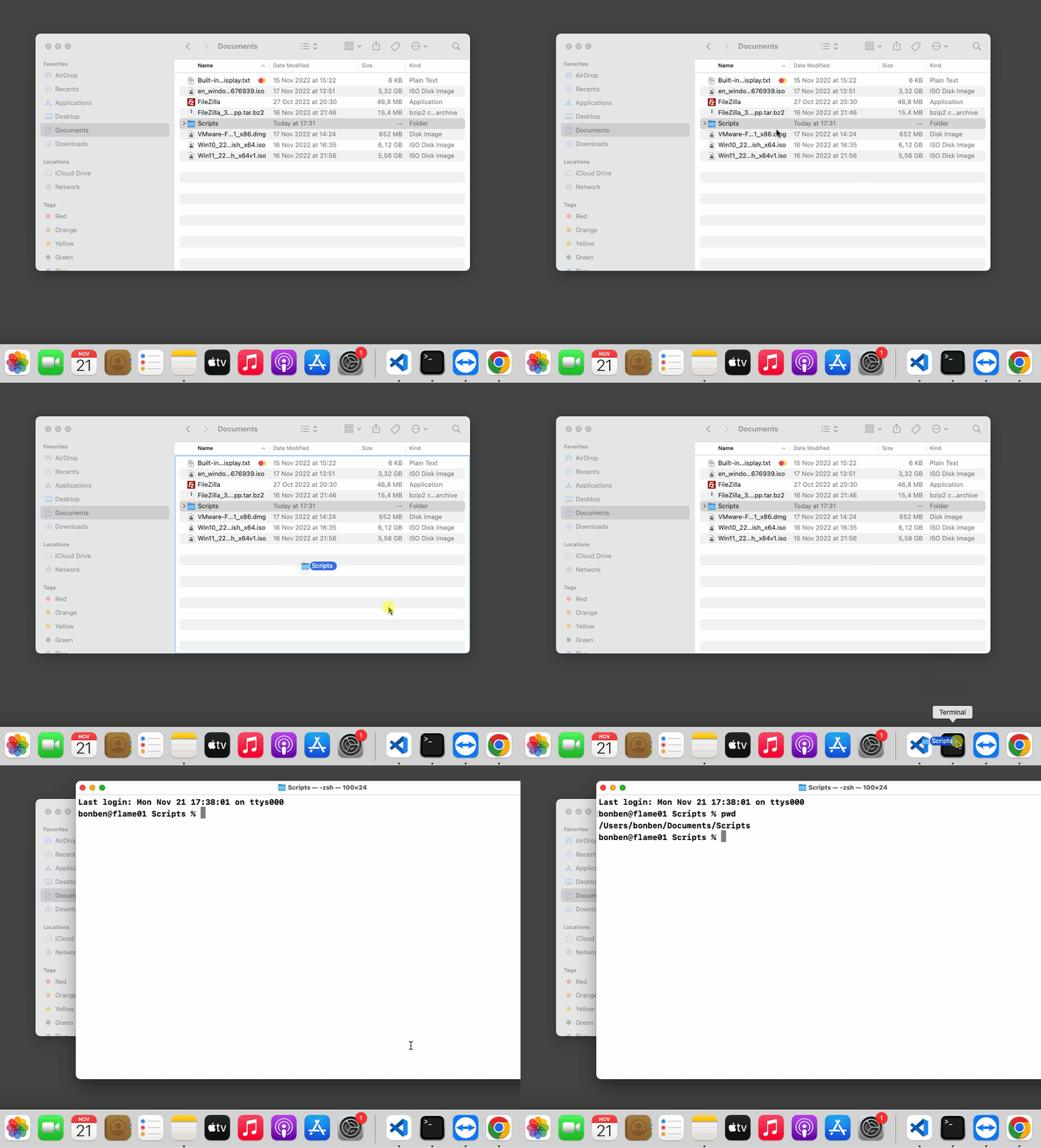
Yes, if you keep the Terminal shortcut in your Dock, then you can open a specific folder in the Terminal by drag-and-dropping that folder from the Finder window onto the Terminal icon.
Navigate to a folder within the Terminal
If you want to use the Terminal to navigate to folders, simply type cd followed by the directory you want to navigate to. For example, cd Desktop or cd Desktop/Downloads
To see the current directory, you’re in in the Terminal, type pwd, which stands for print working directory.
Last login: Mon Nov 21 17:31:49 on ttys000
bonben@flame01 ~ % pwd
/Users/bonben
If your work revolves around working with local files using Terminal, and you do not want to go through the hassle of providing full paths to the files, you can simply use the above workaround to have Terminal launched keeping your current folder as its current working directory.


