
Table of Contents
Remote Push pushes the client software to the computers that you specify, either by IP address or by computer names. Once the package copies to the target computer, the package installs automatically. The computer user does not need to begin the installation or to have administrator privileges.
Note
You cannot install the Linux client with Remote Push.
Install Symantec Endpoint Protection clients with Remote Push
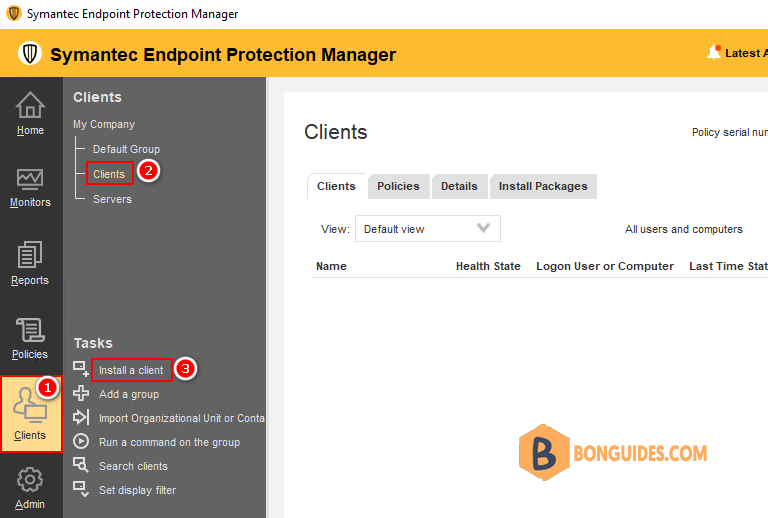
1. Login into Symantec Endpoint Protection Manager console then select the Clients tab.
2. Select a desire group then under Task section, click on Install a client.
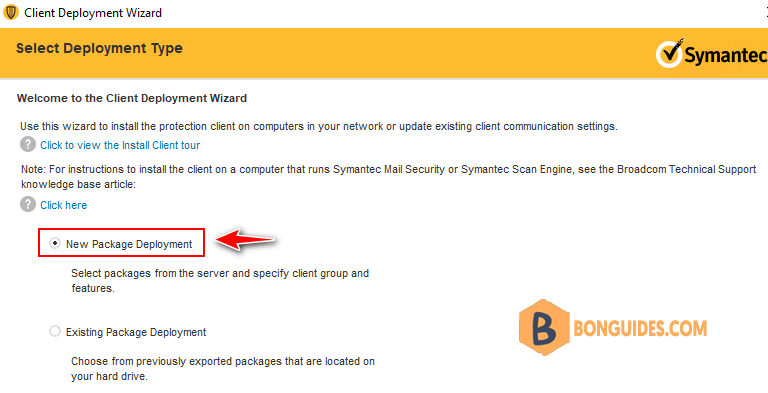
3. Next, select New Package Deployment option then click Next.
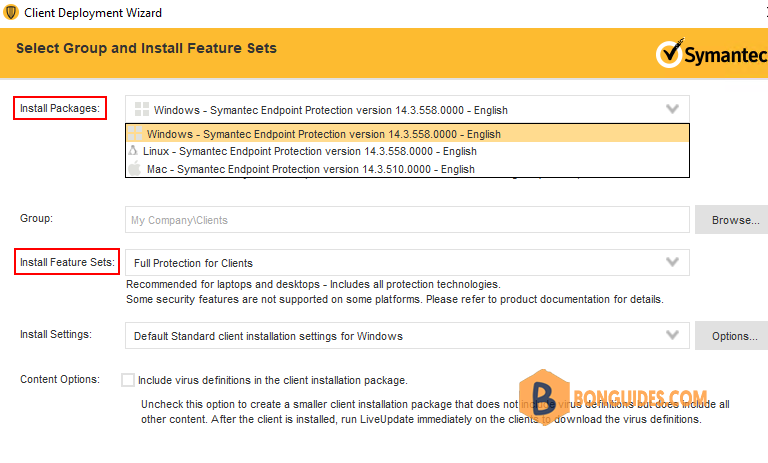
4. Now, select Install Package for Windows, Linux or Mac as you need.
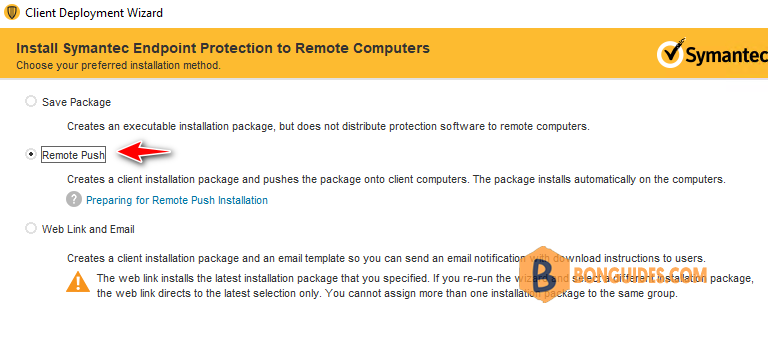
5. In this screen, select Remote Push to install Symantec Endpoint Protection remotely.
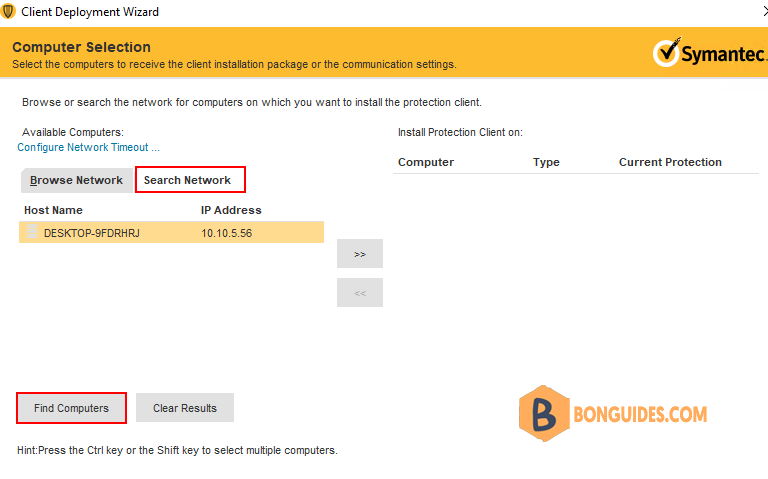
6. In the Computer Selection panel, locate the computers to receive the software using one of the following methods:
- To browse the network for computers, click Browse Network.
- To find computers by IP address or computer name, click Search Network, and then click Find Computers.
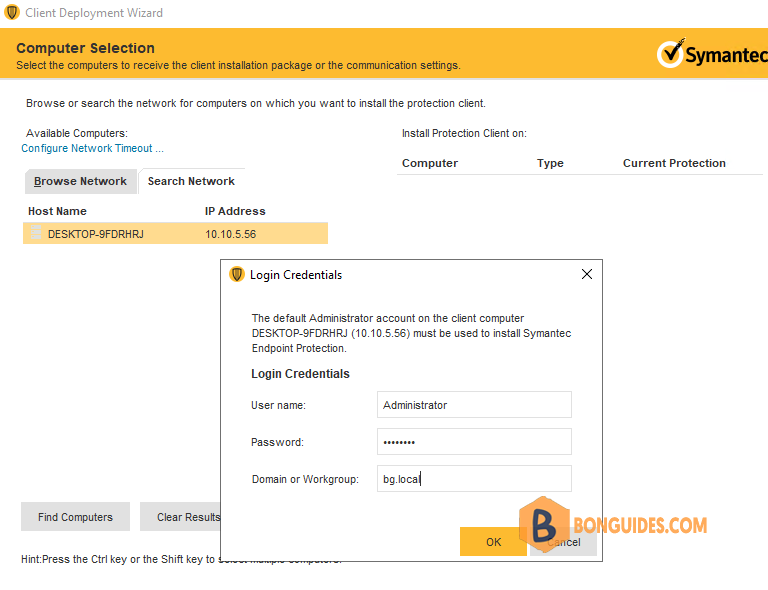
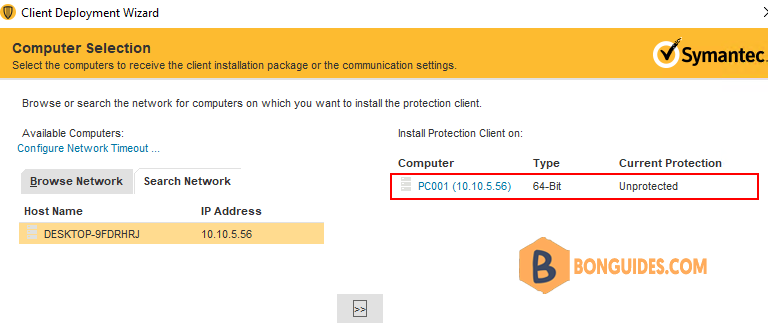
7. Click to add the computers to the list, and authenticate with the domain or workgroup if the wizard prompts you.
Note
The remote push installation requires elevated privileges. If the client computer is part of an Active Directory domain, you should use a domain administrator account.
If everything works well, you can the computer added in the right pane.
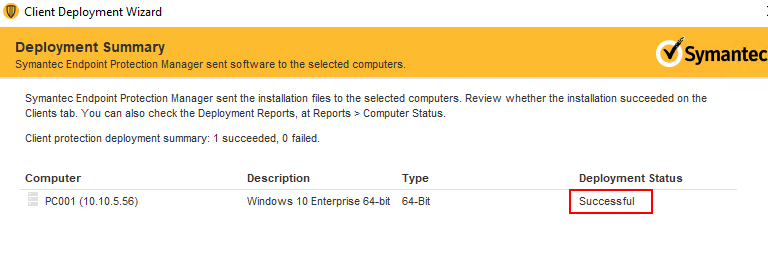
8. Now, click button to copy the package to the client then install SEP.
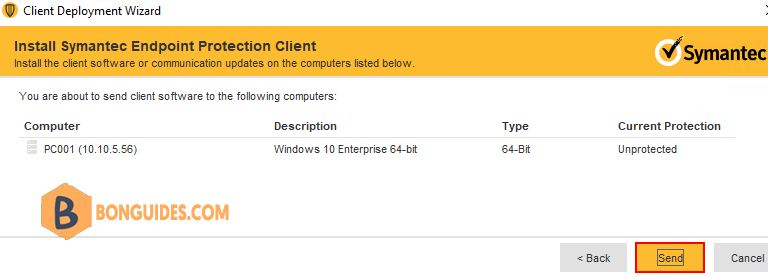
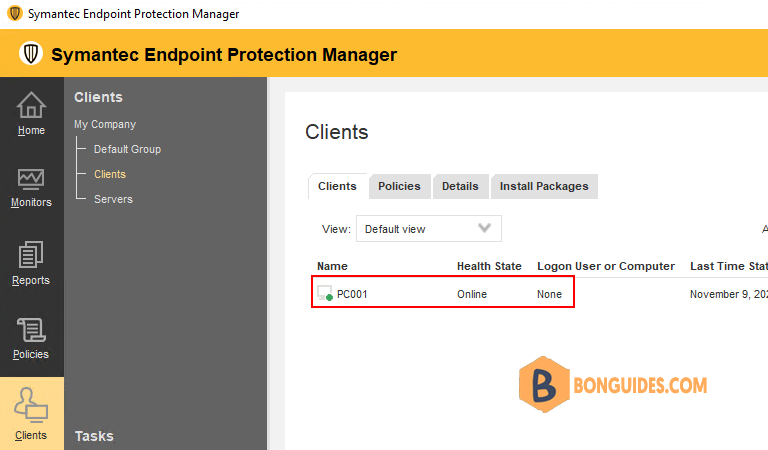
Finally, the installation was successful, you would see the client in SEPM after few minutes.
Conclusion
This post is a part of the Symantec Endpoint Protection series. You can click on the hyperlink to read more guides.

