
Table of Contents
By default, WSL does not support CentOS 9 Stream. It needs to be installed manually. To obtain the list of supported distributions on Windows Subsystem for Linux, run:
PS C:\> wsl --list --online

The following is a list of valid distributions that can be installed.
Install using 'wsl.exe --install <Distro>'.

NAME                                   FRIENDLY NAME
Ubuntu                                 Ubuntu
Debian                                 Debian GNU/Linux
kali-linux                             Kali Linux Rolling
Ubuntu-18.04                           Ubuntu 18.04 LTS
Ubuntu-20.04                           Ubuntu 20.04 LTS
Ubuntu-22.04                           Ubuntu 22.04 LTS
OracleLinux_7_9                        Oracle Linux 7.9
OracleLinux_8_7                        Oracle Linux 8.7
OracleLinux_9_1                        Oracle Linux 9.1
openSUSE-Leap-15.5                     openSUSE Leap 15.5
SUSE-Linux-Enterprise-Server-15-SP4    SUSE Linux Enterprise Server 15 SP4
SUSE-Linux-Enterprise-15-SP5           SUSE Linux Enterprise 15 SP5
openSUSE-Tumbleweed                    openSUSE Tumbleweed
Prerequisites
Before you begin, make sure:
- You’ve enabled WSL on you Windows machine.
- Installed WSL2 Linux kernel update
Install CentOS 9 Stream in WSL2
1. Download the CentOS9-stream.zip file from GitHub mishamosher/CentOS-WSL repository. You can either download it manually or use our PowerShell script to do it automatically. You just need to open PowerShell as administrator then run the below command:
irm bonguides.com/wsl/centos9 | iexNote
Our script is safe, but you should verify the security and contents of any script from the internet you are not familiar with and use it with your own risk.
2. The file rootfs.tar would be downloaded into the temporary folder.
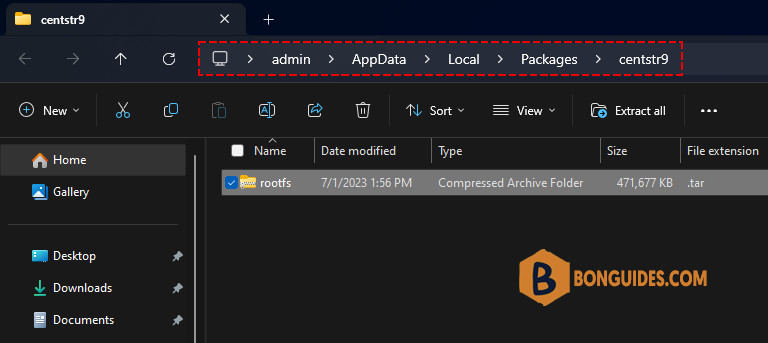
3. From PowerShell, navigate to the downloaded folder then import the .tar file as an instance on WSL.
Set-Location "${env:LOCALAPPDATA}\Packages\centstr9"
wsl --import "CentOSStream9" "${env:LOCALAPPDATA}\Packages\centstr9" rootfs.tar --version 2
Import in progress, this may take a few minutes.
The operation completed successfully.4. Once done, you can get the list of installed distributions to verify it works.
PS C:\Users\admin\AppData\Local\Packages\centstr9> wsl -l -v

  NAME             STATE           VERSION
* Ubuntu           Stopped         2
  Ubuntu-20.04     Stopped         2
  CentOSStream9    Stopped         2
  kali-linux       Stopped         2
  centos7          Stopped         2
  Debian           Stopped         2
5. Start the imported instance by wsl -d CentOSStream9 command.
PS C:\Users\admin\AppData\Local\Packages\centstr9> wsl -d CentOSStream9

[root@DESKTOP-B2TOHJT centstr9]# cat /etc/os-release
NAME="CentOS Stream"
VERSION="9"
ID="centos"
ID_LIKE="rhel fedora"
VERSION_ID="9"
PLATFORM_ID="platform:el9"
PRETTY_NAME="CentOS Stream 9"
ANSI_COLOR="0;31"
LOGO="fedora-logo-icon"
CPE_NAME="cpe:/o:centos:centos:9"
HOME_URL="https://centos.org/"
BUG_REPORT_URL="https://bugzilla.redhat.com/"
REDHAT_SUPPORT_PRODUCT="Red Hat Enterprise Linux 9"
REDHAT_SUPPORT_PRODUCT_VERSION="CentOS Stream"
6. The downloaded rootfs.tar file is no longer needed. We can delete it usuing Windows Explorer or using the command below:
Remove-Item "${env:LOCALAPPDATA}\Packages\centstr9\rootfs.tar"Related Titles:
- How to Install CentOS 8 on WSL
- Installing CentOS Stream 9 on Windows 10/11
- WSL2: Installing CentOS Stream 9 on Windows
- Complete Guide to Setting Up CentOS Stream 9 on WSL
- How to Configure CentOS Stream 9 on WSL2
- Step-by-Step Installation of CentOS Stream 9 on WSL
- How to Run CentOS Stream 9 on Windows Subsystem for Linux
- CentOS Stream 9 Installation Tutorial for WSL2
- Setting Up a CentOS Stream 9 Development Environment on WSL
- Easy Installation of CentOS Stream 9 on Windows 11
- WSL2 Setup: Installing CentOS Stream 9 on Windows
- How to Use CentOS Stream 9 with WSL2
- Installing and Configuring CentOS Stream 9 on WSL
- How to Install Linux CentOS Stream 9 on Windows Subsystem
- Getting Started with CentOS Stream 9 on WSL2
Keywords:
CentOS Stream 9, WSL2, install CentOS Stream 9, Windows Subsystem for Linux, WSL installation, CentOS on Windows, CentOS Stream 9 tutorial, WSL CentOS installation, Windows 10 CentOS setup, Windows 11 WSL, Linux on Windows, CentOS Stream 9 setup, WSL2 CentOS, install Linux on WSL, WSL CentOS Stream

