
Table of Contents
Increase OneDrive for Business Storage to 5TB
For most subscription plans, the default storage space for each user’s OneDrive is 1 TB. Depending on your plan and the number of licensed users, you can increase this storage up to 5 TB.
Below are requirements, restrictions and information for enabling 5TB OneDrive for users:
- You need at least five licenses that include OneDrive for Business Plan 2 or SharePoint Plan 2.
- You must assign at least one license to a user.
- OneDrive for Business Plan 2 and SharePoint Plan 2 can be bought separately, or they are bundled in Office/Microsoft 365 E3, E5.
- When a user has filled their 5 TB of OneDrive storage to at least 90% capacity, you can increase your default storage space in OneDrive to up to 25 TB per user (admins may set a lower per user limit if they want to).
- For any user that reaches at least 90% capacity of their 25 TB of OneDrive storage, additional cloud storage will be provided as 25 TB SharePoint team sites to individual users.
- The new storage limit is applied the next time a user accesses OneDrive.
Note
If you change a user’s license, the available storage space is updated automatically within 24 hours after they access OneDrive.
Set the default storage space using Sharepoint admin center
1️⃣ Go to Settings section in the new SharePoint admin center, and sign in with an account that has admin permissions for your organization.
Alternatively, you can visit Microsoft 365 admin center => Sharepoint (Admin center).
2️⃣ Select the OneDrive Storage limit setting.
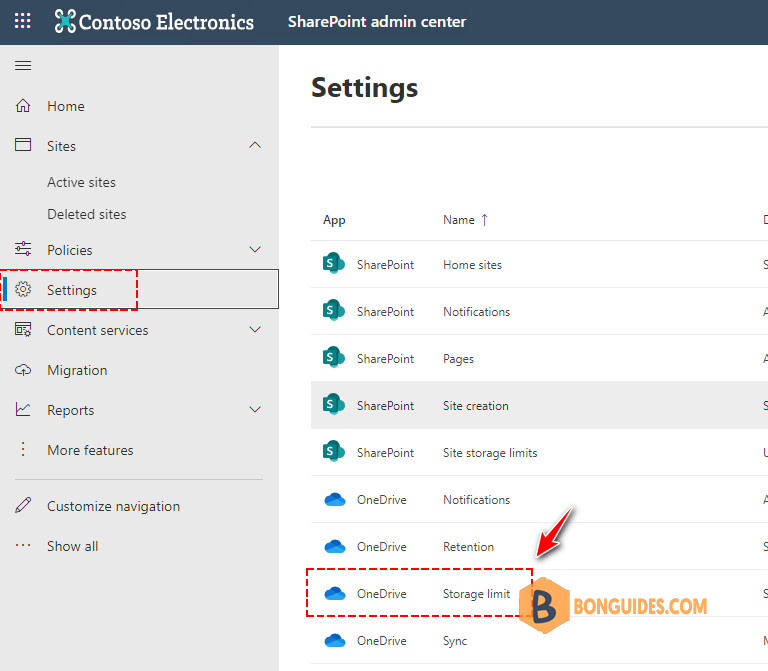
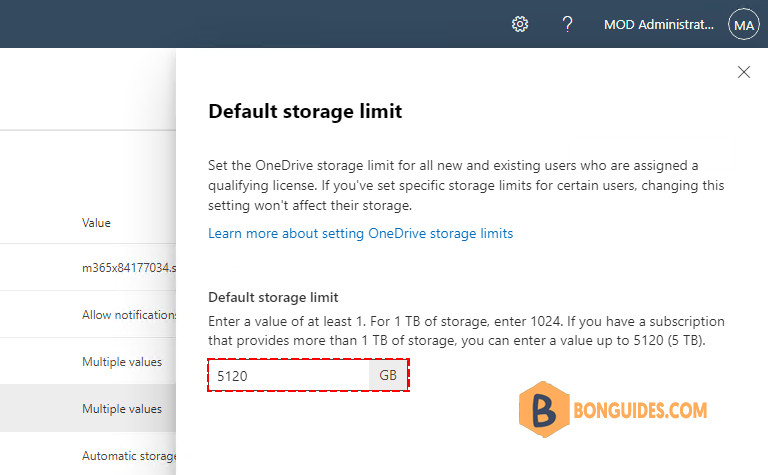
3️⃣ In the Default storage limit box, enter the default storage amount (in GB), and then select Save.
Note
The minimum storage is 1 GB.
Check if a user has the default storage limit or a specific limit
1️⃣ Sign in to https://admin.microsoft.com as a global or SharePoint admin.
2️⃣ In the left pane, select Users > Active users.
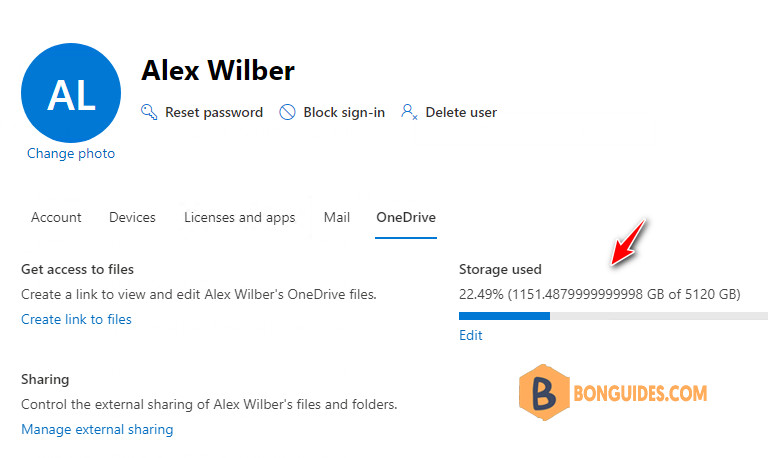
3️⃣ Select the user => Select the OneDrive tab.
4️⃣ Next to “Storage used,” look at the max value (for example, 3 GB of 5120 GB).
Set the default storage space using PowerShell
As an admin, you can change the OneDrive default storage space to 5TB using PowerShell.
1️⃣ Install the SharePoint Online Management Shell by running the following command in administrative mode:
Install-Module -Name Microsoft.Online.SharePoint.PowerShell2️⃣ Once the module is installed, you can connect using the below command:
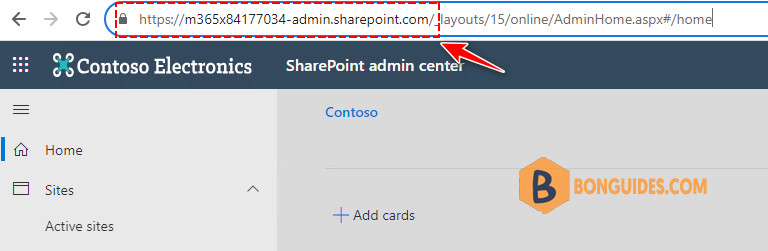
Connect-SPOService -Url https://contoso-admin.sharepoint.com -Credential [email protected]The Url for the command can be found in the SharePoint admin center.
3️⃣ When prompted with the Windows PowerShell credential request dialog box, type the password for the Global admin or SharePoint admin account.
4️⃣ Get the current OneDrive quota setting.
PS C:\> Get-SPOTenant | select OneDriveStorageQuota

OneDriveStorageQuota
--------------------
             1048576
5️⃣ Set the quota for all users in your organization.
Set-SPOTenant -OneDriveStorageQuota <quota>Where <quota> is the value in megabytes for the storage space. For example, 1048576 for 1 TB or 5242880 for 5 TB. You can specify any value that you want, however, if you specify a value greater than that allowed by a given user’s license, that user’s storage space will be rounded down to the maximum value allowed by their license.
To reset an existing user’s OneDrive to the new default storage space, run the following command:
$url = 'https://bbguides-my.sharepoint.com/personal/chris_bonben_me'
Set-SPOSite -Identity $url -StorageQuotaReset
Note
When you set site storage limits in PowerShell, you enter them in MB. The values are converted and rounded down to the nearest integer to appear in the admin centers in GB, so a value of 5000 MB becomes 4 GB. If you set a value of less than 1024 MB using PowerShell, it will be rounded up to 1 GB.


