
Table of Contents
FAT vs exFAT
For a long time, FAT format has been the default choice of filesystem for formatting disks. It is compatible with pretty much all the major operating systems.
The one major problem with FAT filesystem is that you cannot transfer a file larger than 4 GB. This means even if your USB disk has 32 GB of free space, if you try to transfer an ISO image or some other file greater than 4 GB in size, the transfer will fail.
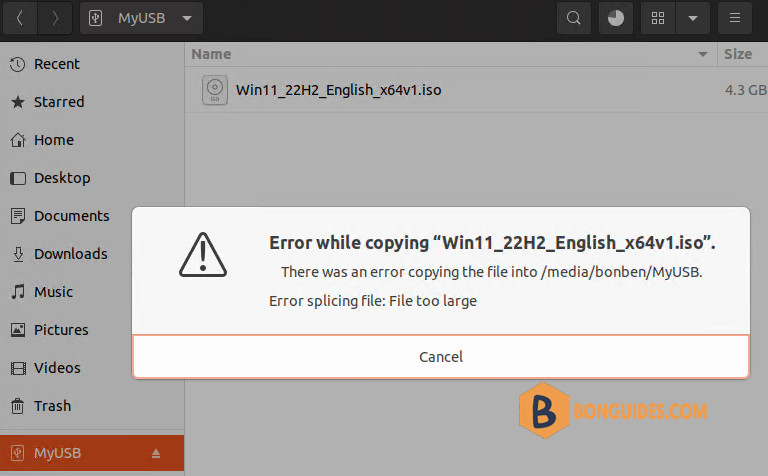
This creates a problem in situation like when you are creating a bootable USB of Windows in Linux. You cannot use NTFS and FAT filesystem has that 4 GB size restrictions.
To overcome the limitations of FAT filesystem, Microsoft came up with exFAT filesystem. And in this tutorial, I’ll show you how to format a USB disk in exFAT filesystem. Otherwise, you can enable exFAT support explicitly.
Enable exFAT support in Linux
Starting Linux kernel 5.4, exFAT filesystem support is enabled in the Linux kernel itself. Check which Linux kernel version you are running. If it is kernel 5.4 or higher, you should be fine (mostly).
In Ubuntu 20.04 and lower versions, you can use the following command:
sudo apt install exfat-fuse exfat-utilsFor Ubuntu 22.04 and higher, you should use this command instead:
sudo apt install exfat-fuse exfatprogsMethod 1: Format disk as exFAT using GNOME Disks tool
Formatting a drive using GNOME Disks is a straightforward job. It comes preinstalled in a number of Linux distributions.
1. Insert your external USB disk. Now, look for Disks in menu and open the GNOME Disks application.
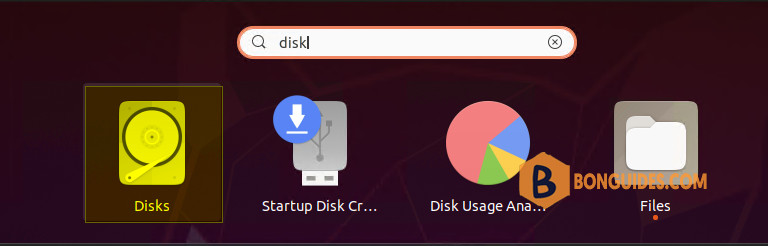
2. Select the USB drive from the left side and bring up the menu then select Format Partition… option.
Note
Pay attention to the disk you are selecting to format. Don’t format your main disk accidentally
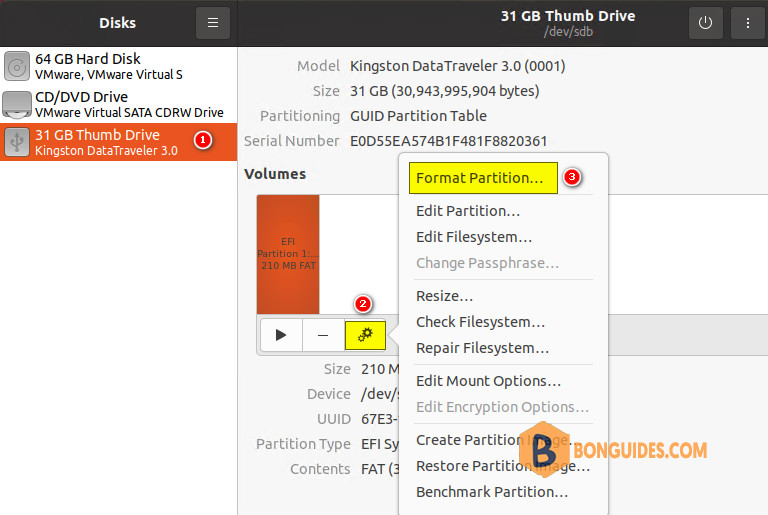
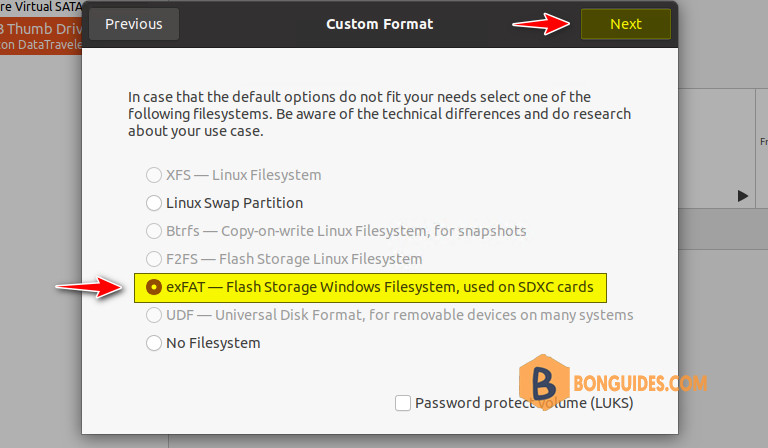
3. The commonly used file systems like Ext4, NTFS, FAT will appear first. To use exFAT, choose Other option then click on Next.
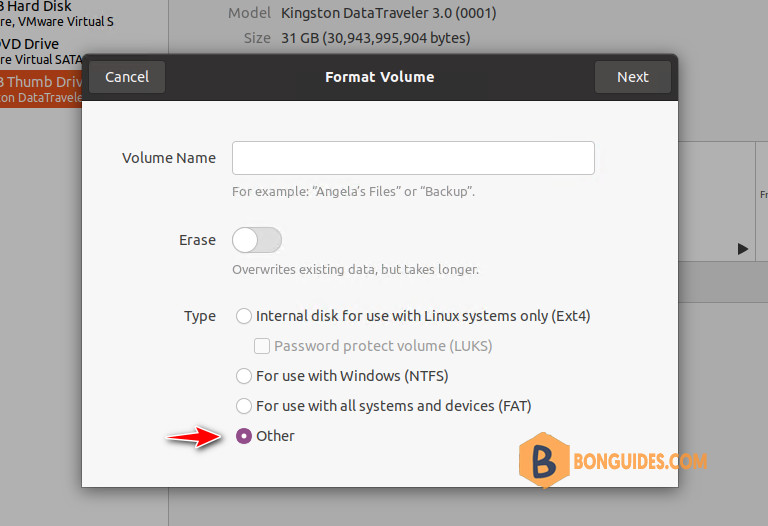
4. Finally, choose exFAT file system on below screen and then click Create.
Method 2: Format disk as exFAT in Linux command line
fdisk is a dialogue-driven command-line utility that creates and manipulates partition tables and partitions on a hard disk. In fact, it is considered one of the best partitioning tools for Linux.
1. Plug in your external hard disk then type the following command in the terminal:
sudo fdisk -lThis will list down all the hard disks and partitions in your computer. Identify the partition that you want to format in your external hard disk. Size of the disks should give you a hint. For me, the USB disk was labelled as /dev/sdb.
...
Disk /dev/sdb: 28.84 GiB, 30943995904 bytes, 60437492 sectors
Disk model: DataTraveler 3.0
Units: sectors of 1 * 512 = 512 bytes
Sector size (logical/physical): 512 bytes / 512 bytes
I/O size (minimum/optimal): 512 bytes / 512 bytes
Disklabel type: gpt
Disk identifier: 503EB05C-6244-48B3-8A5B-CFEAB2C0911A

Device      Start      End  Sectors  Size Type
/dev/sdb1      40   409639   409600  200M EFI System
/dev/sdb2  409640 60175311 59765672 28.5G Apple HFS/HFS+
2. Once you have identified your USB disk, format it as exfat using the command below. MyUSB is basically the name you want to give to your disk.
Note
Replace with your disk’s device ID.
sudo mkfs.exfat -n MyUSB /dev/sdb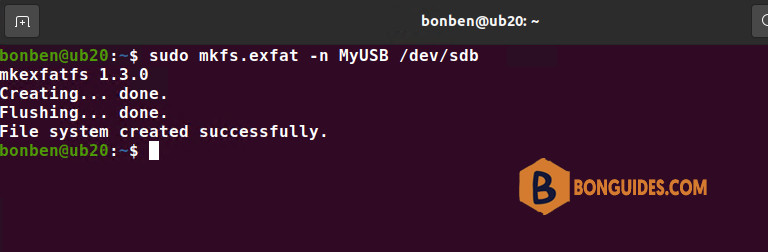
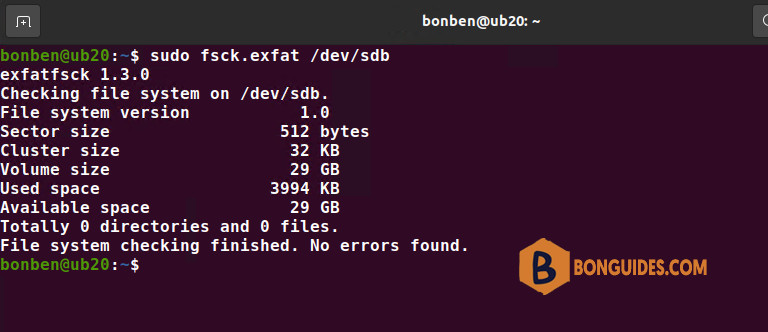
Optionally, run fsck check to make sure the formatting has been done properly.
sudo fsck.exfat /dev/sdb
Copy a large file into the USB stick
Now, try to transfer an ISO image or some other file greater than 4 GB in size to verify it works.
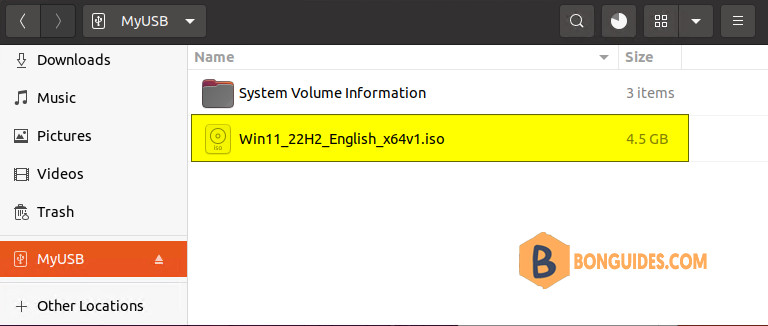
bonben@ub20:/media/bonben/MyUSB$ ls -l /media/bonben/MyUSB/
total 5393952
drwxrwxrwx 1 bonben bonben      32768 ១២  6 15:59 'System Volume Information'
-rwxrwxrwx 1 bonben bonben 5523374080 ១២  6 16:40  Win11_22H2_English_x64v1.iso

