Table of Contents
How to Fix UltraISO Error 5 Writing the Device
The UltraISO Error 5 Writing the Device typically occurs when trying to write an ISO image to a USB drive or other storage device using UltraISO. Here’s a step-by-step guide to troubleshoot and fix this error:
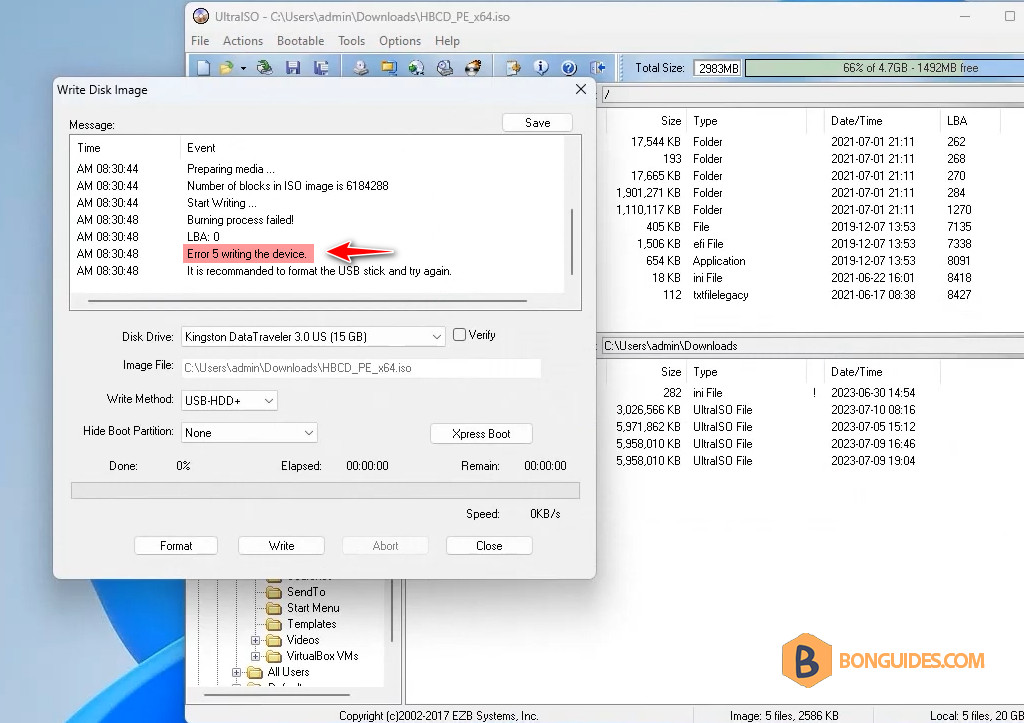
1. Close UltraISO if it’s opening.
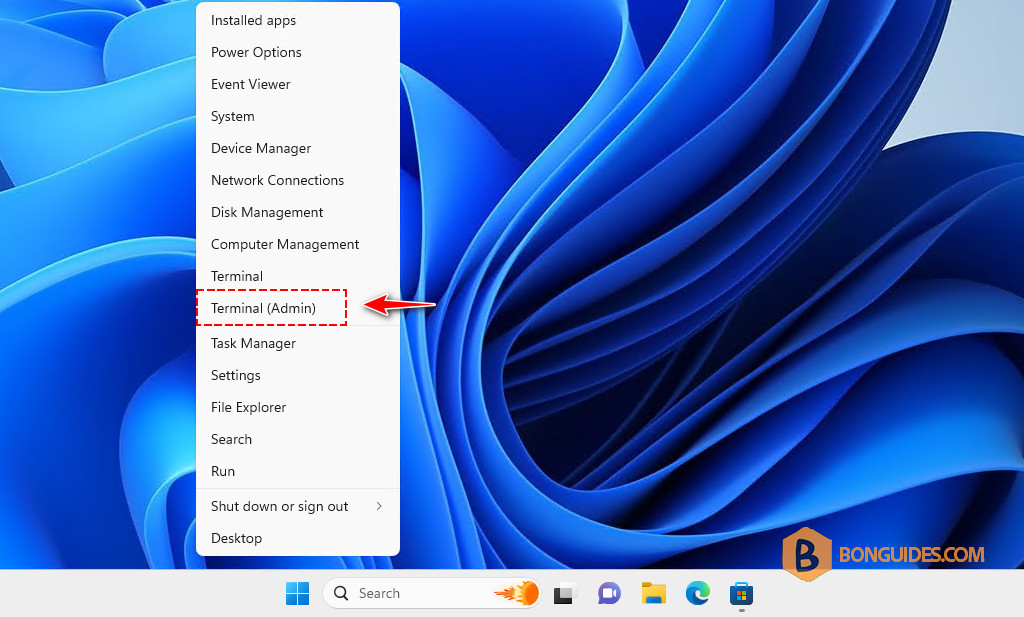
2. Right click on the Windows Start icon then open PowerShell (Terminal) as administrator.
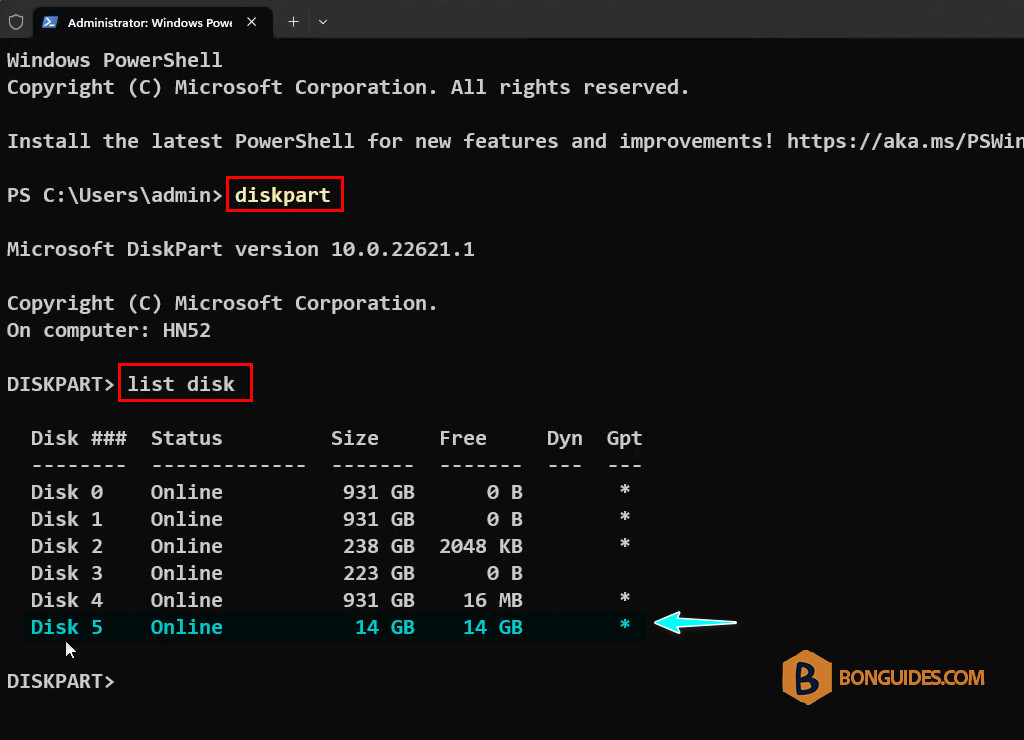
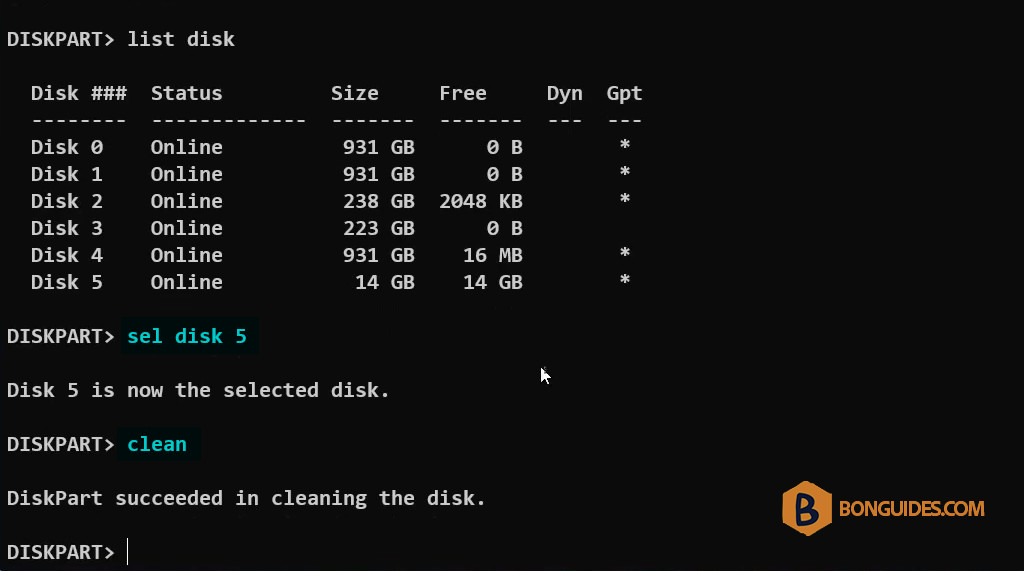
3. Run the diskpart command to open the Microsoft Diskpart, then run the list disk command to get the list of disks on your computer.
diskpartlist diskAs shown in the screenshot below, there are six disks connected to this computer. The USB drive can be identified by its size, and in our computer, it is recognized as Disk 5.
4. Select the USB disk, then clean it.
sel disk 5cleanNote
Please check the disk number carefully; selecting the wrong number will delete all data on the chosen disk.
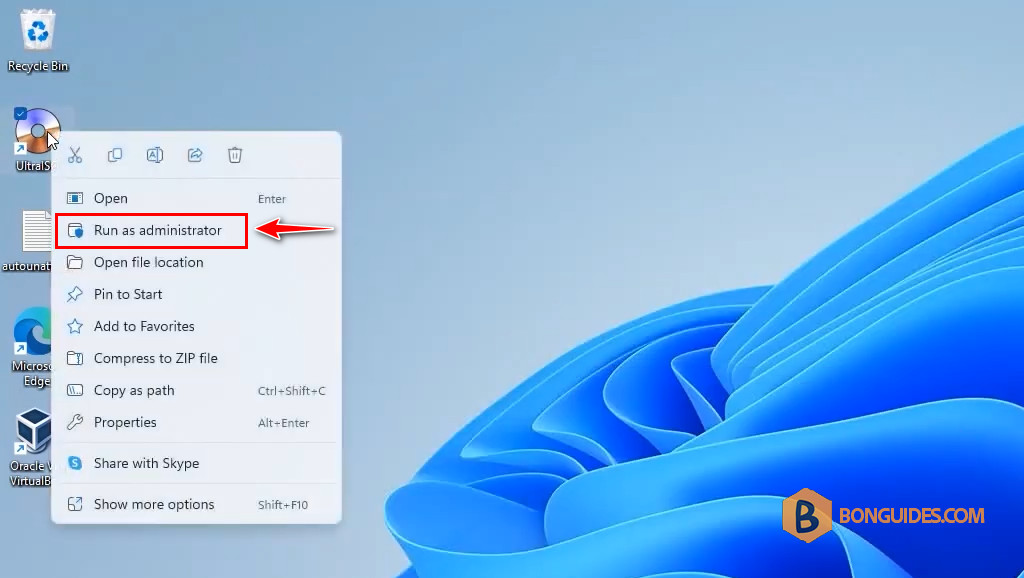
5. Close the PowerShell window then open UltraISO as administrator.
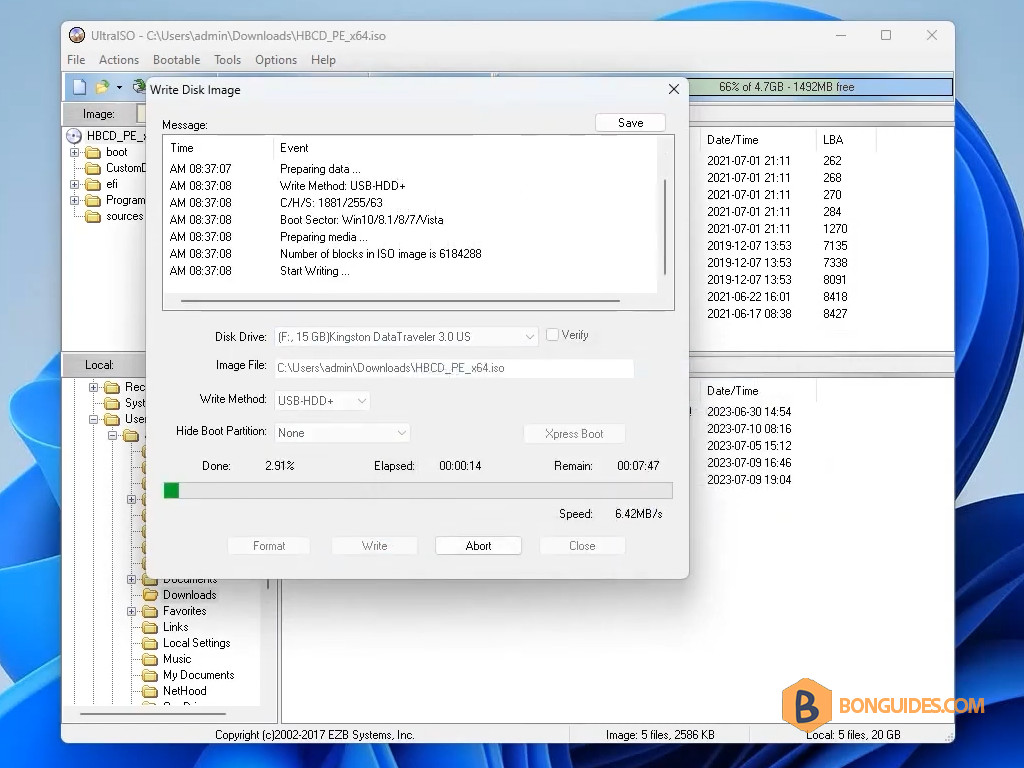
As you can see, the error was gone, and the image was written to the USB stick.