
Table of Contents
Copy Files Preserve Timestamp
When you copy a file from one location to another on your computer, a new file is created with new timestamp. This is quite annoying if you want to manage photos imported from digital camera or mobile phone by taken date.
Cut & paste can avoid this problem, but you might have to recover lost photos if the transfer is accidentally interrupted. Actually, Windows 10 hides a useful feature from us which allow people to copy files and preserve timestamp.
Below is a screenshot of an example when we copied files from D:Old to D:New. The Create date of the copied file show as today (the day when we copy them).
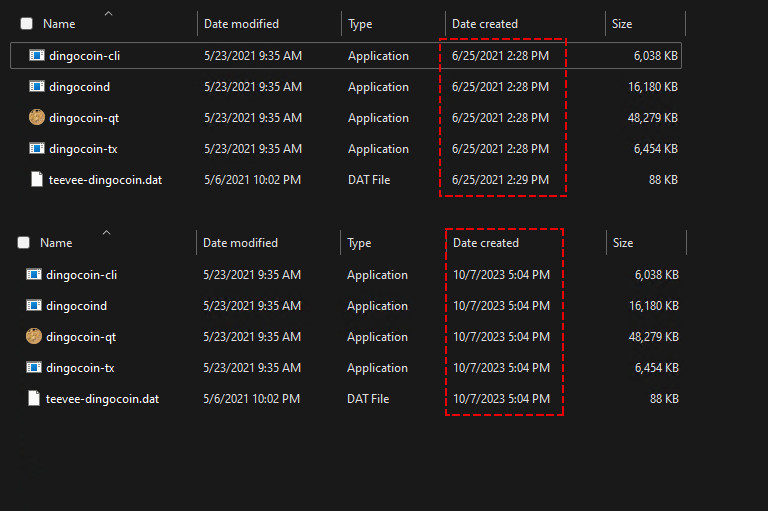
Alternatively, we can check the CreationTime of the files using PowerShell as below.
PS C:> Get-ChildItem E:Old | select Name, CreationTime

Name                 CreationTime
----                 ------------
dingocoin-cli.exe    6/25/2021 2:28:21 PM
dingocoin-qt.exe     6/25/2021 2:28:21 PM
dingocoin-tx.exe     6/25/2021 2:28:21 PM
dingocoind.exe       6/25/2021 2:28:21 PM
teevee-dingocoin.dat 6/25/2021 2:29:10 PM

PS C:> Get-ChildItem E:New | select Name, CreationTime

Name                 CreationTime
----                 ------------
dingocoin-cli.exe    10/7/2023 5:04:21 PM
dingocoin-qt.exe     10/7/2023 5:04:21 PM
dingocoin-tx.exe     10/7/2023 5:04:21 PM
dingocoind.exe       10/7/2023 5:04:21 PM
teevee-dingocoin.dat 10/7/2023 5:04:21 PM
Robocopy Command Line
Robocopy (Robust File Copy) is a command-line folder and file replication command. It was first introduced in Windows Vista and Windows Server 2008 and kept in Windows 10/11. Benefits of copying files using ROBOCOPY command:
- Preserve original timestamp
- Faster than normal File Explorer transfer
- Efficiently copy all files of the same format from all subdirectories to destination while keeping original structure
How to Copy Files without Changing Date Stamp
Robocopy is a command that we use in Command prompt, PowerShell or Windows Terminal without any third-part software. Please follow steps below.
1️⃣ Search then open Command Prompt (CMD) or PowerShell. We love PowerShell, so right click on the Windows Start icon then select PowerShell or Terminal in Windows 11.
2️⃣ Type robocopy commands to copy files while preserving timestamp as follows. Don’t forget to check the source and destination as your requirements.
Note
If the source or destination contains a space. Don’t forget cover them with a single or double quote.
robocopy 'D:\Old' 'D:\New'The copy process, status and result would be shown quite details in the output.
-------------------------------------------------------------------------------
   ROBOCOPY     ::     Robust File Copy for Windows
-------------------------------------------------------------------------------

  Started : Saturday, October 7, 2023 5:18:20 PM
   Source : D:Old
     Dest : D:New

    Files : *.*

  Options : *.* /DCOPY:DA /COPY:DAT /R:1000000 /W:30

------------------------------------------------------------------------------

                           5    D:Old
100%        New File               5.8 m        dingocoin-cli.exe
100%        New File              47.1 m        dingocoin-qt.exe
100%        New File               6.3 m        dingocoin-tx.exe
100%        New File              15.8 m        dingocoind.exe
100%        New File               90112        teevee-dingocoin.dat

------------------------------------------------------------------------------

               Total    Copied   Skipped  Mismatch    FAILED    Extras
    Dirs :         1         0         0         0         0         0
   Files :         5         5         0         0         0         0
   Bytes :   75.23 m   75.23 m         0         0         0         0
   Times :   0:00:00   0:00:00                       0:00:00   0:00:00

   Speed :           2,320,171,323 Bytes/sec.
   Speed :             132,761.266 MegaBytes/min.
   Ended : Saturday, October 7, 2023 5:18:20 PM
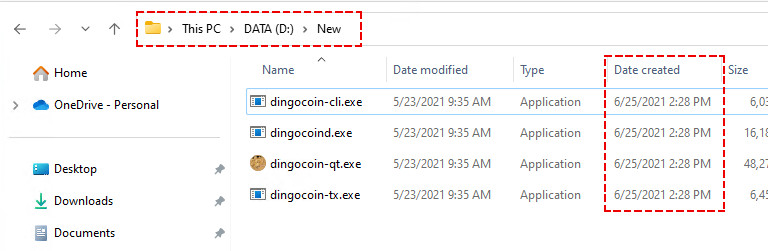
3️⃣ Once done, you can check the date created time of the copied file using the Windows Explorer or PowerShell to verify it works.
PS C:\> Get-ChildItem D:\New | select Name, CreationTime

Name                 CreationTime
----                 ------------
dingocoin-cli.exe    6/25/2021 2:28:21 PM
dingocoin-qt.exe     6/25/2021 2:28:21 PM
dingocoin-tx.exe     6/25/2021 2:28:21 PM
dingocoind.exe       6/25/2021 2:28:21 PM
teevee-dingocoin.dat 6/25/2021 2:29:10 PM

