
Table of Contents
After you install the Microsoft Graph module, you can connect to Microsoft Graph PowerShell. There are different methods to connect to Microsoft Graph PowerShell. In this article, we will show you how to connect to Microsoft Graph with client secret.
Install Microsoft Graph PowerShell module
1️⃣ First, you need to install the Microsoft Graph PowerShell module. We recommend you update to the latest version, because some of the cmdlets will not work.
Note
You need to install Microsoft Graph PowerShell module v2.x to connect with Microsoft Graph to run automated scripts.
2️⃣ Or you can open Windows PowerShell as administrator then run all below commands at once to download and install all required packages and modules.
Set-ExecutionPolicy -ExecutionPolicy RemoteSigned -Force
Install-PackageProvider -Name NuGet -Force
Install-Module PowerShellGet -Force
Set-PSRepository -Name "PSGallery" -InstallationPolicy Trusted
Install-Module Microsoft.Graph -Force
Install-Module Microsoft.Graph.Beta -Force3️⃣ Once done, you can verify you have installed the Microsoft Graph PowerShell module and see which version is running using the below PowerShell cmdlet.
PS C:\> Get-InstalledModule Microsoft.Graph | ft -AutoSize

Version Name            Repository Description
------- ----            ---------- -----------
2.4.0   Microsoft.Graph PSGallery  Microsoft Graph PowerShell module
After you installed the Microsoft Graph PowerShell module, you can start to connect.
Connect MgGraph with Client Secret app
Before we can connect to Microsoft Graph with PowerShell, you need to:
- Register an application in Entra ID and assign API permissions.
- Then create a client secret to the application for authentication without sign in.
Register new application in Entra ID
First, you need to register an application, where you will get the Application (client) ID and Directory (tenant) ID. Register a new application in Microsoft Entra admin center:
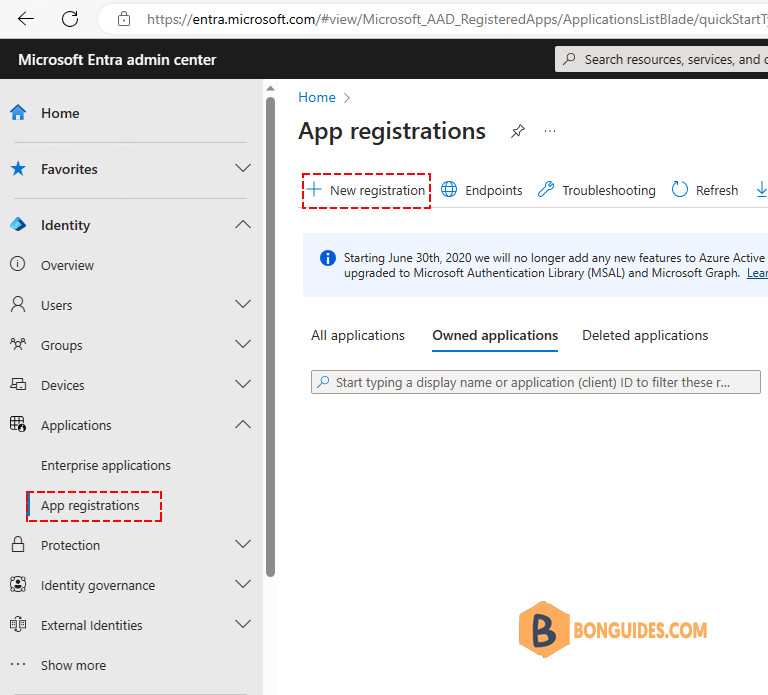
1️⃣ Sign into Microsoft Entra admin center > Identity > Applications > App registrations > New registration.
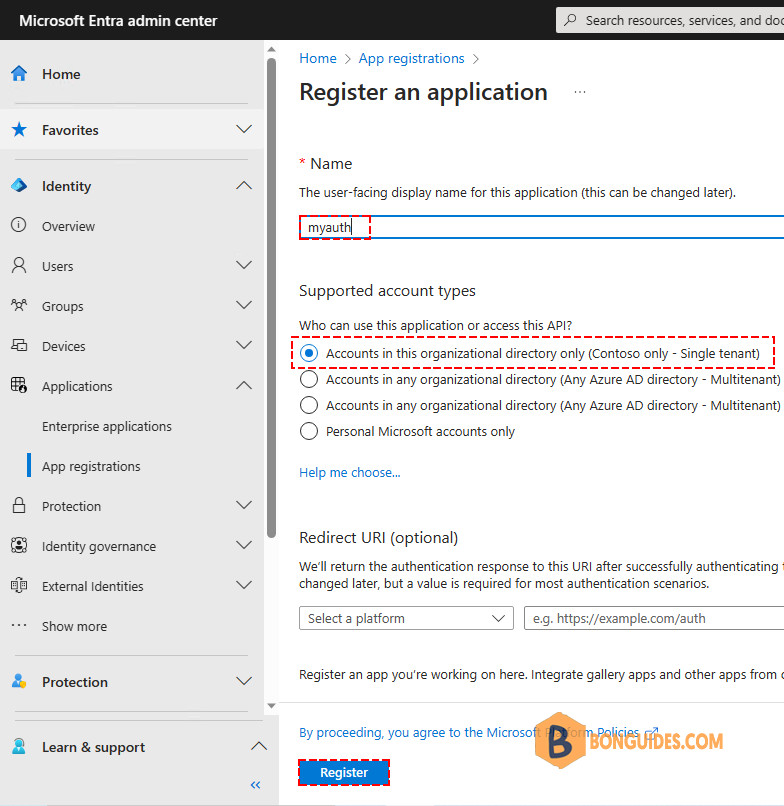
2️⃣ Register an application.
- Name your application as you want.
- Select Accounts in this organizational directory only (- Single tenant)
- Click Register
3️⃣ Successfully created application, you will be redirected to the app overview page. Copy the Application ID and Directory ID.
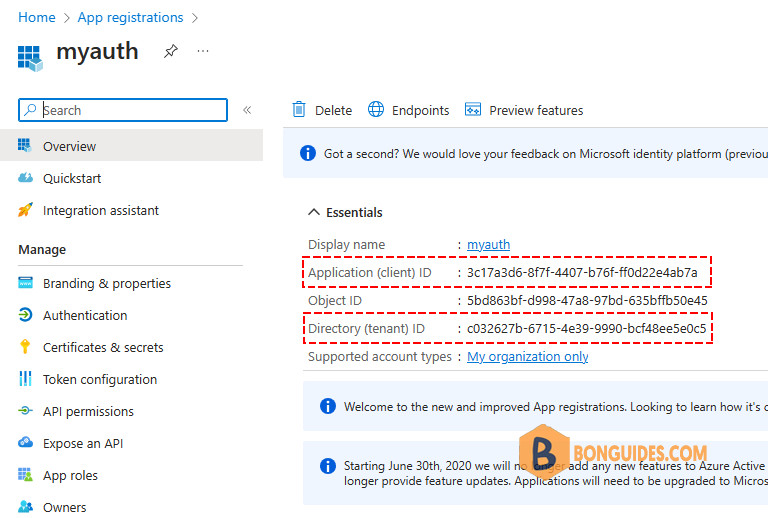
You need to copy the below values and paste them into Notepad because you need them later when connecting to Microsoft Graph:
- Application (client) ID: 3c17a3d6-8f7f-4407-b76f-ff0d22e4ab7a
- Directory (tenant) ID: c032627b-6715-4e39-9990-bcf48ee5e0c5
Assign API permissions
You must assign API permissions to the application you created.
1️⃣ Click API permission > Click Add a permission.
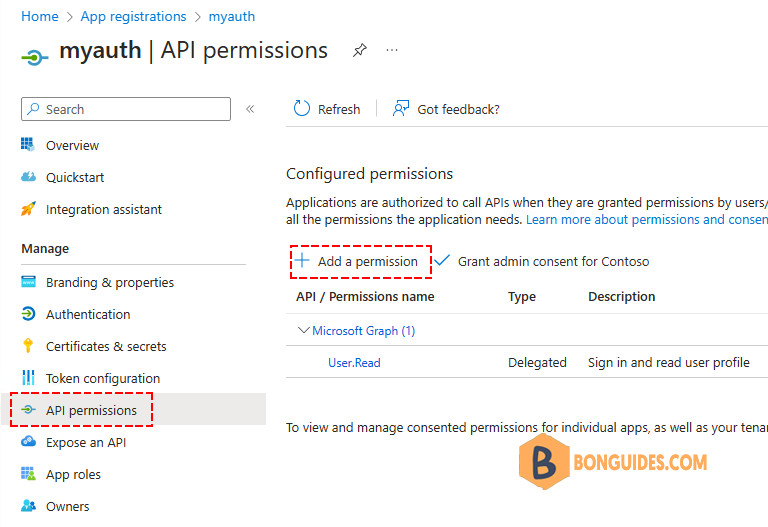
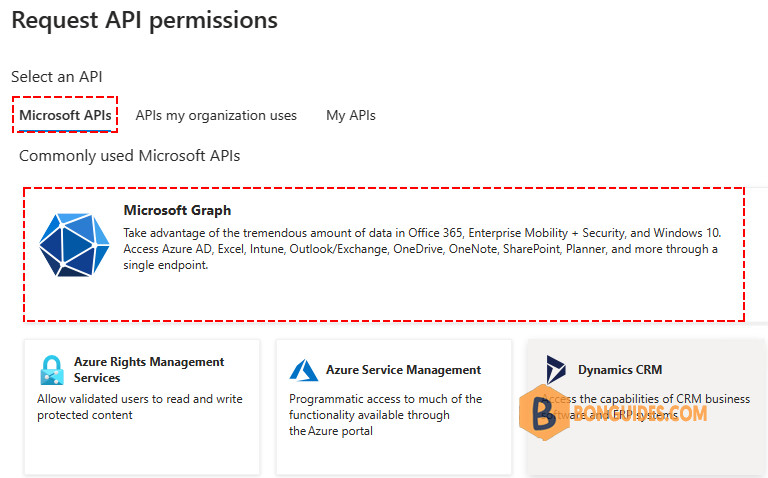
2️⃣ Under the tab Microsoft APIs > Click Microsoft Graph
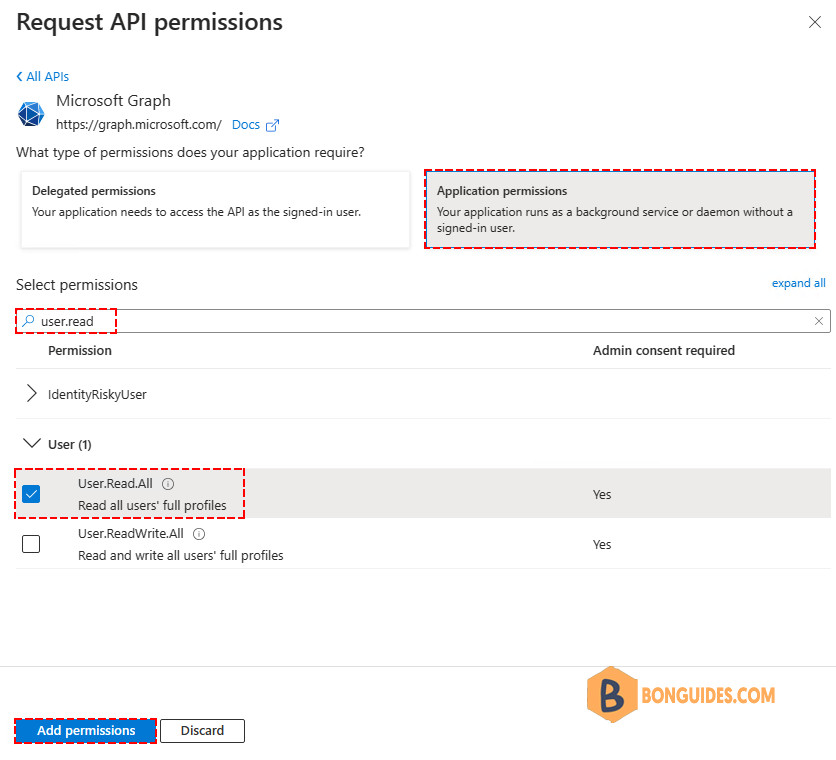
3️⃣ Click Application permissions > Search for User.Read.All > Select User > User.Read.All > Click Add permissions
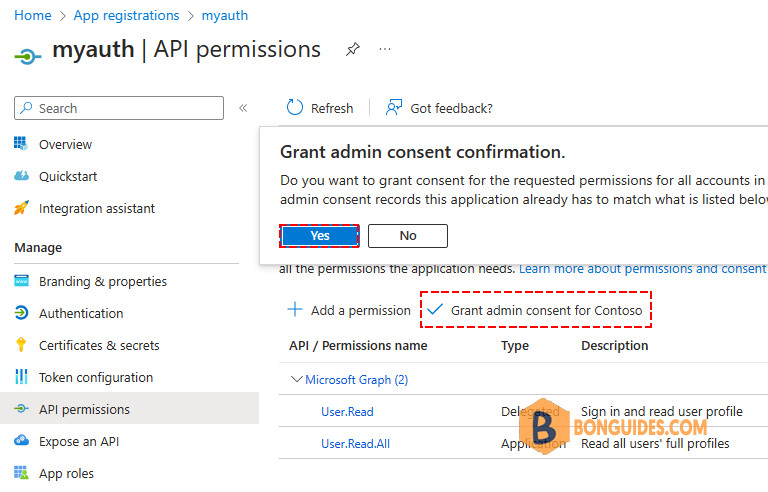
4️⃣ Click Grant admin consent for your tenant > Click Yes
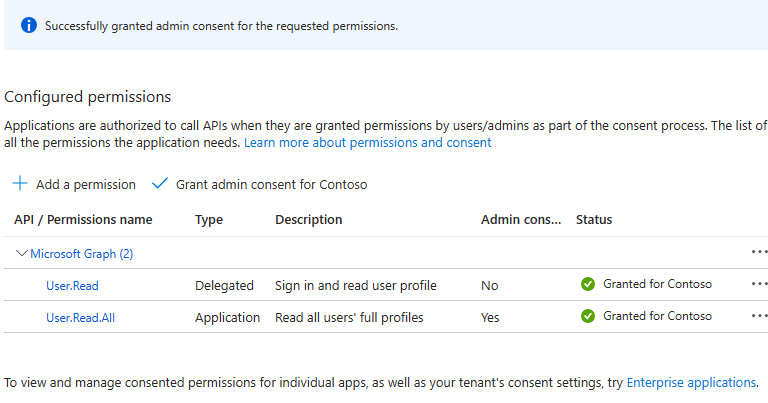
A green check mark appears that you granted admin consent successfully!
Create a client secret
1️⃣ To create a Client Secret for your application in Microsoft Entra portal, follow these steps:
- Click on Certificates & secrets
- Click Client secrets > New client secret
- Type the description
- Select an expiration date
- Click Add
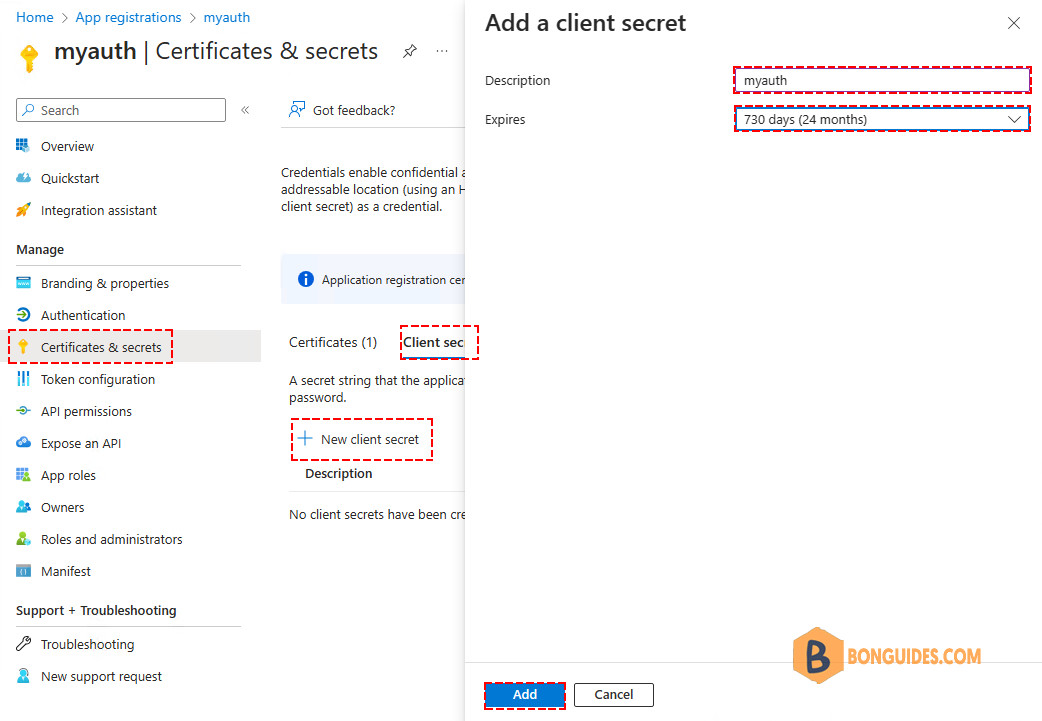
2️⃣ Copy the client secret Value and save it.
Note
Client secret values cannot be viewed except immediately after creation. Remember to save the secret when created before leaving the page.
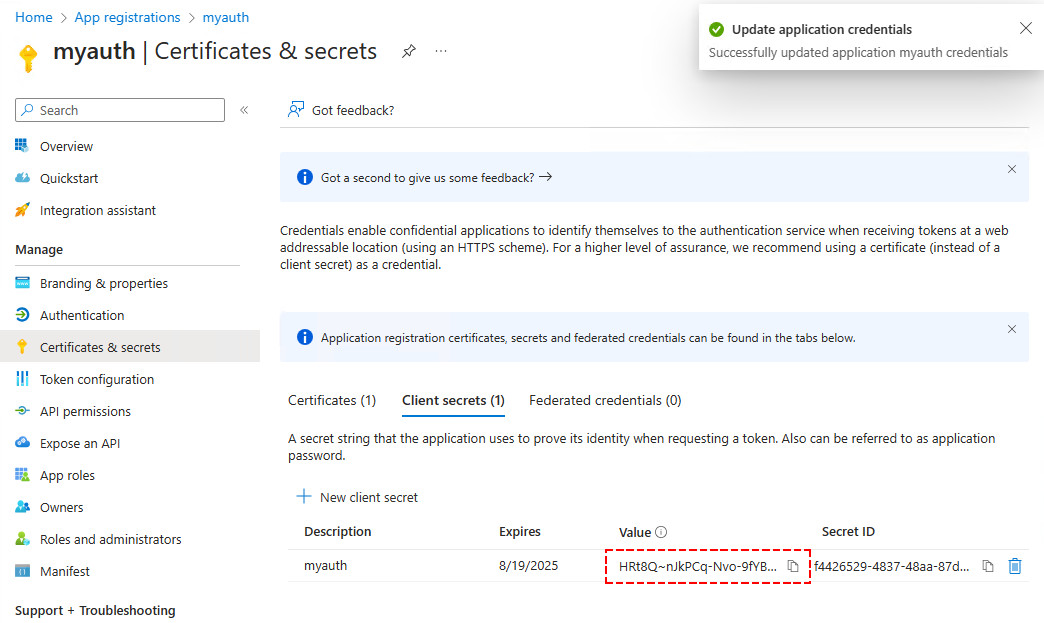
3️⃣ Connect to Microsoft Graph with Client Secret. You need to change the below parameters values to connect to Microsoft Graph with Client Secret:
# Configuration
$ClientId = "4ca434dd-463e-4124-9c06-46c765ca67da"
$TenantId = "c032627b-6715-4e39-9990-bcf48ee5e0c5"
$ClientSecret = "jEk8Q~oChrP1J8xMXVuJ81T9st5W_~pgE308raZk"

# Convert the client secret to a secure string
$ClientSecretPass = ConvertTo-SecureString -String $ClientSecret -AsPlainText -Force

# Create a credential object using the client ID and secure string
$ClientSecretCredential = New-Object `
    -TypeName System.Management.Automation.PSCredential `
    -ArgumentList $ClientId, $ClientSecretPass

# Connect to Microsoft Graph with Client Secret
Connect-MgGraph -TenantId $TenantId -ClientSecretCredential $ClientSecretCredential
That’s it! You successfully connected to Microsoft Graph PowerShell. You can get the details about the current connected session using Get-MgContext cmdlet.
PS C:\> Get-MgContext

ClientId               : 3c17a3d6-8f7f-4407-b76f-ff0d22e4ab7a
TenantId               : c032627b-6715-4e39-9990-bcf48ee5e0c5
Scopes                 : {User.Read.All}
AuthType               : AppOnly
TokenCredentialType    : ClientSecret
CertificateThumbprint  :
CertificateSubjectName :
Account                :
AppName                : myauth
ContextScope           : Process
Certificate            :
PSHostVersion          : 5.1.19041.3031
ManagedIdentityId      :
ClientSecret           : System.Security.SecureString
Environment            : Global
Assign more permissions to the app
$passwordProfile = @{Password = 'xWwvJ]6NMw+bWH-d'}
$params = @{
  "DisplayName"         = "Test10"
  "MailNickName"        = "Test10"
  "UserPrincipalName"   = "[email protected]"
}

New-MgUser @params -AccountEnabled -PasswordProfile $passwordProfile
PS C:\> Get-MgContext
Scopes : {User.Read.All}
...In the previous session, we’ve assigned the Read-Only permission to the app. And then when you trying to create a new user, you should get the following error.
New-MgUser : Insufficient privileges to complete the operation.
Status: 403 (Forbidden)
ErrorCode: Authorization_RequestDenied
Date: 2023-09-13T12:42:48
This is good, because you just need to add enough permission to an app for specific actions. Anytime, you can add more permissions to the app when you need.
For example, to create a new user using Graph PowerShell. We need to add the scope Directory.ReadWrite.All to the app.
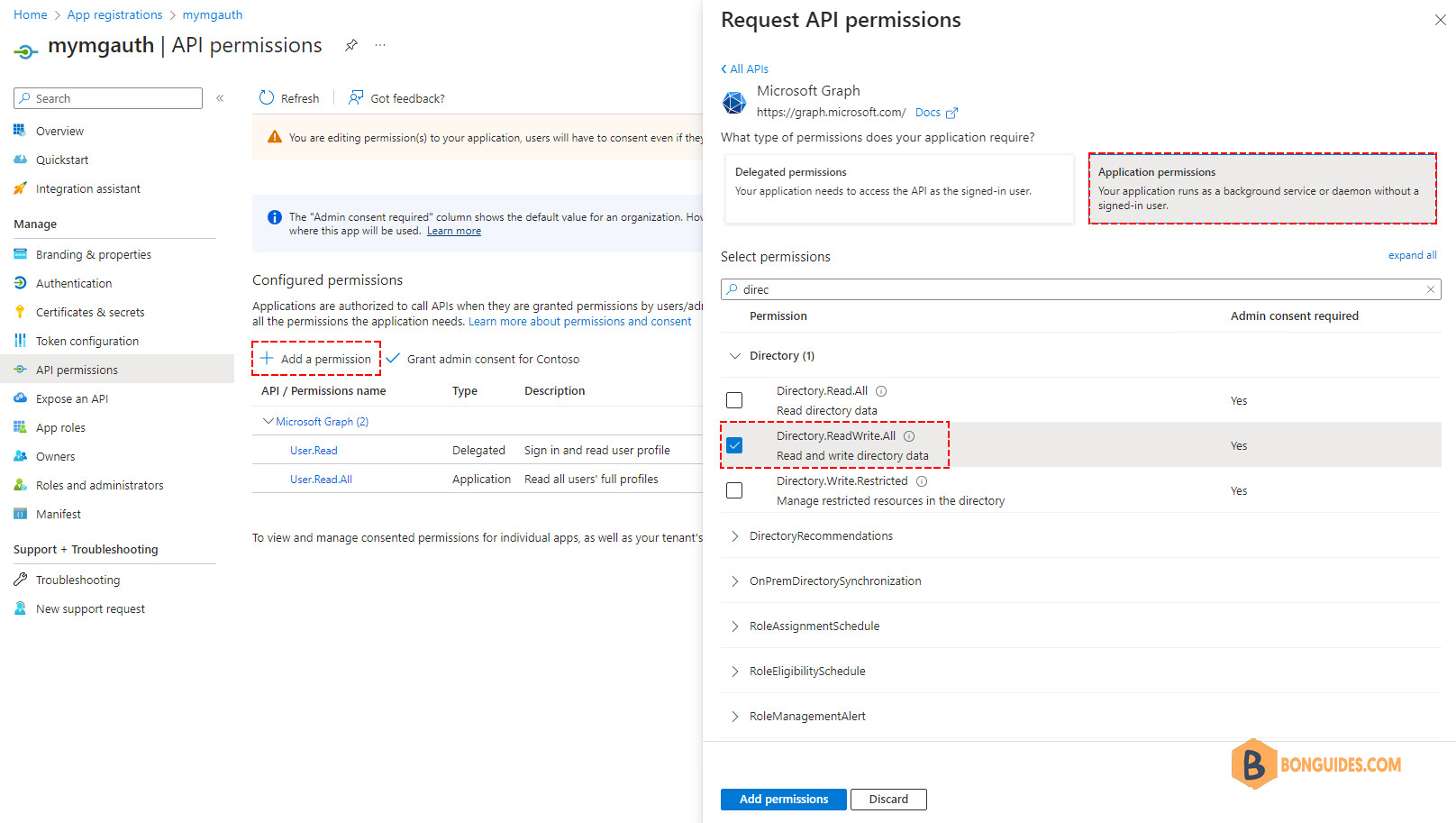
Don’t forget grant admin consent for your organization for the newly added permissions.
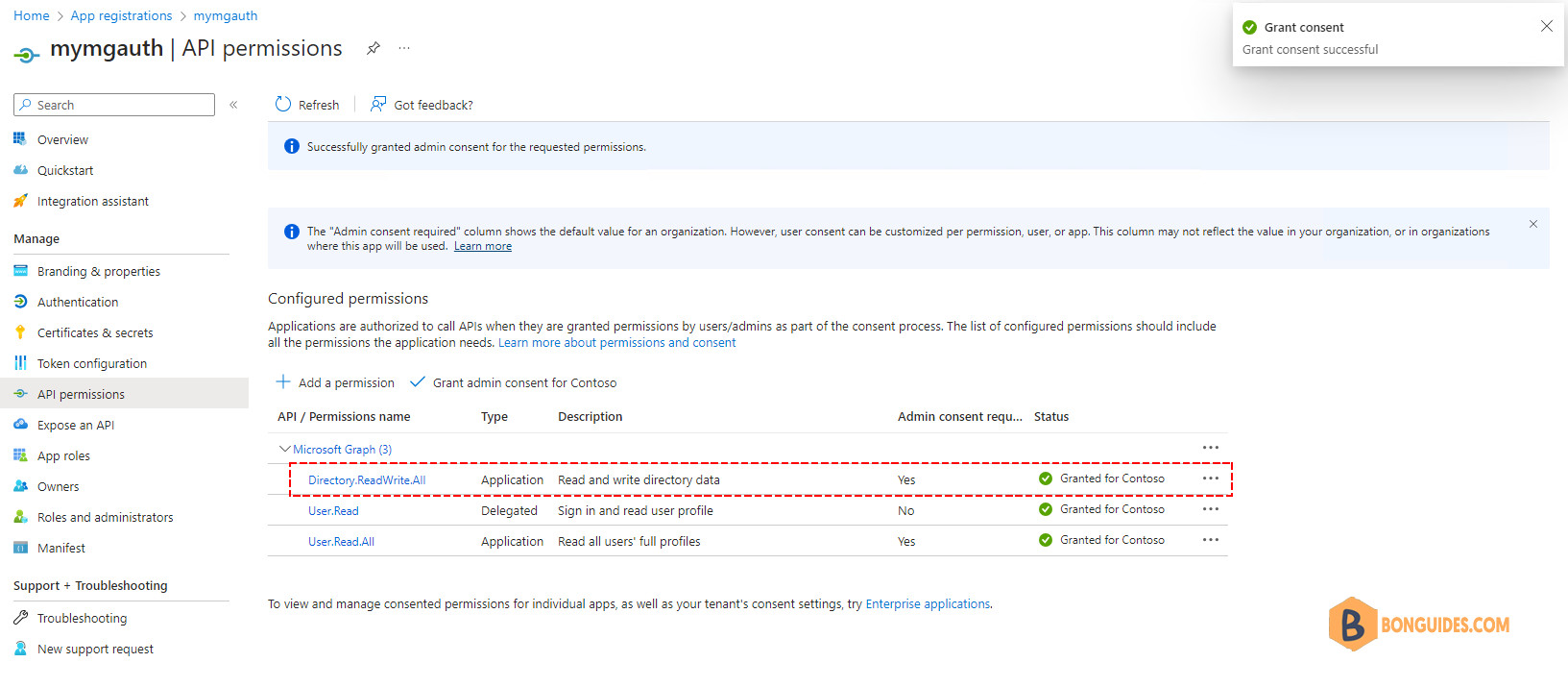
Once the permissions are assigned, you need to disconnect the current session then login to a new session to get the changes. As you can see, in the below, the new permission has been assigned to the app.
PS C:\> Get-MgContext

ClientId               : 4ca434dd-463e-4124-9c06-46c765ca67da
TenantId               : c032627b-6715-4e39-9990-bcf48ee5e0c5
Scopes                 : {Directory.ReadWrite.All, User.Read.All}
AuthType               : AppOnly
TokenCredentialType    : ClientSecret
This time, you should be able to create a new user using Graph PowerShell without any issue.
PS C:\> New-MgUser @params -AccountEnabled -PasswordProfile $passwordProfile

DisplayName Id                                   Mail UserPrincipalName
----------- --                                   ---- -----------------
Test10      42844506-ddc3-4c76-8337-73426ab95c56      [email protected]
Conclusion
You learned how to connect to Microsoft Graph PowerShell with a client secret. Remember to update MS Graph module to the latest version, create an application and assign API permissions if you connect with client secret or CBA. With CBA, there is no more user interactions, usernames, passwords, or MFA involved to run automated scripts.

