Table of Contents
Run VS Code or the VS Code Terminal as an Administrator
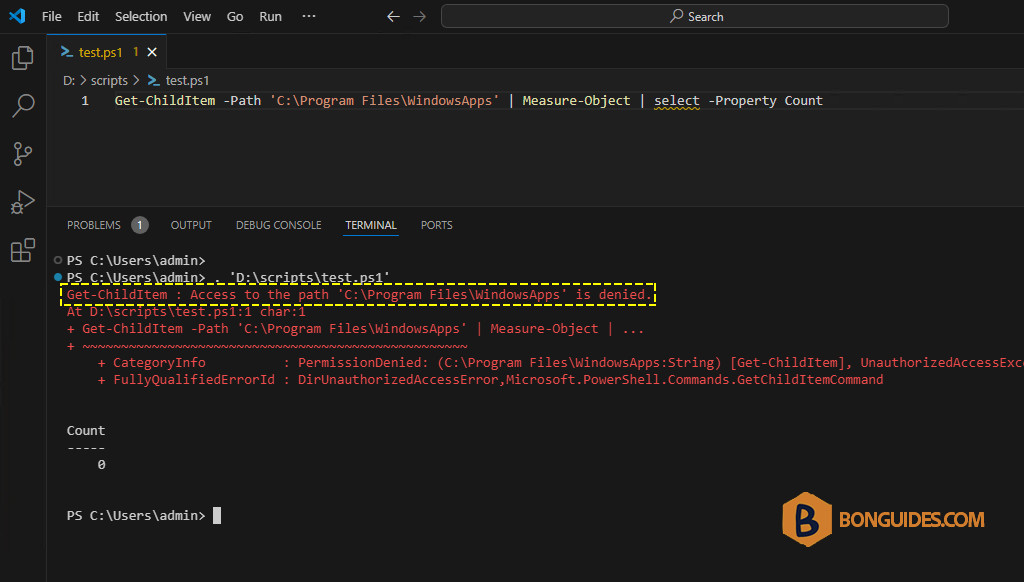
By default, when open Visual Studio Code, it runs without elevated right. As you can see in the below screenshot, without admin privilege the script cannot be executed.
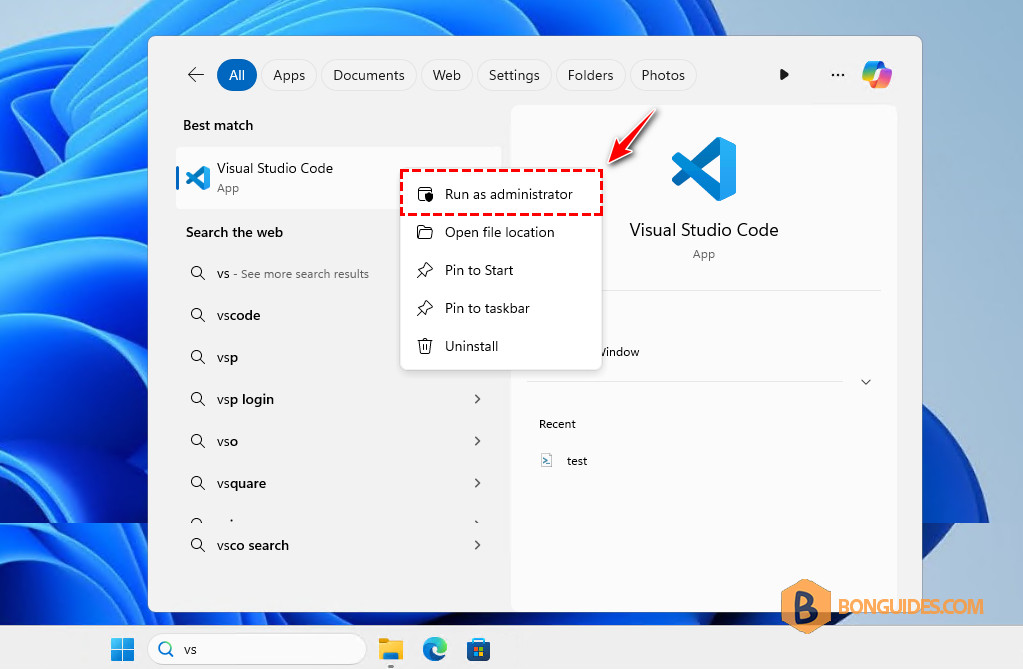
You can right click on the VS Code icon then select Run as administrator to run it with elevated right. But you must do it every time launching the app.
If you want to always configure VS Code to open as an admin:
1. Make sure to close all instances of VS Code.
2. Search for Visual Studio Code and right-click on the application then click on Open file Location.
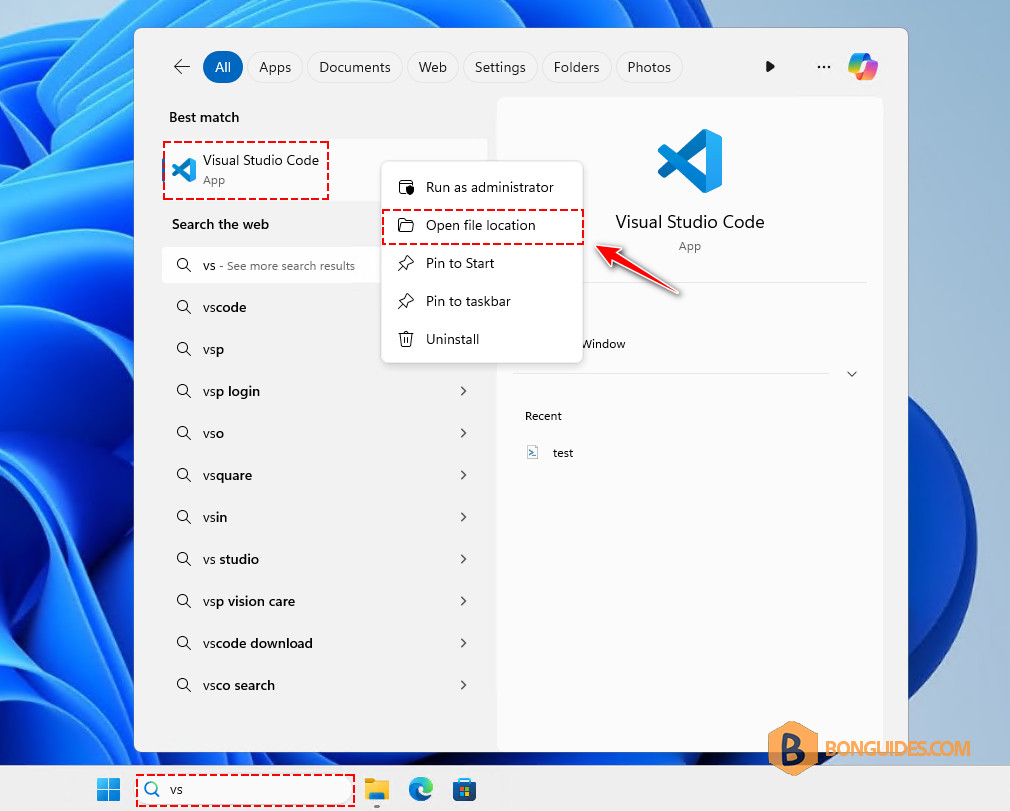
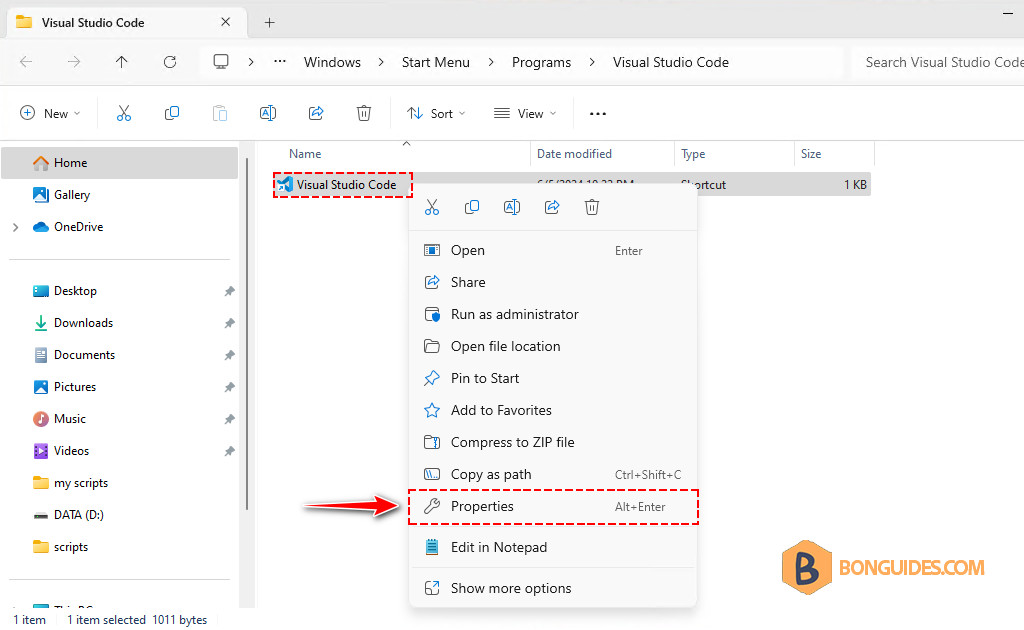
3. Right-click on the Visual Studio Code shortcut in the folder and select Properties.
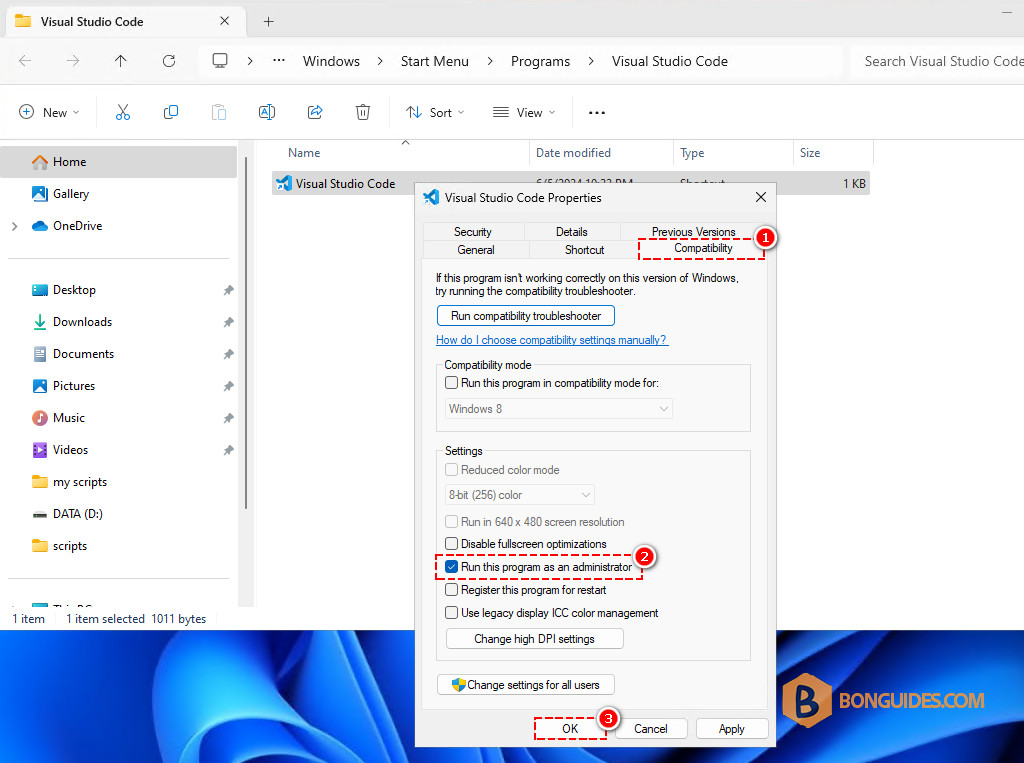
4. Click on the Compatibility tab, check the Run this program as an administrator checkbox as shown in the screenshot then Click on Apply and then OK.
5. Finally, open VS Code to verify it works.
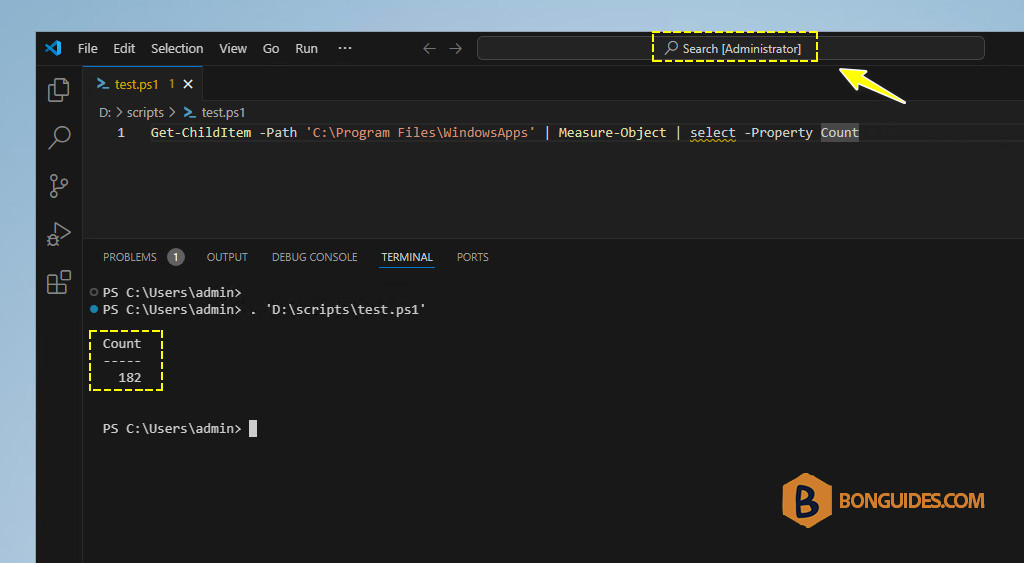
As you can see, this time even we open VS Code without right-click then select Run as administrator. The app still runs in elevated mode automatically.