
Table of Contents
PowerShell Remoting Fails Due to Public Network
Enable-PSRemoting –ForceIf you try to enable PowerShell remoting on a PowerShell console with Enable-PSRemoting ‑Force, you will sometimes receive the error message below:
PS C:\Windows\system32> Enable-PSRemotingWinRM has been updated to receive requests.
WinRM service type changed successfully.
WinRM service started.
Set-WSManQuickConfig : <f:WSManFault xmlns:f=”http://schemas.microsoft.com/wbem/wsman/1/wsmanfault” Code=”2150859113″
Machine=”localhost”><f:Message><f:ProviderFault provider=”Config provider”
path=”%systemroot%system32WsmSvc.dll”><f:WSManFault xmlns:f=”http://schemas.microsoft.com/wbem/wsman/1/wsmanfault”
Code=”2150859113″ Machine=”Win10″><f:Message>WinRM firewall exception will not work since one of the network
connection types on this machine is set to Public. Change the network connection type to either Domain or Private and
try again. </f:Message></f:WSManFault></f:ProviderFault></f:Message></f:WSManFault>
At line:116 char:17
+ Set-WSManQuickConfig -force
+ ~~~~~~~~~~~~~~~~~~~~~~~~~~~
+ CategoryInfo : InvalidOperation: (:) [Set-WSManQuickConfig], InvalidOperationException
+ FullyQualifiedErrorId : WsManError,Microsoft.WSMan.Management.SetWSManQuickConfigCommand
The reason is that the computer will allow connections with other devices in the same network if the network connection type is Public. Microsoft considers it as a security risk if you enable PowerShell remoting in a Public network.
You can verify your current connection type settings in the Control PanelNetwork and InternetNetwork and Sharing Center.
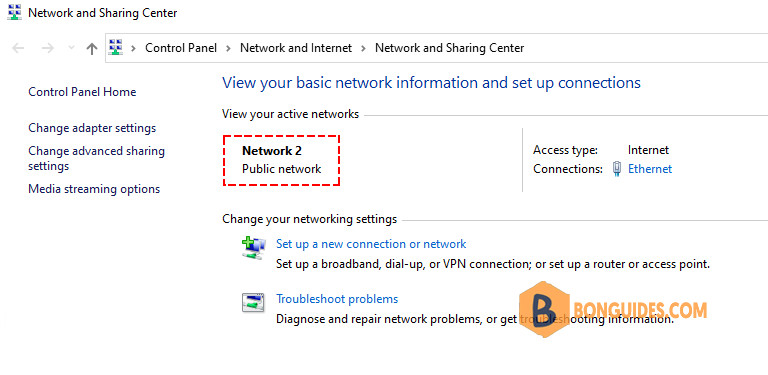
You can also check your profile settings with the PowerShell cmdlet Get-NetConnectionProfile. The NetworkCategory property corresponds to the network connection type.
PS D:\> Get-NetConnectionProfile

Name                     : Network 5
InterfaceAlias           : Ethernet 3
InterfaceIndex           : 10
NetworkCategory          : Public
DomainAuthenticationKind : None
IPv4Connectivity         : Internet
IPv6Connectivity         : NoTraffic
This problem can even occur if your computer is an Active Directory member. If you’ve previously signed on to the member machine, Windows will cache your credentials, and you can log on without an available domain controller. In that case, Windows will automatically set your connection type to Public.
If a domain controller has authenticated you, it will set the network category to DomainAuthenticated:
PS C:\> Get-NetConnectionProfile

Name             : duybao.me
InterfaceAlias   : Ethernet0
InterfaceIndex   : 2
NetworkCategory  : DomainAuthenticated
IPv4Connectivity : Internet
IPv6Connectivity : NoTraffic
Changing the network connection type
If the network category is set to DomainAuthenticated. PowerShell won’t throw an error if you enable remoting. However, if a domain controller hasn’t authenticated your computer, you have two options.
Skipping the network profile check
With the SkipNetworkProfileCheck parameter, you can just ignore the warning. The Force parameter avoids the confirmation prompt.
Enable-PSRemoting -SkipNetworkProfileCheck -ForcePS C:\Windows\system32> Enable-PSRemoting -SkipNetworkProfileCheck -Force
WinRM has been updated to receive requests.
WinRM service type changed successfully.
WinRM service started.
WinRM has been updated for remote management.
WinRM firewall exception enabled.
Configured LocalAccountTokenFilterPolicy to grant administrative rights remotely to local users.Changing the network connection type with PowerShell
However, SkipNetworkProfileCheck option poses a security risk because Windows enables network discovery features for your computer. Thus, it is better to change the connection type manually to Private:
Set-NetConnectionProfile -NetworkCategory PrivatePS C:\Windows\system32> Set-NetConnectionProfile -NetworkCategory Private
PS C:\Windows\system32> Get-NetConnectionProfile
Name : Network 2
InterfaceAlias : Ethernet
InterfaceIndex : 4
NetworkCategory : Private
DomainAuthenticationKind : None
IPv4Connectivity : Internet
IPv6Connectivity : NoTraffic
PS C:\Windows\system32> Enable-PSRemoting
WinRM has been updated to receive requests.
WinRM service type changed successfully.
WinRM service started.
WinRM has been updated for remote management.
WinRM firewall exception enabled.
Configured LocalAccountTokenFilterPolicy to grant administrative rights remotely to local users.Notice that, you can’t set the NetworkCategory property to DomainAuthenticated. If you try, PowerShell will return an error:
Set-NetConnectionProfile : Unable to set NetworkCategory to ‘DomainAuthenticated’. This NetworkCategory type will be set automatically when authenticated to a domain network.
Additionally, if your computer is not a domain member, you have to consider a few other things if you enable PowerShell remoting for WORKGROUP computers.


