
Table of Contents
The Philosophy: Verb-Noun
In this section, we’ll focus on the PowerShell cmdlets. In concrete terms, the philosophy of these commands. Each PowerShell command called cmdlets contains a verb and a noun, separated by a hyphen.
For example, command Stop-Computer. Stop is the verb and Computer is the noun. Here are some examples of this philosophy or naming convention:
PS C:\> Get-Date
Sunday, August 20, 2023 9:53:24 AM

PS C:\> Get-Process | Select -First 5

Handles  NPM(K)    PM(K)      WS(K)     CPU(s)     Id  SI ProcessName
-------  ------    -----      -----     ------     --  -- -----------
    185      14     3104       6512       2.17   5644   1 AdobeIPCBroker
    415      24    42756      32136       0.28  10996   1 AdobeNotificationClient
    164      11     2168       5408       4.55   5348   0 AdobeUpdateService
    152      10     3808       7228       2.34   6908   0 AggregatorHost
    401      24    14544      17264       4.33  10932   1 ApplicationFrameHost

PS C:\> Start-Process 'https://bonguides.com'
The last command opens my website. Start-Process starts a process. And if you specify a website the command opens a web browser and gets you to my site.
An important PowerShell cmdlet: Get-Command
Which takes me to to the command Get-Command. Get-Command enables you to show all available PowerShell Commands at once. Let’s explore all PowerShell commands.
PS C:\> Get-Command | select -First 5

CommandType     Name                                               Version    Source
-----------     ----                                               -------    ------
Alias           Add-AppPackage                                     2.0.1.0    Appx
Alias           Add-AppPackageVolume                               2.0.1.0    Appx
Alias           Add-AppProvisionedPackage                          3.0        Dism
Alias           Add-ProvisionedAppPackage                          3.0        Dism
Alias           Add-ProvisionedAppxPackage                         3.0        Dism

PS C:\> (Get-Command).Count
26741
There’s a lot of them. In order to make the whole thing clearer, we can use a special method. For this we need a pipe and the command more. A pipe connects commands. In concrete terms, the pipe takes everything on the left of the pipe and forwards it to the command to the right of the pipe.
For example, we only get the first five commands in the Get-Command cmdlet results.
How to get a command by verb or noun?
I always recommend playing with Get commands first. Why? You cannot destroy your system. Get Commands only get something, they don’t modify. So, the task for this part is to find all the Get commands. Remember: Get is the verb. Let’s search all of the gets using a simple parameter.
PS C:\> Get-Command -Verb 'Get' | select -First 5

CommandType     Name                                               Version    Source
-----------     ----                                               -------    ------
Alias           Get-AppPackage                                     2.0.1.0    Appx
Alias           Get-AppPackageDefaultVolume                        2.0.1.0    Appx
Alias           Get-AppPackageLastError                            2.0.1.0    Appx
Alias           Get-AppPackageLog                                  2.0.1.0    Appx
Alias           Get-AppPackageManifest                             2.0.1.0    Appx

PS C:\> (Get-Command -Verb 'Get').Count
424
Nice. Found some interesting? I do. Get-Host. Get-Host shows you information about your system, especially of PowerShell. For example, you can see your PowerShell version. Mine is 5.1. That was just a quick glance at a particular Get command. Let’s move on with nouns.
PS C:\> Get-Host

Name             : ConsoleHost
Version          : 5.1.19041.3031
InstanceId       : 19125d42-de3f-4c8b-976d-6c5870854ae0
UI               : System.Management.Automation.Internal.Host.InternalHostUserInterface
CurrentCulture   : en-US
CurrentUICulture : en-US
PrivateData      : Microsoft.PowerShell.ConsoleHost+ConsoleColorProxy
DebuggerEnabled  : True
IsRunspacePushed : False
Runspace         : System.Management.Automation.Runspaces.LocalRunspace
To find a command with a specific noun, for example the noun date, run:
PS P:\> Get-Command -Noun 'Date'

CommandType     Name                                               Version    Source
-----------     ----                                               -------    ------
Cmdlet          Get-Date                                           3.1.0.0    Microsoft.Pow...
Cmdlet          Set-Date                                           3.1.0.0    Microsoft.Pow...
It is no coincidence that I use this noun. Date contains only 2 commands. That doesn’t make it too extensive. For instance, we’ve listed more commands for the nouns service and process.
PS P:\> Get-Command -Noun 'service'

CommandType     Name                                               Version    Source
-----------     ----                                               -------    ------
Cmdlet          Get-Service                                        3.1.0.0    Microsoft.Pow...
Cmdlet          New-Service                                        3.1.0.0    Microsoft.Pow...
Cmdlet          Restart-Service                                    3.1.0.0    Microsoft.Pow...
Cmdlet          Resume-Service                                     3.1.0.0    Microsoft.Pow...
Cmdlet          Set-Service                                        3.1.0.0    Microsoft.Pow...
Cmdlet          Start-Service                                      3.1.0.0    Microsoft.Pow...
Cmdlet          Stop-Service                                       3.1.0.0    Microsoft.Pow...
Cmdlet          Suspend-Service                                    3.1.0.0    Microsoft.Pow...


PS P:\> Get-Command -Noun 'process'

CommandType     Name                                               Version    Source
-----------     ----                                               -------    ------
Cmdlet          Debug-Process                                      3.1.0.0    Microsoft.Pow...
Cmdlet          Get-Process                                        3.1.0.0    Microsoft.Pow...
Cmdlet          Start-Process                                      3.1.0.0    Microsoft.Pow...
Cmdlet          Stop-Process                                       3.1.0.0    Microsoft.Pow...
Cmdlet          Wait-Process                                       3.1.0.0    Microsoft.Pow...
Using TAB
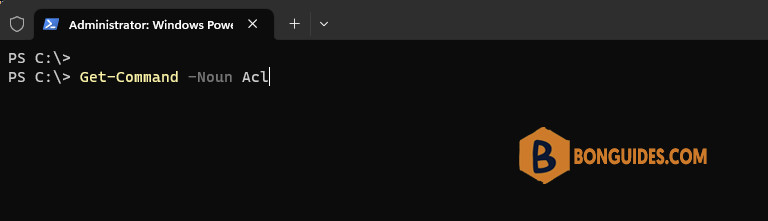
A nice feature is the use of TAB. If you have no clue about the noun, type Get-Command -Noun and press TAB. Unfortunately, this only works with nouns.
How to list commands using wildcards
Wildcards are placeholders for any value. The wildcard character is usually *. If you are not happy with searching by verb or noun you can simply use the wildcard character.
For example, I don’t know the command to restart the computer. Let’s search for command that includes the word restart.
PS C:\> Get-Command *restart*

CommandType Name               Version Source
----------- ----               ------- ------
Function    Restart-NetAdapter 2.0.0.0 NetAdapter
Function    Restart-PcsvDevice 1.0.0.0 PcsvDevice
Function    Restart-PrintJob   1.1     PrintManagement
Cmdlet      Restart-Computer   3.1.0.0 Microsoft.PowerShell.Management
Cmdlet      Restart-Service    3.1.0.0 Microsoft.PowerShell.Management
Combining two commands
Restart computer in an hour? Type Start-Sleep and specify a time span in seconds.
Start-Sleep -Seconds 10PowerShell goes to sleep. For 10 seconds. Let’s think ahead. We can now combine two commands. The first one will be Start-Sleep. The second one is Restart-Computer. The goal is that in about one hour the computer should be shut down. For this we need a separator, to separate the two commands from each other. It’s a dotted comma.
Start-Sleep -Seconds 3600; Restart-Computer -ForcePowerShell goes to sleep for 3600 seconds. After this period the computer will do a restart. Trust me, it will happen! Provided that you don’t close PowerShell. Planning this in a scheduled task is by all means the better solution. But that’s a topic for the more advanced blog posts.
| # | Learning PowerShell (Articles in series) | Cmdlets |
|---|---|---|
| #1 | Getting Started with Windows PowerShell | |
| #2 | Working with Windows PowerShell | |
| #3 | Writing and Running PowerShell Scripts | |
| #4 | Windows PowerShell Remoting | |
| #5 | Windows PowerShell Profiles | |
| #6 | PowerShell Drives and Providers | |
| #7 | Windows PowerShell ISE | |
| #8 | Manage Services using PowerShell | |
| #9 | Manage Processes using PowerShell | Get-Member, -Property, -ExpandProperty |
| #10 | Variables in Windows PowerShell | |
| #11 | Arrays in Windows PowerShell | |
| #12 | Hash Tables in Windows PowerShell | |
| #13 | PowerShell Loops | foreach, for |
| #14 | Conditional Logic in PowerShell | |
| #15 | PowerShell Functions | |
| #16 | One-liners and the Pipeline | |
| #17 | Everything about PSCustomObject | |
| #18 | Selecting Parts of Objects | |
| #19 | Sorting Objects | |
| #20 | Getting WMI objects with Get-CimInstance | |
| #21 | Parentheses, Braces and Square Brackets | () {} [] |
| #22 | The Philosophy Verb-Noun | Get-Command, Verb-Noun |
| #23 | PowerShell Parameters | $ |
| #24 | PowerShell and WMI | Get-CimInstance |


