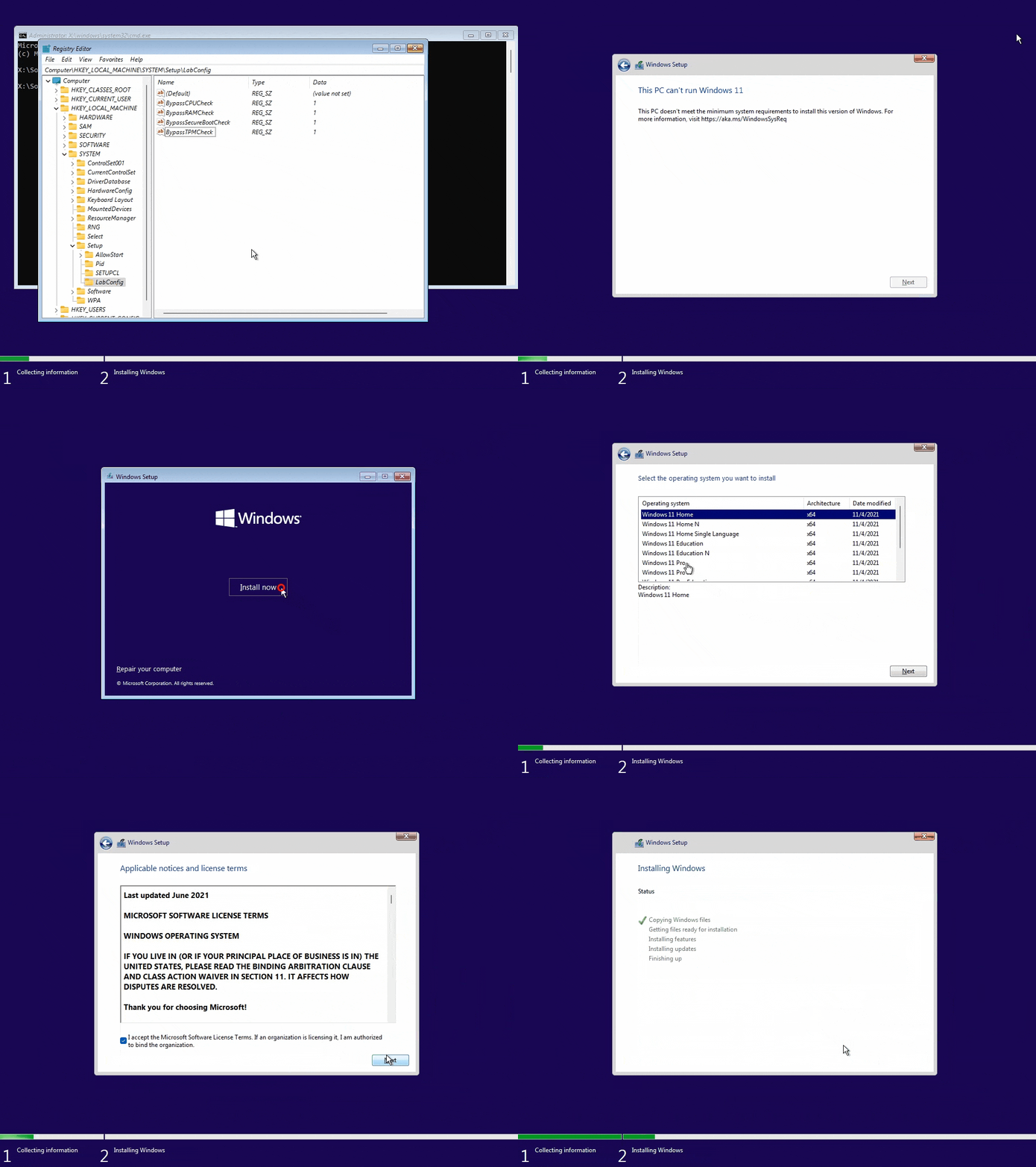
How to Bypass Requirements When Install Windows 11 Virtual Machine
In this post, how to by pass the error “This PC can’t run Windows 11, This PC doesn’t meet the minimum system requirements to install this version of Windows.” when install a Windows 11 virtual machine in VirtualBox.
1. At this screen, let press Shift + F10 at the same time to open Windows Command Prompt.

2. Type regedit then hit enter to open Registry Editor.

3. In the Registry Editor window, navigate to the following location HKEY_LOCAL_MACHINESYSTEMSetup. Right click on the Setup key then create a new key.

4. A new key is create with the name LabConfig.

5. Now, in the LabConfig key, in the right blank area, right click then create a new String Value.

6. Create four string values with value data is 1.
- BypassTPMCheck
- BypassCPUCheck
- BypassRAMCheck
- BypassSecureBootCheck

Repeat steps to create four REG_SZ like below picture. Don’t forget set the value is 1.

7. Close Registry Editor | Close Command Prompt | Close Windows setup wizard | Click Install now to starting install Windows 11 VM with out any requirements or restrictions.