
Table of Contents
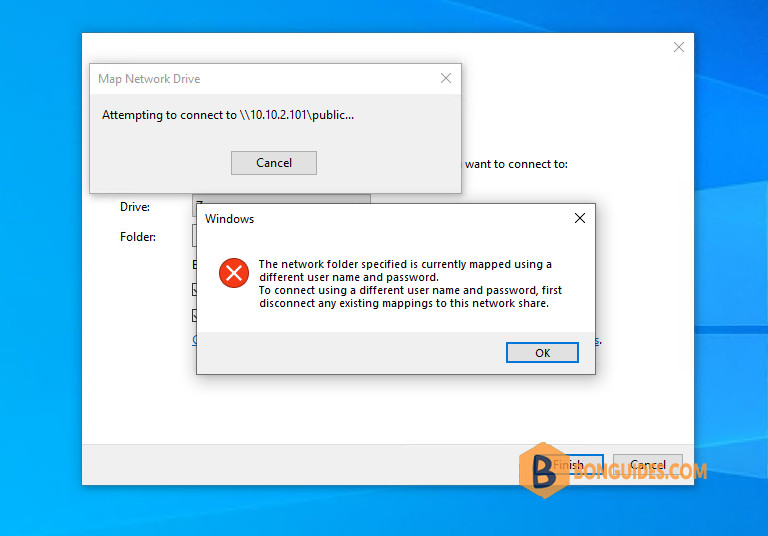
In some cases, you got the following error when trying to connect to a network shared folder in Windows 10/11 computers.
Solution 1
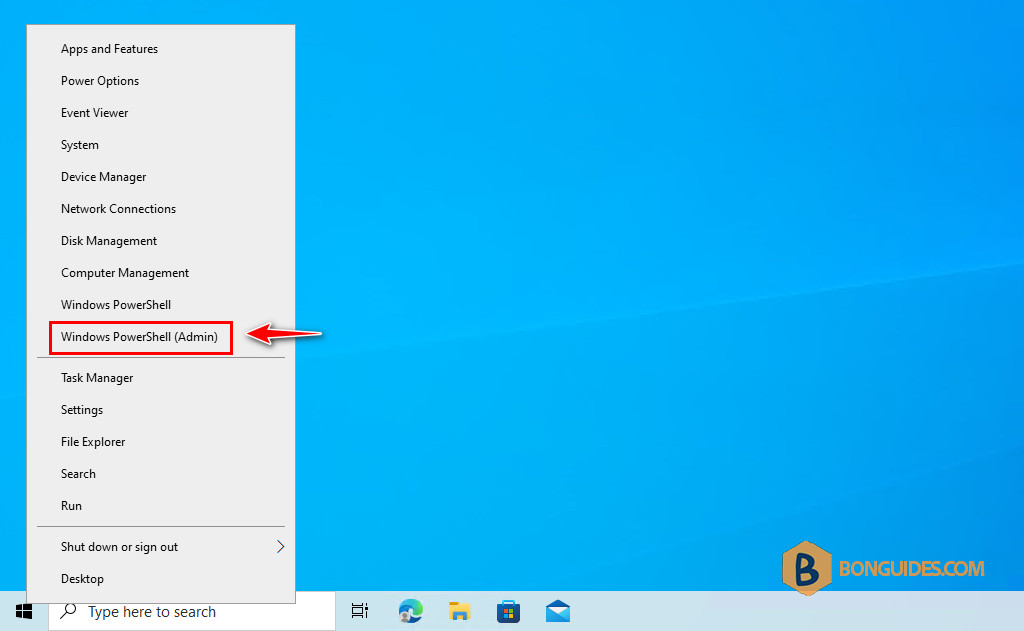
1. To fix it, let’s right click on the Windows Start icon then open PowerShell as administrator.
2. Run the following command to stop the workstation service.
net stop workstation /y# Output
PS C:\> net stop workstation /y
The following services are dependent on the Workstation service.
Stopping the Workstation service will also stop these services.
Remote Desktop Configuration
The Remote Desktop Configuration service is stopping.
The Remote Desktop Configuration service was stopped successfully.
The Workstation service is stopping.
The Workstation service was stopped successfully.3. Once the service is stopped, start it again using the command below:
net start workstation# Output
PS C:\> net start workstation
The Workstation service is starting.
The Workstation service was started successfully.Finally, trying to map the shared folder again to verify it works.
Solution 2
If the first solution does not work. Let’s try the second one below.
1. Open PowerShell (without as administrator) then run the net use command. The net use will list all connected shared drive for the current logged on user, that why we need to open PowerShell without administrator.
Microsoft Windows [Version 10.0.19045.2006]
(c) Microsoft Corporation. All rights reserved.

C:>net use
New connections will be remembered.

Status       Local     Remote                    Network

-------------------------------------------------------------------------------
OK                     \10.10.2.101public      Microsoft Windows Network
OK                     \10.10.2.101IPC$        Microsoft Windows Network
The command completed successfully.
As you can see in the output, the shared folder (\10.10.2.101public) is mapped without a drive letter. That is the root cause of the issue we get when trying to map it from Windows Explorer.
2. To fix it, we need to remove the mapped drive using the following syntax:
net use /delete \\server-name\foldernameOr you can remove all mapped drive using the below command:
net use * /delete# Output
C:\>net use * /delete
You have these remote connections:
\\10.10.2.101\public
\\10.10.2.101\IPC$
Continuing will cancel the connections.
Do you want to continue this operation? (Y/N) [N]: y
The command completed successfully.3. Now, trying to map the shared folder again to verify it works.
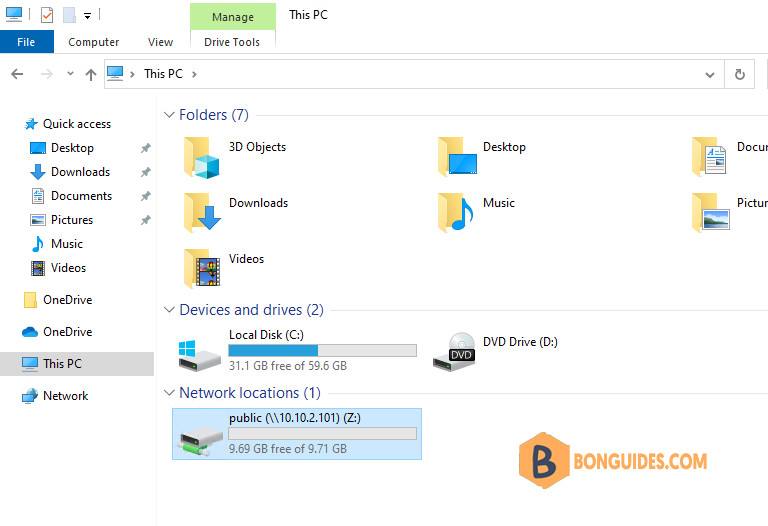
From PowerShell, run the net use command again. You should see the mapped drive now has a driver letter.
C:\>net use
New connections will be remembered.

Status       Local     Remote                    Network

-------------------------------------------------------------------------------
OK           Z:        \\10.10.2.101\public      Microsoft Windows Network
The command completed successfully.

