Table of Contents
Remotely connecting to macOS computers via PC desktops, laptops, iOS devices (like a MacBook, iPhone, or iPad), and more allows users to access and control their Mac workstation from anywhere.
Still, remotely managing their Mac sounds overly complicated to a lot of people. From how you connect to sharing files or screens to using your Apple device as a remote mouse, we want to demystify the process in the easy-to-follow guide below.
Allow others to access your Mac using Remote Desktop
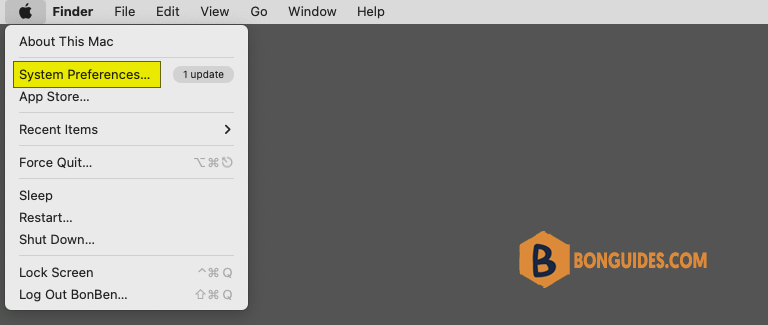
1. Click on the Apple icon in the top-left corner of your screen and select System Preferences.
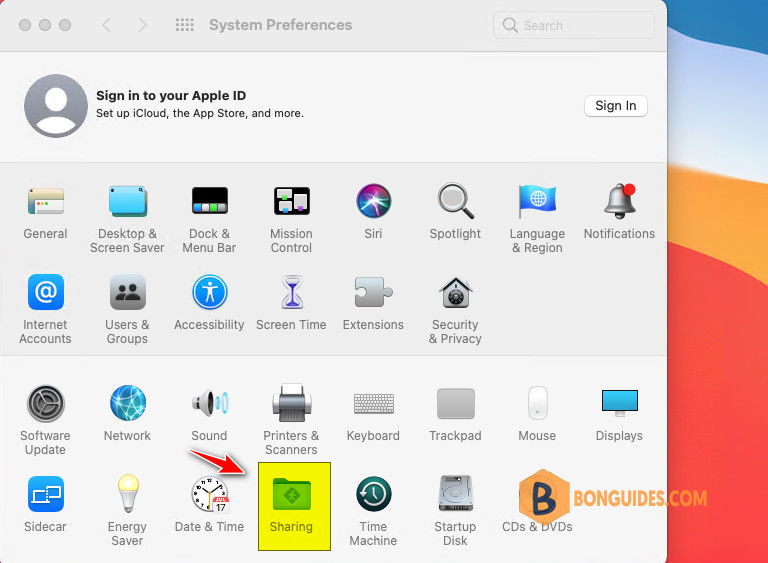
2. Select Sharing.
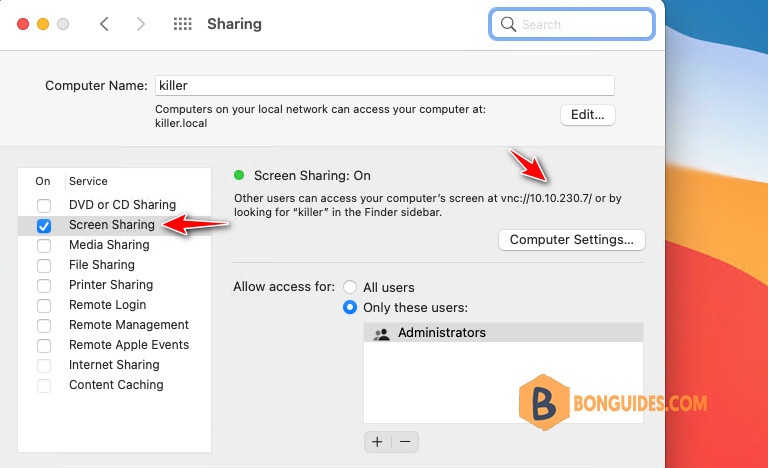
3. Select the checkbox Screen Sharing to enable remote access to this Mac.
Note
You can select who has remote desktop access. Either select, All Users, which means any other device on your network, or Mac you own, can access and connect, or click the Add button (+), which gives you the ability to select who can have remote access and/or control.
Memorize or write down your Mac’s IP address. We will use it to connect to the Mac remotely.
Remote desktop to your Mac from Windows, Linux
1. On Windows, we need download then install a free tool VNC Viewer to remote to the Mac.
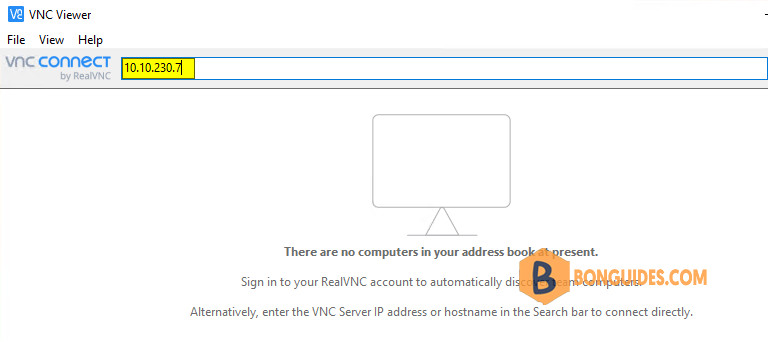
2. Once the tool is installed, let’s open it then enter the Mac’s IP address to connect remotely.
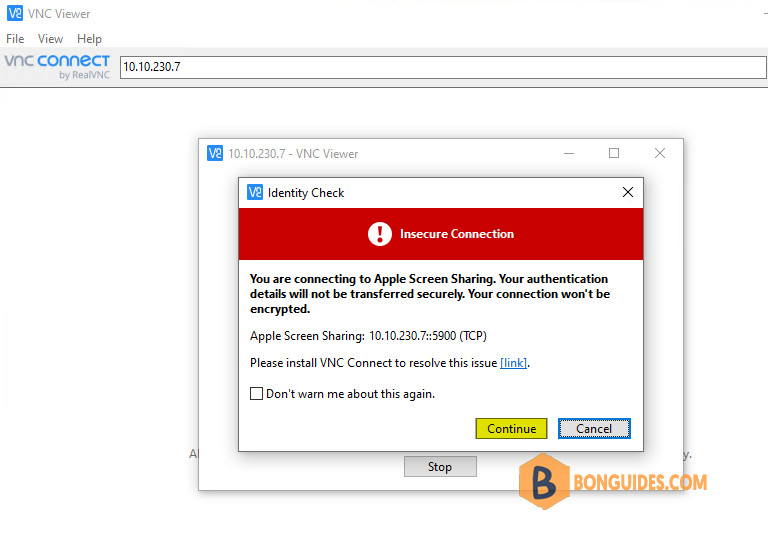
3. You can ignore this warning then click Continue button.
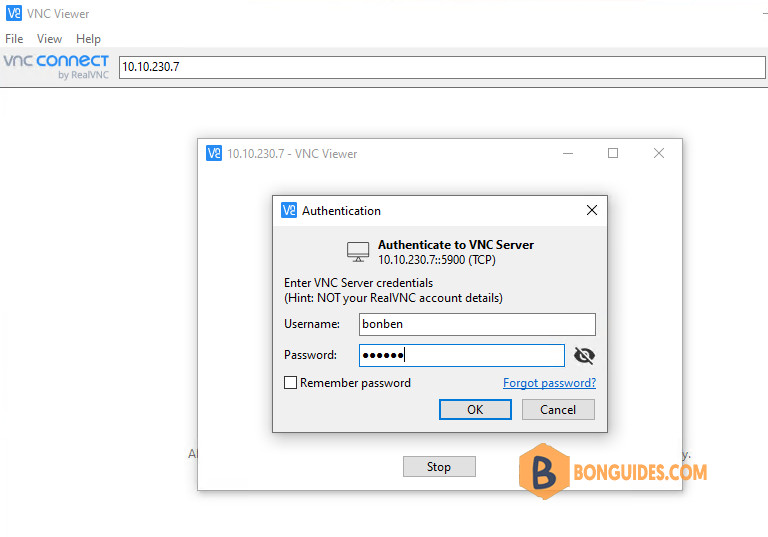
4. Enter your Mac username and password to connect.
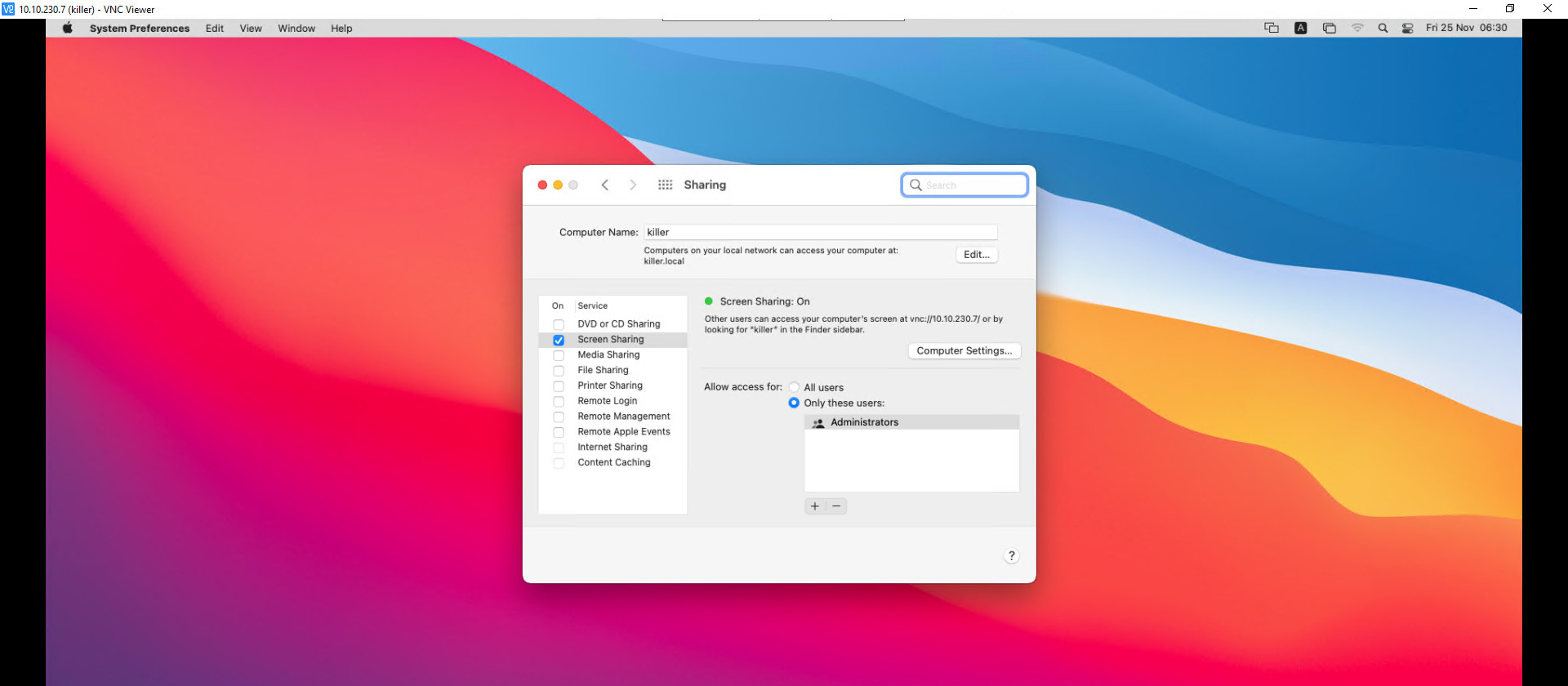
If the username and password are correct, you should see the Mac screen remotely from Windows PC.
Remote desktop to your Mac from macOS
Access your Mac from another Mac is easier. From another Mac:
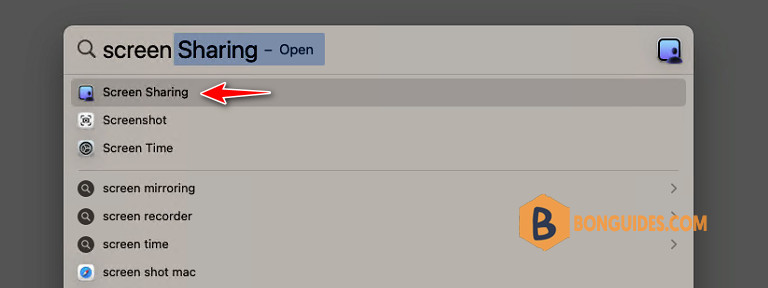
1. Search then open the app named Screen Sharing on the Mac.
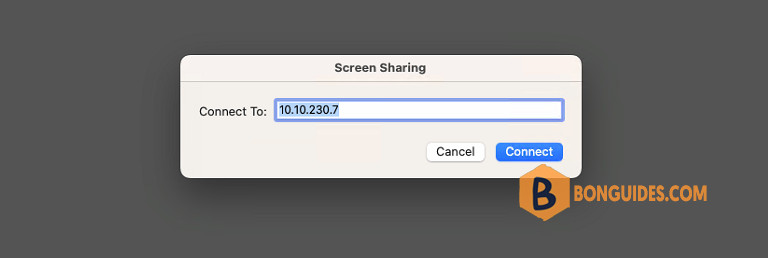
2. Enter the IP address of the Mac that you want to connect to then click Connect.
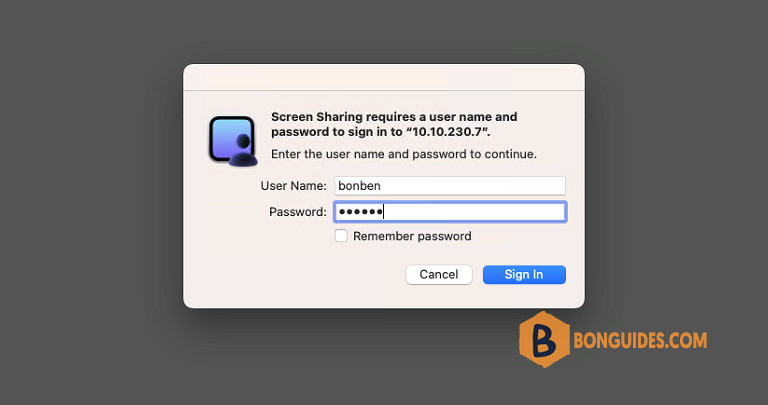
3. Enter the username and password of the remote Mac (the one you want to connect to).
4. Connected to the Mac and you’re done.