Table of Contents
You’re starting to use PowerShell and trying to figure out how to echo a system environment variable to the console to read it.
Print PATH Environment Variables to The Console in PowerShell
Environment variables are an essential part of the Operating System. They store various information like the path of the system files and folders, the number of processors system running, current user details, and more. Processes and programs utilize these environment variables to retrieve the data for their execution.
Environment variables in PowerShell are stored as PSDrive (Env:). First, let’s show the list of PSDrive on this computer using Get-PSDrive cmdlet.
Get-PSDriveName Used (GB) Free (GB) Provider Root CurrentLocation
---- --------- --------- -------- ---- ---------------
Alias Alias
C 20.92 105.53 FileSystem C:\
Cert Certificate \
D 0.10 384.89 FileSystem D:\
Env Environment
Function Function
HKCU Registry HKEY_CURRENT_USER
HKLM Registry HKEY_LOCAL_MACHINE
Variable Variable
WSMan WSManTo retrieve all the environment variables stored in the OS you can use the below command:
Get-ChildItem -Path Env:The output looks something like this, where the variable’s name is listed first, and then the value:
Name                           Value
----                           -----
ALLUSERSPROFILE                C:\ProgramData
APPDATA                        C:\Users\admin\AppData\Roaming
CLIENTNAME                     win11
CommonProgramFiles             C:\Program Files\Common Files
CommonProgramFiles(x86)        C:\Program Files (x86)\Common Files
CommonProgramW6432             C:\Program Files\Common Files
COMPUTERNAME                   ADMIN-NHK7SI58S
ComSpec                        C:\Windows\system32\cmd.exe
DriverData                     C:\Windows\System32\Drivers\DriverData
HOMEDRIVE                      C:
HOMEPATH                       \Users\admin
LOCALAPPDATA                   C:\Users\admin\AppData\Local
LOGONSERVER                    \\ADMIN-NHK7SI58S
NUMBER_OF_PROCESSORS           8
OneDrive                       C:\Users\admin\OneDrive
OS                             Windows_NT
Path                           C:\Windows\system32;C:\Windows;C:\Windows\System32\Wbem;C:\Windows\System32\WindowsPo...
PATHEXT                        .COM;.EXE;.BAT;.CMD;.VBS;.VBE;.JS;.JSE;.WSF;.WSH;.MSC;.CPL
POSH_INSTALLER                 winget
POSH_THEMES_PATH               C:\Users\admin\AppData\Local\Programs\oh-my-posh\themes
PROCESSOR_ARCHITECTURE         AMD64
PROCESSOR_IDENTIFIER           AMD64 Family 25 Model 1 Stepping 1, AuthenticAMD
PROCESSOR_LEVEL                25
PROCESSOR_REVISION             0101
ProgramData                    C:\ProgramData
ProgramFiles                   C:\Program Files
ProgramFiles(x86)              C:\Program Files (x86)
ProgramW6432                   C:\Program Files
PSModulePath                   C:\Users\admin\Documents\WindowsPowerShell\Modules;C:\Program Files\WindowsPowerShell...
PUBLIC                         C:\Users\Public
SESSIONNAME                    31C5CE94259D4006A9E4#0
SystemDrive                    C:
SystemRoot                     C:\Windows
TEMP                           C:\Users\admin\AppData\Local\Temp
TMP                            C:\Users\admin\AppData\Local\Temp
USERDOMAIN                     ADMIN-NHK7SI58S
USERDOMAIN_ROAMINGPROFILE      ADMIN-NHK7SI58S
USERNAME                       admin
USERPROFILE                    C:\Users\admin
windir                         C:\Windows
WSLENV                         WT_SESSION:WT_PROFILE_ID:
WT_PROFILE_ID                  {61c54bbd-c2c6-5271-96e7-009a87ff44bf}
WT_SESSION                     2e5ffde5-eda5-4206-a2db-631c1273db04
You can also use dir env: command to retrieve all environment variables and values.
dir Env:Environment variable scopes
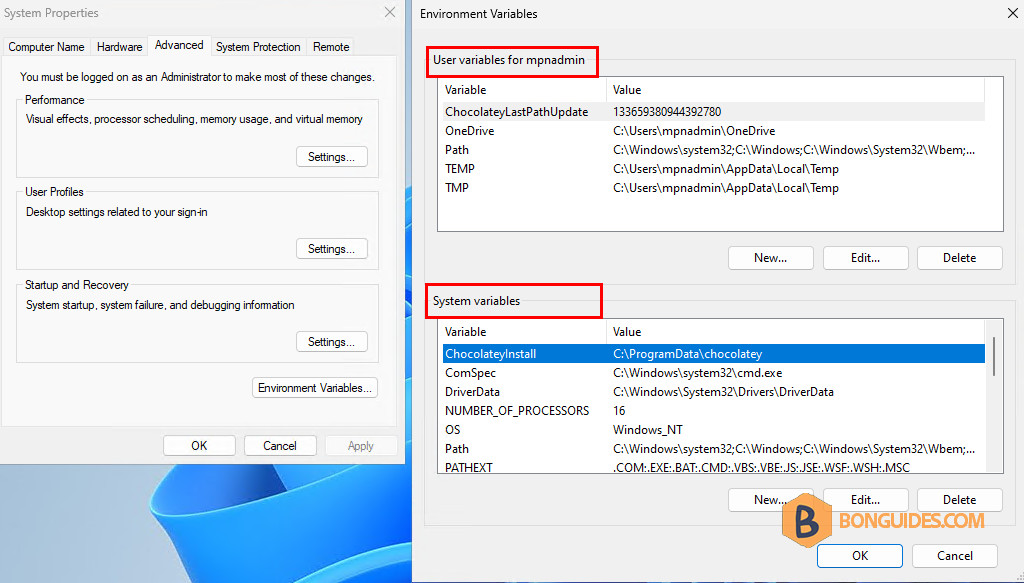
Before you are moving forward, you should know about the Scope. On Windows, environment variables can be defined in three scopes:
- Process (or session) scope: The Process scope contains the environment variables available in the current process, or PowerShell session. This list of variables is inherited from the parent process and is constructed from the variables in the Machine and User scopes. Closing the PowerShell window will revert the environment variables to its pre-determined state
- User scope: User environment variables are specific only to the currently logged-in user.
- System (or Machine) scope: System environment variables are globally accessed by all users.
Retrieve a specific environment variable
To retrieve a specific environment variable, provide variable name after Env:. For example, we will get the values of the Path environment varialbe:
(Get-ChildItem -Path Env:\Path).Value# Output
C:\Windows\system32;C:\Windows;C:\Windows\System32\Wbem;C:\Windows\System32\WindowsPowerShell\v1.0\;C:\Windows\System32\OpenSSH\;C:\Users\mpnadmin\AppData\Local\Microsoft\WindowsApps;;C:\Users\mpnadmin\AppData\Local\Programs\oh-my-posh\bin;C:\Users\mpnadmin\AppData\Local\Programs\Microsoft VS Code\bin;C:\ScriptsIf there are multiple values displayed for the environment variable, then you can separate values using the Split operation. For example,
(Get-ChildItem -Path Env:\Path).Value -split ";"C:\Windows\system32
C:\Windows
C:\Windows\System32\Wbem
C:\Windows\System32\WindowsPowerShell\v1.0\
C:\Windows\System32\OpenSSH\
C:\Users\mpnadmin\AppData\Local\Microsoft\WindowsApps
C:\Users\mpnadmin\AppData\Local\Programs\oh-my-posh\binAdditionally, the Path environment variable values can be retieved by the simply below command:
$env:Path -split ';'The output of the above command will include the values in the both user and system scope of the Path environment variables.
# Output
C:\Windows\system32
C:\Windows
C:\Windows\System32\Wbem
C:\Windows\System32\WindowsPowerShell\v1.0\
C:\Windows\System32\OpenSSH\
C:\Users\mpnadmin\AppData\Local\Microsoft\WindowsApps
C:\Users\mpnadmin\AppData\Local\Programs\oh-my-posh\bin
C:\Users\mpnadmin\AppData\Local\Programs\Microsoft VS Code\binUsing the [System.Environment] class
You can also use the .NET method of class [System.Environment] to retrieve the specific or all environment variables. To retrieve all environment variables use GetEnvironmentVariables() class.
[System.Environment]::GetEnvironmentVariables()Name Value
---- -----
SystemDrive C:
ProgramFiles(x86) C:\Program Files (x86)
Path C:\Windows\system32;C:\Windows;C:\Windows\System32\Wbem;C:\Windows\System32\WindowsPo...
ProgramW6432 C:\Program Files
PROCESSOR_IDENTIFIER AMD64 Family 25 Model 1 Stepping 1, AuthenticAMD
TMP C:\Users\mpnadmin\AppData\Local\Temp
PROCESSOR_ARCHITECTURE AMD64
PATHEXT .COM;.EXE;.BAT;.CMD;.VBS;.VBE;.JS;.JSE;.WSF;.WSH;.MSC;.CPL
WSLENV WT_SESSION:WT_PROFILE_ID:
PROCESSOR_REVISION 0101
...
# The output is truncatedTo get the specific environment variable using .NET method you can use GetEnvironmentVariable() method. Go to this link for all the environment system class supported properties and methods.
[System.Environment]::GetEnvironmentVariable('Path') -split ";"C:\Windows\system32
C:\Windows
C:\Windows\System32\Wbem
C:\Windows\System32\WindowsPowerShell\v1.0\
C:\Windows\System32\OpenSSH\
C:\Users\mpnadmin\AppData\Local\Microsoft\WindowsApps
C:\Users\mpnadmin\AppData\Local\Programs\oh-my-posh\bin
C:\Users\mpnadmin\AppData\Local\Programs\Microsoft VS Code\binThis method supports retrieving the values in user scope and system scope separately. We can pass the environment variable as a string and Machine or User as the EnvironmentVariableTarget in the example below.
Get the value in the User scope:
[System.Environment]::GetEnvironmentVariable('PATH','User') -split ";"C:\Users\mpnadmin\AppData\Local\Microsoft\WindowsApps
C:\Users\mpnadmin\AppData\Local\Programs\oh-my-posh\bin
C:\Users\mpnadmin\AppData\Local\Programs\Microsoft VS Code\binGet the value in the system scope:
[System.Environment]::GetEnvironmentVariable('PATH','Machine') -split ";"C:\Windows\system32
C:\Windows
C:\Windows\System32\Wbem
C:\Windows\System32\WindowsPowerShell\v1.0\
C:\Windows\System32\OpenSSH\Using Windows Registry
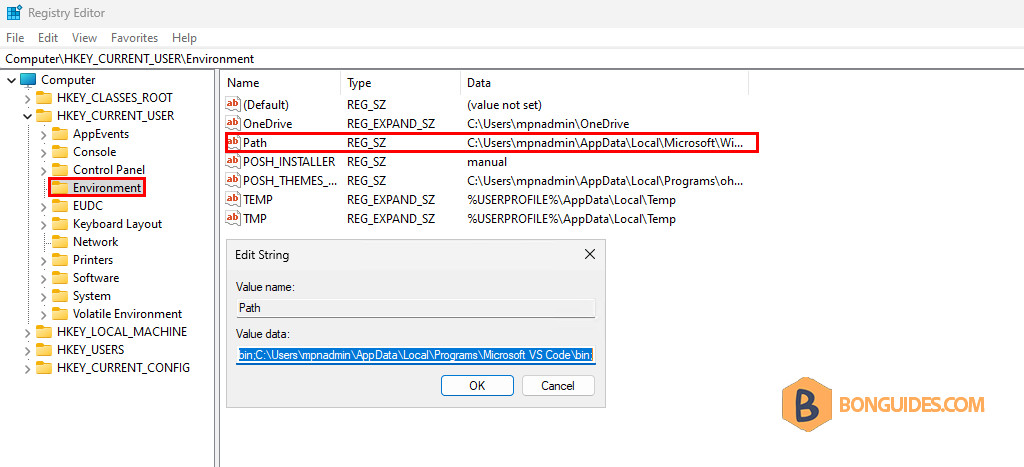
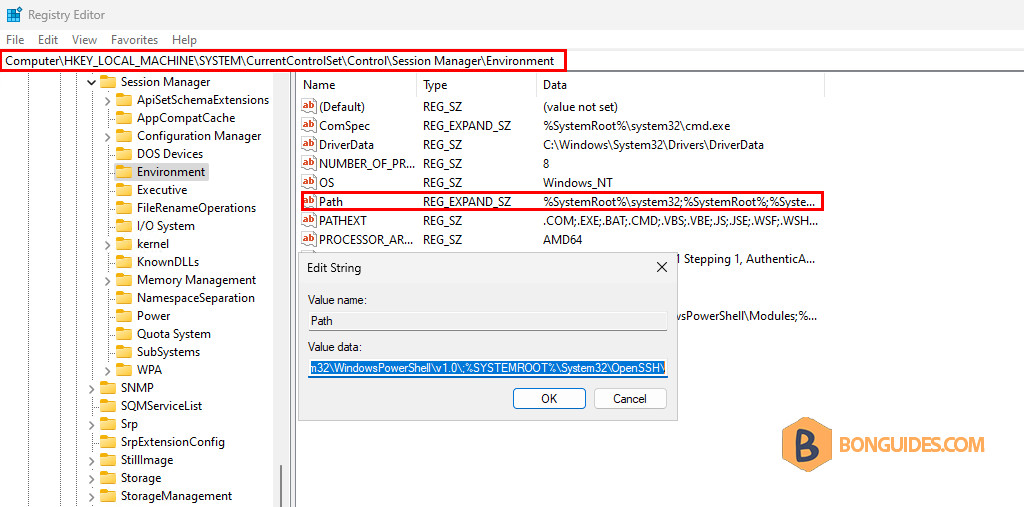
And the last way, the Path environment variable stores its value in registry. So, we can get it from PowerShell as well. On Windows, environment variables can be defined in:
User Variables: HKEY_CURRENT_USEREnvironment
System Variables: HKEY_LOCAL_MACHINESYSTEMCurrentControlSetControlSession ManagerEnvironment
PowerShell command to get the value of the Path environment variables in the user scope:
(Get-ItemProperty HKCU:\Environment).Path -split ";"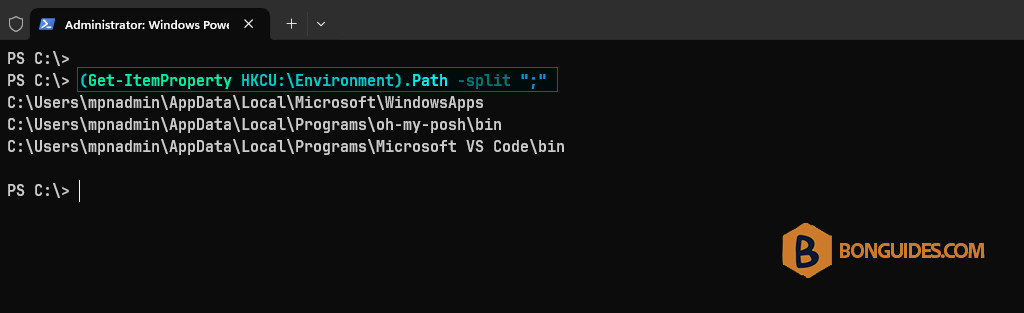
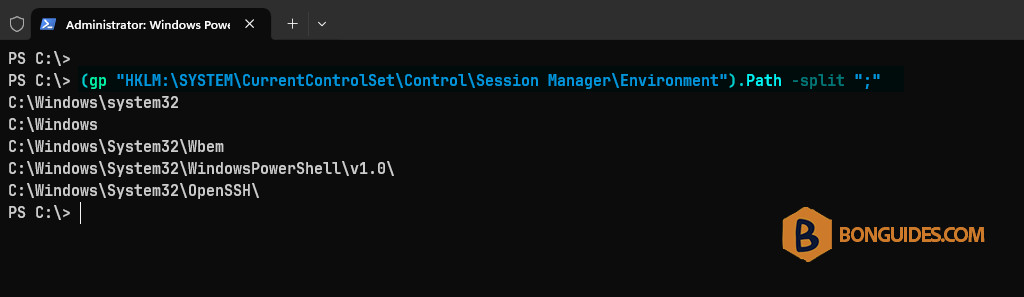
PowerShell command to get the value of the Path environment variables in the system scope. In the below command gp is the alias of the Get-ItemProperty cmdlet in PowerShell.
(gp "HKLM:\SYSTEM\CurrentControlSet\Control\Session Manager\Environment").Path -split ";"