
Table of Contents
What is RSAT?
RSAT (Remote Server Administration Tools) is a set of Windows packages available for server management. It was originally released by Microsoft for Windows Vista SP1 users.
It helps Administrators to remotely manage roles and features of Windows Server such as Group Policy Management editor, Active Directory users and Computers etc… from your local machine running Windows 10/11 or Windows Server.
You can install RSAT only on Professional or Enterprise edition of the Windows client operating system. Check here for more details on Remote Server Administration Tools.
List of RSAT Windows Server Components
Run following PowerShell command to see list of available RSAT tools. You can see the State is NotPresent, it means the tools have not been installed. You can find a complete list and details on Microsoft’s website.
Get-WindowsFeature -Name RSAT*Install RSAT using Server Manager
These steps work for Server 2016, 2019, and 2022.
1️⃣ Open the Server Manager and click on Add roles and features.
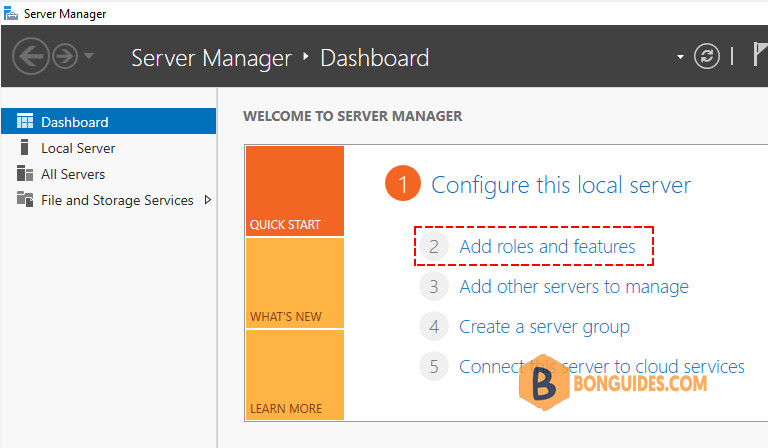
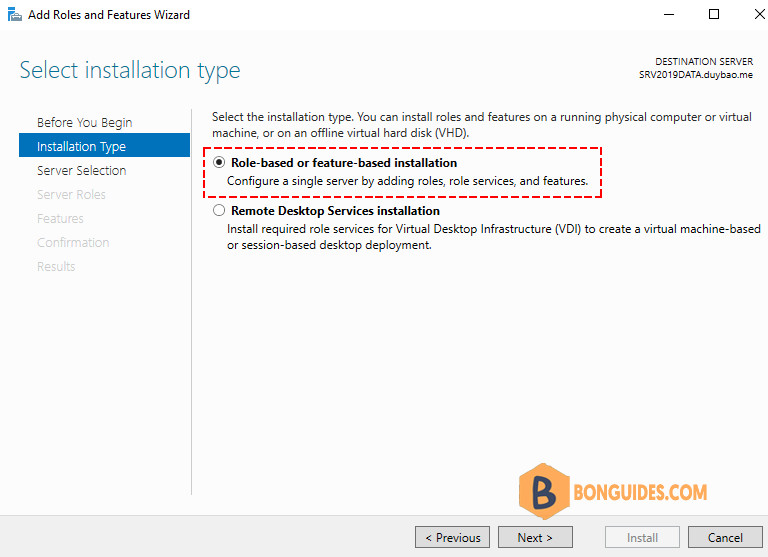
2️⃣ Click Next => Select Role-based or featured-based installation and click Next.
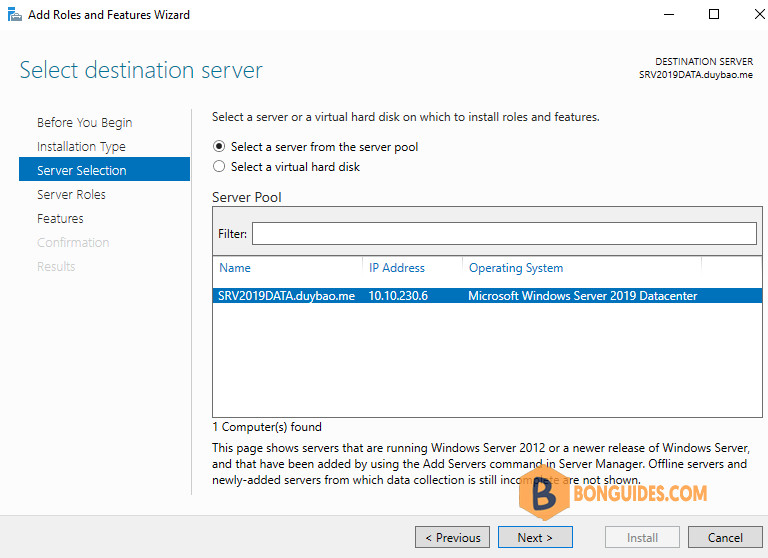
3️⃣ Select your server and click Next.
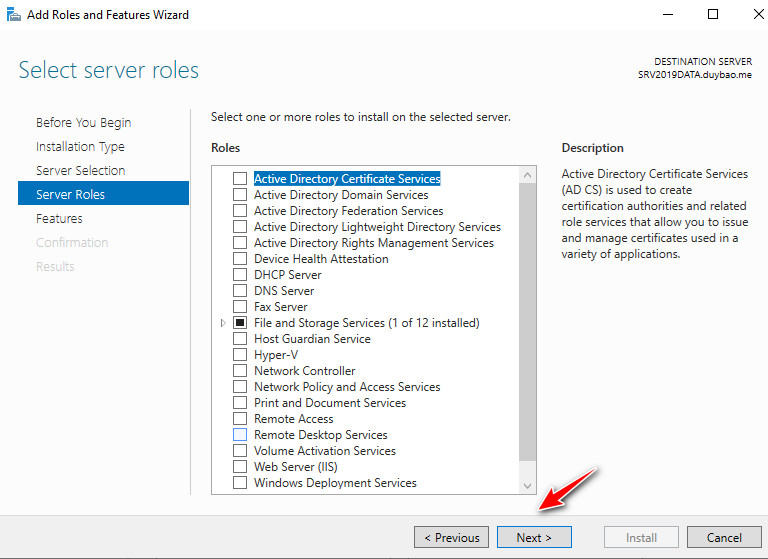
4️⃣ For server roles click Next to skip this page. (We are not adding any server roles).
5️⃣ For features scroll down to Remote Server Administration Tools). Select the tools you want to install and click Next.
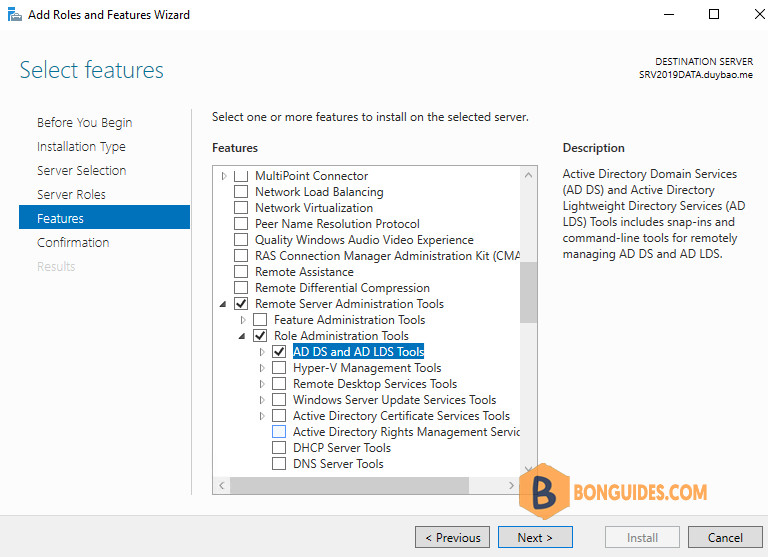
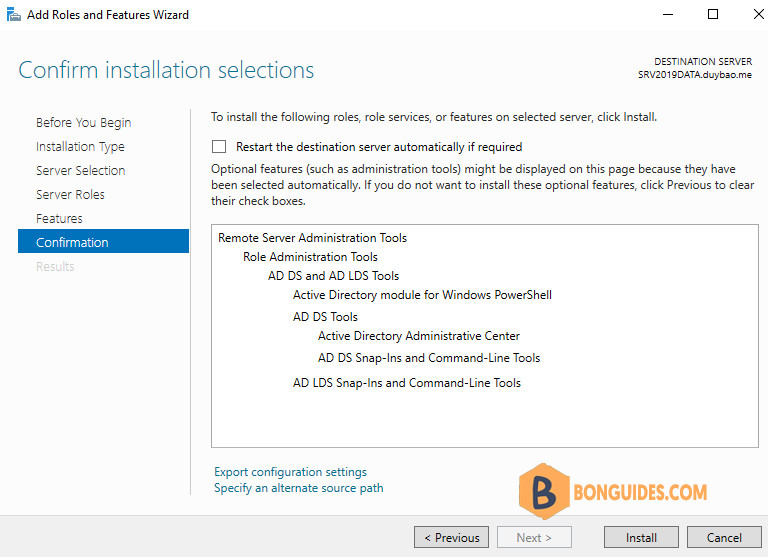
6️⃣ Confirm the selections and click Install.
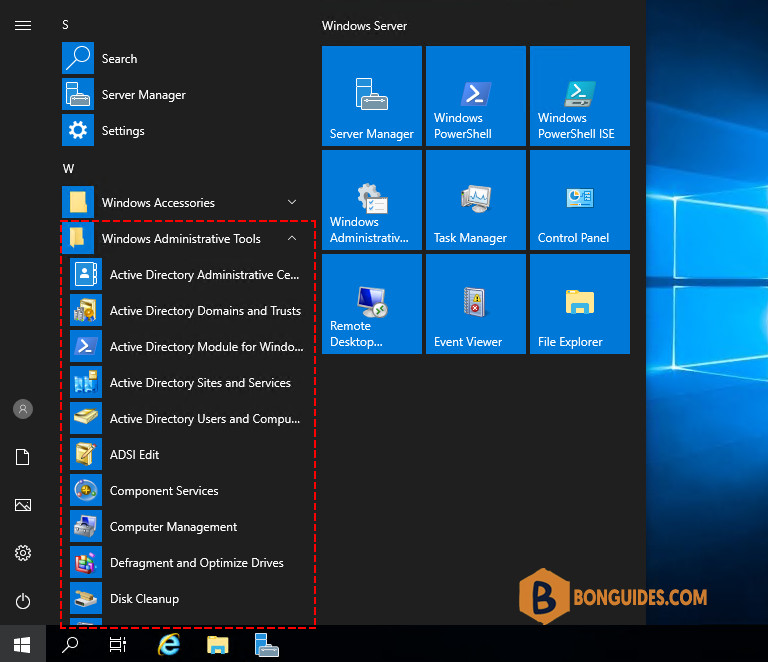
7️⃣ When the installation is complete the tool can be accessed from Start -> Windows Administration Tools.
Or you can check the tools have been installed using the below PowerShell command:
Get-WindowsFeature -Name 'RSAT*' | Where-Object {$_.Installed -eq 'True'}Display Name Name Install State
------------ ---- -------------
[X] Remote Server Administration Tools RSAT Installed
[X] Role Administration Tools RSAT-Role-Tools Installed
[X] AD DS and AD LDS Tools RSAT-AD-Tools Installed
[X] Active Directory module for Windows ... RSAT-AD-PowerShell Installed
[X] AD DS Tools RSAT-ADDS Installed
[X] Active Directory Administrative ... RSAT-AD-AdminCenter Installed
[X] AD DS Snap-Ins and Command-Line ... RSAT-ADDS-Tools Installed
[X] AD LDS Snap-Ins and Command-Line Tools RSAT-ADLDS InstalledInstall RSAT using PowerShell on Windows Server
Alternatively, you can install RSAT using PowerShell automatically. You can install individual RSAT tools or all of them using PowerShell.
1️⃣ Check what RSAT tools you installed using this command:
Get-WindowsFeature -Name 'RSAT*' | Select Name, InstallState, DisplayNameName InstallState DisplayName
---- ------------ -----------
RSAT Installed Remote Server Administration Tools
RSAT-Feature-Tools Available Feature Administration Tools
RSAT-SMTP Available SMTP Server Tools
RSAT-Feature-Tools-BitLocker Available BitLocker Drive Encryption Administration Utilities
RSAT-Feature-Tools-BitLocker-RemoteAdminTool Available BitLocker Drive Encryption Tools
RSAT-Feature-Tools-BitLocker-BdeAducExt Available BitLocker Recovery Password Viewer
RSAT-Bits-Server Available BITS Server Extensions Tools
RSAT-DataCenterBridging-LLDP-Tools Available DataCenterBridging LLDP Tools
RSAT-Clustering Available Failover Clustering Tools
RSAT-Clustering-Mgmt Available Failover Cluster Management Tools
RSAT-Clustering-PowerShell Available Failover Cluster Module for Windows PowerShell
RSAT-Clustering-AutomationServer Available Failover Cluster Automation Server
RSAT-Clustering-CmdInterface Available Failover Cluster Command Interface
RSAT-NLB Available Network Load Balancing Tools
RSAT-Shielded-VM-Tools Available Shielded VM Tools
RSAT-SNMP Available SNMP Tools
RSAT-SMS Available Storage Migration Service Tools
RSAT-Storage-Replica Available Storage Replica Module for Windows PowerShell
RSAT-System-Insights Available System Insights Module for Windows PowerShell
RSAT-WINS Available WINS Server Tools
RSAT-Role-Tools Installed Role Administration Tools
RSAT-AD-Tools Installed AD DS and AD LDS Tools
RSAT-AD-PowerShell Installed Active Directory module for Windows PowerShell
RSAT-ADDS Installed AD DS Tools
RSAT-AD-AdminCenter Installed Active Directory Administrative Center
RSAT-ADDS-Tools Installed AD DS Snap-Ins and Command-Line Tools
RSAT-ADLDS Installed AD LDS Snap-Ins and Command-Line Tools
RSAT-Hyper-V-Tools Available Hyper-V Management Tools
RSAT-RDS-Tools Available Remote Desktop Services Tools
RSAT-RDS-Gateway Available Remote Desktop Gateway Tools
RSAT-RDS-Licensing-Diagnosis-UI Available Remote Desktop Licensing Diagnoser Tools
RSAT-ADCS Available Active Directory Certificate Services Tools
RSAT-ADCS-Mgmt Available Certification Authority Management Tools
RSAT-Online-Responder Available Online Responder Tools
RSAT-ADRMS Available Active Directory Rights Management Services Tools
RSAT-DHCP Available DHCP Server Tools
RSAT-DNS-Server Available DNS Server Tools
RSAT-Fax Available Fax Server Tools
RSAT-File-Services Available File Services Tools
RSAT-DFS-Mgmt-Con Available DFS Management Tools
RSAT-FSRM-Mgmt Available File Server Resource Manager Tools
RSAT-NFS-Admin Available Services for Network File System Management Tools
RSAT-NetworkController Available Network Controller Management Tools
RSAT-NPAS Available Network Policy and Access Services Tools
RSAT-Print-Services Available Print and Document Services Tools
RSAT-RemoteAccess Available Remote Access Management Tools
RSAT-RemoteAccess-Mgmt Available Remote Access GUI and Command-Line Tools
RSAT-RemoteAccess-PowerShell Available Remote Access module for Windows PowerShell
RSAT-VA-Tools Available Volume Activation Tools2️⃣ Once you have the list of the tools, you can install the specific tools as you need as follows. For example, we’re going to install the RSAT-ADDS-Tools:
Install-WindowsFeature -Name 'RSAT-ADDS-Tools' -IncludeAllSubFeaturePS C:\> Install-WindowsFeature -Name 'RSAT-ADDS-Tools' -IncludeAllSubFeature
Success Restart Needed Exit Code Feature Result
------- -------------- --------- --------------
True No NoChangeNeeded {}To install all components of RSAT at once, run the below command:
Get-WindowsFeature -Name 'RSAT*' | Install-WindowsFeature -IncludeAllSubFeatureIf you no longer need RSAT, you can uninstall or removal the RSAT components, you can use following command. The command will get the list of installed RSAT component, put in into a pine then remove them using PowerShell loop.
Get-WindowsFeature -Name 'RSAT*' | Where-Object {$_.Installed -eq 'True'} | Foreach {
    Uninstall-WindowsFeature -Name $_.Name
}
The 0x800f0954 error, or missing RSAT option in the optional features, is most likely caused if we configure our machine to receive updates from a different source besides Windows Update. For example, it can be the internal Windows Server Update Services (WSUS) or Microsoft System Center Configuration Manager (SCCM) software update server.
To bypass this, run the below script to temporary disable WSUS to install RSAT. Don’t worry about it, the WSUS configuration would be changed to internal update server when GPO is applied.
$regWU = "HKLM:\SOFTWARE\Policies\Microsoft\Windows\WindowsUpdate\AU"
$curWU = Get-ItemProperty -Path $regWU -Name "UseWUServer" | select -ExpandProperty UseWUServer

Set-ItemProperty -Path $regWU -Name "UseWUServer" -Value 0

Restart-Service wuauserv

Get-WindowsCapability -Name RSAT* -Online | Add-WindowsCapability –Online
Set-ItemProperty -Path $regWU -Name "UseWUServer" -Value $curWU

Restart-Service wuauserv -Force

