Table of Contents
Increase the Memory (RAM) in Windows Sandbox
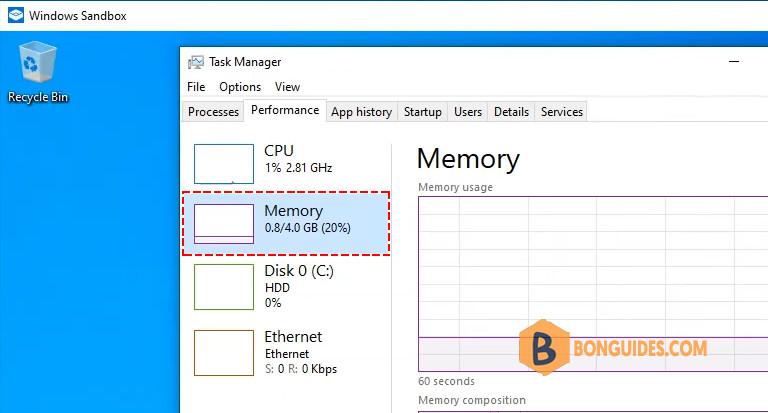
By default, Windows Sandbox has 4GB of memory. In the most cases, it’s enough for testing. But in some cases, you need to have more memory to testing with some heavy applications.
1️⃣ Close the running Windows Sandbox instance.
2️⃣ Create a New Text Document on your Windows desktop then paste the following code:
In this example, we’ll increase the memory limit of Windows Sandbox to 8192 MB (8 GB).
<Configuration>
  <MemoryInMB>8192</MemoryInMB>
</Configuration>
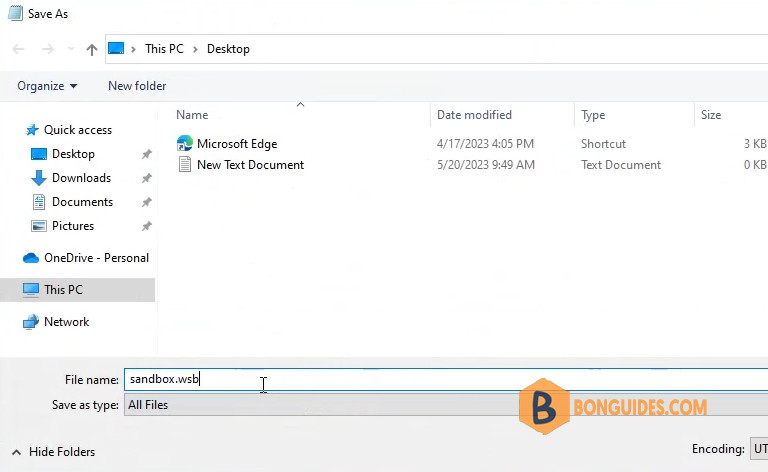
3️⃣ Now, this is important part, you need to save the text file to a file with .wsb extension.

For example, we’ve saved the file as sandbox.wsb on our desktop.
Note
You need to change the Save as type to All files to save the text file with a custom extension.
4️⃣ The Windows Sandbox configuration file has been created on desktop. You can double click on it to open an Windows Sandbox instance with custom configuration.

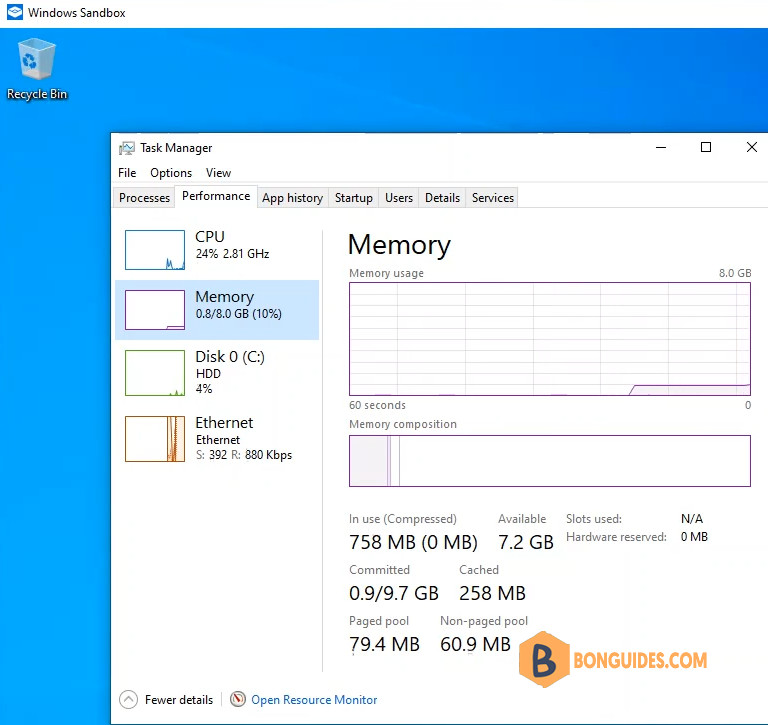
As you can see, at this time, the Sandbox instance has 8GB of memory instead of 4 GB by default.
You must open Windows Sandbox from the custom configuration file instead of open it from Windows Search, Run box…, otherwise it will be using the default configuration (4GB)
Or you can change the target location of a shortcut. So, you can open the custom Sandbox configuration file from anywhere.