Table of Contents
Server Refused Our Key in PuTTY SSH
In this post, how to fix the below error when trying to connect to a Linux system using PuTTY with private key authentication.
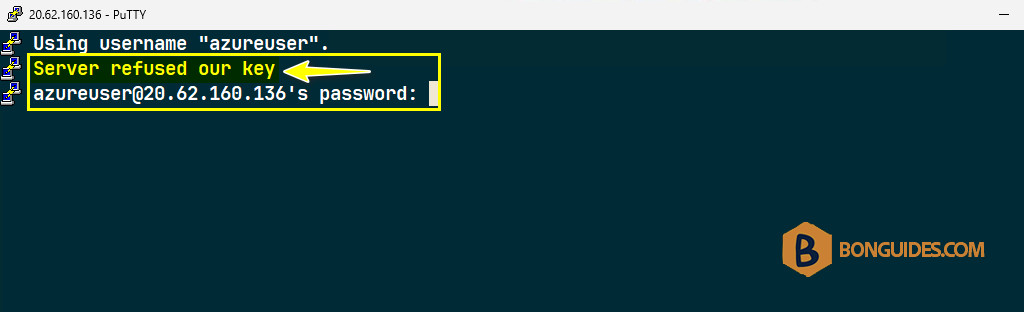
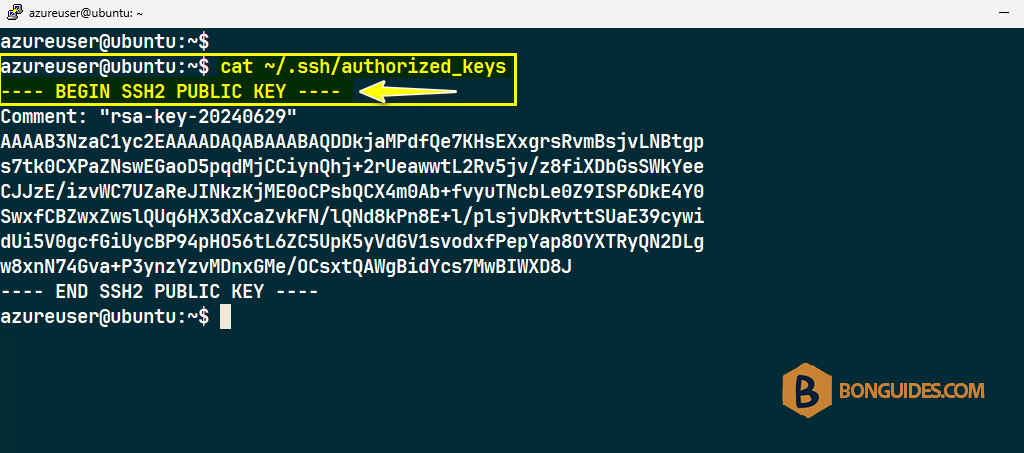
To fix it, let’s SSH to the Linux system using password authentication. Then check the public authorized keys using the below command.
cat ~/.ssh/authorized_keysAs you can see, the public key is OpenSSH format instead of PuTTY format.
1. First, open the installation location of PuTTY.
C:\Program Files\PuTTY
2. Lauch puttygen.exe to open PuTTY Key Generator.
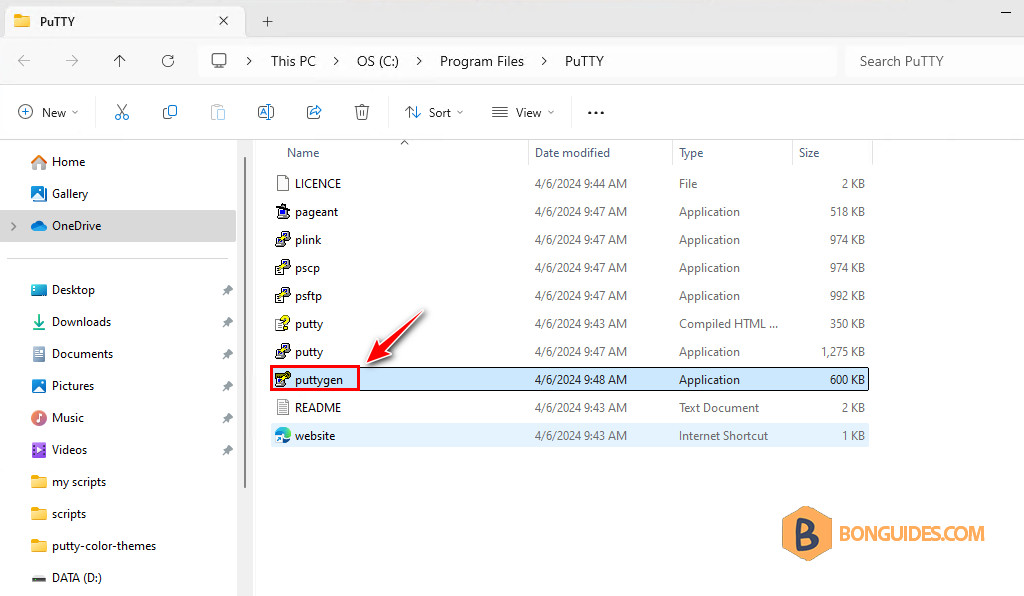
If you’re running the portable version of PuTTY, you can download PuTTYGen from the below link.
PuTTYGen: https://the.earth.li/~sgtatham/putty/latest/w64/puttygen.exe
3. Navigate to File | Load private key to open the privatekey (*.ppk).
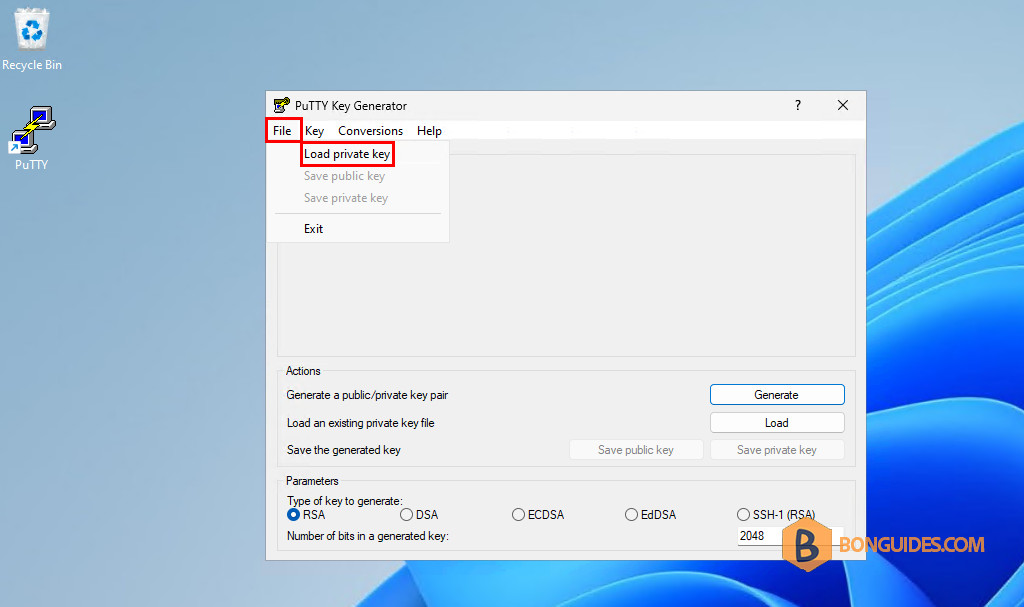
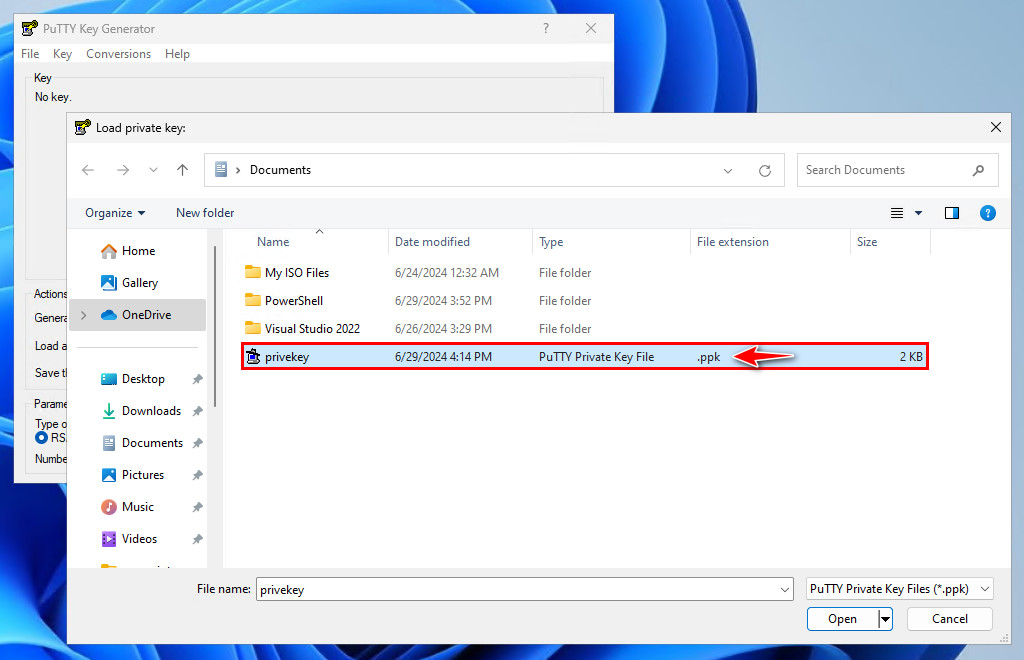
4. Load the private key that you use for authentication.
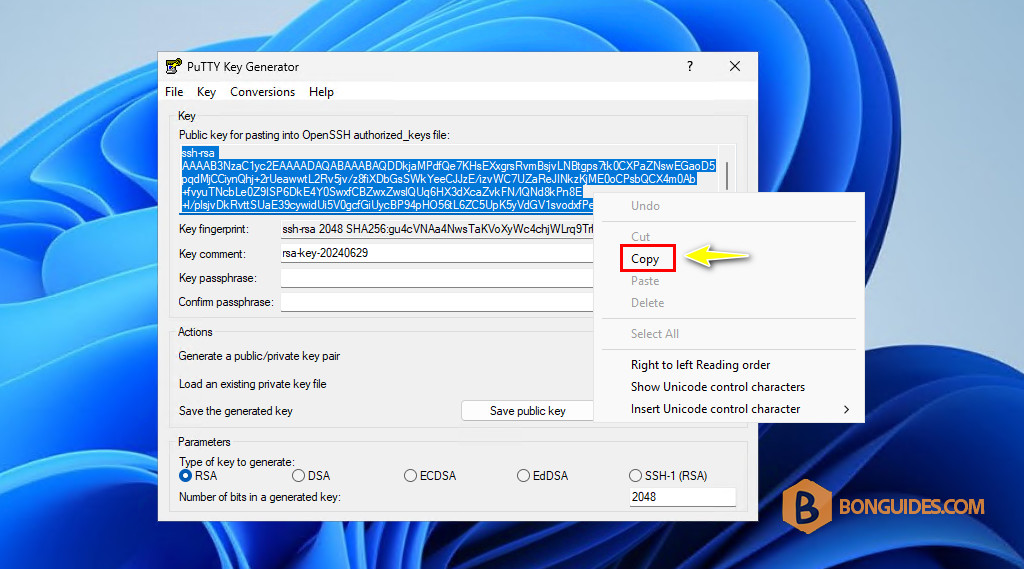
5. Once the key is loaded, you will see the public key for authentication. Let’s copy it.
6. Now, from the SSS session, remove the public key authentication file using the below command.
rm ~/.ssh/authorized_keys
7. Recreate the public key authentication and paste the string that you copied from the PuTTY Key Generator.
nano ~/.ssh/authorized_keys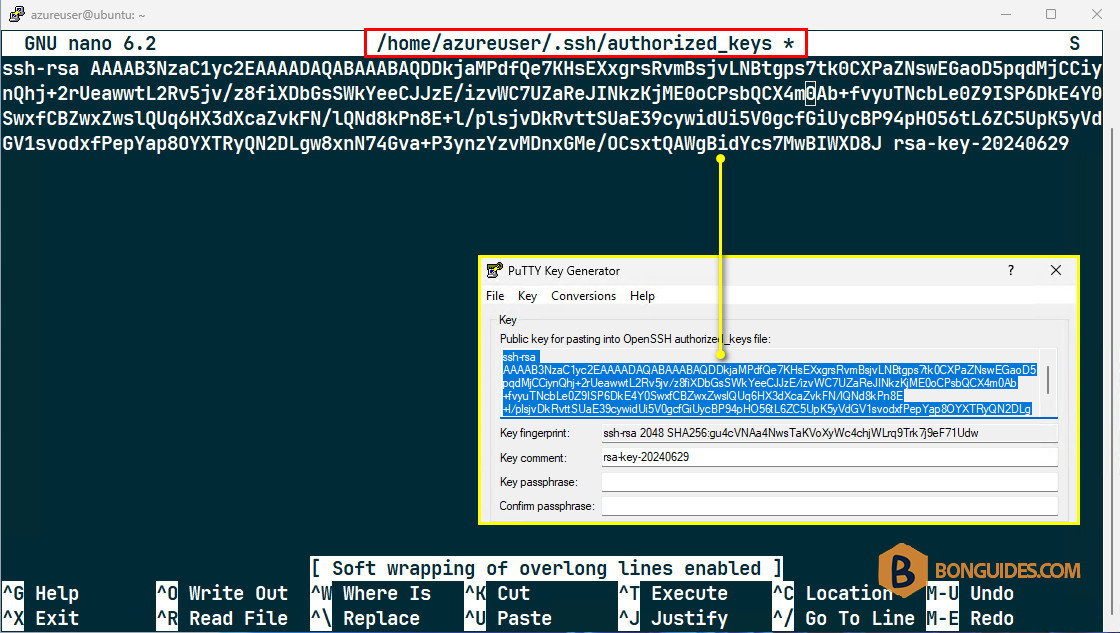
8. Save the file, then check again with the command below.
cat ~/.ssh/authorized_keys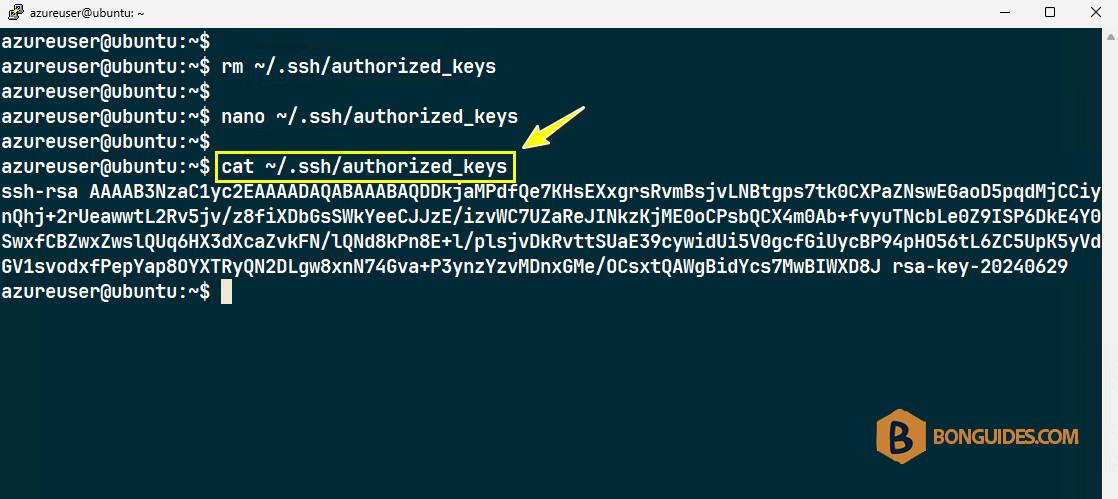
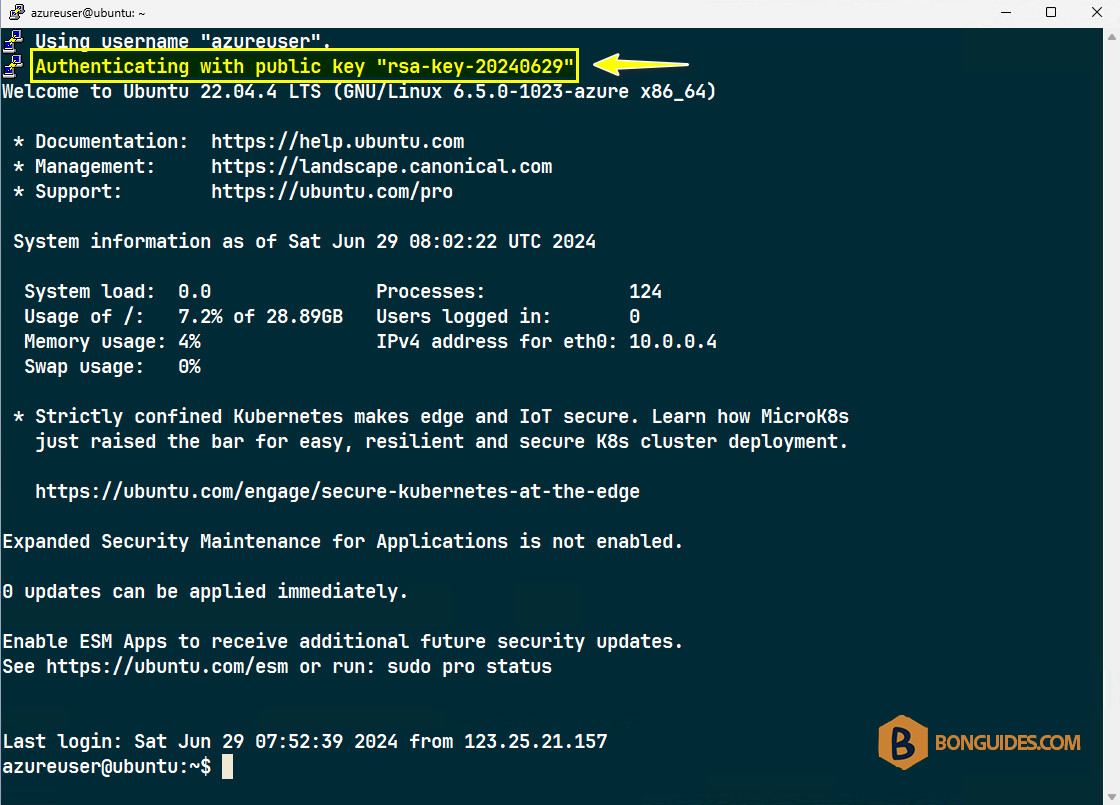
Finally, close current SSH session authenticated using plain text then connect with key-based authentication to veriy it works.